
To answer quickly: No, you cannot use two direct Rithmic connections simultaneously on NinjaTrader. However, you can manage multiple accounts using the R|Trader Pro Plugin, which allows simultaneous connections across platforms.
Key Points:
- Direct Rithmic Connection: Limited to one active connection at a time.
- R|Trader Pro Plugin: Supports multiple platforms and accounts simultaneously.
- Switching Accounts: Requires disconnecting one account before connecting another.
- Data Limitations: Rithmic imposes a 40GB weekly limit on historical tick data downloads, but real-time data remains unaffected.
Quick Comparison:
| Connection Method | Simultaneous Connections | Best For |
|---|---|---|
| Direct Rithmic | 1 platform only | Individual account trading |
| R | Trader Pro Plugin | Multiple platforms |
For a smoother experience managing multiple accounts, consider using R|Trader Pro Plugin and a reliable VPS like QuantVPS for low-latency performance.
Rithmic Connection Limits
NinjaTrader allows only one active direct connection to Rithmic at a time. This restriction is due to Rithmic's API requirements and how NinjaTrader's platform is built, ensuring proper management of multiple accounts.
One Connection at a Time
When using NinjaTrader to connect directly to Rithmic, you can only have one active connection. Trying to establish another connection while one is already active will result in a "No handle" error.
Here’s a quick overview to help manage your connections:
| Connection Type | Maximum Simultaneous Connections | Tips to Avoid Errors |
|---|---|---|
| Direct Rithmic | 1 platform only | Disconnect from other platforms |
| R|Trader Pro Plugin | Multiple platforms | - |
Order flow
Built for scalpers. Heatmaps on dedicated resources.
Order-flow heatmaps and DOM ladders run on dedicated CPU, memory and NVMe, so your charts keep responding during volatility.
Explore the hardware







From $29.99/mo · Windows or Linux
Switching Between Accounts
To switch between Rithmic accounts without causing issues, you need to follow a clear process. Here’s how to do it:
- Disconnect from your current session, ensuring all trades are managed first.
- Close any active charts and market data feeds to clear the connection cache.
- Log in to the new account using the correct credentials.
- Confirm the connection is active and functioning properly.
If you need to work with multiple accounts at the same time, consider using R|Trader Pro in Plugin Mode. This setup bypasses the single-connection restriction, making it easier to manage multiple accounts.
Multiple Account Management Methods
NinjaTrader allows only one active direct Rithmic connection at a time. This means managing multiple accounts involves either switching between accounts or using the R|Trader Pro Plugin. Keep in mind, NinjaTrader’s direct connections are limited to one account at a time.
Single Login for Multiple Accounts
Switching accounts in a direct connection setup requires disconnecting from one account and reconnecting to another.
| Connection Method | Simultaneous Platforms | Real-Time Data Access |
|---|---|---|
| Direct Rithmic | Single platform only | Full access |
| R | Trader Pro Plugin | Multiple platforms |
For users who need simultaneous connections without frequent switching, the R|Trader Pro Plugin is the better option.
R|Trader Pro Integration
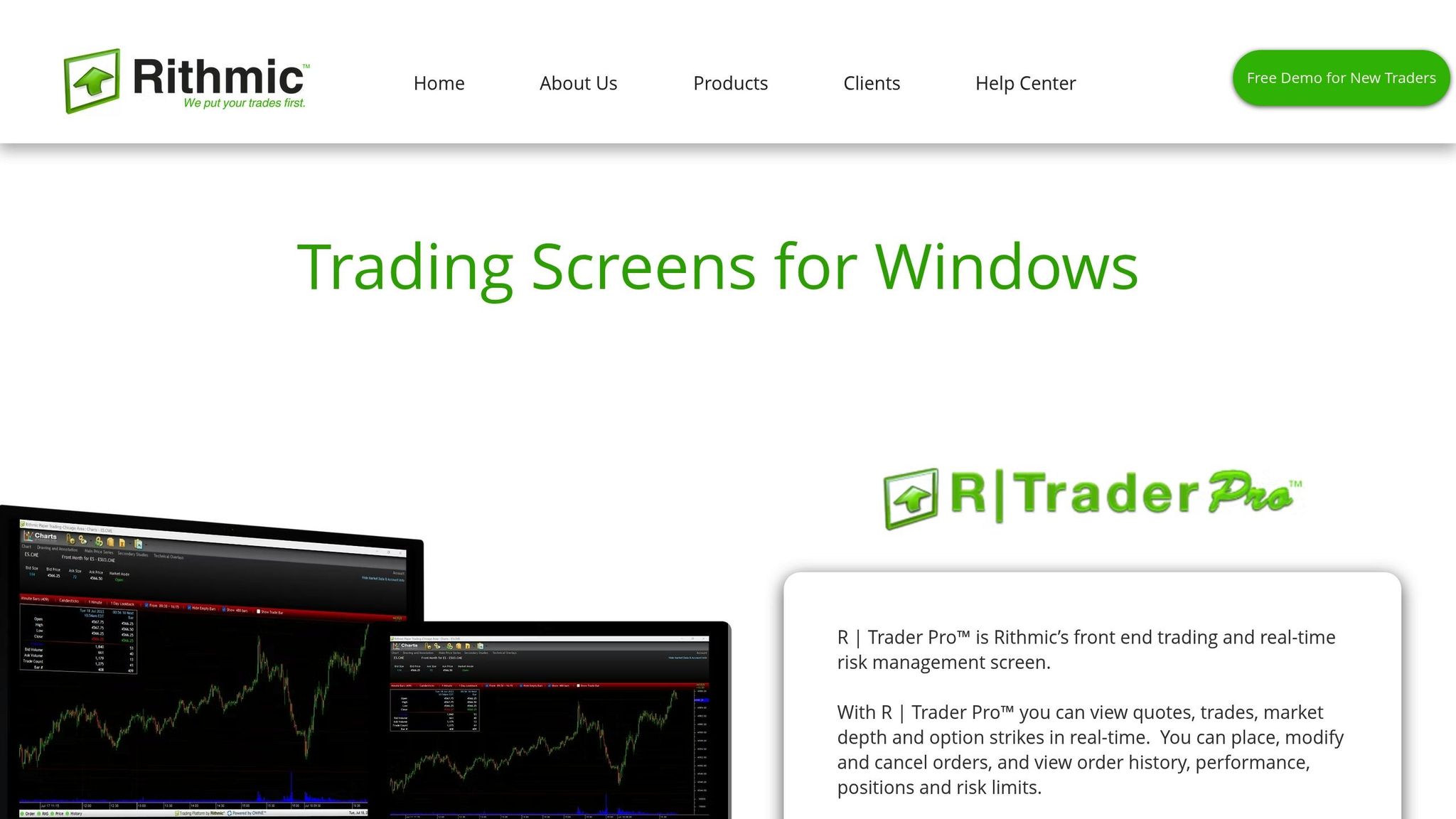
Instead of manually switching accounts, the R|Trader Pro Plugin Mode allows multiple Rithmic connections at the same time.
To set up R|Trader Pro with NinjaTrader:
- Open R|Trader Pro and turn on the "Allow Plugins" option.
- Configure NinjaTrader to use the R|Trader Pro Plugin.
- Connect your platforms as needed.
Key points about R|Trader Pro Plugin Mode:
- A single R|Trader Pro instance supports multiple platforms.
- Rithmic imposes a 40GB weekly limit on tick data downloads. Once this limit is reached, historical data will be unavailable until the limit resets the following week.
- Real-time data remains unaffected, even if the download limit is exceeded.
- Ensure that "Allow Plugins" is enabled in R|Trader Pro to avoid connection issues.
Uptime
99.999% uptime. Built for 24/7 trading reliability.
Your VPS runs in Tier IV datacenters with redundant power and network, monitored 24/7 on site.
See the uptime SLAFrom $29.99/mo · Windows or Linux
Setting Up Rithmic on NinjaTrader
Configuring Rithmic on NinjaTrader requires attention to detail. While you can't establish two direct connections simultaneously, you can still manage multiple accounts efficiently.
Multi-Provider Setup
To enable Multi-Provider Mode in NinjaTrader:
- Open the NinjaTrader Control Center.
- Go to Tools > Options > General.
- Check the box for Multi-Provider Mode.
- Restart NinjaTrader to apply the changes.
Connection Setup Steps
Once Multi-Provider Mode is activated, follow these steps to set up your Rithmic connection:
-
Prepare R|Trader Pro
- Make sure R|Trader Pro is installed and running.
-
Configure NinjaTrader
- Open the Connections menu in NinjaTrader.
- Select Rithmic for NinjaTrader Brokerage.
- Enter your Rithmic login credentials.
- Choose Rithmic Paper Trading - Chicago gateway.
- Click Connect.
-
Verify the Connection
- Look for the "Connected" status in the Control Center.
- If your evaluation account isn’t visible, reach out to NinjaTrader support.
Account Switch Steps
To switch accounts without disruptions, use the following process:
| Step | Action | Important Note |
|---|---|---|
| 1 | Disconnect the current account | Close all active charts and positions. |
| 2 | Exit NinjaTrader completely | Ensures a clean connection state. |
| 3 | Launch R | Trader Pro |
| 4 | Restart NinjaTrader and connect | Let NinjaTrader fully load before reconnecting. |
Maintain your two Rithmic connections
A NinjaTrader workspace can need several permitted account connections available at the same time. NinjaTrader comes preinstalled on QuantVPS NinjaTrader desktops, with 24/7 server support. Verify both connection states and account lists after a restart.
Summary
This section highlights the key points for managing Rithmic connections on NinjaTrader effectively. It's crucial to understand Rithmic's technical restrictions and the available solutions for managing connections. A direct Rithmic connection permits only one platform to connect at a time. However, using R|Trader Pro in plugin mode allows multiple platforms to connect simultaneously, making it easier to handle multiple accounts.
Be aware of the 40GB weekly tick data download limit. While this limit impacts historical data access, it does not interfere with real-time data flow.
To ensure smooth operation, verify that all Market Data Subscription Agreements are accepted, Market Data Self-Certification is complete, and new account activation and server settings are properly configured.


