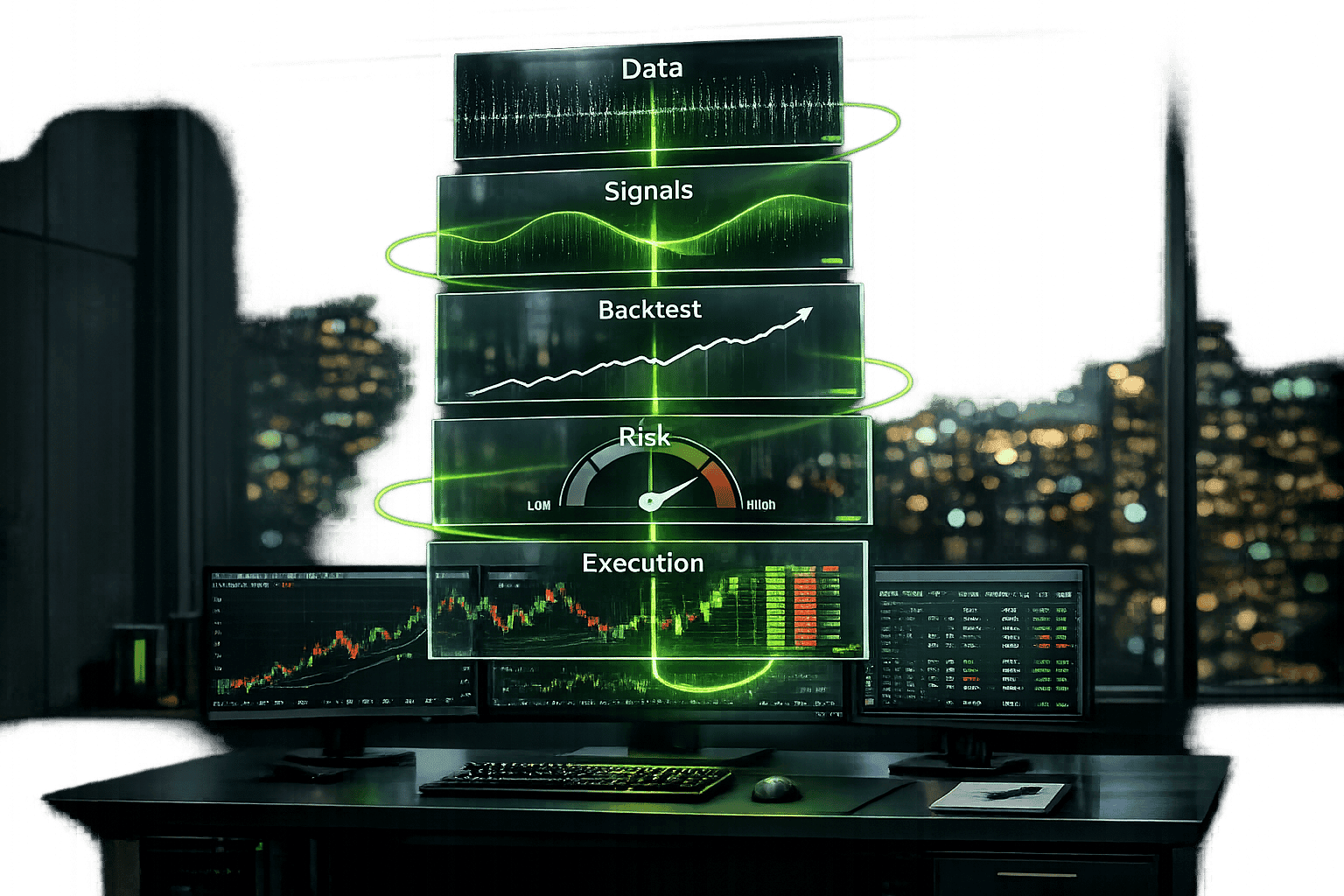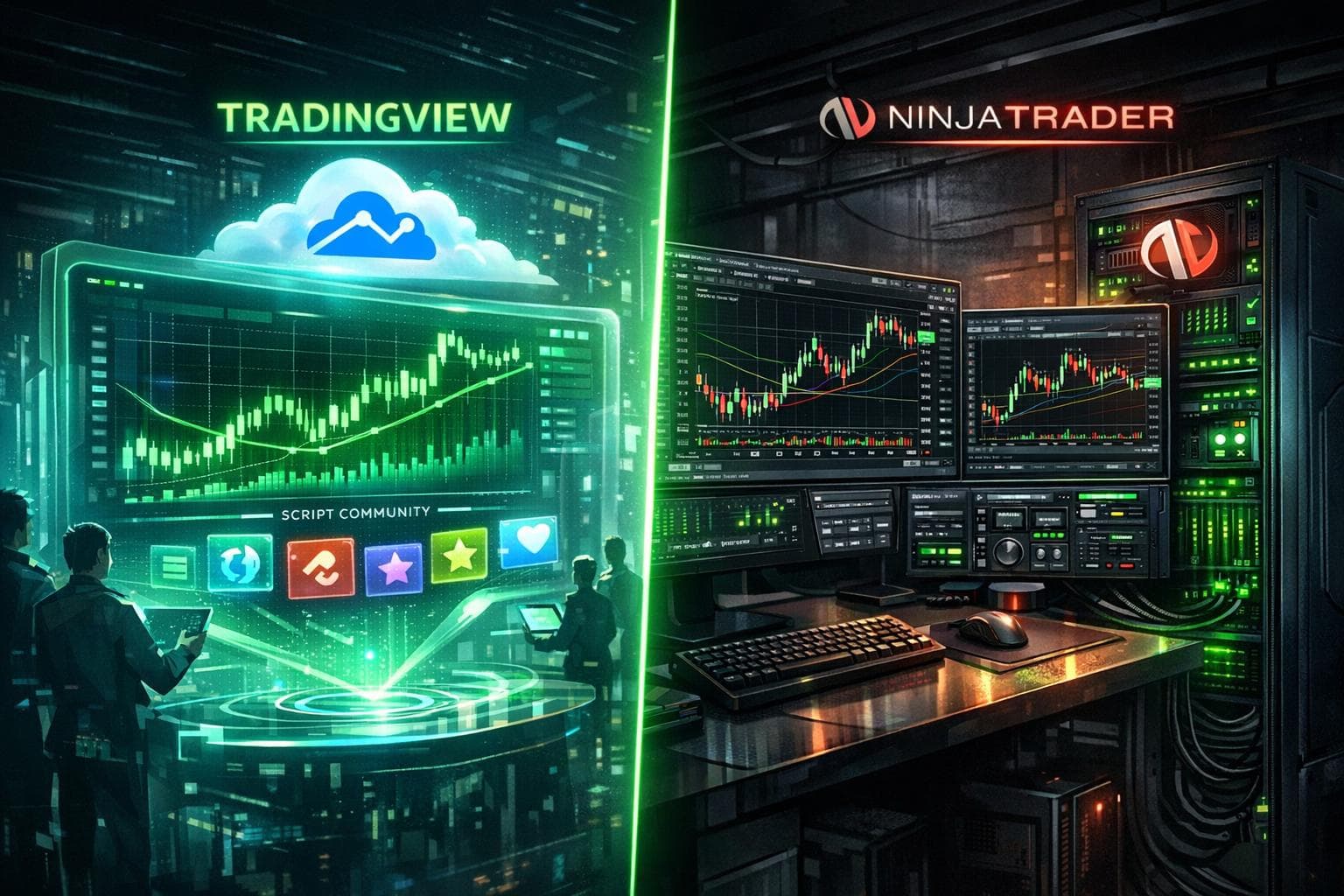
If you've spotted a great trade signal on TradingView but lost time manually entering it into NinjaTrader, you know the problem. This article shows you how to connect TradingView alerts to NinjaTrader so orders flow automatically, without copying and pasting entries, stops, and targets by hand.
Getting automation to work consistently depends on more than setup steps. Our trading VPS from QuantVPS keeps both platforms running around the clock on a stable, low-latency connection, ensuring webhook alerts reach NinjaTrader and trigger order execution reliably. No missed alerts from your laptop sleeping, no failed connections from internet interruptions—just clean trade routing from chart to broker.
Summary
- Bridging TradingView and NinjaTrader requires a middleware layer because no native integration exists between the two platforms. TradingView functions purely as a signal engine, firing webhook payloads to an external URL the moment an alert condition closes. NinjaTrader runs as a local desktop application with no open endpoint to receive those messages directly, which means a connector service must sit between them to translate and route each instruction.
- Latency in webhook-driven pipelines is manageable for most strategies but has real limits. After 200 end-to-end measurements, median total latency from TradingView alert fire to NinjaTrader order submission sits around 220ms, but the 95th percentile for webhook delivery alone reaches 620ms, with worst-case outliers hitting 4,200ms during high-volume periods like market open and major news events. For close-of-bar strategies, that median is acceptable. For intrabar precision entries, it is not.
- Three failure modes account for the majority of real-money losses in automated webhook setups. TradingView occasionally logs an alert as triggered without ever sending the webhook payload. Bridge servers that restart mid-session can replay queued alerts and submit duplicate orders. Windows automatic updates restart host machines overnight, leaving NinjaTrader offline when alerts fire hours later. Each of these failures is preventable with proper logging, idempotency keys, and controlled update scheduling.
- The rotating webhook URL problem is the single most common reason DIY setups miss trades. Every time a local machine restarts, a tool like ngrok assigns a new URL, and any alerts that fire before the configuration is manually updated route to nothing. Paying for a permanent ngrok subdomain at $8 per month, or using a bridge that includes a stable cloud-hosted endpoint, eliminates this failure mode entirely.
- NinjaTrader's native TradingView add-on, launched in 2025 at $9.99 per month, routes manual order clicks through NinjaTrader's web platform rather than the NT8 desktop application. Pine Script strategy alerts cannot fire trades through it, and stepping away from the screen means nothing executes. NinjaTrader supports over 500,000 traders, which makes the limited automation scope of this native integration a meaningful gap for anyone expecting a hands-free pipeline.
- Testing before live capital is involved requires verifying each link in the chain independently. TradingView's alert history tab, the bridge's request log, and NinjaTrader's order log each capture a different segment of the execution path. Most phantom order failures trace to a malformed JSON field or a symbol mapping mismatch, such as TradingView sending "NQ1!" while the bridge expects "NQU24," rather than a platform-level problem.
- A trading VPS from QuantVPS addresses the infrastructure side of this by keeping NinjaTrader, the bridge application, and the broker connection running continuously on dedicated hardware, removing the host machine as a point of failure for webhook delivery and order execution.
Can You Send Trades From TradingView to NinjaTrader?
TradingView cannot send trades directly to NinjaTrader — there is no built-in integration or native API handshake. However, the connection is absolutely possible through a middleware layer that thousands of active futures traders use daily.
"There is no native API handshake between TradingView and NinjaTrader — but a middleware layer bridges the gap, enabling automated trade execution for thousands of active futures traders."
💡 Tip: Don't let the lack of a native connection stop you — middleware solutions are the industry-standard workaround that makes this integration fully functional.
⚠️ Warning: Assuming TradingView and NinjaTrader work out of the box together is one of the most common mistakes new traders make — always plan for a third-party bridge in your setup.
| Integration Method | Native Support | Requires Middleware |
|---|---|---|
| TradingView → NinjaTrader Direct | ❌ Not Available | N/A |
| TradingView → Middleware → NinjaTrader | ✅ Fully Possible | ✅ Yes |
 What does TradingView actually do when it fires an alert?
TradingView is a signal engine that watches charts, evaluates Pine Script conditions, and sends alerts with webhook payloads to external URLs. It does not handle bracket orders or communicate with brokers; it sends a message and stops.
Why can't NinjaTrader receive webhooks from TradingView directly?
NinjaTrader 8 is a Windows desktop application that connects directly to your broker through Rithmic, CQG, or NinjaTrader Brokerage. It handles order routing, ATM strategy execution, and position management, but lacks an open endpoint to receive inbound webhook messages from TradingView.
What bridges the gap?
The solution is a connector layer, sometimes called a webhook bridge or middleware service. This software listens for incoming TradingView webhook alerts at a hosted URL, reads the message payload, translates the instruction into a NinjaTrader-compatible order command, and passes it to your running NinjaTrader instance. Each component performs a single function with no overlap.
What kinds of signals can pass through the bridge?
What goes through the bridge matters. Simple directional signals work cleanly: buy, sell, flatten. Advanced setups can pass ATM strategy names, contract quantities, and account identifiers, so NinjaTrader applies your pre-configured risk rules automatically when the signal arrives. The difference between manual alert workflow (trader sees alert, clicks to place order) and fully automated pipeline (alert fires, bridge translates, NinjaTrader executes) is the difference between monitoring a system and trusting one. Most traders start with manual confirmation and move to full automation once they verify their alerts match their chart signals consistently.

Your trading computer. In the cloud.
Connect and control your trading strategies from any device, anywhere in the world, through secure remote desktop, while execution remains on QuantVPS.
From $29.99/mo · Windows or Linux · 8 datacenters
0.52ms to CME from our Chicago nodes.


 NinjaTrader
 MetaTrader
 TradingView
 Tradovate
 Rithmic
 Sierra Chart
 Bookmap
 Quantower
What infrastructure does a reliable pipeline depend on?
Running this pipeline reliably around the clock depends on infrastructure. A trading VPS keeps NinjaTrader and the bridge service running continuously on a stable, low-latency connection, ensuring webhook alerts from TradingView reach the connector and trigger execution as intended. Our QuantVPS solution prevents your laptop from sleeping, your home internet from dropping during volatile opens, and your machine from restarting for updates at 9:31 AM Eastern: critical safeguards against breaks in the chain at the worst possible moment.
The architecture is simpler than it sounds, but the specific method you choose to bridge these platforms changes everything about reliability under real market conditions.
How TradingView Alerts Work
TradingView sends an HTTP POST request when an alert condition triggers. That request carries a JSON payload you define and reaches your webhook URL in milliseconds.
Here is the exact JSON structure your Pine Script alert should send:
{
"ticker": "MES1!",
"action": "buy",
"quantity": 2,
"stopLoss": 10,
"takeProfit": 20,
"orderType": "market"
}
Use alert.freq_once_per_bar_close to prevent duplicate signals from bar repaints. Hard-code your stop loss and take profit in ticks or points rather than percentages. Include the ticker exactly as NinjaTrader expects it (MES1!, NQ1!) and always include an action field so the bridge never guesses direction.
How NinjaTrader Receives Orders
NinjaTrader 8 accepts outside trade instructions through ATM Strategies (bracket templates you define in NT8), direct order entry through NT8's API, or custom NinjaScript code. For webhook-driven execution, the bridge receives the JSON payload, parses it, and submits the order through NT8's built-in order management. TradingView condition fires → alert sends → bridge receives and interprets → NinjaTrader submits the order to your broker.
According to the CrossTrade Blog, only one NinjaTrader 8 add-on is required to copy trades from TradingView. The challenge lies not in the number of moving parts, but in keeping them all running reliably simultaneously.
Method 1: NinjaTrader's Built-In TradingView Add-On
NinjaTrader launched a native TradingView connection in 2025, priced at $9.99 per month on top of your existing subscription. It connects your NinjaTrader brokerage account to TradingView so you can place trades manually from TradingView's charts. However, Pine Script strategy alerts cannot send orders through it, it routes to NinjaTrader's web platform rather than the NT8 desktop application, and it requires a NinjaTrader Brokerage account. If your goal is to automate trading, this solution falls short.
Method 2: Custom NinjaScript Bridge
A developer can write C# code inside NT8 that listens for incoming POST requests, authenticates via token, parses the JSON payload, and submits orders through NT8's order management interface. A basic version takes a weekend to build, but a production-grade version with error handling, reconnection logic, and proper logging requires significantly more effort. The real cost is maintenance: every NinjaTrader platform update, broker API change, or Windows update can break the pipeline at the worst possible moment, and you must fix it.
Method 3: Cloud-Based Webhook Copier
This architecture places a cloud server between TradingView and NinjaTrader. TradingView sends the alert to the cloud server, which directs the message to a Receiver running inside NT8. The Receiver maintains a steady connection to pick up the instruction and execute the order locally through your broker connection. The TradingView to NinjaTrader Trade Copier (GFREQBridge/NinjaSync) uses this model and is the right default choice for most traders.
What You Need Before You Start
Three parts must work simultaneously, or the pipeline fails without showing an error at the broken link.
Why do you need a publicly accessible URL?
A publicly accessible URL. NinjaTrader runs locally, but TradingView's servers cannot reach it directly. You need a tunnel service like ngrok to create a public URL pointing to your localhost. Free ngrok URLs expire and reset every session, breaking your TradingView alert URL on each restart—the most common reason for missed trades in do-it-yourself setups. Paid ngrok at $8 per month provides a permanent subdomain, and some pre-built bridges include this automatically.
What does the bridge process actually do?
A bridge process runs continuously. The bridge listens on a local port, validates requests, reads JSON information, converts it into NT8 order details, and sends orders. If it crashes, trades stop without warning. Monitor bridge health using Telegram or Discord alerts.
How does NinjaTrader's broker connection affect live execution?
NinjaTrader connected to your broker. A perfectly formatted order executes only if NT8 maintains its brokerage session. Internet outages lasting 30 seconds can silently disconnect NT8, and reconnection sometimes fails without displaying an error. A 30-second outage at market open can cause you to miss the trade entirely. Connection monitoring with real-time alerts is essential for production setups. Hosting NT8 on a NinjaTrader VPS with a datacenter connection removes home-internet outages from the equation entirely.
Why is keeping all three components alive harder than it sounds?
Most traders discover that keeping all three components alive simultaneously is harder than building the strategy logic. The setup works fine on quiet days, but breaks during busy market opens when it matters most. Running your bridge environment on our trading VPS keeps NT8, the bridge process, and your broker connection online around the clock without depending on your local machine's uptime, connectivity, or update schedule.
How fast does TradingView alert delivery actually run?
The typical time for a TradingView alert to reach a webhook is about 180 milliseconds, with 95 percent of alerts arriving within 620 milliseconds. During heavy trading activity—such as market open or major news releases—delivery can exceed 4 seconds. For overnight strategies and signals triggering at bar close, an average of 220 milliseconds is acceptable. However, if your strategy requires entering trades at precise times during a bar, be aware that slower alerts can cause significant issues. Plan accordingly before trading with real money.
What failure modes should you protect against?
TradingView has a documented issue where alerts occasionally fail to fire while the alert history shows "triggered," leaving no sign the webhook was never sent. Duplicate orders can appear when a webhook server restarts during a session and replays queued alerts. Add an idempotency key (timestamp plus alert ID) to your payload and remove duplicates on the receiving end. The most preventable failure: NinjaTrader not running because Windows restarted at 2 AM for updates. Disable automatic Windows updates during trading hours and set NT8 to auto-start when you log in.
Stay online and closer to execution. Choose a VPS location for CME futures, New York markets, London FX, API trading, and more.
8 datacenters help your platforms keep running day and night without depending on your home PC.
From $29.99/mo · Windows or Linux · 8 datacenters
0.52ms to CME from our Chicago nodes.
Production Checklist Before Going Live
Run this before you touch real money:
What infrastructure checks should you verify before going live?
- Bridge running and receiving test webhooks successfully
- ngrok URL permanent and configured (not a free rotating link)
- Test alert sent from TradingView confirmed as an order in NT8 on paper account
- Stop loss and take profit executing correctly on bracket fills
- Connection monitor active with Telegram or Discord alerts
- GFREQ WatchDog enabled for NT8 disconnect and crash recovery
- Pre-market checklist complete: NT8 connected, bridge active, alerts enabled
- Emergency stop plan ready: ability to kill all open positions manually within 30 seconds
How long should you run the full pipeline on paper before going live?
Run the full pipeline on a paper account for at least two weeks before going live. A bad automation setup that silently misses trades or executes at the wrong size is worse than not automating at all. The checklist is the difference between a system that works when you are watching and one that works when you are not.
Getting the setup built correctly is only half the equation. The half most traders underestimate comes next.
How to Test TradingView-to-NinjaTrader Trade Automation Safely
Your pre-market checklist closes the setup chapter. What comes next is where automated systems quietly break down: the part most traders skip entirely.
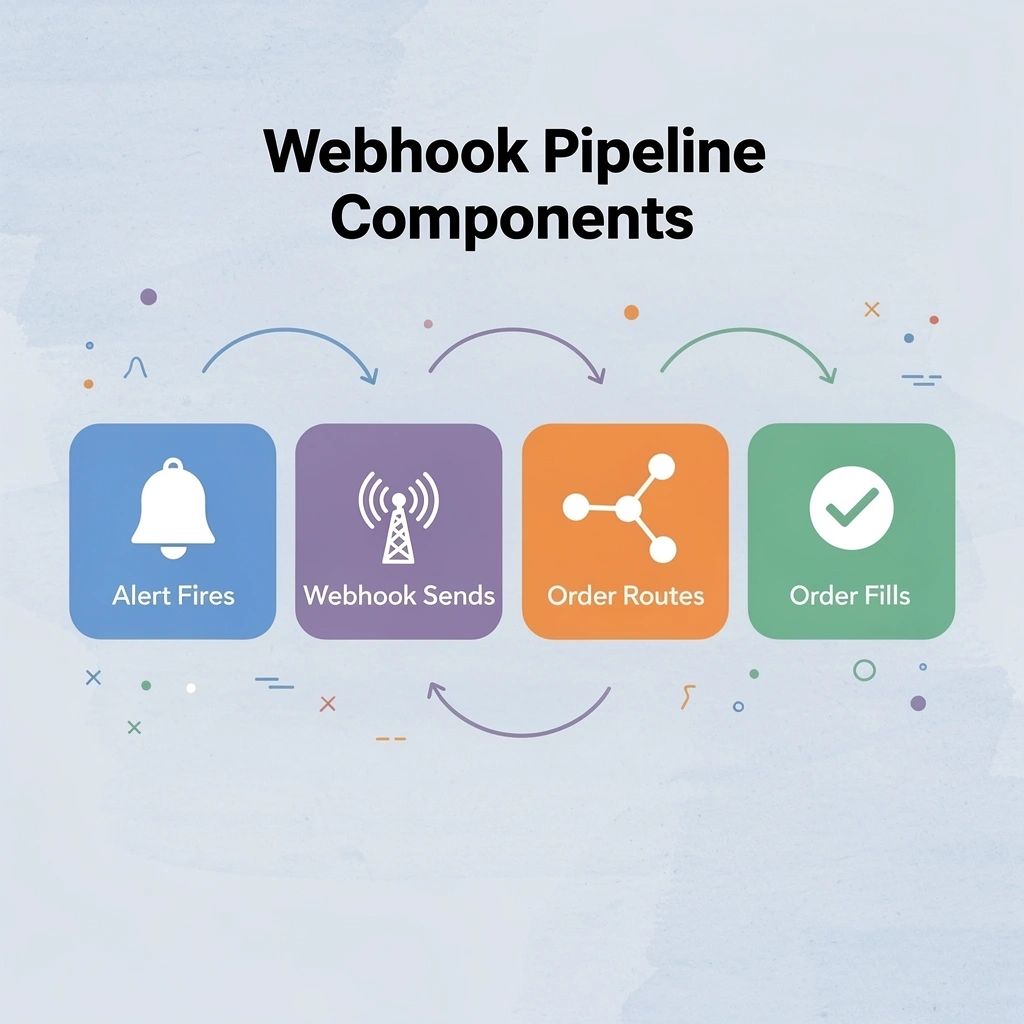
Testing your TradingView-to-NinjaTrader webhook pipeline before live capital touches it is essential. Every component in the chain, from alert firing to order filling, needs independent verification before you can truly trust the system.
"Every component in the chain — from alert firing to order filling — needs independent verification before you can trust the system." — Core Principle of Safe Trade Automation
⚠️ Warning: Skipping pipeline testing is one of the most common — and costly — mistakes automated traders make. A single misconfigured webhook can trigger unintended orders with real capital on the line.
💡 Pro Tip: Run your full webhook chain in a simulated/paper trading environment first. Verify each stage — TradingView alert → webhook delivery → NinjaTrader order execution — as an independent checkpoint before going live.
| Pipeline Stage | What to Verify | Risk if Skipped |
|---|---|---|
| TradingView Alert | Fires on correct condition | Wrong entry signals |
| Webhook Delivery | Payload reaches NinjaTrader | Silent failures, missed trades |
| Order Parsing | Parameters interpreted correctly | Incorrect size or direction |
| Order Filling | Executes at expected price/type | Slippage or rejected orders |
 Start in simulation, not live markets
According to the CrossTrade Blog, use a NinjaTrader 8 Sim account before switching to live execution. The Sim account mirrors real order routing without broker risk, allowing you to test your ATM strategy brackets, stop loss placement, and contract quantity under realistic conditions. Run at least 10 to 15 triggered alerts through the Sim account across different session times, as latency and webhook delivery timing vary between market open and mid-session.
How to verify each link in the chain
The failure point is usually not where you expect it. TradingView's alert history tab shows whether an alert fired, including the exact timestamp and JSON payload. Your bridge application should log inbound webhooks, parsed fields (action, quantity, symbol, order direction), and outbound commands sent to NinjaTrader. Work backward through these three logs rather than guessing. Most phantom order failures trace to malformed JSON fields or symbol mapping mismatches, where TradingView sends "NQ1!" but the bridge expects "NQU24."
Why does the bridge silently drop alerts during extended sessions?
Most traders watch NT8's connection indicator to check if everything is connected. This fails when the bridge quietly stops its HTTP listener during long trading sessions and alerts don't arrive. Our QuantVPS trading VPS keeps the bridge process and NT8 running on dedicated infrastructure with consistent uptime, eliminating the main cause of missed webhook delivery: host machine sleep, restarts, or network instability during trading hours.
What to check before switching to live execution
Duplicate orders almost always come from TradingView alerts set to trigger on both bar close and next bar open. Check your alert conditions to use a single trigger event.
Before going live, verify symbol-to-contract mapping line by line, confirm quantity fields in your JSON payload match your intended position size, and check that order direction flips correctly when your strategy reverses. A single test alert sent manually from TradingView's "Test" button, traced through to a filled Sim order in NT8's order log, proves the full pipeline works.
Verification is the beginning. Keeping your setup running without interruption across weekends, data feeds, and broker reconnects is where the real test begins.
Keep Your TradingView-to-NinjaTrader Setup Running 24/7
A verified pipeline is only as good as the machine keeping it alive. Most traders run NinjaTrader on a personal desktop, where Windows updates, power outages, or a closed laptop lid can silently break the webhook connection mid-session with no alert or order execution.
⚠️ Warning: A single unexpected reboot or sleep mode event on your local machine can kill your webhook connection entirely, leaving live alerts unexecuted while the market moves against you.
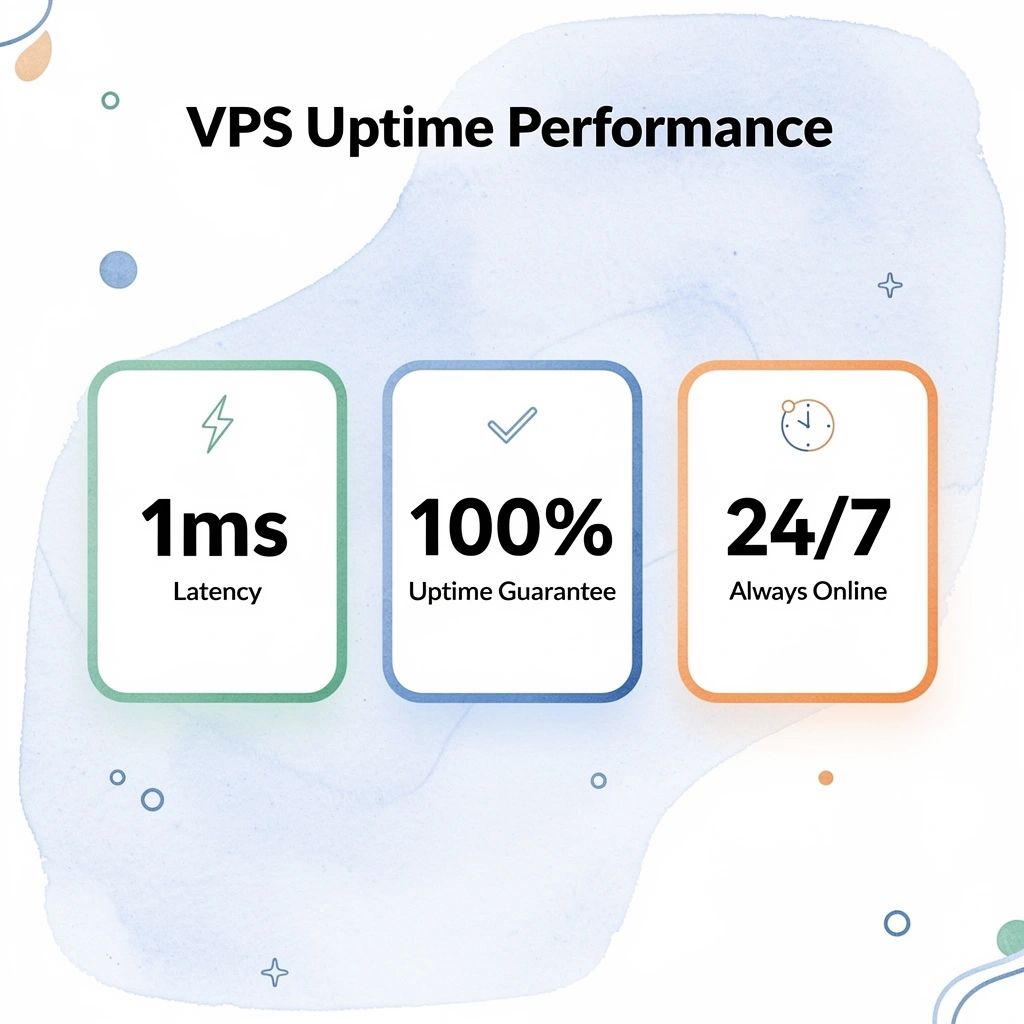
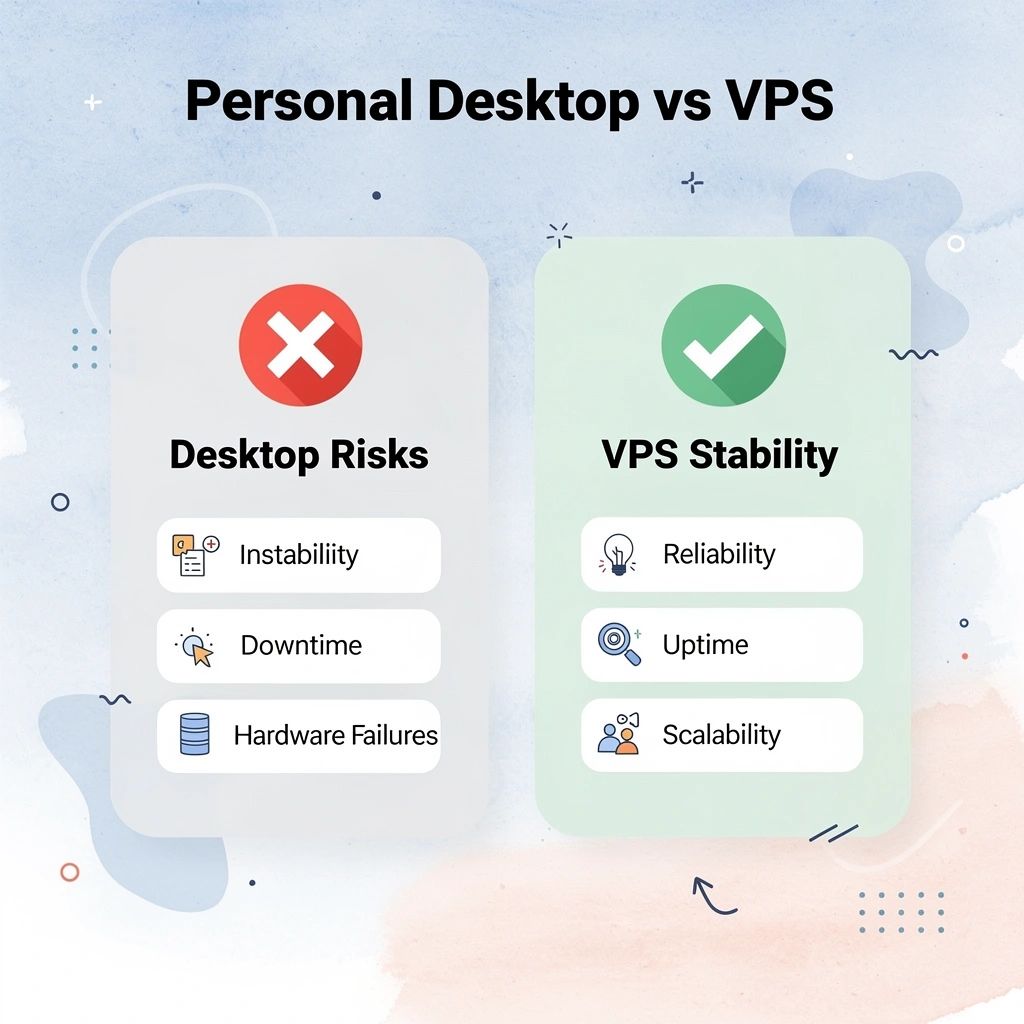 Running NinjaTrader on a trading VPS like QuantVPS keeps the bridge application, platform, and broker connection online continuously — with an impressive 1 ms latency and 100% uptime guarantee. Your TradingView alerts, webhook, and NinjaTrader execution continue whether your local machine is on or not.
"A trading VPS with 1 ms latency and a 100% uptime guarantee ensures your webhook pipeline never goes dark — even during power outages, OS updates, or hardware failures." — QuantVPS / TradingFX VPS, 2025
| Risk Factor | Personal Desktop | QuantVPS |
|---|---|---|
| Windows Updates | ⚠️ Can reboot mid-session | ✅ Managed, non-disruptive |
| Power Outages | ❌ Connection lost instantly | ✅ 100% uptime guarantee |
| Laptop Lid Closed | ❌ Silently breaks webhook | ✅ Always online |
| Latency | ⚠️ Variable, location-dependent | ✅ 1 ms guaranteed |
| Broker Connection | ⚠️ Drops with local machine | ✅ Continuous 24/7 |
🎯 Key Point: A trading VPS eliminates every single point of failure that a personal desktop introduces into your TradingView-to-NinjaTrader pipeline.
🔑 Takeaway: Deploy your QuantVPS server in minutes and keep your TradingView-to-NinjaTrader setup running around the clock — because a strategy that can't execute is not a strategy at all.
💡 Tip: Setting up QuantVPS takes only a few minutes, and the payoff is a fully automated, always-on pipeline that executes your TradingView alerts into NinjaTrader with zero dependency on your local hardware.