NinjaTrader Login & Installation Walkthrough (Step-by-Step)
NinjaTrader is a powerful trading platform for futures, forex, stocks, and more. This guide simplifies the process of downloading, installing, and setting up NinjaTrader for optimal performance. Here’s what you need to know:
- System Requirements: Minimum 8GB RAM, quad-core processor, SSD, and Windows 10/11 or Server 2016 (64-bit). A fast internet connection (100 Mbps+) is recommended.
- Installation Steps: Download the installer from NinjaTrader’s official site, run it as an administrator, and follow the prompts.
- Account Setup: Create a free account, verify your email, and log in with your credentials.
- Data Feeds: Connect to brokers like Interactive Brokers or TD Ameritrade and configure live market data subscriptions.
- Workspace Customization: Organize charts, tools, and layouts to suit your trading style.
- Common Issues: Sync your PC clock for login errors, and ensure your firewall allows NinjaTrader access.
For improved performance, consider using QuantVPS, which offers ultra-low latency and reliable 24/7 access for trading.
This guide ensures you can set up NinjaTrader efficiently, avoid common errors, and start trading with confidence.
System Requirements and Preparation
Hardware and Software Requirements
To ensure NinjaTrader operates smoothly, your system must meet specific requirements. NinjaTrader 8 is compatible with Windows 11, Windows 10, or Windows Server 2016 or later (64-bit only). Additionally, it requires Microsoft .NET Framework 4.8, which is typically pre-installed on most modern systems.
At a minimum, you’ll need a 2 GHz quad-core processor and 8 GB of RAM. However, for optimal performance - especially when running multiple charts and indicators - more robust hardware is recommended. As Carl from XABCD Trading points out:
If you want to be happy, you need that minimum 16 GB of RAM as NinjaTrader will make use of it
. This becomes particularly important if you’re using resource-heavy third-party indicators.
Since NinjaTrader stores historical data locally, the size of this data can grow quickly during backtesting. An SSD is essential for handling these high read/write demands efficiently. While a DirectX 10-compatible graphics card can improve chart rendering, it’s not mandatory. NinjaTrader uses Microsoft WARP, a software-based DirectX renderer, which allows the CPU to handle rendering if no GPU is present.
For network connectivity, aim for a minimum of 100 Mbps download and 50 Mbps upload speeds. This will help you manage multiple live data feeds without lag. If your local hardware struggles to meet these requirements, consider using QuantVPS for enhanced performance.
Using QuantVPS for Better Performance
If your system is underpowered or you’re aiming for peak performance, a dedicated VPS can be a game-changer. QuantVPS offers resources like dedicated CPU cores, DDR5 RAM, and NVMe storage tailored for real-time trading platforms, reducing installation and operational challenges.
The most noticeable advantage of using a VPS is the reduction in latency. While home internet connections generally deliver 20–50ms latency to major exchanges, QuantVPS servers situated near financial hubs, such as Chicago, can achieve latency as low as 0.5ms to 1ms to the CME Aurora datacenter. This improvement is crucial for scalpers and automated strategies, as it directly reduces slippage. To check your current latency, open the Windows Command Prompt and run:
ping ritmz01001.01.rithmic.com
ping live.tradovateapi.com
.
QuantVPS offers several plans to suit different trading needs. For example:
- VPS Lite Plan: Priced at $59.99/month (or $41.99/month with annual billing), this plan includes 4 cores, 8 GB RAM, and 70 GB NVMe storage. It’s ideal for traders running 1–2 charts.
- VPS Pro Plan: At $99.99/month (or $69.99/month annually), this plan provides 6 cores, 16 GB RAM, and multi-monitor support, making it suitable for 3–5 charts.
- VPS Ultra Plan: Designed for heavy users, this plan costs $189.99/month (or $132.99/month annually) and offers 24 cores, 64 GB RAM, 500 GB NVMe storage, and support for up to 4 monitors.
QuantVPS servers are equipped with high-clock-speed CPUs running at 4.5 GHz or higher - critical for NinjaTrader, as its execution engine relies heavily on single-core performance. While the platform does utilize multi-threading for tasks like data loading and backtesting, trade execution depends primarily on single-core efficiency. Additionally, PCIe Gen 4 NVMe SSDs, capable of speeds up to 7,000 MB/s, eliminate delays during startup and optimization.
For a stable and reliable experience, you can access your VPS using the built-in Windows Remote Desktop Connection app.
Step 1: Downloading NinjaTrader

To get started, download NinjaTrader directly from its official website: https://www.ninjatrader.com. This is the only legitimate source for the installer, so double-check that the URL starts with https:// and look for the padlock icon in your browser for added security.
Next, create a NinjaTrader account and activate it by clicking the confirmation link sent to your email. Once your account is active, log in to your NinjaTrader Account Dashboard. You'll find the Download button in the lower-left corner of the page. Unless instructed otherwise by support, choose the Most Recent Release to ensure you're using the latest version. After downloading, proceed with the installation and activation steps.
The installer file is named NinjaTrader.install.msi and typically lands in your Windows "Downloads" folder. If you notice a different file name or extension, don't open it - delete the file and re-download it from your account dashboard.
When you run the installer, you might encounter a warning from Windows Defender SmartScreen. This is common for newly updated software that hasn't yet been widely recognized in Microsoft's system. NinjaTrader Support reassures users:
"As long as you download the NinjaTrader Desktop installer directly from your NinjaTrader Account Dashboard, the application is completely safe to install on your PC".
Make sure the publisher is listed as NinjaTrader, then click Run Anyway to proceed.
For extra protection, enable two-factor authentication (2FA) on your NinjaTrader account using an authenticator app. With over 1.9 million users and recognition as the #1 Futures Broker by BrokerChooser.com in 2026, securing your account credentials is a must.
Step 2: Installing NinjaTrader
Running the Installer
To get started, open File Explorer (press Windows Key + E) and navigate to your Downloads folder. Look for the file named NinjaTrader.install.msi and double-click it to launch the Installer Wizard. Follow the prompts: click Next, accept the Terms and Conditions, and then click Install.
Before you begin, make sure to close any running applications, especially older versions of NinjaTrader, to avoid conflicts. For best results, right-click the installer and select Run as Administrator. When prompted, choose the Complete installation option. Stick to the default installation path (C:\Program Files (x86)\NinjaTrader 8), as the software is designed to function with specific folder locations. Changing this path could cause errors.
"NinjaTrader is hard-coded to install its files to the default location of your 'Documents' folder. It is not possible to change this hard-coding. Our general recommendation is to re-install NinjaTrader entirely on the C: drive."
– NinjaTrader_Zachary, NinjaTrader Customer Service
"NinjaTrader is hard-coded to install its files to the default location of your 'Documents' folder. It is not possible to change this hard-coding. Our general recommendation is to re-install NinjaTrader entirely on the C: drive."
– NinjaTrader_Zachary, NinjaTrader Customer Service
If you use OneDrive, it’s important to disable syncing for the NinjaTrader folder in your Documents directory before launching the software. OneDrive syncing can cause "Access Denied" errors. Once the installation completes, click Finish and launch NinjaTrader from either the desktop shortcut or the Windows Start Menu. Any saved workspaces, templates, or third-party add-ons will remain intact during updates or reinstallation.
NEVER MISS A TRADE
Your algos run 24/7
even while you sleep.
99.999% uptime • Chicago, New York, London & Amsterdam data centers • From $59.99/mo
Activating Your License Key
After installation, it’s time to activate NinjaTrader. If you’re using version 8.1.5.0 or later, the platform employs user-based licensing, eliminating the need for a manual license key. Simply log in with your registered username and password the first time you open the platform. This will automatically activate the software and grant full access. Alternatively, you can select simulation mode to use the platform without logging in.
When launching for the first time, Windows Firewall may ask for permission - click Allow Access to ensure NinjaTrader can connect to its data servers and trading accounts. If you run into installation errors like codes 2502 or 2503, reach out to NinjaTrader’s support team via the chat bubble on their support page for assistance.
Step 3: Creating and Managing Your Account
Once you've installed NinjaTrader, the next step is setting up your account. This is key to unlocking NinjaTrader's features and ensuring a seamless trading experience.
Creating a New Account
Getting started with NinjaTrader is free. Head over to the NinjaTrader registration page, enter your email address, and click Sign Up. Keep an eye on your inbox (and your spam folder) for a verification email from NinjaTrader. Once it arrives, click the verification link to move forward.
After verifying your email, you'll create a unique username and a strong password. Since both are case-sensitive, make sure they're easy for you to remember and type correctly. Once your credentials are set, you'll gain access to the NinjaTrader Account Dashboard. From there, you can download the desktop platform, manage license keys, and even sign up for a free two-week trial. If you already have a license key from a prior purchase, you can import it directly into the dashboard's settings.
"NinjaTrader will never ask you for your password."
– NinjaTrader Support
"NinjaTrader will never ask you for your password."
– NinjaTrader Support
With your account ready, you're all set to log in using your new or existing credentials.
Logging in with an Existing Account
To log in, open the NinjaTrader desktop app or visit the Account Dashboard. Enter your username and password carefully - both are case-sensitive, so double-check for typos.
If you've forgotten your username, click Forgot Username? on the login page and provide your registered email address. For password resets, click Forgot Password? and enter either your username or email to receive reset instructions. For security reasons, NinjaTrader support cannot manually send these credentials, so you'll need to use the automated recovery tools.
If the login screen gets stuck, try syncing your PC clock through the Date/Time settings. Keep in mind that multiple failed login attempts can lock your account. If this happens, you’ll need to email clientservices@ninjatrader.com with your account number to arrange a verification call with a technician. If you're trading through an Evaluation Service (like a prop firm), contact them directly for password resets, as they handle these separately from NinjaTrader's dashboard.
| Issue | Common Cause | Recommended Solution |
|---|---|---|
| Invalid Credentials | Case sensitivity or extra spaces | Re-enter carefully, ensuring Caps Lock is off and no spaces. |
| Endless Loading/Blank Screen | PC clock out of sync | Sync your PC clock via Date/Time settings. |
| Account Locked | Too many failed login attempts | Email NinjaTrader Client Services to verify your identity. |
| Missing Verification Email | Spam filter or multiple requests | Check your Junk folder and wait for the first email to arrive. |
Step 4: Setting Up Connections and Data Feeds
Now that your account is ready, it’s time to link your trading accounts and set up data feeds. This step is crucial whether you plan to trade live with actual funds or practice in a simulated environment.
Connecting to Trading Accounts
NinjaTrader allows connections to both live and simulated accounts. To connect multiple accounts, you’ll first need to enable Multi-Provider Mode. Here’s how:
- Go to Tools > Settings > General.
- Check the box for Multi-provider.
- Restart the platform.
After restarting, a Configure button will appear at the bottom of the Control Center’s Connections dropdown menu. Click on Configure, select "NinjaTrader", and log in using your Dashboard credentials. You’ll then have the option to set up connections for Simulation or Live trading. For clarity, you can name these connections separately, such as "NT_Live" and "NT_Sim."
When your connection is successful, the connection name will turn green in the Connections menu, and the status light in the bottom-left corner of the Control Center will also turn green. For added security, enable the "Ask password on connect" option. If you want NinjaTrader to connect automatically when the platform starts, check the "Connect on start up" box.
Once your accounts are connected, the next step is to set up your market data feeds.
Adding Data Providers
To trade on funded accounts, you’ll need live market data. NinjaTrader Brokerage accounts come with free Level I data for CME Group and EUREX markets. If you need access to additional exchanges, you can manage your data subscriptions through the NinjaTrader Account Dashboard under Settings > Plans.
Here’s a breakdown of available market data options:
| Exchange / Bundle | Level I Price (Monthly) | Level II Price (Monthly) |
|---|---|---|
| CME Group Bundle (CME, CBOT, COMEX, NYMEX) | $12 | $41 |
| Individual US Exchange | $4 | $16 |
| EUREX | N/A | $23 |
| ICE Futures US | N/A | $156 |
| Dow Jones & Key Indices | $8 | N/A |
Subscriptions renew on the 1st of each month and are charged in full, regardless of when you subscribe. After purchasing a data feed, log out and back into NinjaTrader to activate it. If you’re not seeing live data, double-check that you aren’t viewing an expired futures contract. If necessary, perform a contract rollover to ensure you’re accessing the correct data.
Step 5: Setting Up Workspaces and Charts
With your data ready to go, it's time to customize your trading environment. NinjaTrader's workspace system lets you organize charts, tools, and windows to match your trading style.
Creating and Saving Workspaces
The Control Center acts as the central hub for managing workspaces. These workspaces are tailored setups that save the layout of your charts, indicators, and tools. To create one, go to the Workspaces tab in the Control Center and click New. Give your workspace a clear name, like "ES_Scalping" or "Crypto_Daily", to keep things organized.
From there, you can add various tools to your workspace via the New tab, such as charts, Market Analyzers (quote boards), or the SuperDOM order entry tool. Only one workspace can be active at a time, but switching between layouts is as simple as clicking the workspace name.
One thing to note: Desktop and Web workspaces use different formats and don’t sync with each other. If you’re using multiple devices, you’ll need to recreate your layouts for each platform. To avoid losing your setup, regularly export your workspaces as .XML files through Control Center > Workspaces > Export, or create a full backup (.nt8backup) via Tools > Export > Backup File.
Once your workspace is set, it’s time to fine-tune your charts.
Configuring Charts
To open a chart, navigate to Control Center > New > Chart, then select your trading instrument by searching for it or picking from a pre-defined list. The Data Series window allows you to customize the chart's type and interval. For instance, choosing "Minute" as the type and entering "5" creates a 5-minute chart. You can also explore other chart types like Tick, Day, Renko, or Volume to suit your analysis.
Once your chart is up, you can add indicators by clicking the Indicators button on the top bar or by right-clicking in the chart window. Adjust the bar spacing with Ctrl + Up/Down and tweak the bar width using Alt + Up/Down. To save your setup, right-click the chart, go to Templates, and select Save As. Setting a "Default" template ensures all new charts open with your preferred settings.
Charts also support multiple tabs - just click the + button to add more. To optimize performance, close tabs you’re not actively using. You can also link multiple windows by symbol using the Window Link button, making it easy to switch instruments across all linked charts simultaneously.
STOP LOSING TO LATENCY
Execute faster than
your competition.
Sub-millisecond execution • Direct exchange connectivity • From $59.99/mo
Troubleshooting Common Issues
After setting up your account and connections, you might run into issues that need quick troubleshooting. Even with a simple setup, NinjaTrader can sometimes present errors during installation, login, or connection. Most of these problems are tied to Windows security settings, background processes, or network configurations and can often be resolved quickly.
Fixing Connection Errors
If your data feed or brokerage connection gets stuck in a yellow "Connecting" status or fails completely, start by reviewing the Log and Trace files located in Documents > NinjaTrader 8 > log/trace. Look for messages like "WebSocket closed" or "Authentication failed" to figure out what's wrong. A common cause is an out-of-sync system clock - sync it through your Date/Time settings. This simple step often resolves login loops and CAPTCHA issues.
Network interference is another frequent problem. To address this:
-
Open Command Prompt as an administrator and run
ipconfig /flushdnsto clear your DNS cache. -
Add
NinjaTrader.exe(found inC:\Program Files\NinjaTrader 8\bin) to the "Allowed apps" list in your Windows Defender Firewall. - Test your connection using a mobile hotspot to check for ISP or router-related issues.
- Temporarily disable VPNs, as they can block NinjaTrader's servers.
If you're unsure about these settings, revisit the connection setup guide for more details.
| Error Message | Likely Cause | Fix |
|---|---|---|
| error: bad input (Logon failed) | Missing or incorrect credentials | Re-enter credentials in the Connection configuration. |
| Already has a running connection | Multiple instances of same provider | Remove duplicate connections in the Connections menu. |
| Check account connection parameters | Incorrect License Key or corrupted setup | Delete the connection, restart NinjaTrader, and re-add it. |
Resolving Installation Failures
If connection issues aren’t the problem, the installation process itself might be at fault. Installation errors often occur due to Windows Defender blocking the installer or background processes interfering with the setup. If you encounter a "Windows protected your PC" message, click More info and then Run anyway to bypass Microsoft Defender SmartScreen - this is a common step for new updates.
To fix installation problems:
- Open Task Manager (Ctrl+Shift+Esc) and close any running NinjaTrader tasks.
- If the software installs but won’t launch, go to Control Panel > Programs and Features, right-click on NinjaTrader 8, and select Repair.
-
For persistent issues, perform a clean reinstall:
-
Rename the
Documents\NinjaTrader 8folder toNinjaTrader 8 OLDto back up your data. - Uninstall NinjaTrader via the Control Panel.
-
Delete any leftover folders in
C:\Program Files (x86)\NinjaTrader 8. - Reboot your computer and run the installer as Administrator.
-
Always download the
.msiinstaller directly from your NinjaTrader Account Dashboard to ensure the file isn’t corrupted.
-
Rename the
-
Rename the
Documents\NinjaTrader 8folder toNinjaTrader 8 OLDto back up your data. - Uninstall NinjaTrader via the Control Panel.
-
Delete any leftover folders in
C:\Program Files (x86)\NinjaTrader 8. - Reboot your computer and run the installer as Administrator.
-
Always download the
.msiinstaller directly from your NinjaTrader Account Dashboard to ensure the file isn’t corrupted.
Solving Login Problems
Login errors usually boil down to incorrect credentials or system clock problems. Since usernames and passwords are case-sensitive, double-check that Caps Lock is off and manually enter your credentials. If you still can’t log in, use the "Username Recovery / Password Reset" tool on the NinjaTrader website.
For accounts with two-factor authentication (2FA), make sure to approve new device logins through the verification email. If you don’t see the email, check your Spam or Junk folders. Avoid submitting multiple login requests before approving the first one, as this can block future emails. If issues persist, syncing your system clock (as mentioned earlier) often resolves them.
Running NinjaTrader on QuantVPS
QuantVPS Plans Comparison for NinjaTrader Trading
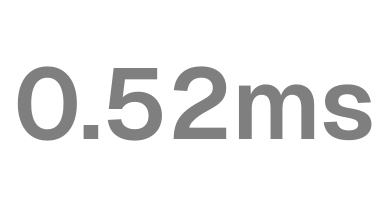
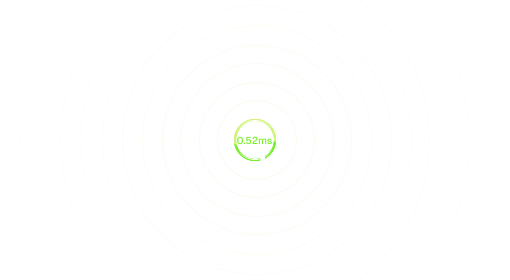
Once your account and platform are set up locally, running NinjaTrader on QuantVPS can take your trading performance to the next level. It bypasses local performance limitations, offering a smoother experience. QuantVPS boasts latency as low as 0.52ms to CME Group's matching engines in Chicago - a massive upgrade compared to the typical 50–200ms delays on local desktops. This reduced latency can help minimize slippage, ensuring your orders are executed closer to your intended price.
QuantVPS operates 24/7, so your automated trading remains uninterrupted even during local power outages. Its robust enterprise-grade hardware - featuring AMD EPYC/Ryzen processors, NVMe storage, and over 1Gbps bandwidth - can handle heavy market data loads, even during volatile trading periods.
Accessing NinjaTrader on QuantVPS is straightforward. Using Remote Desktop Protocol (RDP), you just need to open the Windows Remote Desktop Connection utility, input the IP address, username, and password from your QuantVPS dashboard, and you're good to go. Additionally, QuantVPS ensures your workspaces, templates, and historical data are safe with automated backups. It also includes multi-layered DDoS protection to secure your trading activities.
Choosing the Right QuantVPS Plan
To get the most out of QuantVPS, pick a plan that aligns with your trading needs:
- VPS Lite: Costs $59.99/month (or $41.99/month annually). Includes 4 cores, 8GB RAM, and 70GB NVMe storage. Best for setups with 1–2 charts and basic indicators. Note: This plan doesn't support multiple monitors.
- VPS Pro: Priced at $99.99/month (or $69.99/month annually). Offers 6 cores, 16GB RAM, and 150GB NVMe storage. Supports up to 2 monitors and works well with 3–5 charts and moderate automation.
- VPS Ultra: Available for $189.99/month (or $132.99/month annually). Provides 24 cores, 64GB RAM, and 500GB NVMe storage. Supports up to 4 monitors and is designed for heavy automated bots, order flow tools, or managing multiple proprietary trading accounts.
- Dedicated Server: Costs $299.99/month (or $209.99/month annually). Features 16+ dedicated cores, 128GB RAM, and 2TB+ NVMe storage. Handles up to 6 monitors and accommodates 7+ charts or complex algorithmic strategies.
Each plan guarantees 99.999% uptime and delivers the same ultra-low latency to major exchanges. Higher-tier plans with more RAM and CPU cores ensure your platform runs smoothly during peak trading hours. Regularly monitor your NinjaTrader interface to confirm that your QuantVPS setup integrates seamlessly with your trading platform.
Conclusion
With your system set up and connections in place, you're ready to dive into live trading. Installing NinjaTrader is a simple process as long as you meet the minimum system requirements, download the latest version from your account dashboard, run the installer as an Administrator, and configure your data feeds before connecting to your broker.
Make it a habit to back up your "NinjaTrader 8" folder in the Documents directory before any updates or reinstallations. This ensures your strategies, templates, and workspaces are preserved. If issues persist, performing a clean reinstall can resolve errors by starting fresh without carrying over corrupted files.
A well-optimized setup can significantly improve execution speed and reliability. Installing the platform on an SSD, closing unnecessary background applications, and ensuring your data feed is active before placing trades all contribute to smoother and faster order execution. Also, remember to disable "Global Simulation Mode" to ensure your trades are executed on live accounts.
For even better performance, consider using QuantVPS. With ultra-low latency (0–1ms) and guaranteed 100% uptime, it ensures your automated strategies run seamlessly around the clock. Whether you're testing the platform during the 14-day free trial or managing advanced algorithmic strategies on a live account, a reliable setup gives you the confidence to trade effectively.
FAQs
Do I need a license key to use NinjaTrader 8?
No, you don’t need a license key anymore to connect to your account on NinjaTrader 8 (version 8.1 or later). Just follow the updated setup process, and you’ll be able to access your account without the hassle of entering a key.
Why does NinjaTrader get stuck on the login screen?
NinjaTrader might get stuck on the login screen for a few reasons, such as damaged user files, background processes not closing properly, or network connection issues between the platform and broker servers. To fix this, make sure all background processes are fully closed, confirm your network connection is stable, and check for any corrupted user files that may need repair.
How do I know I’m getting real-time market data?
To make sure you're getting real-time market data, start by checking the connection status in NinjaTrader. Confirm that your data subscription is active and that live prices are updating without any lag. If you're unsure how to verify these settings, NinjaTrader's support resources can provide step-by-step instructions to help you confirm your connection and subscription details.
No, you don’t need a license key anymore to connect to your account on NinjaTrader 8 (version 8.1 or later). Just follow the updated setup process, and you’ll be able to access your account without the hassle of entering a key.
NinjaTrader might get stuck on the login screen for a few reasons, such as damaged user files, background processes not closing properly, or network connection issues between the platform and broker servers. To fix this, make sure all background processes are fully closed, confirm your network connection is stable, and check for any corrupted user files that may need repair.
To make sure you're getting real-time market data, start by checking the connection status in NinjaTrader. Confirm that your data subscription is active and that live prices are updating without any lag. If you're unsure how to verify these settings, NinjaTrader's support resources can provide step-by-step instructions to help you confirm your connection and subscription details.
"}}]}