
On this page
Transferring files between your local computer and your QuantVPS is a crucial aspect of managing your trading environment. Remote Desktop Protocol (RDP) provides a convenient way to achieve this. This guide will walk you through the steps for both Windows and macOS users.
Easiest Method: Copy & Paste (Recommended)
This is the fastest and simplest way to transfer files.
Steps
On your local computer, locate the file
→ Right-click → Copy (or press Ctrl + C)
- Switch to your VPS window
Navigate to your destination folder
→ Right-click → Paste (or press Ctrl + V)
Important Notes
- Do not click around or interrupt the VPS while the transfer is running
Large files may show long time estimates (e.g., 12 hours)
→ Actual time varies significantly based on file size and your internet connection speed. Many transfers finish in roughly 60 to 90 minutes, though very large files or slower connections can take considerably longer
- The progress bar may appear stuck; this is normal
Method #2: Share Local Drives (Windows)
For larger or frequent transfers, you can map your local drives into your VPS session.
Steps
Step #1: Open Remote Desktop Connection
- Search for "Remote Desktop Connection" and open it
Step #2: Show Advanced Options
- Click "Show Options"
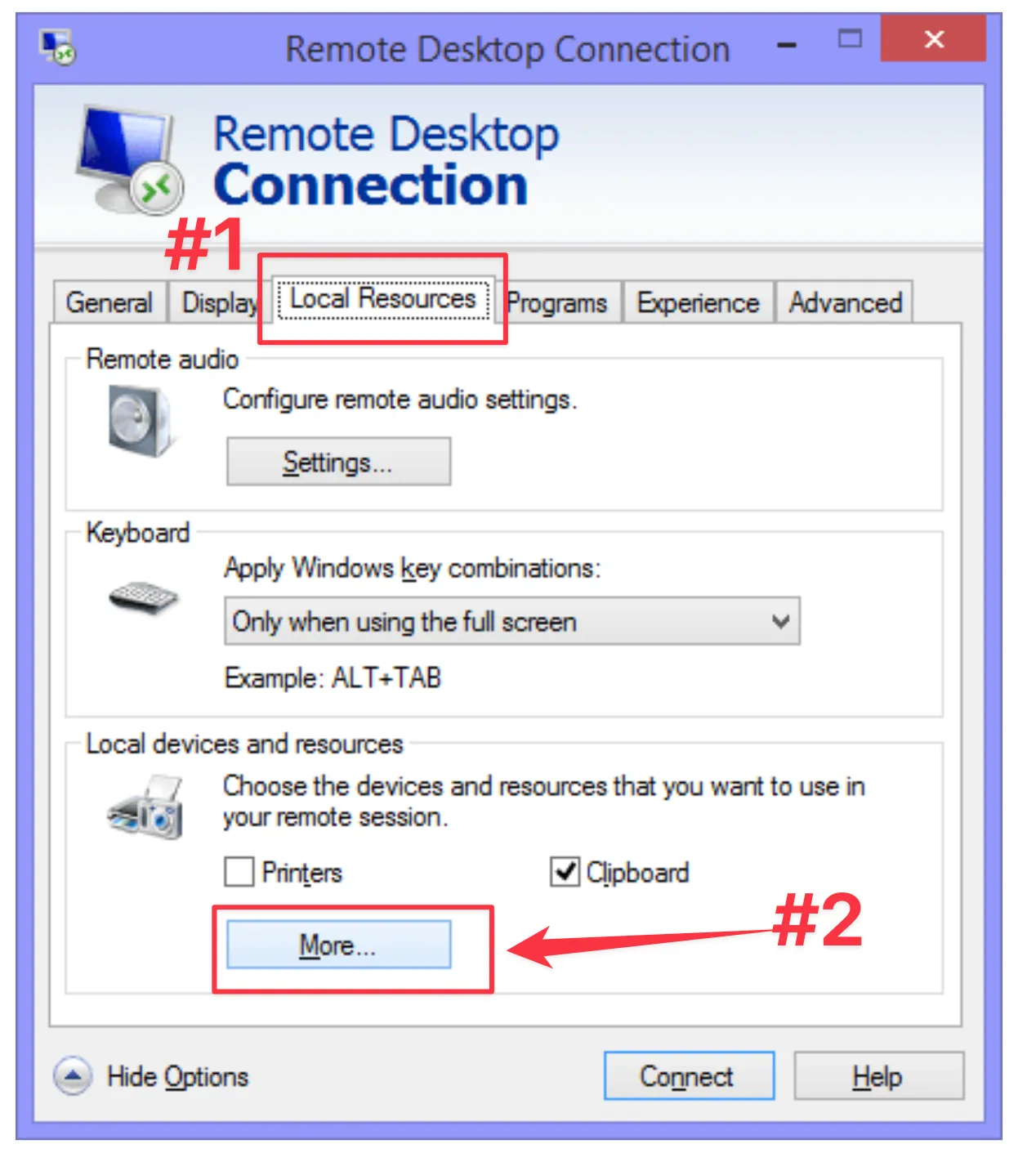
Step #3: Go to Local Resources
- Navigate to the "Local Resources" tab
- Click "More…"
Step #4: Enable Drive Sharing
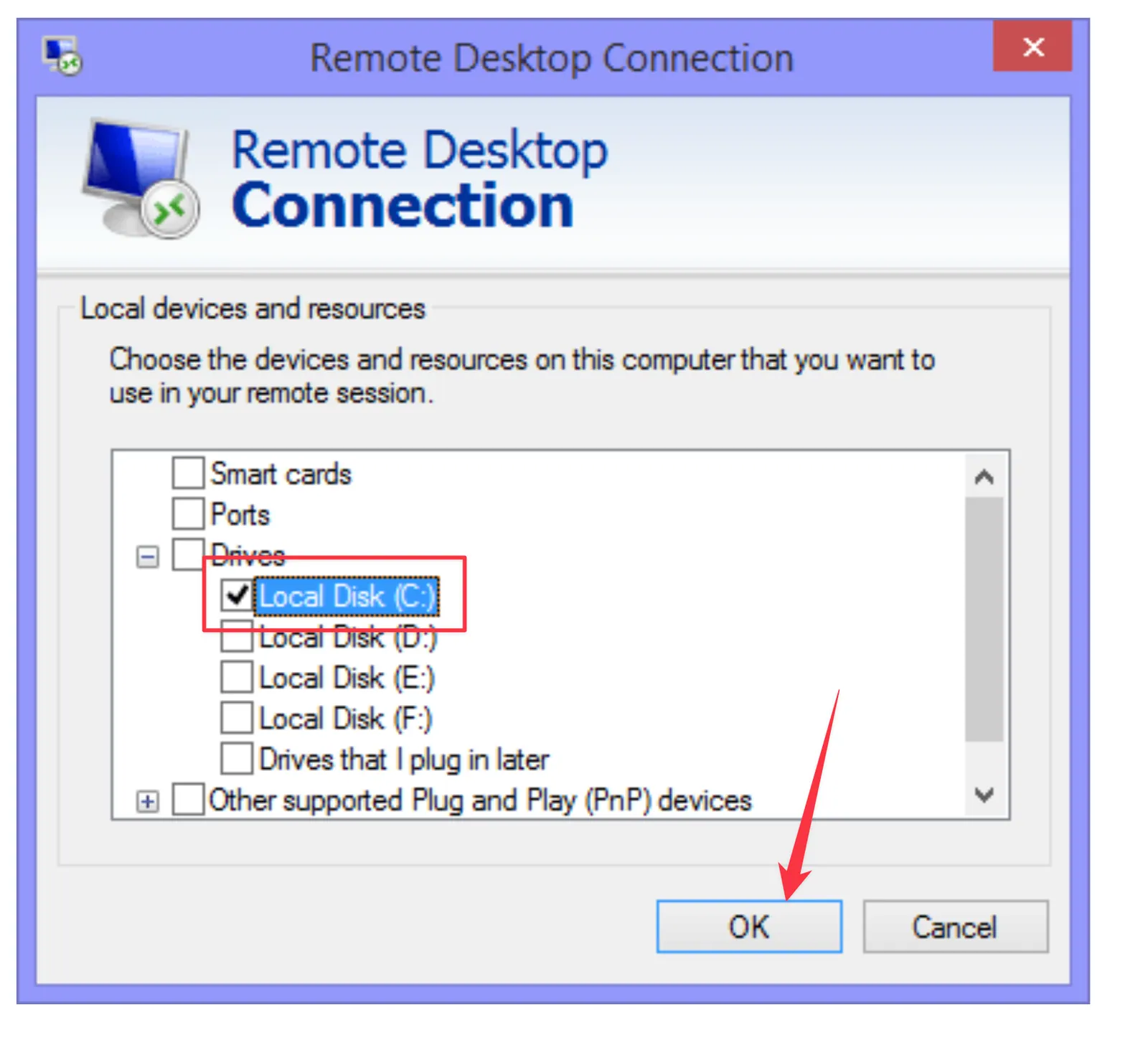
Check "Drives" (to share all drives)
or expand and select specific drives (C:, USB, etc.)
- Click OK
Step #5: Connect to Your VPS
- Enter your QuantVPS login details and connect
Step #6: Access Your Files
- Open "This PC" inside the VPS
- Your local drives will appear under Redirected Drives
- You can now drag and drop files
Method for macOS: Folder Redirection (Windows App)
On a Mac, the standard QuantVPS-recommended remote client is the Windows App (Microsoft's remote desktop client for macOS, formerly Microsoft Remote Desktop). It has a built-in folder redirection feature that lets you share a local Mac folder directly into your VPS session.
Steps
- In the Windows App, select your VPS connection and click Edit (or open its settings before connecting).
- Go to the Folders tab and turn on Redirect folders.
- Click the + button and choose the local Mac folder you want to share with your VPS.
- Save the settings, then connect to your VPS.
- Inside the VPS, open File Explorer; your redirected Mac folder appears as a network location, and you can drag and drop files between it and your VPS just like a local drive.
Alternative Transfer Methods
Use these if copy/paste isn't ideal:
Cloud Storage
- Google Drive, Dropbox, OneDrive
- Upload → then download on VPS
FTP / SFTP
- Best for large or frequent transfers
- Use tools like FileZilla or WinSCP
- Good for small, quick file transfers
By leveraging these methods, you can ensure seamless file management between your local system and your QuantVPS, supporting your trading activities efficiently. For additional help, reach out to our support team or browse the Help Center.
Need Assistance?
Our support team is available 24/7. If you have any questions or run into issues, open a support ticket from your QuantVPS dashboard and we'll get back to you as quickly as possible.