
On this page
You can access your QuantVPS server on the go using the Windows App for Android. This setup allows you to monitor your trades, manage platforms, and stay connected from anywhere using your phone or tablet.
Prefer to watch? Our 2:58 video walks through installing Windows App, adding your VPS and connecting on Android: watch "How to connect to your VPS". It plays the film for your device, so choose Android in the player if you open it on another device. Adding your VPS starts at 0:56.
Step 1: Download the Windows App
- Open the Google Play Store on your Android device.
- Search for "Windows App" by Microsoft Corporation.
- Tap Install to download and install the app.
Step 2: Open the App and Add a PC
- Open Windows App. If it shows a short tour, tap Skip at the bottom. Then you see the Devices tab.
- Tap + at the top right, then PC connection at the bottom.
- No PC connection? Some versions say PC or Desktop.
Step 3: Enter Your VPS IP Address
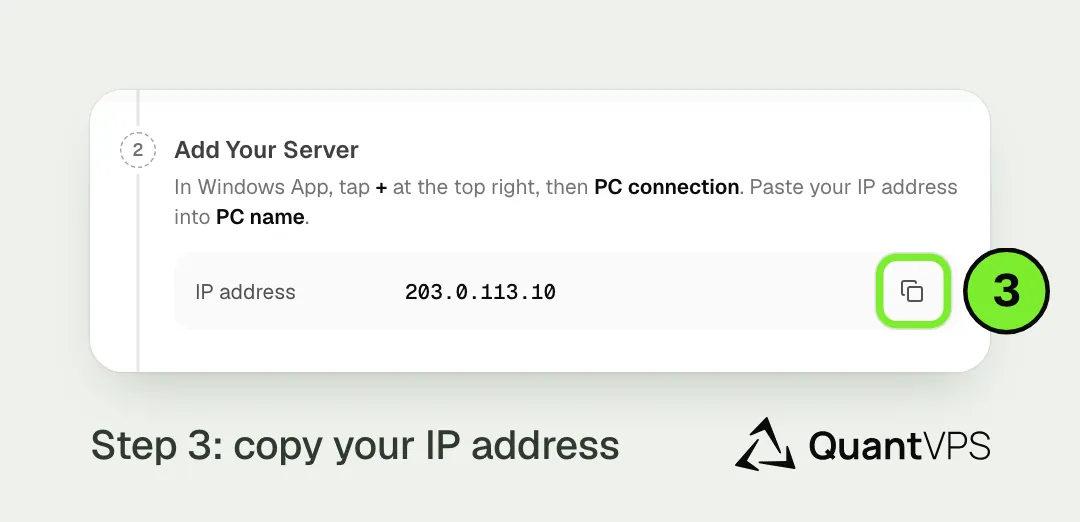
The IP address copy button under Add Your Server on the QuantVPS Control Panel Copy your IP address under Add Your Server on your Control Panel. In Windows App, touch and hold the PC name box, then tap Paste.
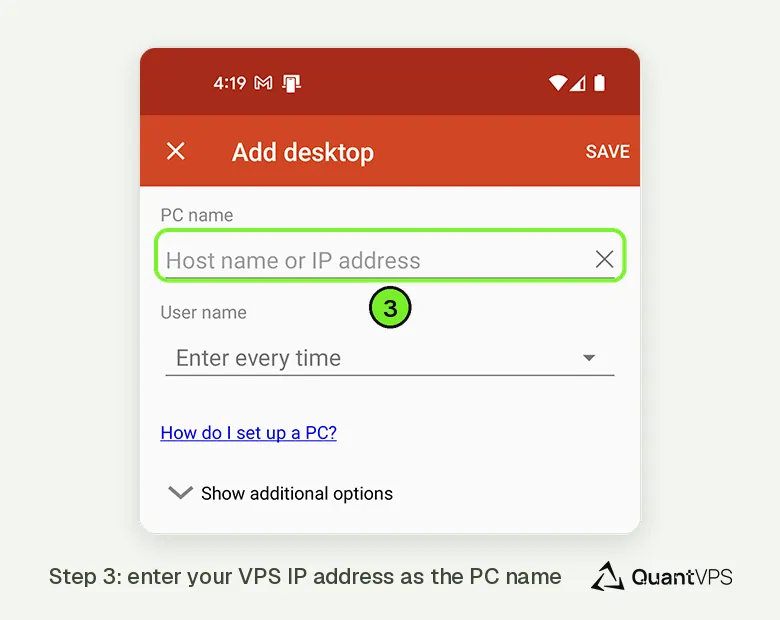
Windows App on Android: Add Desktop screen with PC name field for the VPS IP address
Step 4: Add Your User Account
- On the same screen, tap User account, then Add user account. A window opens with Username and Password boxes.
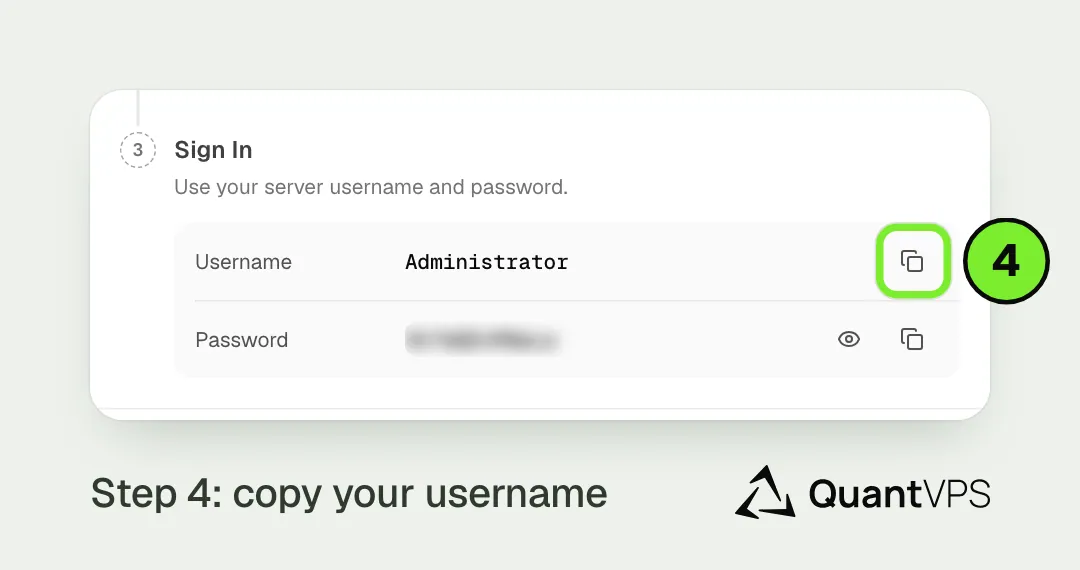
The username copy button under Sign In on the QuantVPS Control Panel 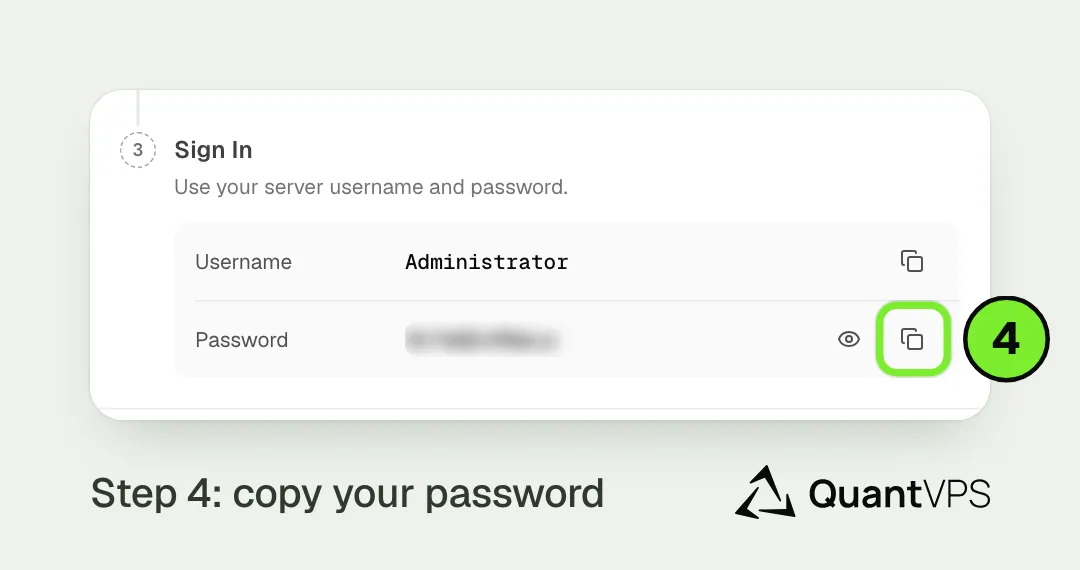
The password copy button under Sign In on the QuantVPS Control Panel Copy your username (usually Administrator) and your password under Sign In, and paste each one: touch and hold the box, then tap Paste.
In the Add user account window, tap Save. You’re back on the PC screen.
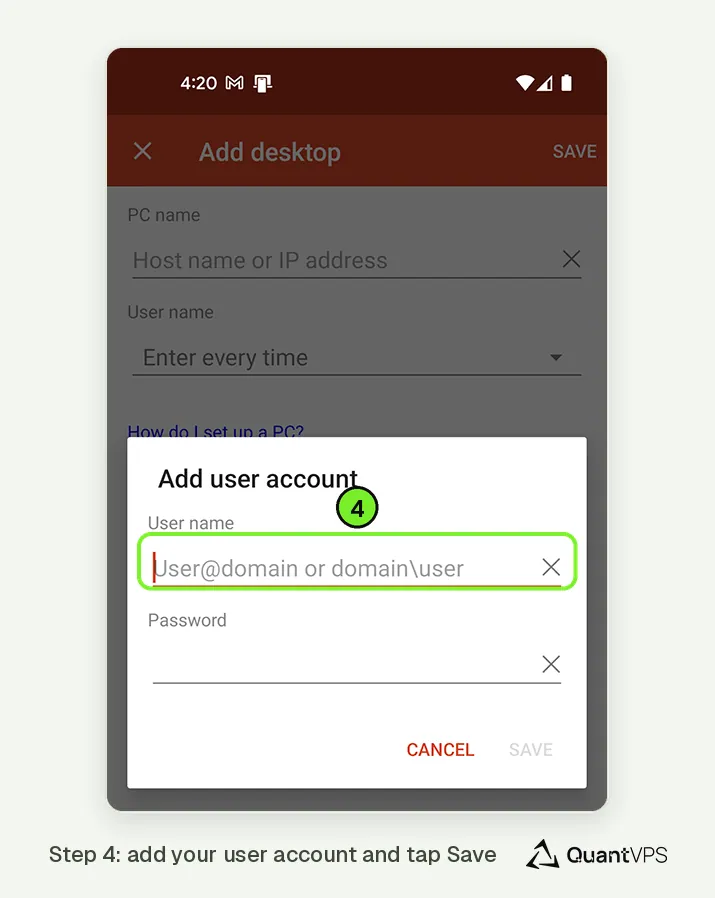
Windows App on Android: Add User Account screen with username and password fields
Step 5: Save Your Connection
- Back on the PC screen, tap Save again at the top right. Your VPS shows on the Devices tab.
Step 6: Connect to Your VPS
- On the Devices tab, tap your VPS.
The first time, Windows App asks if you trust the remote PC. That’s normal for a new server. Tick Never ask again for connections to this PC, then tap Connect at the bottom.
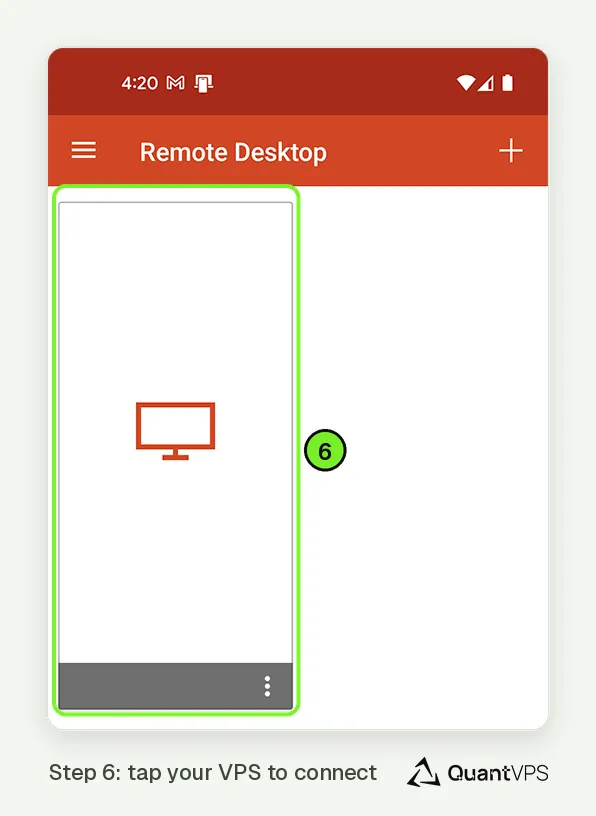
Windows App home screen on Android showing the saved VPS desktop profile
You're Now Connected
Once connected, you'll see your Windows VPS environment just like you would on a computer. From here, you can open your trading platforms, monitor the markets, and make changes as needed.
Tips for Android Users
- For the best experience, use a stable Wi-Fi connection.
- Tablet users will find the layout easier to navigate than on smaller screens.
- Performance may vary based on device capability and network conditions.
- Only one connection can use the same Windows account at a time. Signing in with that account from a second device, from inside the VPS, or from the browser console disconnects the first one with "another connection was made". Connecting from your phone disconnects your computer, and the other way round.
Need Assistance?
Our support team is available 24/7. If you have any questions or run into issues, open a support ticket from your QuantVPS dashboard and we'll get back to you as quickly as possible.