
On this page
QuantVPS backups protect your entire VPS environment. This article covers how to turn on automatic backups, how to create a manual backup, and how to restore your VPS from a previous restore point.
Looking to back up just your NinjaTrader workspace instead of the whole VPS? See Creating and Restoring NinjaTrader Backups.
Enabling Automatic Backups
To confirm or enable automatic backups:
Log in to your QuantVPS dashboard.
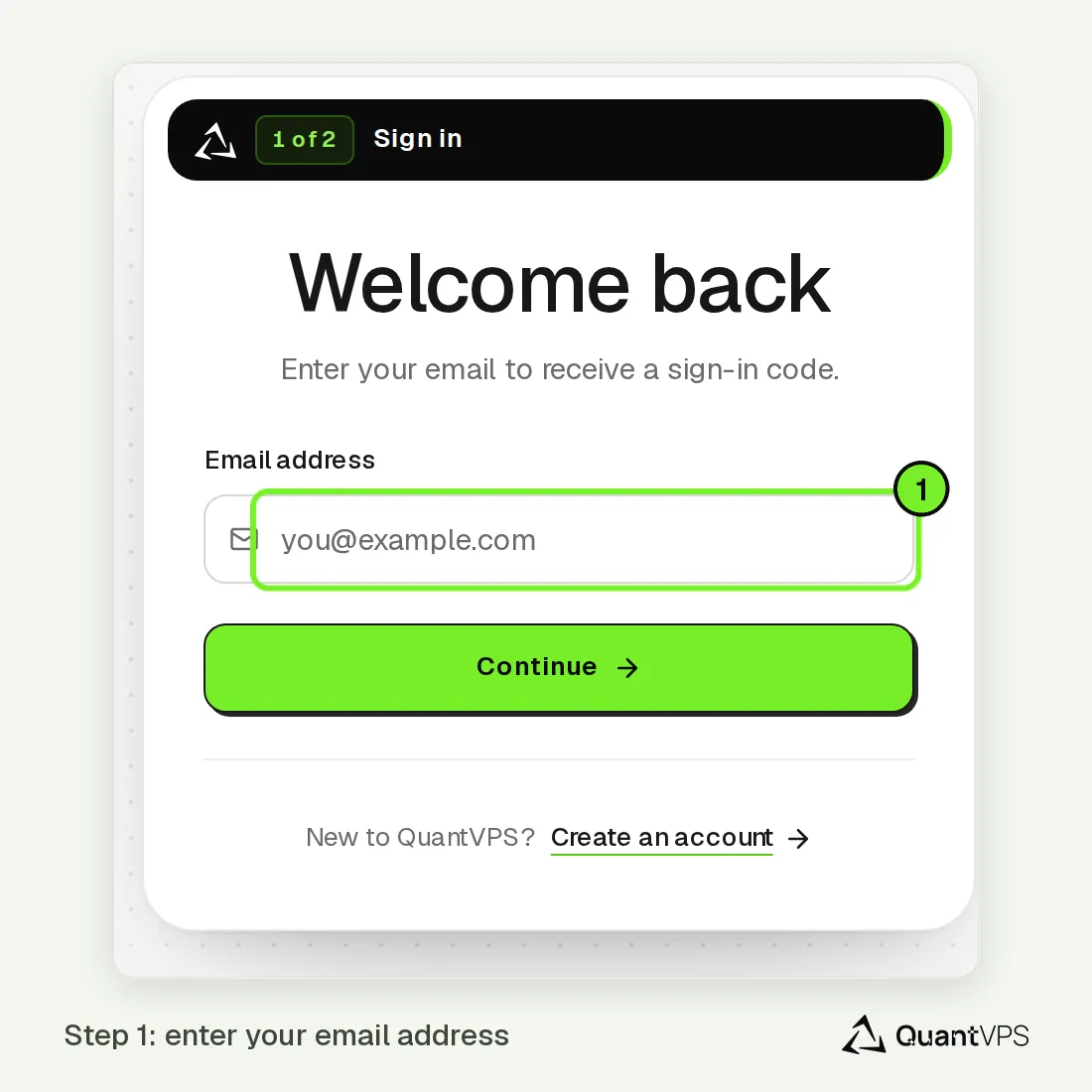
The QuantVPS account sign-in form asking for an email address If you have more than one VPS, choose the one you want to back up in the server selector.
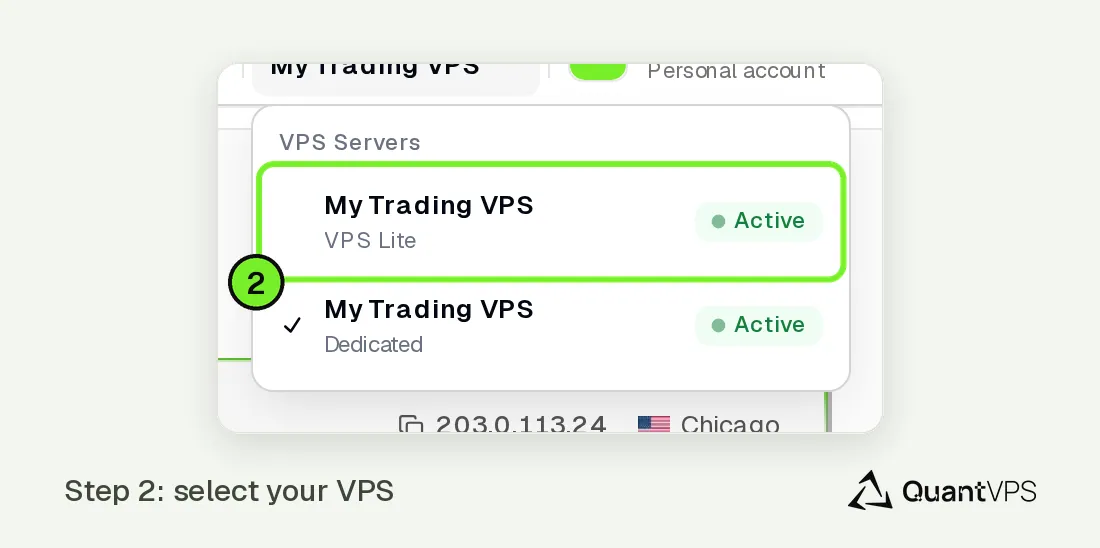
The server selector in the QuantVPS dashboard Go to Control Panel > Server Controls > Manage Backups.
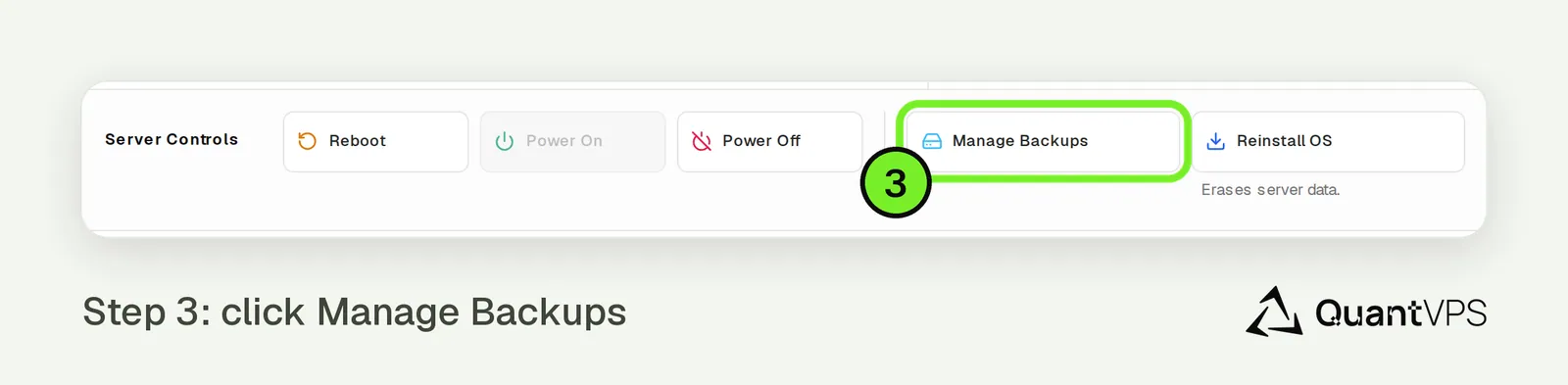
The Manage Backups button in QuantVPS Server Controls If Automatic backups shows Off, turn on its switch. When they're on, it shows On and the date and time of the next backup (New York time).
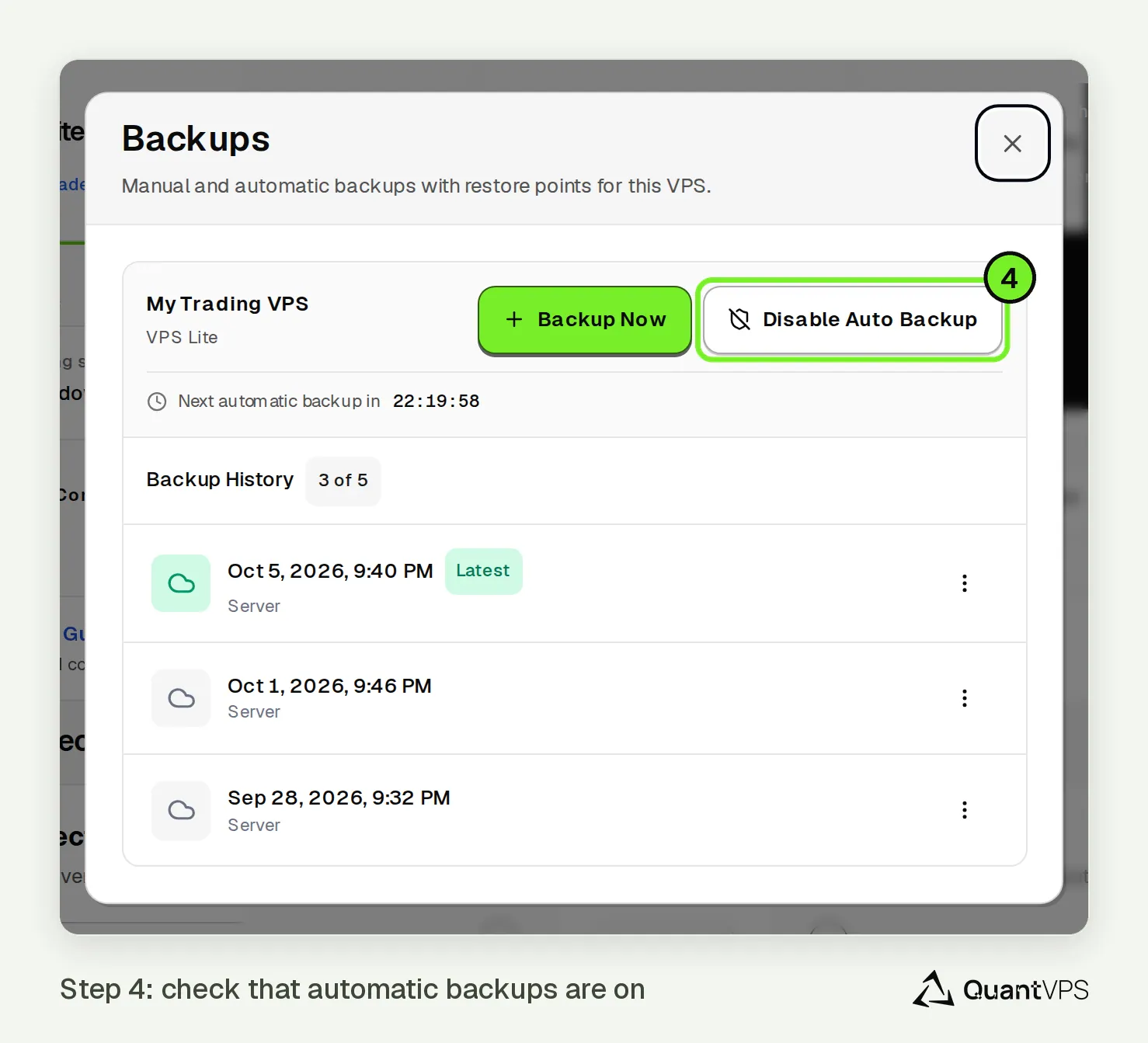
The automatic-backup control and countdown in QuantVPS
Backups run automatically every 72 hours and are stored securely, allowing rapid access to past restore points.
Note: Automatic backups are available on all VPS plans, not on dedicated servers. On a dedicated server, keep your own copies: see How to Back Up a Dedicated Server.
Retention: Backup retention windows can vary by plan and available storage. For the current retention policy on your account (how many restore points are kept and for how long), please contact support.
Creating a Manual Backup
If you plan to make major system changes, like installing new trading software or modifying system settings, you can create a backup manually.
To create a backup:
- Go to Control Panel > Server Controls > Manage Backups.
Click Back up now to start a manual backup.
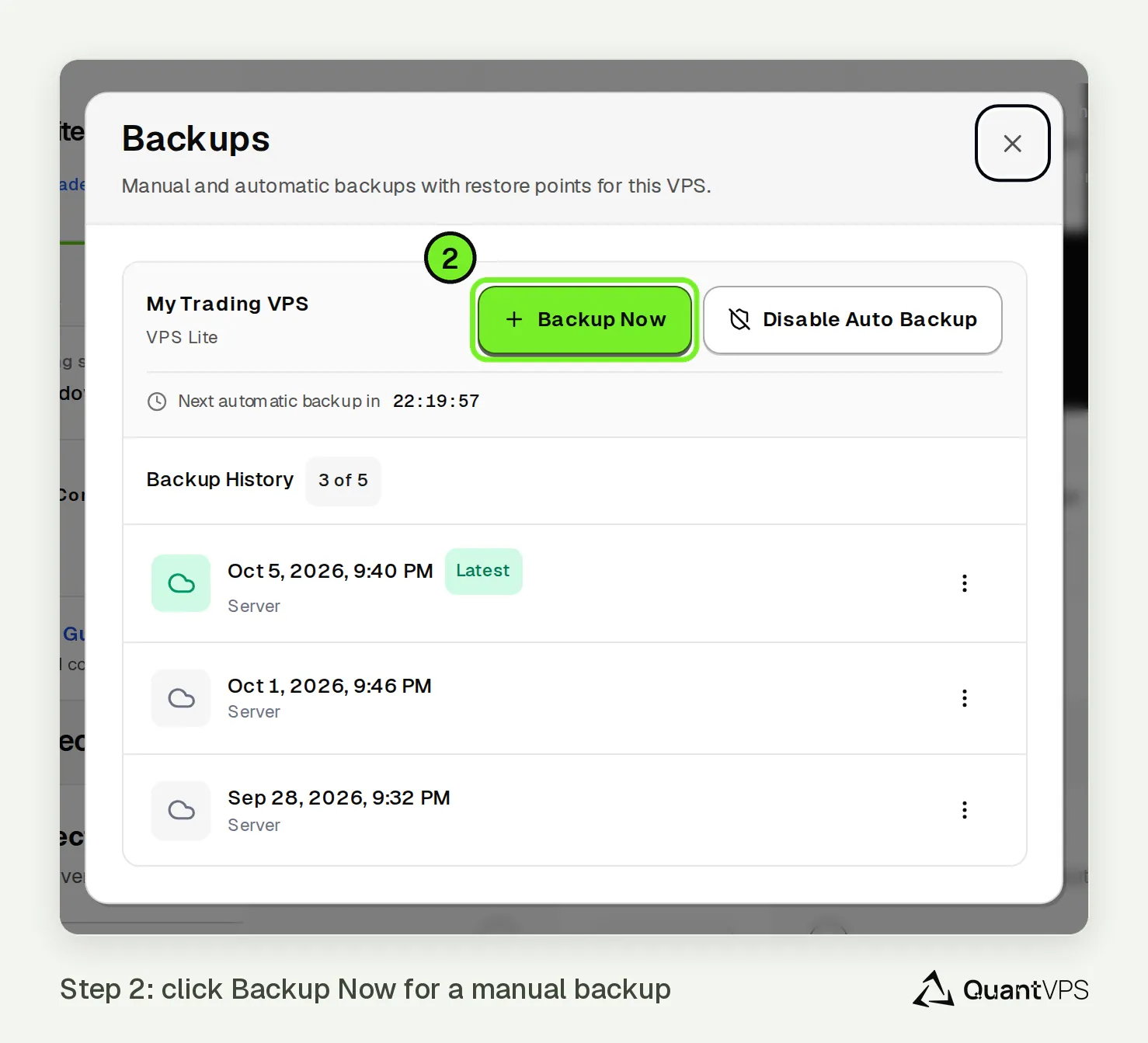
The Backup Now button in the QuantVPS Backups dialog
The backup process can take 30 to 90 minutes, depending on your VPS size and disk usage. You can continue using your VPS while it runs.
Restoring From a Backup
If you need to revert your VPS to a previous state, you can restore from any existing backup in your list.
To restore a VPS:
- Go to Control Panel > Server Controls > Manage Backups.
- Find the restore point you want to use.
Choose Restore on that restore point.
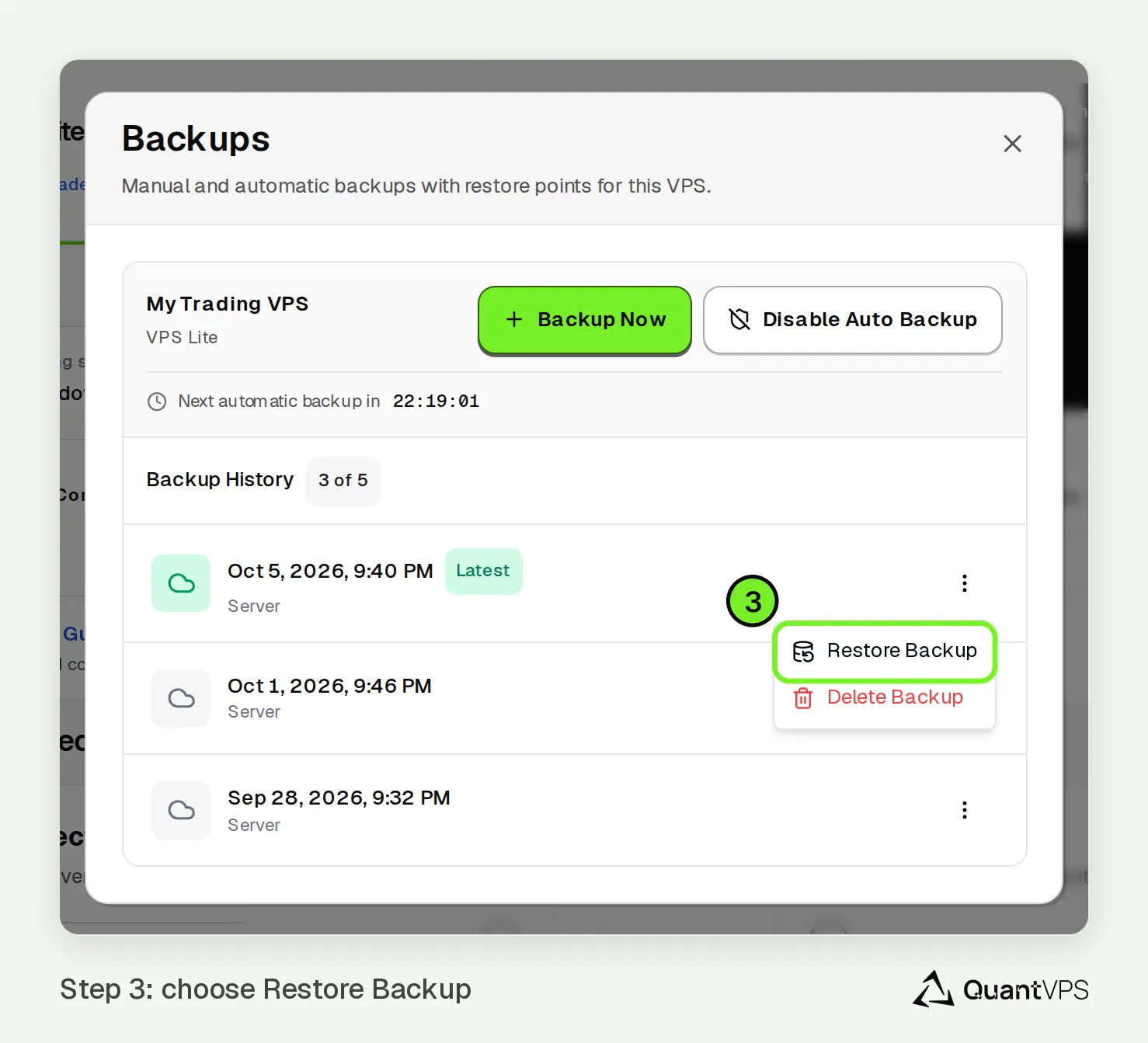
The Restore Backup option in the QuantVPS backup menu In the Restore This Backup? window, read what happens, tick I understand that everything saved after this backup is lost, then click Restore Backup.
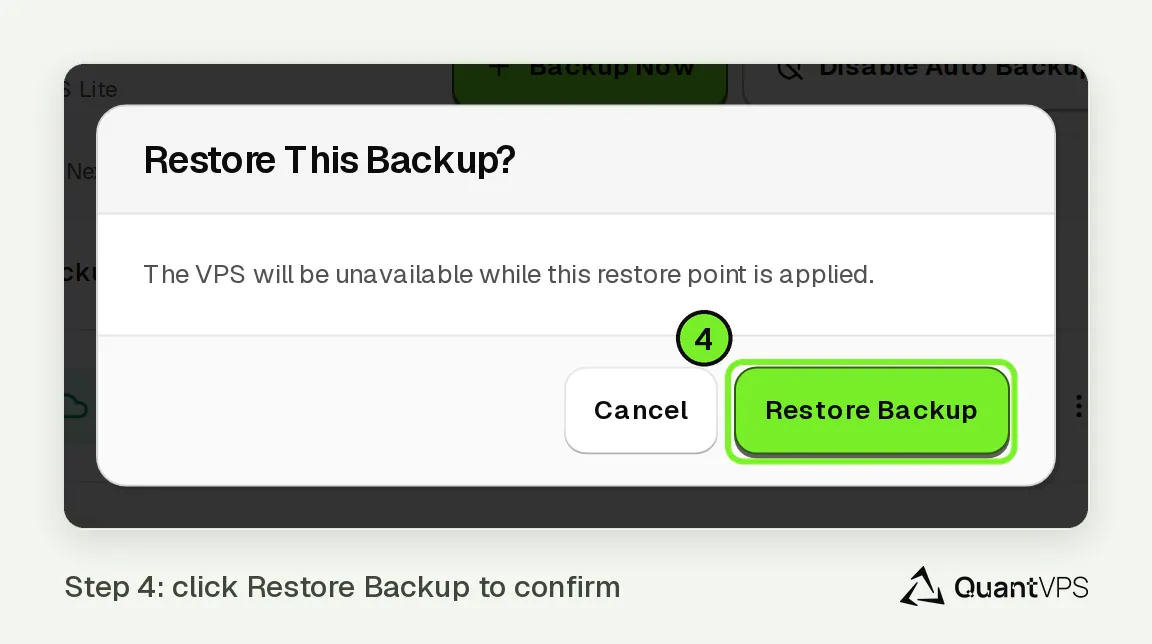
The QuantVPS backup restore confirmation
Restoring a VPS takes 30 to 120 minutes. During this time, your VPS will temporarily go offline and automatically restart once the restore is complete.
Restoring a backup replaces your current data. Any files or data created after that backup will be lost.
Tips & Best Practices
- Automatic schedule: Runs every 72 hours.
- Before major changes: Create a manual backup first.
- Monitor progress: Backups and restores show status directly in the dashboard.
Related articles
Need Assistance?
Our support team is available 24/7. If you have any questions or run into issues, open a support ticket from your QuantVPS dashboard and we'll get back to you as quickly as possible.