
You can reinstall your QuantVPS directly from your dashboard to start fresh with a new operating system. This guide covers the available OS options, the step-by-step reinstall process, and what to do afterwards.
Reinstall Options
The reinstall offers three options:
- Standard OS: a fresh operating system, then you add your own apps. The systems on offer, such as Windows Server and Ubuntu versions, depend on your server and location.
- Trading platform: Windows with your trading software already installed.
- I have a custom code: your partner's setup, using the code they gave you.
Step-by-Step Reinstall Guide
1. Log in to the VPS Dashboard.
Go to https://www.quantvps.com/login and sign in with your account credentials.
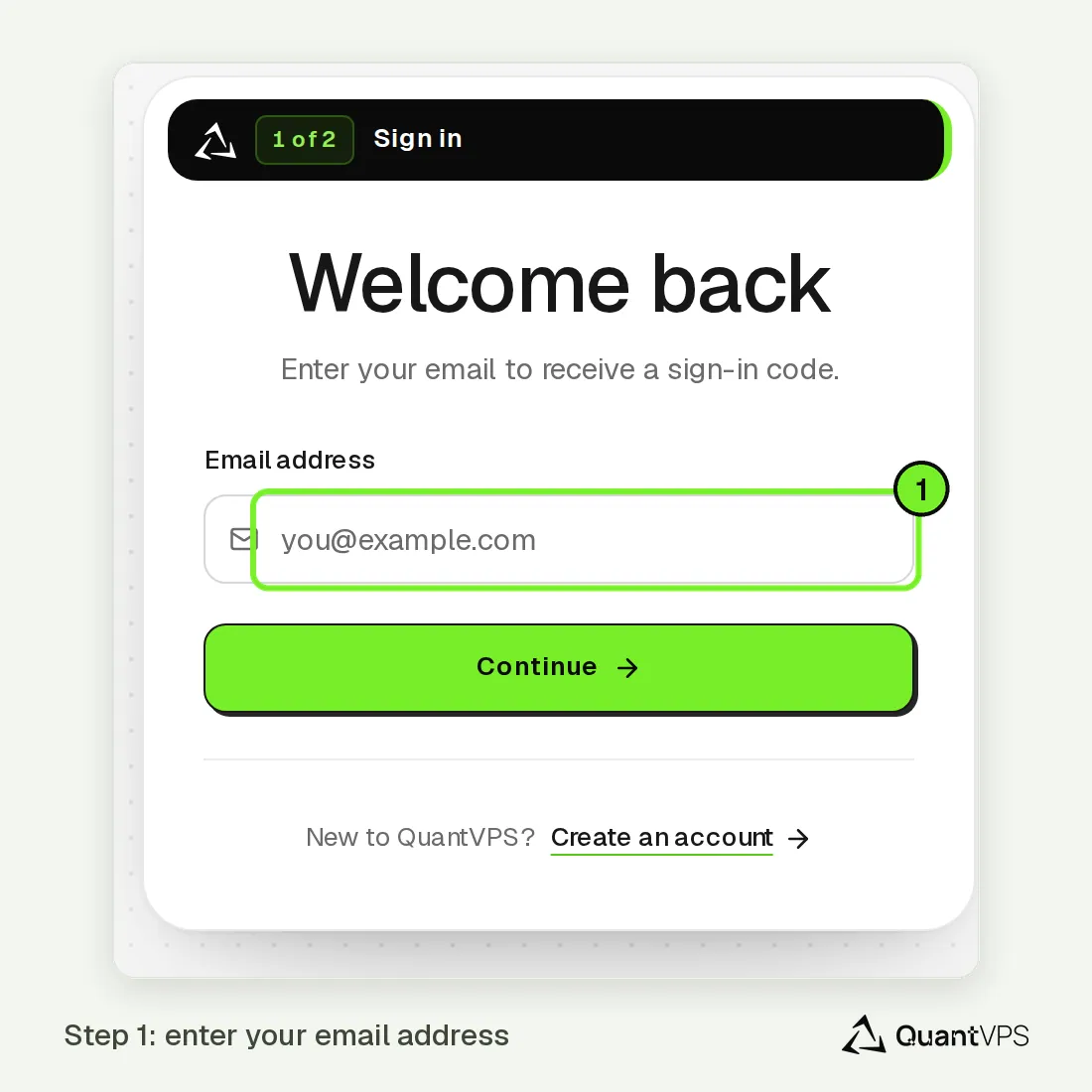
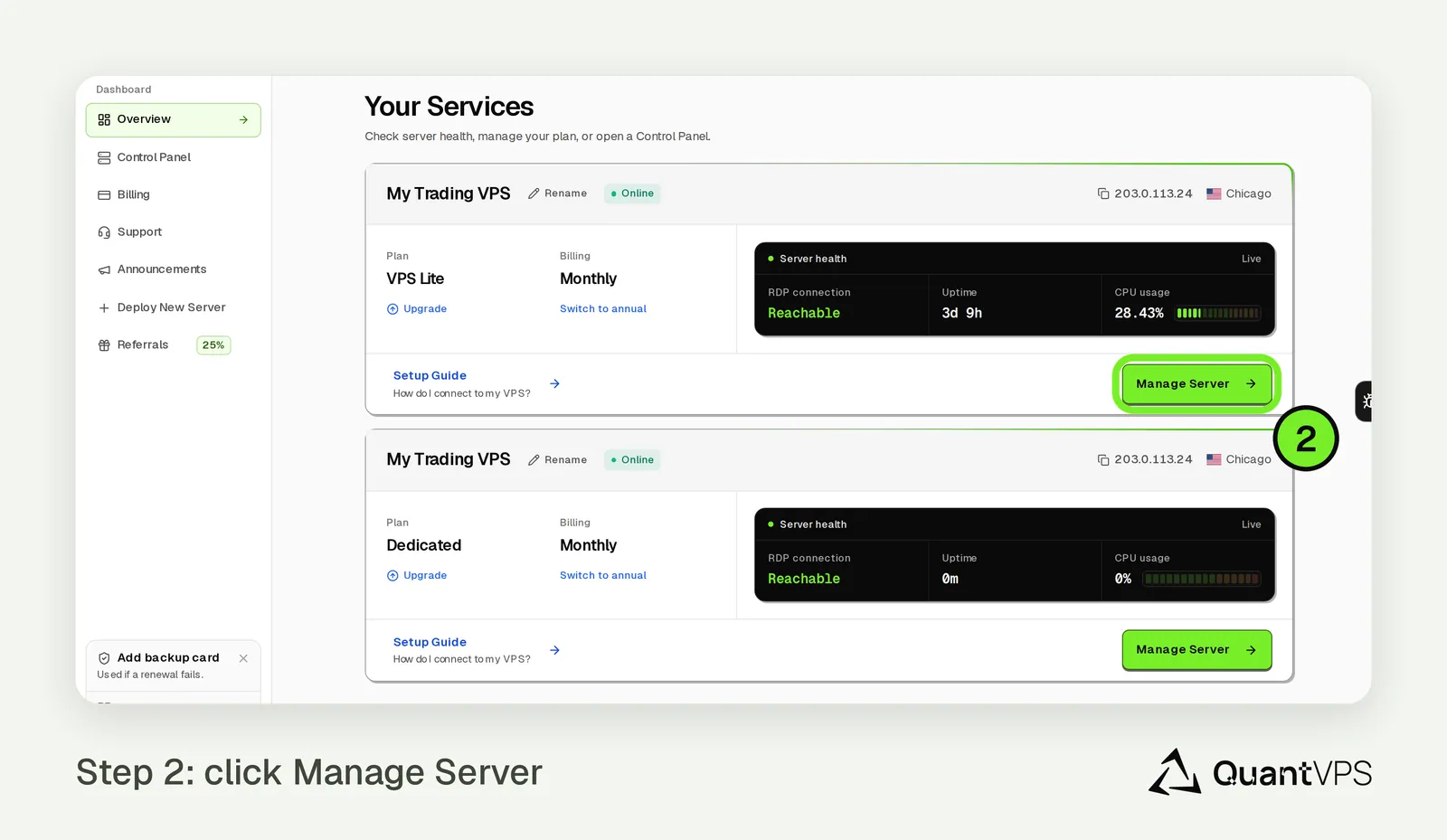
2. Open Your VPS.
Click Manage Server on the VPS you want to reinstall.
3. Open Reinstall OS.
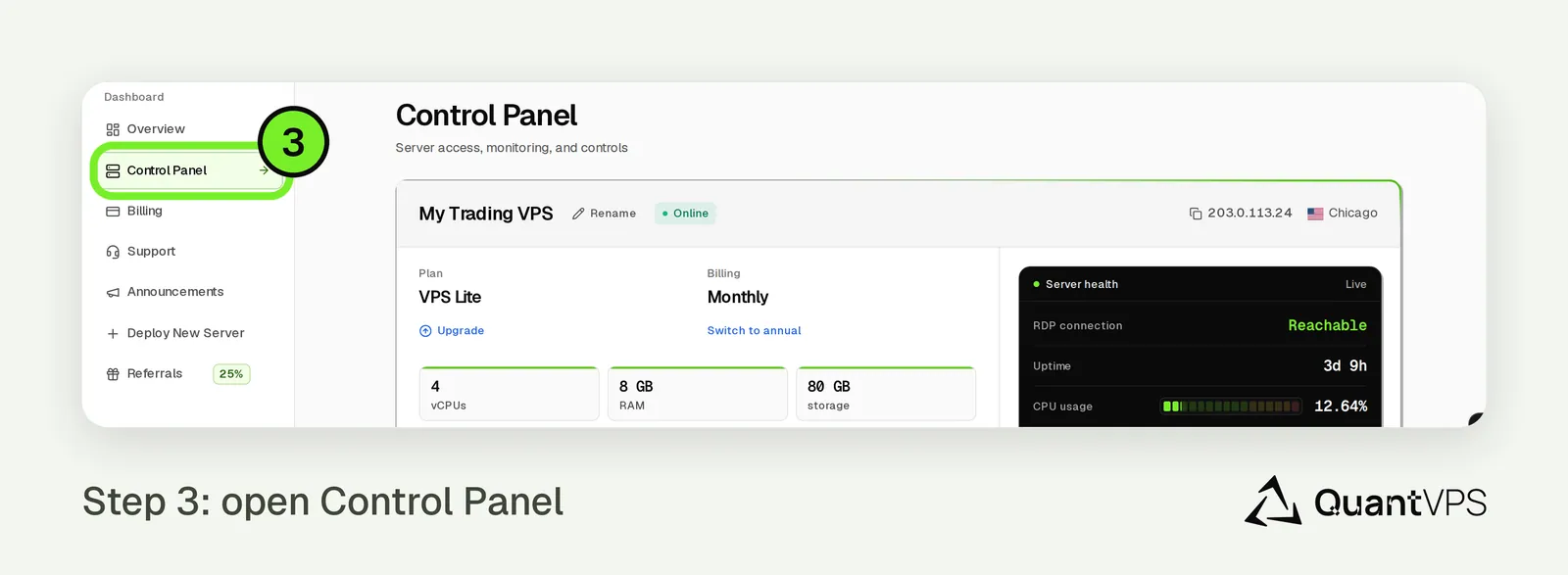
Go to Control Panel > Server Controls > Reinstall OS.
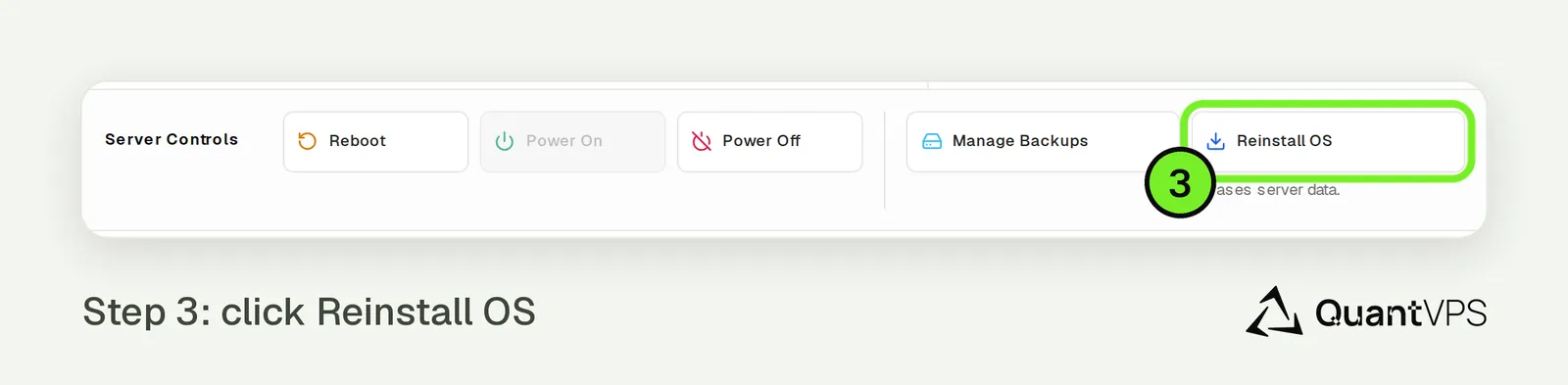
4. Choose What to Install.
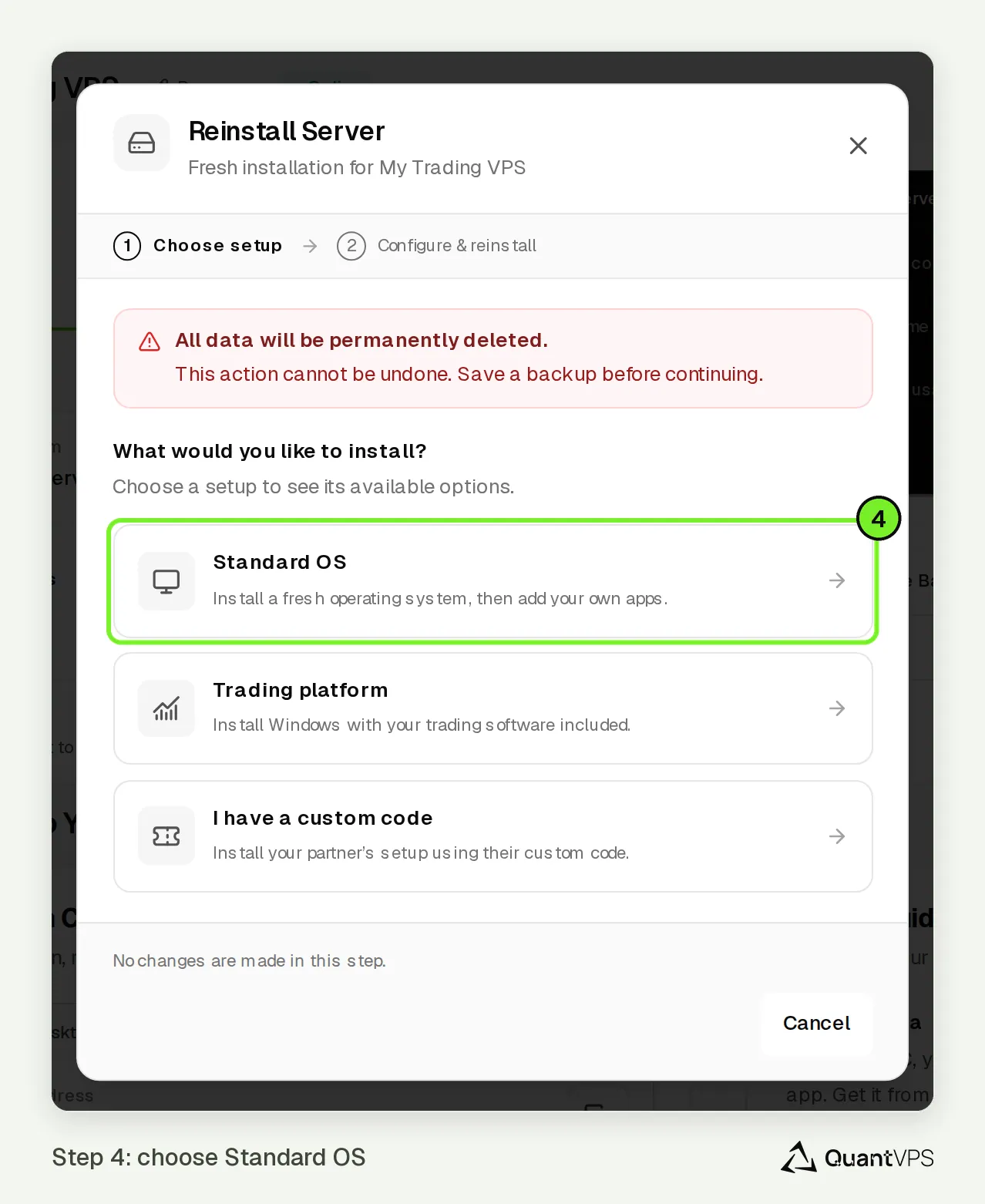
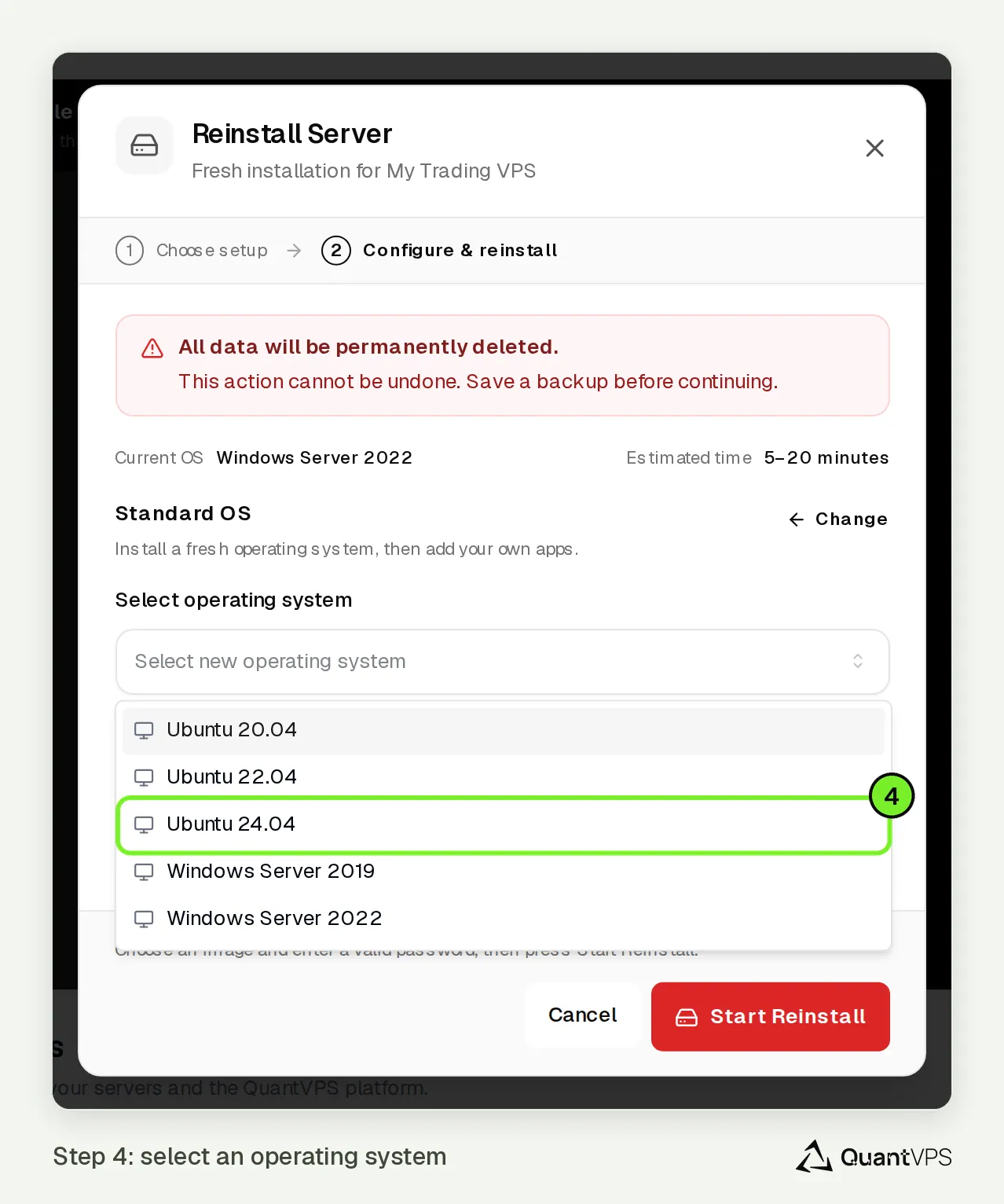
Choose Standard OS, then the operating system you want. For a platform, choose Trading platform and then your platform. For a partner's setup, choose I have a custom code and enter the code.
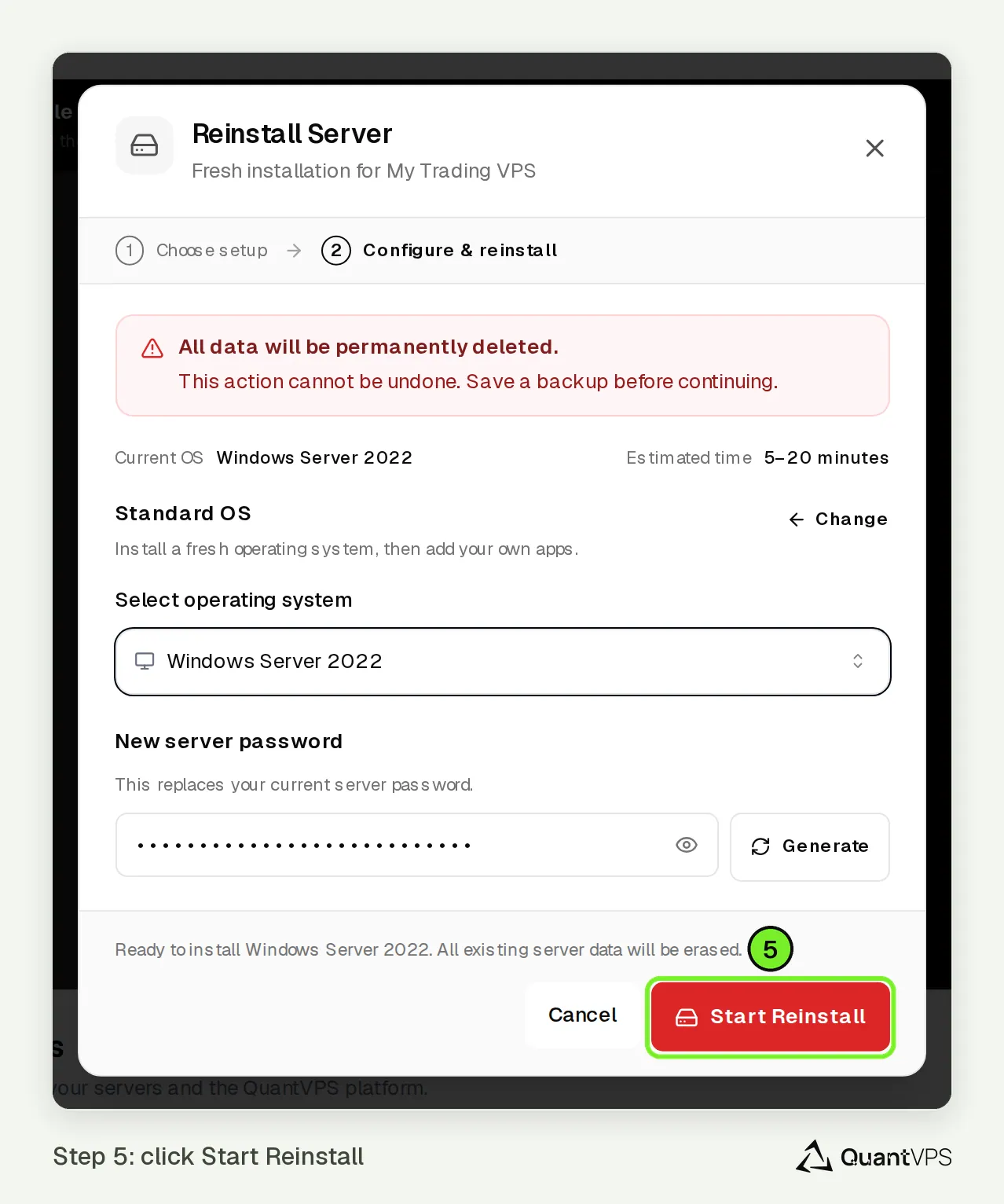
5. Review and Start.
Review your choice, then click Start Reinstall. This action is not reversible.
6. Wait for the Reinstall Process to Complete.
The reinstall usually takes 5 to 20 minutes. Do not interrupt it or try to connect to the VPS during this time. Once finished, your VPS will be reset to the selected OS.
7. Retrieve Your New Credentials.
After the reinstall, your new login credentials can be found directly in your QuantVPS dashboard under the Credentials section. Disregard any previously saved credentials as they will no longer be valid. Use the new password to log in to your freshly reinstalled VPS.
After the Reinstall
Once your VPS is back online with the new operating system, you may want to:
- Update the OS to the latest patches and security updates
- Reinstall any applications or trading platforms you use (the one you picked with Trading platform or a custom code is already there)
- Re-activate NinjaTrader and add-on licenses if they ask, since the Machine ID can change
- Restore your backed-up files and configurations
- Re-enable any firewall or remote access settings you previously had configured
- Note: your VPS's IP address is typically retained after a reinstall, so most external whitelisting (broker/data-feed IP allowlists, firewall rules) should keep working, but confirm the IP in your dashboard to be sure nothing changed
Need Assistance?
Our support team is available 24/7. If you have any questions or run into issues, open a support ticket from your QuantVPS dashboard and we'll get back to you as quickly as possible.