
On this page
Installing a trading platform on your QuantVPS is simple and quick. Whether you’re using NinjaTrader, TradeStation, Quantower, MetaTrader, or any other platform, this guide will walk you through the general steps to get it installed and ready for live or algorithmic trading.
Step 1: Connect to Your VPS
Start by logging into your QuantVPS server via Remote Desktop (RDP):
- Connecting to your VPS from a Windows PC
- Connecting to your VPS from a Mac
- Connecting to your VPS from an iPhone
- Connecting to your VPS from an Android
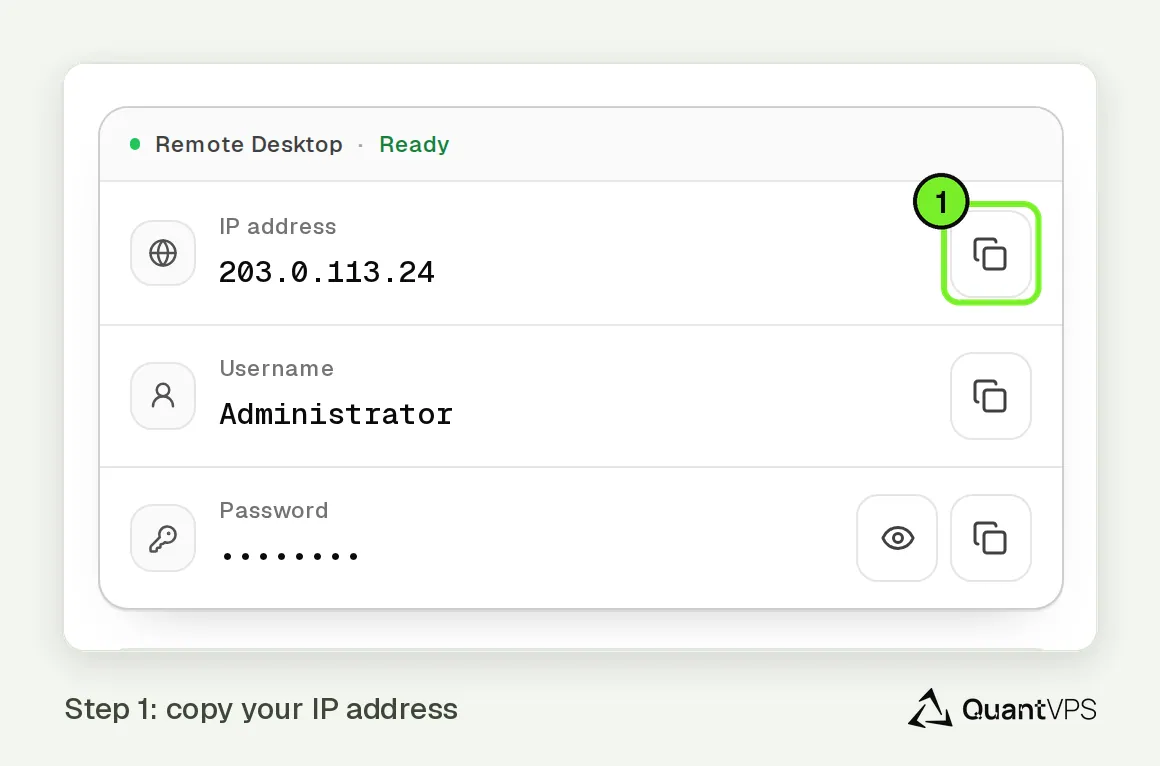
To connect, use the IP address, username, and password found in your QuantVPS dashboard.
Step 2: Download the Trading Platform Installer
Your VPS comes with Chrome and TradingView installed, plus the platform you selected at checkout, so for those you can skip to Step 4. For any other platform, once connected to your VPS:
- Open Chrome (it comes installed).
Navigate to the official website of your trading platform. For example:
- NinjaTrader: https://ninjatrader.com
- Quantower: https://www.quantower.com/download
- TradingView: comes installed on your VPS. If it's missing or you need to reinstall it, follow our TradingView install guide instead of Step 3.
- MetaTrader 4/5: https://www.metatrader5.com/en/download
- Download the installer file for your platform.
- View All Official Platform Resources
Step 3: Run the Installer
- Double-click the downloaded file.
- Follow the prompts to install the platform.
- We recommend using the default installation location unless otherwise instructed.
Once the installation completes, you’ll find a shortcut on your desktop or in the Start menu.
Step 4: Launch and Log In
- Open the trading platform you just installed.
- Log in with your broker credentials or evaluation account.
- Begin configuring your charts, strategies, or trade settings as needed.
Need Assistance?
Our support team is available 24/7. If you have any questions or run into issues, open a support ticket from your QuantVPS dashboard and we'll get back to you as quickly as possible.
Still need help? Our team answers 24/7.
Related articles
2 min read
Official Documentation & Support Links for Supported Trading Platforms
Updated4 min read
How to Launch Trading Platforms Automatically at VPS Startup
UpdatedNinjaTrader13 min read
Common NinjaTrader Errors and How to Fix Them
UpdatedNinjaTrader9 min read
Fix NinjaTrader Slowness with the NinjaScript Utilization Monitor
Updated