
On this page
If you're running multiple trading terminals, such as MT4, MT5, NinjaTrader, or custom applications, having them launch automatically at startup can save time and reduce manual work. This guide shows you how to configure Windows Server 2022 to automatically run your trading platforms every time you log on to your VPS, using either the Startup folder (recommended) or the Windows Registry Run key (advanced).
Why This Matters
For active traders, especially those using several terminals across different accounts, restarting a VPS shouldn't require relaunching every platform manually. Setting them to auto-start ensures:
- Your terminals are always up and running
- You're ready to trade immediately after logging back in following a reboot
- Minimal downtime if the server restarts during market hours
Method 1 (Recommended): Add a Shortcut to the Startup Folder
This is the simplest and safest way to auto-launch a program at logon: no registry editing required.
Step 1: Open the Startup Folder
- Press Win + R
- Type:
shell:startup - Press Enter: this opens your personal Startup folder
Step 2: Add a Shortcut for Each Trading Platform
- Right-click your trading platform's desktop shortcut (or find the .exe in its install folder), and select Copy
- Go back to the Startup folder window and Paste (or right-click → paste shortcut)
- Repeat for each additional terminal you want to launch automatically
That's it: anything with a shortcut in this folder launches automatically the next time you log on to the VPS.
Note: If you create or edit a shortcut's target path manually and the install path contains spaces (e.g., C:\Program Files\MetaTrader 5\terminal64.exe), make sure the path is wrapped in quotes in the shortcut's Target field; otherwise Windows may fail to launch it or launch the wrong thing.
Method 2 (Advanced): Add a Program via the Windows Registry Run Key
Use this method if you need more control (e.g., scripting the entries) or prefer editing the registry directly. For most users, Method 1 above is easier and just as effective.
Step 1: Open the Registry Editor
- Press Win + R
- Type: regedit
- Press Enter
- Confirm any security prompts
Step 2: Navigate to the Startup Key
Go to:
HKEY_LOCAL_MACHINE\SOFTWARE\Microsoft\Windows\CurrentVersion\RunThis location contains programs that launch when a user logs on. (Note: despite living under HKEY_LOCAL_MACHINE, this Run key still requires an interactive logon to fire; it does not run before anyone signs in.)
Step 3: Create a New Startup Entry
- In the right pane, right-click → New → String Value
Name it something descriptive: for example:
MT5_Live, AutoTrader, or Platform_1
Step 4: Set the Program Path
- Double-click the new string value
In the Value Data box, enter the full path to the .exe file
For example:
C:\Program Files\MetaTrader 5\terminal64.exeImportant: if the path contains spaces (as in the example above), wrap it in double quotes, otherwise Windows may misread the path and fail to launch it:
"C:\Program Files\MetaTrader 5\terminal64.exe"
Tip: To find the exact path:
- Right-click your trading platform's shortcut
- Select Open file location
- Copy the address from the address bar
- Add the exact .exe name to the end, and wrap the whole path in quotes if it contains spaces
Step 5: Add More Terminals (If Needed)
Repeat the above process for each additional terminal you want to launch on startup. Each entry can be named separately.
Step 6: Restart the Server
Once you've added all desired platforms:
- Close Registry Editor
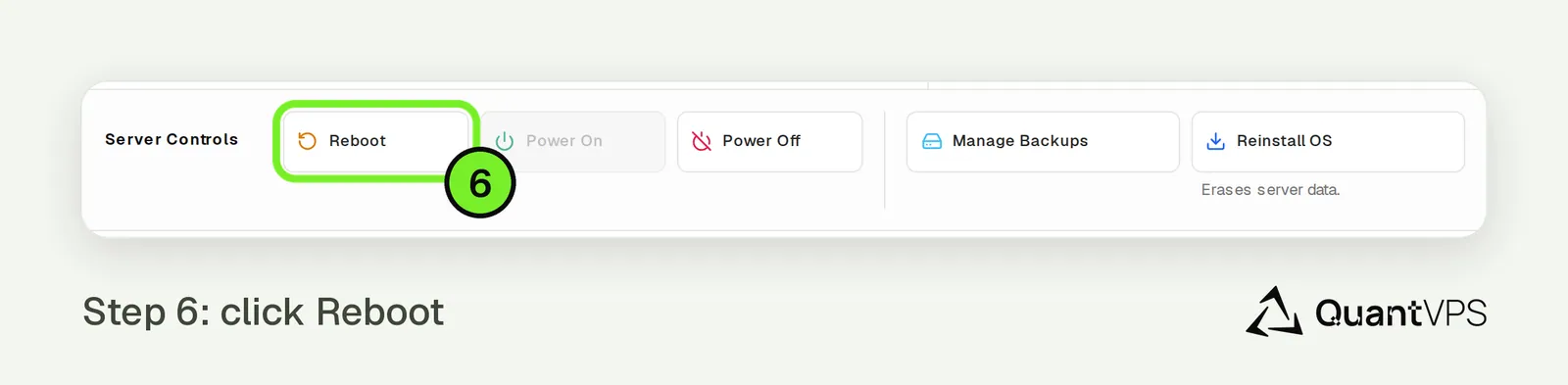
The Reboot button in QuantVPS Server Controls Reboot your VPS from the QuantVPS dashboard or using:
shutdown /r /t 0
All the platforms you added should now start automatically the next time you log on (RDP in) after the reboot.
Important Tips
- Wait for terminals to fully load before launching additional tasks after startup to avoid resource spikes
- If you're using custom templates or auto-login credentials, confirm these are saved within the platform's config
- Avoid adding unnecessary apps to startup; each one consumes CPU/RAM on boot
- Remember: these methods start your platforms at logon, not at power-on; you'll still need to RDP in for them to launch after a reboot
- Always quote any file path that contains spaces, whether in a Startup folder shortcut target or a registry Run value
Need Assistance?
Our support team is available 24/7. If you have any questions or run into issues, open a support ticket from your QuantVPS dashboard and we'll get back to you as quickly as possible.
Still need help? Our team answers 24/7.
Related articles
2 min read
Official Documentation & Support Links for Supported Trading Platforms
Updated2 min read
How to Install a Trading Platform on Your QuantVPS (Quickstart)
UpdatedNinjaTrader13 min read
Common NinjaTrader Errors and How to Fix Them
UpdatedNinjaTrader9 min read
Fix NinjaTrader Slowness with the NinjaScript Utilization Monitor
Updated