
On this page
- Step 1: Download the TradingView Installer
- Step 2: Download Microsoft.VCLibs Dependency
- Step 3: Locate the Downloaded Files
- Step 4: Open PowerShell in Administrator Mode
- Step 5: Install the Microsoft.VCLibs Dependency
- Step 6: Install the TradingView Application
- Step 7: Verify the Installation
- Need Assistance?
This guide walks you through installing the TradingView desktop app on your QuantVPS running Windows Server 2022. You will download the TradingView installer and its Visual C++ dependency, then install both packages using PowerShell.
Step 1: Download the TradingView Installer
Visit the official TradingView desktop download page:
- Click to download the TradingView.msix installation file: https://www.tradingview.com/desktop/
Step 2: Download Microsoft.VCLibs Dependency
TradingView requires a Visual C++ runtime package to run.
Download the required file from Microsoft's official link:
Step 3: Locate the Downloaded Files
Both files, TradingView.msix and Microsoft.VCLibs.x64.14.00.Desktop.appx, should now be located in the default downloads folder:
C:\Users\Administrator\DownloadsStep 4: Open PowerShell in Administrator Mode
To install these packages manually:
- Right-click on the Start button.
Select Windows Terminal (Admin) or PowerShell (Admin) to open a command window with administrator privileges.
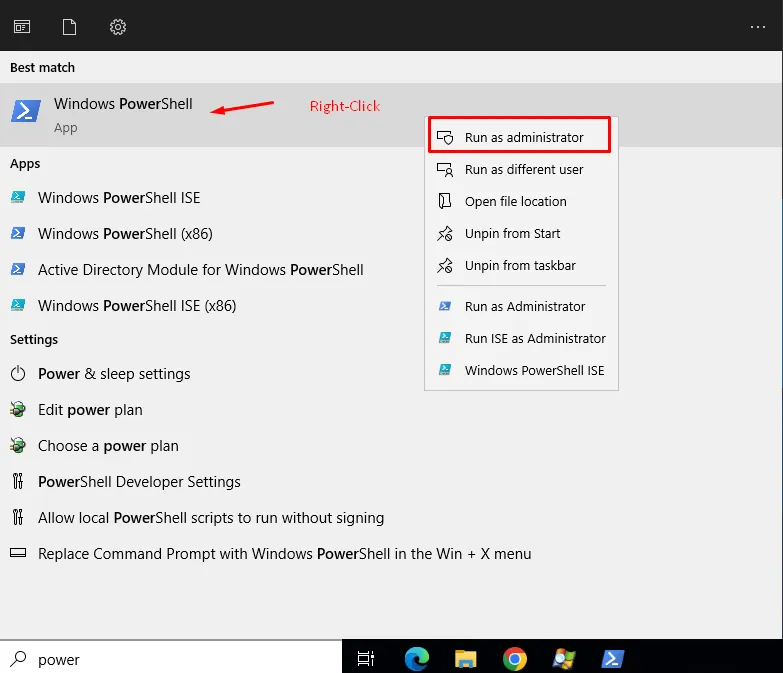
Right-click on the Start button and select Windows Terminal (Admin) to open PowerShell in administrator mode.
Step 5: Install the Microsoft.VCLibs Dependency
In the PowerShell window, paste the following command to install the VCLibs package:
Add-AppxPackage -Path C:\Users\Administrator\Downloads\Microsoft.VCLibs.x64.14.00.Desktop.appxPress Enter and wait for the installation to complete.
Step 6: Install the TradingView Application
Now install the TradingView desktop app by entering the following command:
Add-AppxPackage -Path C:\Users\Administrator\Downloads\TradingView.msixPress Enter and allow the installation to finish.
If Add-AppxPackage fails: this is most often caused by a missing dependency. Make sure you ran PowerShell as Administrator (Step 4) and that the Microsoft.VCLibs package from Step 5 installed successfully before trying to install TradingView again.
Step 7: Verify the Installation
Once both packages are installed:
- Click the Start menu.
- Look for TradingView in your application list.
- Launch the app to confirm it opens correctly.
Need Assistance?
Our support team is available 24/7. If you have any questions or run into issues, open a support ticket from your QuantVPS dashboard and we'll get back to you as quickly as possible.
Still need help? Our team answers 24/7.
Related articles
NinjaTrader13 min read
Common NinjaTrader Errors and How to Fix Them
UpdatedNinjaTrader9 min read
Fix NinjaTrader Slowness with the NinjaScript Utilization Monitor
UpdatedNinjaTrader2 min read
How to Clear the Cache in NinjaTrader 8 (NT8)
UpdatedMultiCharts3 min read
How to Install MultiCharts on Windows Server 2022
Updated