Replikanto is a trade copier specifically designed for NinjaTrader 8, helping futures traders manage multiple accounts efficiently. It replicates trades in real time across "follower" accounts, making it ideal for traders working with prop firms like Apex, TopStep, and MyFundedFutures. Key features include seven copying methods, cross-order functionality, and ATM strategy replication, all of which streamline multi-account trading. While it requires active monitoring and additional costs for remote copying, many users find its reliability and customization options worth the investment.
Key Features:
- 7 Copying Methods: Scale trades based on account size or risk.
- ATM Copy: Replicates leader account strategies for faster execution.
- Cross-Order Functionality: Converts trades across instruments (e.g., ES to MES).
- Stealth Mode & Follower Guard: Adds security for multi-account setups.
- Pricing: Ranges from $0 to $299, with remote copying requiring credits.
Pros:
- Works seamlessly with NinjaTrader 8 and prop firms.
- Reduces latency with local execution.
- Regular updates ensure reliability.
Cons:
- Requires manual adjustments for mismatches.
- Remote copying adds extra costs.
- Dependent on stable hardware and internet for optimal performance.
For traders managing multiple futures accounts, Replikanto offers a robust solution with advanced features tailored to professional needs.
1. Replikanto
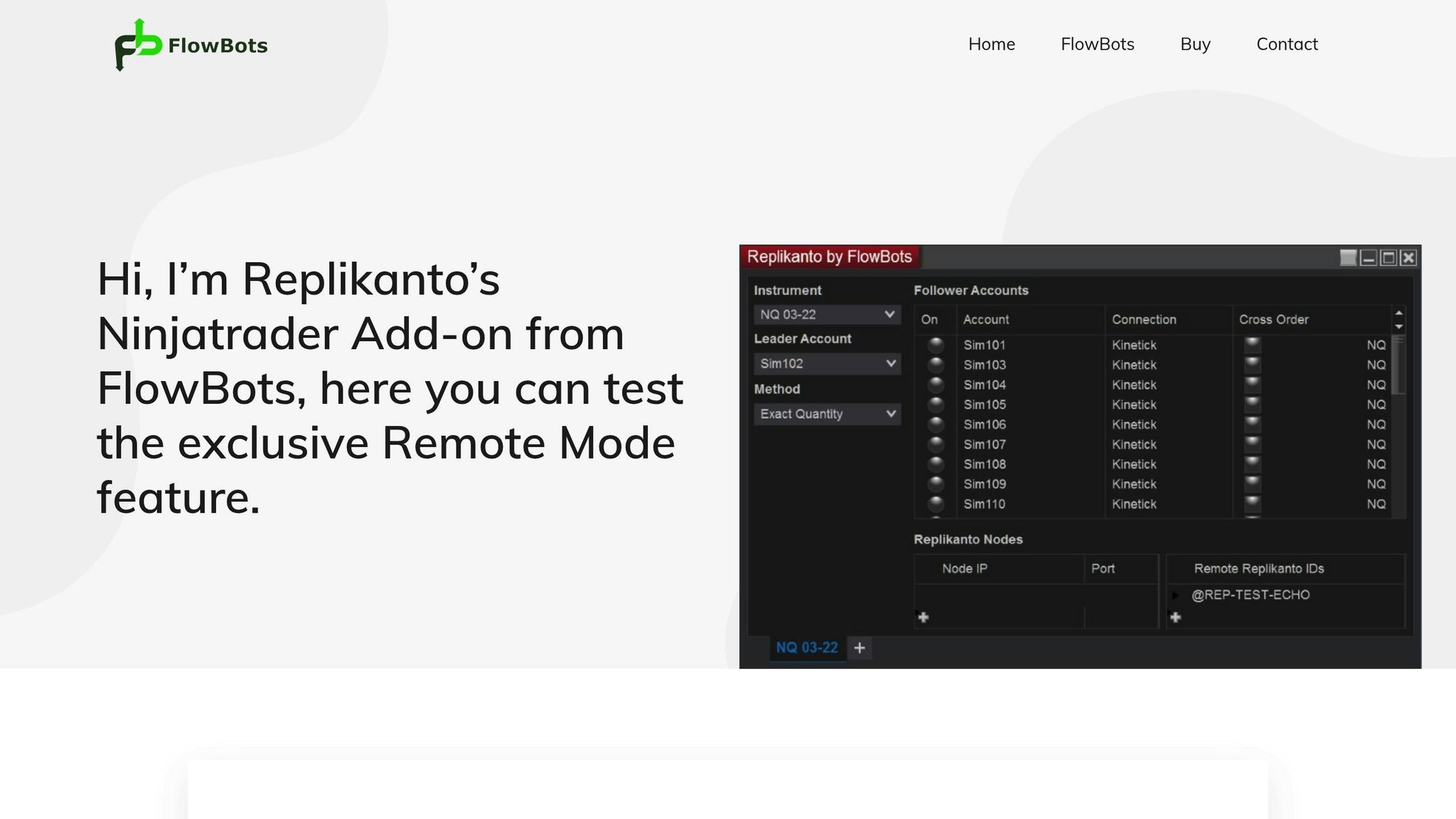
Replikanto is a trade copier specifically designed for NinjaTrader 8, enabling real-time replication of leader account orders across multiple follower accounts. On the FlowBots platform, it boasts an impressive user rating of 4.94/5.

Run 24/7 while you sleep. Keep bots, platforms, and trade copiers online on a dedicated VPS.
Low-latency VPS hosting for your trading platform.
 CHINYC
 LON
LONFrom $29.99/mo


 CHI/CME futuresNYC/US marketsLON/FX EAs
 DUB/Polymarket
 AMS/EU FX
 FRA/Central EU
 TYO/APAC crypto
Features
Replikanto gives traders flexibility with seven copy methods: Exact, Equal, Ratio, Net Liquidation, Available Money, Percentage Change, and Pre Allocation. These options allow traders to scale positions based on account size or risk preferences. The Cross Order function is particularly handy, enabling the copying of orders between instruments of different sizes - for example, converting one ES contract into ten MES contracts.
The ATM Copy feature streamlines exit orders by applying the leader's ATM strategy directly to follower accounts. This local execution speeds up order handling and minimizes synchronization errors. For traders focused on executed market orders, the Market Only Mode skips pending limit and stop orders, reducing the chance of "ghost orders." Security tools like Stealth Mode and Follower Guard add extra layers of protection for multi-account setups.
Replikanto supports both local and internet-based copying, though internet mode requires additional credits. Its developers actively update the software, as seen with version 1.6.1.4, released on February 10, 2026, which introduced Silver cross-order instrument relations. These updates ensure the tool remains dependable and effective.
Performance
Traders frequently praise Replikanto for its reliability and straightforward setup. The ATM Copy feature is a standout, enabling faster execution by processing exit orders locally on follower accounts. This approach reduces latency and enhances precision, which is crucial for managing multiple accounts - especially those tied to top futures prop firms.
Compatibility
Replikanto integrates smoothly with NinjaTrader 8, as well as platforms like Tradovate and TradingView. It supports all standard order types - Market, Limit, Stop, and OCO - while also replicating full ATM strategies. Its cross-order capabilities, such as "Micro to Mini" copying, offer flexible position sizing, making it a valuable tool for accounts with varying capital levels.
Pricing
Replikanto offers a range of pricing options, from $0.00 to $299.00, depending on the chosen license type. For traders who need remote copying between machines over the internet, additional credits are required beyond the base license cost. While this adds to the expense, many traders managing multiple proprietary accounts find the cost justified due to the time saved and the reduced risk of errors.
2. Other NinjaTrader Trade Copiers
When comparing trade copiers for NinjaTrader, each platform offers its own approach, giving traders options to weigh against Replikanto's features.
Affordable Indicators (Duplicate Account Actions) integrates tightly with NinjaTrader 8 and employs an "Executions Mode" that automatically sends market orders to follower accounts. This approach simplifies error correction and minimizes sync issues, though it comes at the cost of limit order precision. Other tools also bring distinct features and pricing models to the table.
CrossTrade, currently in private beta since late 2025, introduces multi-directional copying. This allows accounts to act as both leaders and followers. Its standout feature, Auto-Sync, recalibrates accounts every 3 seconds to resolve discrepancies. Available for $49/month under the Pro plan, CrossTrade also supports manual trading directly from TradingView to NinjaTrader 8 desktop.
Cloud-based platforms like Tradesyncer and Duplikium remove the need for managing a local VPS. These services provide 24/7 uptime and enable cross-platform copying between NinjaTrader, TradingView, and Tradovate. However, their reliance on cloud infrastructure can lead to slightly higher latency compared to VPS-based solutions located near the CME exchange.
For those seeking a budget-friendly option, Simple Trade Copier offers a free service within the NinjaTrader ecosystem. However, users have reported noticeable slippage between leader and follower accounts. To handle advanced features like Tradovate or OCO orders, most modern copiers require NinjaTrader version 8.1.6.0 or later.
Each alternative caters to different needs with flexible pricing structures, ranging from one-time licenses to subscription plans. Choosing between local and cloud-based copiers often comes down to whether you value lower latency and direct control or prefer a hassle-free setup without managing servers.
Advantages and Limitations
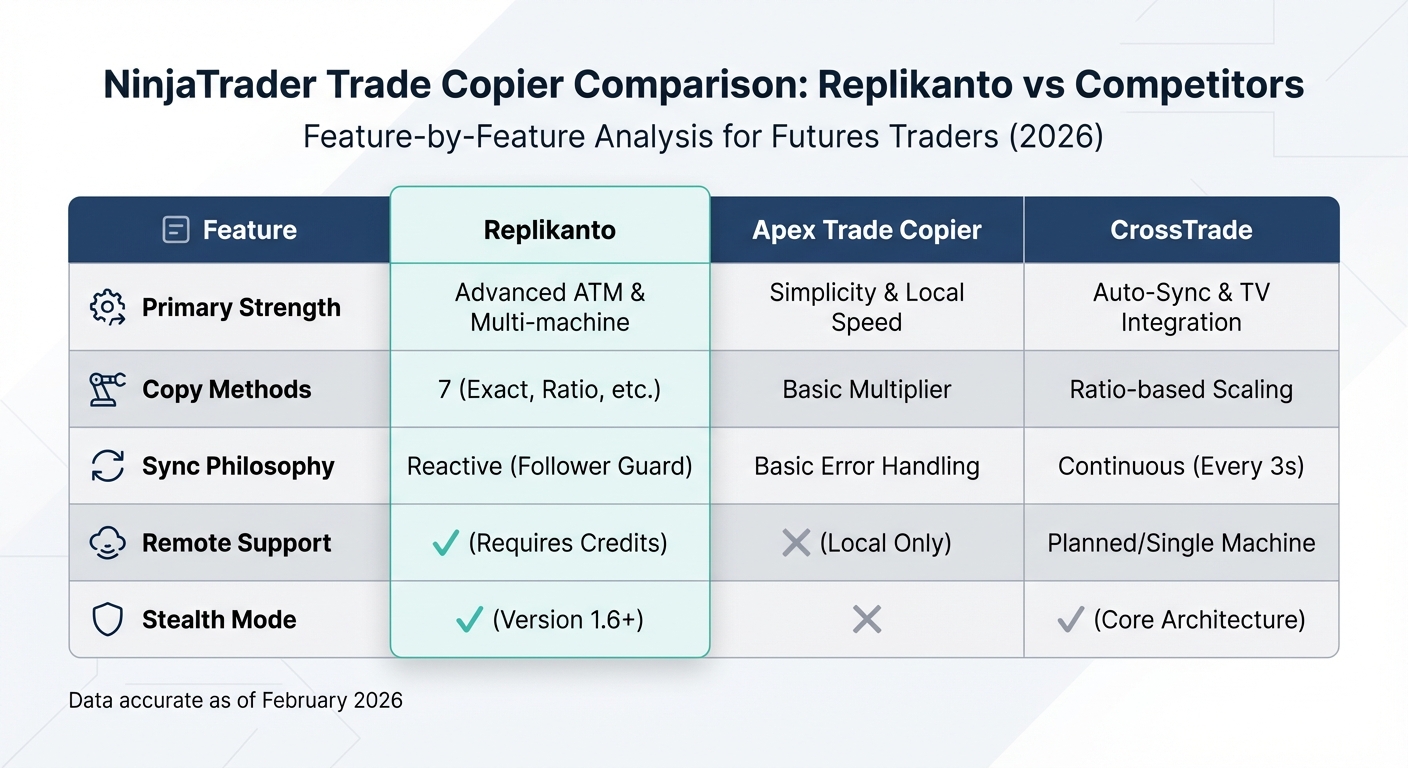
Replikanto vs CrossTrade vs Apex Trade Copier Feature Comparison
Replikanto's ATM Copy feature is a standout tool for futures traders. This feature replicates a leader's ATM strategy directly on follower accounts, ensuring quick exit execution when needed. Another highlight is its Cross-Order functionality, which allows for precise replication across different contract sizes, such as ES to MES or NQ to MNQ. Futures trader Ali Akvar shared his experience with the platform:
Stay online and closer to execution. Choose a VPS location for CME futures, New York markets, London FX, API trading, and more.
Host your platform near the market route that matters.
CHINYCLONFrom $29.99/mo
CHI/CME futuresNYC/US marketsLON/FX EAsDUB/PolymarketAMS/EU FXFRA/Central EUTYO/APAC crypto"Replikanto has completely transformed my trading workflow. The platform is extremely accurate and reliable - there are no more reverse or ghost orders".
That said, the platform isn't without its challenges. Its reactive synchronization system requires active monitoring. For example, the Follower Guard feature disables accounts when mismatches occur, meaning users must manually realign their settings. This is different from competitors like CrossTrade, which recalibrates automatically every three seconds. Additionally, the platform may struggle with unmanaged open positions if the hardware is underpowered or the internet connection is unstable (see our guide on optimizing NinjaTrader 8 on VPS).
Here’s a quick comparison of Replikanto with similar platforms:
| Feature | Replikanto | Apex Trade Copier | CrossTrade |
|---|---|---|---|
| Primary Strength | Advanced ATM & Multi-machine | Simplicity & Local Speed | Auto-Sync & TV Integration |
| Copy Methods | 7 (Exact, Ratio, etc.) | Basic Multiplier | Ratio-based Scaling |
| Sync Philosophy | Reactive (Follower Guard) | Basic Error Handling | Continuous (Every 3s) |
| Remote Support | Yes (Requires Credits) | No (Local Only) | Planned/Single Machine |
| Stealth Mode | Yes (Version 1.6+) | No | Yes (Core Architecture) |
Replikanto requires NinjaTrader 8.1.6.0 or higher to operate. Remote copying comes with additional costs, ranging from $10 to $90 in credits. However, its user support is highly responsive, often providing answers in just minutes. Updates through February 10, 2026, have introduced instrument relationship features and addressed critical bugs, such as issues with partial fills.
For futures traders juggling multiple prop firm accounts, Replikanto offers a reliable solution when configured correctly. While manual adjustments may occasionally be necessary, its features make it a strong option for those looking to streamline their trading processes.
Conclusion
Replikanto stands out as a powerful trade copier for NinjaTrader 8, offering features that cater specifically to the needs of futures traders managing multiple prop firm accounts. With seven distinct copy methods, full ATM strategy replication, and support for cross-instrument trading, it provides the tools required for professional-grade account management. The platform’s commitment to improvement is clear, with its latest version (1.6.1.4) released on February 10, 2026, reflecting ongoing development to meet trader demands.
Its performance shines for traders operating across firms like Apex and TopStep, where multi-account setups are common. Many users report smooth operations, with no ghost orders when paired with a low-latency VPS for NinjaTrader. Independent trader Izak Engelbrecht summed up the platform’s impact, saying:
"Replikanto has enabled me to triple my income. The level of service far exceeded my expectations".
That said, there are a few considerations to keep in mind. While Replikanto is highly reliable for most setups, traders handling extremely high volumes might experience minor delays or need to make occasional manual adjustments due to its reactive synchronization method. Additionally, remote copying features may come with extra costs.
For traders comfortable with detailed configurations and proactive monitoring, Replikanto offers a level of reliability and flexibility that’s hard to match. Combined with responsive customer support, it’s a strong choice for those managing multiple NinjaTrader accounts. While simpler tools may suffice for single-machine setups, Replikanto remains a top-tier option for futures traders seeking advanced control in 2026.
FAQs
Do I need a VPS to run Replikanto reliably?
Using a VPS, like QuantVPS, is often essential for the smooth operation of Replikanto. A VPS provides ultra-low latency, stable performance, and ensures uninterrupted trade copying - factors that are crucial for futures trading. Without a VPS, you risk delays or disruptions that could negatively affect your trading outcomes.
How do the 7 copy methods differ in real trading?
Replikanto offers seven distinct trade replication methods, each tailored to fit varying strategies and risk levels. Here's a quick breakdown of a few:
- Exact Quantity: This method replicates the exact number of contracts from the original trade, making it straightforward and easy to track.
- Percentage Change: Trades are scaled based on the size of the follower's account, ensuring proportional adjustments that fit different portfolio sizes.
Other methods, like Net Liquidation and Pre Allocation, focus on equity adjustments or predefined allocations. These approaches allow traders to better manage risk and customize trades to align with their specific goals.
What causes leader/follower mismatches and how do I fix them fast?
Leader and follower mismatches in trade copying with Replikanto can happen for several reasons. These include follower account disconnections, broker order rejections, or errors in selecting the correct leader account or trading instrument. Additionally, network problems between NinjaTrader and the broker can interfere with the copying process.
To fix these issues swiftly, make sure follower accounts are active and properly connected. Double-check that the leader accounts and instruments are correctly configured. Using a stable internet connection or a reliable VPS can minimize disruptions, and regular monitoring can help catch potential problems early.