
TradingView Paper Trading is a free, built-in simulator that lets you place trades with virtual money on live charts. You turn it on from Supercharts: click Trade in the top-right corner, select Paper Trading and click Connect. It is "available globally for all users," including the free Basic plan (TradingView Help Center and pricing page, checked on 10 Oct 2026).
Key points:
- Cost: free. You only need a TradingView account.
- Markets: stocks, forex, crypto, commodity and index futures, and more.
- Orders: market, limit and stop, with take profit and stop loss, from the order ticket, the chart or the DOM.
- Reset: resetting an account deletes its history, active orders and open positions.
- Limits: one position per symbol, no GTC orders, and all futures treated as cash-settled.
What TradingView Paper Trading Is
Paper Trading is TradingView's own brokerage simulator. TradingView's Paper Trading guide calls it "a tool that lets you practice buying and selling assets using simulated money" and says the system "tracks your orders and positions in real time." It appears in the broker list next to real brokers, so you trade it the same way you would trade a live account.
Simulated (paper) trading is ticked for every plan on TradingView's pricing page, from Basic to Ultimate, checked on 10 Oct 2026. Paid plans add things around it, such as more charts and alerts, but the simulator itself costs nothing.
How to Turn On Paper Trading
You connect Paper Trading like a broker, in three clicks from Supercharts. When we tried it signed out, TradingView asked us to join first, so sign in or create a free account before you start.
- Open Supercharts and load the symbol you want to trade.
- Click the Trade button in the top-right corner. A list of brokers opens.
- Select Paper Trading (labelled "Brokerage simulator by TradingView") and click Connect.
- The Trading Panel opens at the bottom of the chart, with the order ticket on the right.
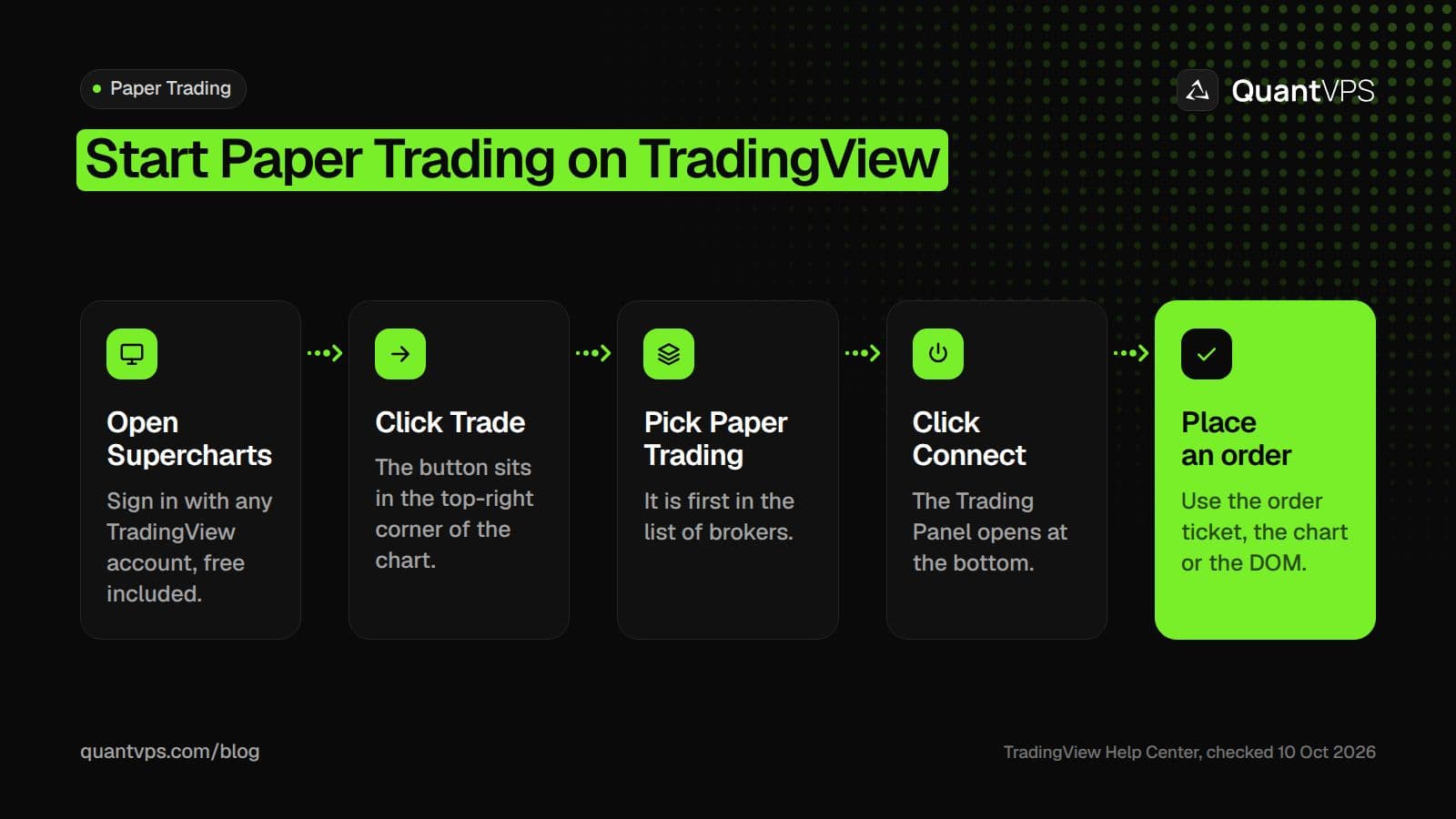
Paper Trading is connected like a broker, from the Trade button on Supercharts.
To leave, open the Trading Panel, open the trading menu in its top-right corner and click Log out Paper Trading, as TradingView's connect and disconnect guide describes. You can keep several paper accounts, each with its own currency, and switch between them in the Trading Panel.
Order flow
Built for scalpers. Heatmaps on dedicated resources.
Order-flow heatmaps and DOM ladders run on dedicated CPU, memory and NVMe, so your charts keep responding during volatility.
See the dedicated hardware





From $29.99/mo · Windows or Linux
How to Place and Manage Paper Trades
You can place paper orders three ways: the order ticket, chart trading, or the Depth of Market (DOM) window. The order ticket guide lists three order types for Paper Trading:
| Order type | What you enter | How it fills |
|---|---|---|
| Market | Quantity only | At once, at the best available price, which "may differ from the expected price" |
| Limit | Quantity and limit price | Only at your price or better; may not fill |
| Stop (stop-market) | Quantity and stop price | Becomes a market order when the stop price is reached |
Quantity can be set in units, currency, % of balance, or as a cash or % risk based on the stop loss. Take profit and stop loss can be set by price, ticks, % of price or reward/risk. Time in force sets how long an order stays active before it is cancelled.
Brackets and exits work like this:
- One bracket: add a take profit and a stop loss in the order ticket, or drag them on the chart.
- Several exits: click "Add level" in the Exits section. Paper Trading allows up to 4 exit levels, and each level is a take profit and stop loss pair, as the multiple exits guide explains.
- From the chart: chart trading lets you place, drag, modify and close orders on the price chart, with or without a confirmation step.
Profit and loss uses the bid and ask, not the last price. Buy orders usually fill at the ask and sell orders at the bid, so a long position shows (bid minus average fill price) times quantity, according to TradingView's P&L guide.
How to Reset Your Account or Change the Balance
To start over, reset the paper account, or create a new one next to it. TradingView lists "customizable balances, leverage, currency, and commissions" and multiple accounts as Paper Trading features. The account currency guide warns that "resetting the account will delete the transaction history, active orders, and open positions."
- Reset: clears the account. TradingView then asks you to choose the account currency again.
- New account: keeps the old one and its history. Pick a currency from the list when you create it.
- Leverage: set it per asset class in account settings. The default margin for E-mini S&P 500 futures is 5%, or 20x leverage, per TradingView's leverage guide.
- Commissions: off by default. Turn on the "Futures & Options" commission per contract in account settings, charged when you open and when you close, as the commission guide explains.
Set the balance and commissions close to what you would really trade. A paper account that is far bigger than your real one teaches position sizes you will never use.
What Paper Trading Does Not Simulate
Paper Trading is close to live trading, but it follows its own rules in a few places, so live results will differ. These limits come from TradingView's Help Center, checked on 10 Oct 2026:
- One position per symbol. New orders on the same symbol merge into a single position (one-position rule).
- No Good 'Til Cancelled orders, "to prevent the stacking of orders that would never be executed" (GTC note).
- Futures are all cash-settled, even contracts that are physically settled on the exchange. Expired positions close at the final settlement price.
- Some symbols are not tradable: indices such as NASDAQ:NDX, synthetic symbols, and symbols listed on Indian exchanges (non-tradable symbols).
- Fills come from quotes, not a real order book. TradingView's help pages do not describe partial fills or queue position, so treat paper fills, especially on limit orders and in fast markets, as a best case.
- Data can be delayed. Most stock and futures exchanges charge for real-time data, and TradingView's paid plans "don't cover those fees" (market data guide). Check the chart's status line for "Data is delayed" before trusting a paper fill.
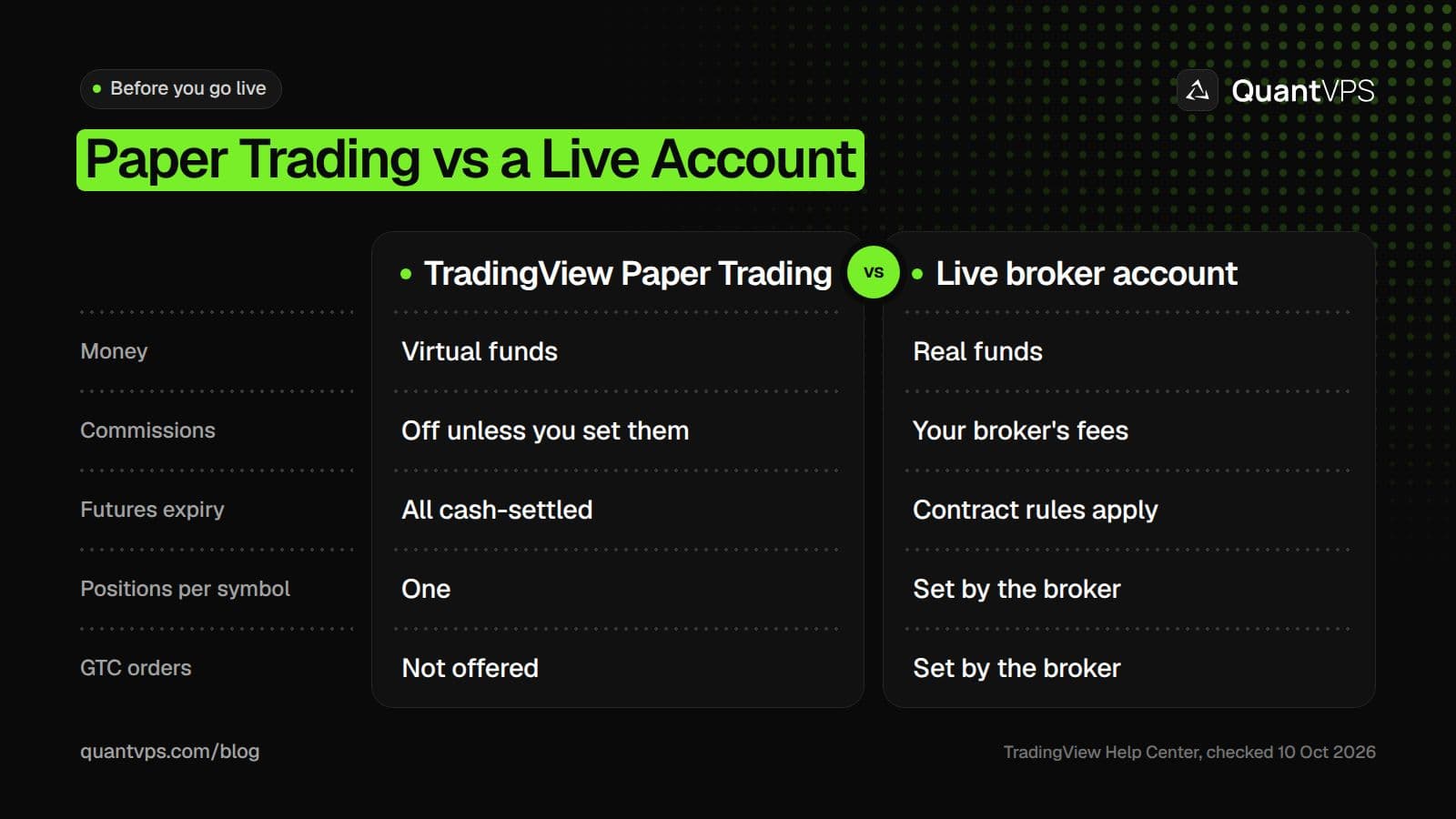
Paper Trading follows its own rules in a few places, so expect live results to differ.
Paper Trading Futures vs Stocks vs Crypto
The simulator works the same way across markets, but each asset class has its own rules. This table sums up what TradingView documents for each one:
| Market | What to know in Paper Trading | Data |
|---|---|---|
| Futures | Settles at expiry at the final settlement price; all contracts treated as cash-settled; commission per contract available; default leverage preset (5% margin on E-mini S&P 500) | Real-time CME and other exchange data is a paid add-on |
| Stocks, ETFs, bonds | Limit orders and take profits can fill outside regular trading hours if you tick "Fill order outside RTH" | US stock data is from Cboe by default; NASDAQ, NYSE or ARCA real-time data is an add-on |
| Crypto | Spot and crypto futures supported; perpetual futures have no settlement | All crypto exchanges on TradingView provide real-time data |
For futures, TradingView's paper futures guide adds that active orders on expired contracts are cancelled and any commission per contract is deducted at settlement. If you want to compare TradingView with dedicated futures simulators, see our list of futures paper trading simulators.
Uptime
99.999% uptime. Built for 24/7 trading reliability.
Your VPS runs in Tier IV datacenters with redundant power and network, monitored 24/7 on site.
See the uptime SLAFrom $29.99/mo · Windows or Linux
Testing a Strategy: Strategy Tester First, Then Paper Trade
Test a strategy on history in the Strategy Tester first, then paper trade it on live data. The backtest shows how the rules would have done over many trades; paper trading shows whether you can follow them in real time and how fills compare. Our step-by-step guide to the Strategy Tester covers the first part.
Two more tools sit between the two steps. Bar Replay trading lets you trade on historical bars as they replay; it is a separate mode from Paper Trading and its results are not saved. The Leap is TradingView's paper trading competition, where each participant gets a fixed virtual balance and the account cannot be reset.
Note that a Pine Script strategy does not place paper orders by itself. TradingView's autotrading page says "strategy trading is limited to the backtesting mode only," so paper trades are placed by hand or through alerts and an outside tool.
Moving From Paper Trading to a Live Broker
When your paper results hold up over enough trades, switch to a live broker from the same Trade button. Click Trade, pick your broker from the list and log in with your broker credentials. Your charts and drawings stay the same, but the order types on offer depend on the broker.
- Start small. Trade the smallest size your broker allows for the first weeks.
- Match the costs. Compare your live commissions and fills with your paper settings.
- Check the data. Once connected to a real broker, the order panel uses the broker's quotes, not TradingView's.
Manual trading needs nothing more than a browser. If you automate with alerts, the part that receives them, such as a bot or a desktop platform, has to stay online. A TradingView VPS keeps that part running around the clock. It does so with 99.999% uptime.
FAQs
Is TradingView paper trading free?
Yes. Paper Trading is available to every TradingView user, and TradingView's pricing page (checked on 10 Oct 2026) lists simulated trading on all plans, including the free Basic plan. You need to sign in to a TradingView account to connect it.
How do I reset my TradingView paper trading account?
Use the reset option on your paper account. Resetting deletes the transaction history, active orders and open positions, and TradingView asks you to choose the account currency again. To keep your old results, create a new paper account instead.
Is TradingView paper trading real-time?
Paper Trading tracks orders and positions in real time, but the prices it uses can be delayed for exchanges that charge for real-time data, such as many stock and futures exchanges. Crypto exchanges on TradingView provide real-time data.
Can I paper trade futures on TradingView?
Yes. Classic and crypto futures are supported. Positions close at expiry using the final settlement price, all contracts are treated as cash-settled, and you can add a commission per contract in account settings.
Can a TradingView strategy trade my paper account automatically?
No. TradingView says Pine Script strategy trading is limited to backtesting. You place paper trades yourself, from the order ticket, the chart or the DOM.


