
A TradingView webhook sends an HTTP POST request to a URL you choose each time an alert triggers, with the alert message as the request body. Your server must accept it on port 80 or 443 over IPv4 and answer within three seconds, or TradingView cancels the request. Webhooks need two-factor authentication and a paid plan: Essential, Plus, Premium or Ultimate (TradingView Help Center and pricing page, checked on 10 Oct 2026).
Key points:
- Ports: only 80 and 443.
- Network: IPv4 only. TradingView says IPv6 is not supported for webhooks yet.
- Timeout: three seconds.
- Retries: a 5xx reply (except 504) brings up to 3 resends, 5 seconds apart, so one alert can arrive 4 times.
- Source IPs: published by TradingView, and they can change.
What a TradingView Webhook Is
A TradingView webhook is one of the alert notification options, next to app, pop-up, email and sound. TradingView's webhook setup page says it sends a POST request "as soon as the alert is triggered, with the alert message in the body of the request." TradingView's Pine Script docs add that alerts "run 24x7 on our servers and do not require users to be logged in to execute," so your chart does not need to be open.
The content type depends on the message. If the message is valid JSON, the request carries an application/json header; otherwise it uses text/plain. Most bots and bridges expect JSON, so write the message as JSON from the start.
A webhook only delivers a message; something on the other end must read it and place the order. For the strategy side, see our guide to automating TradingView strategies end to end.
What You Need Before You Start
You need two things: two-factor authentication on your TradingView account and a plan that includes webhook notifications. TradingView states that "webhook alerts are only allowed when 2-factor authentication is enabled." You turn it on under Account Settings, in the Privacy and Security tab, as described in TradingView's 2FA guide.
The free Basic plan does not include webhook notifications. Every paid plan does, as listed on TradingView's pricing page, checked on 10 Oct 2026:
| Plan | Webhook notifications | Active technical alerts | Price billed monthly | Price per month billed yearly |
|---|---|---|---|---|
| Basic | No | None (3 price alerts) | $0 | $0 |
| Essential | Yes | 20 | $14.95 | $12.95 |
| Plus | Yes | 100 | $34.95 | $29.95 |
| Premium | Yes | 400 | $69.95 | $59.95 |
| Ultimate | Yes | 1,000 | $239.95 | $199.95 |
US prices before any sales tax, checked on 10 Oct 2026. Technical alerts are the ones you set on indicators, strategies and drawings, which is what most automated setups use. You also need a public URL that TradingView can reach: a localhost address or an internal IP is rejected.
Order flow
Built for scalpers. Heatmaps on dedicated resources.
Order-flow heatmaps and DOM ladders run on dedicated CPU, memory and NVMe, so your charts keep responding during volatility.
See the dedicated hardware





From $29.99/mo · Windows or Linux
How to Set Up a TradingView Webhook Alert
You add a webhook when you create or edit an alert: set the condition, write the message, then turn on the Webhook URL notification and paste your URL. The steps below follow TradingView's alert setup guide.
- Open the chart with the indicator or strategy you want to alert on.
- Open the Create Alert dialog with the Create alert button on the top toolbar, from the Alert manager, by right-clicking the chart, or with ALT + A (Windows) or ⌥ + A (macOS).
-
Pick the Condition. For a strategy, you can alert on its order fills, its
alert()calls, or both. - Write the Message as JSON, using placeholders for values that change (example below).
-
In the notification options, tick Webhook URL and paste your full URL, such as
https://alerts.example.com/tradingview. - Save the alert, then watch the Webhook status column in the alert log the first time it triggers.
Placeholders in double curly braces are replaced with live values when the alert triggers. TradingView's placeholder list includes {{ticker}}, {{exchange}}, {{close}}, {{time}} and {{timenow}} for any alert, and {{strategy.order.action}}, {{strategy.order.contracts}}, {{strategy.order.price}} and {{strategy.order.id}} for strategy alerts only. A message for a strategy could look like this:
{
  "token": "replace-with-a-long-random-string",
  "alert_id": "{{strategy.order.id}}-{{timenow}}",
  "symbol": "{{ticker}}",
  "action": "{{strategy.order.action}}",
  "contracts": "{{strategy.order.contracts}}",
  "price": "{{strategy.order.price}}"
}
Field names such as token and alert_id are your own choice; match whatever your receiver or bridge expects. {{timenow}} is the fire time in UTC to the nearest second, which makes the alert_id unique for each trigger.
The Rules Your Server Must Meet
Your receiver must listen on port 80 or 443, be reachable over IPv4, and answer within three seconds. These rules come from TradingView's webhook pages, checked on 10 Oct 2026:
| Rule | What TradingView says | What to do |
|---|---|---|
| Ports | "only ports 80 and 443 are accepted. Requests to other ports will be rejected." | Put the receiver behind a web server or proxy on 443 |
| IP version | "IPv6 isn't currently supported for webhooks." | Give the domain an IPv4 (A) record |
| Timeout | "If a remote server takes longer than three seconds to process a request, the request will be cancelled." | Reply 200 at once, then process the order |
| Address | A localhost or internal IP URL, or a domain that resolves to a private IP, fails as an error | Use a public domain or public IP |
| Redirects | A 3xx reply is listed as an error | Point the alert at the final URL, with no redirect or login page |
| Source IPs | A published list of addresses TradingView sends from, "in case they need to be allowlisted" | Copy the current list from TradingView's page |
On 10 Oct 2026 that page listed four IPv4 addresses. Copy them from TradingView when you build your allowlist, not from a blog post, and check again if alerts stop arriving.
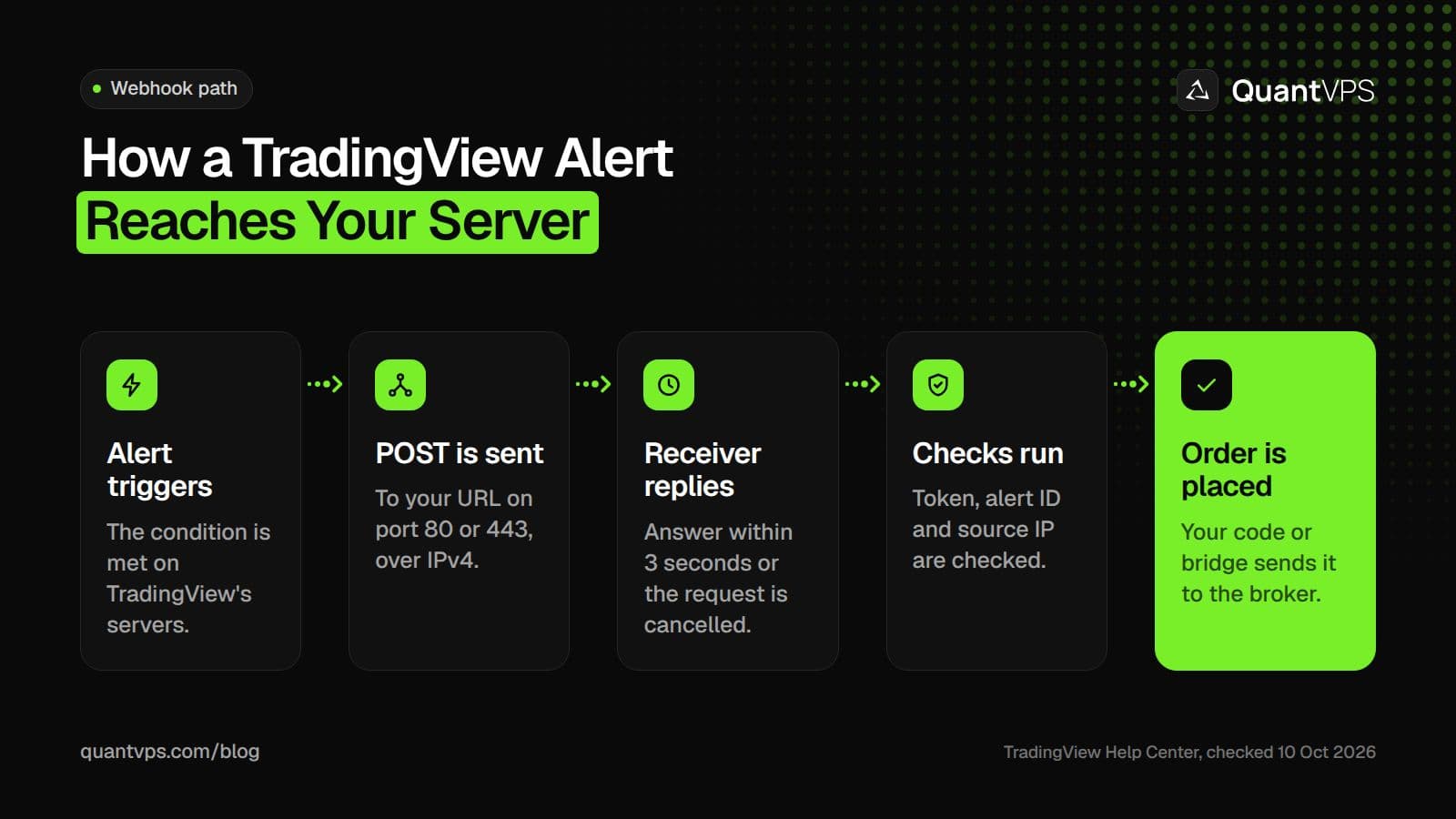
The path of one TradingView webhook alert, from trigger to order.
Retries and Duplicate Alerts
If your server replies with a status code from 500 to 599, except 504, TradingView sends the same notification again after 5 seconds, up to 3 times. TradingView's resubmission page sums it up: "the maximum number of webhook sends for one trigger can be 4." So a receiver that errors after it has already placed an order can place the same order up to four times.
Three habits stop duplicates:
- Reply fast and only once. Return 200 as soon as the message is stored, then place the order in the background.
-
Keep an alert ID. Build one from placeholders, as in the
alert_idfield above, and store every ID you have acted on. - Ignore repeats. If an ID arrives a second time, reply 200 and do nothing else.
For errors that are not retried, check the Webhook status column. TradingView's error guide explains each result: a 4xx usually means a wrong path, a failed check or invalid JSON.
Three Ways to Receive TradingView Alerts
You can receive alerts with a hosted cloud bridge, with an add-on that feeds a desktop platform such as NinjaTrader or MetaTrader, or with your own receiver. The right one depends on where your orders go and what you are willing to keep online.
| Option | What runs where | What must stay online | Good fit |
|---|---|---|---|
| Cloud bridge | The bridge company hosts the webhook URL and sends orders to your broker over its API | The bridge service and your broker connection | Brokers the bridge supports, no server to run |
| Add-on for a desktop platform | A webhook add-on passes the alert into NinjaTrader or MetaTrader, which places the order | The platform, the add-on and your login | Futures or forex accounts that trade through that platform |
| Your own receiver | Your code on a server takes the POST and calls your broker's API | Your server, your code and the broker session | Full control over checks, sizing and logging |
A bridge is the least work, but each hop adds time; see how much delay a cloud bridge adds. Our broker guides cover the details for sending TradingView alerts to Tradovate. They also cover routing TradingView strategies to Interactive Brokers.
If you use an add-on, the desktop platform has to be running when the alert arrives. That is where a NinjaTrader VPS comes in: the platform keeps running when your own computer is off. A MetaTrader VPS does the same for MT4 and MT5.
Uptime
99.999% uptime. Built for 24/7 trading reliability.
Your VPS runs in Tier IV datacenters with redundant power and network, monitored 24/7 on site.
See the uptime SLAFrom $29.99/mo · Windows or Linux
How to Secure a Webhook Receiver
Anyone who learns your webhook URL can send it a fake alert, so the receiver must check every request before it trades. TradingView's credentials page also warns: "Our alerts are not designed for automated trading," and asks you not to put logins or passwords in the webhook URL or message.
-
HTTPS on a domain. Serve the URL on 443 with a valid certificate. With HTTPS, TradingView also sends a client certificate (common name
webhook-server@tradingview.com) that your server can verify, as described on its webhook authentication page. - A secret token in the body. Put a long random string in the message and reject requests without it. Use a token made only for this receiver, never a broker password, and change it if it leaks.
- An IP allowlist. Accept requests only from the addresses on TradingView's current list.
- Size limits. Your own messages are small, so reject bodies far larger than them.
- No broker credentials in alerts. Keep API keys on the server, in its settings, never in the message.
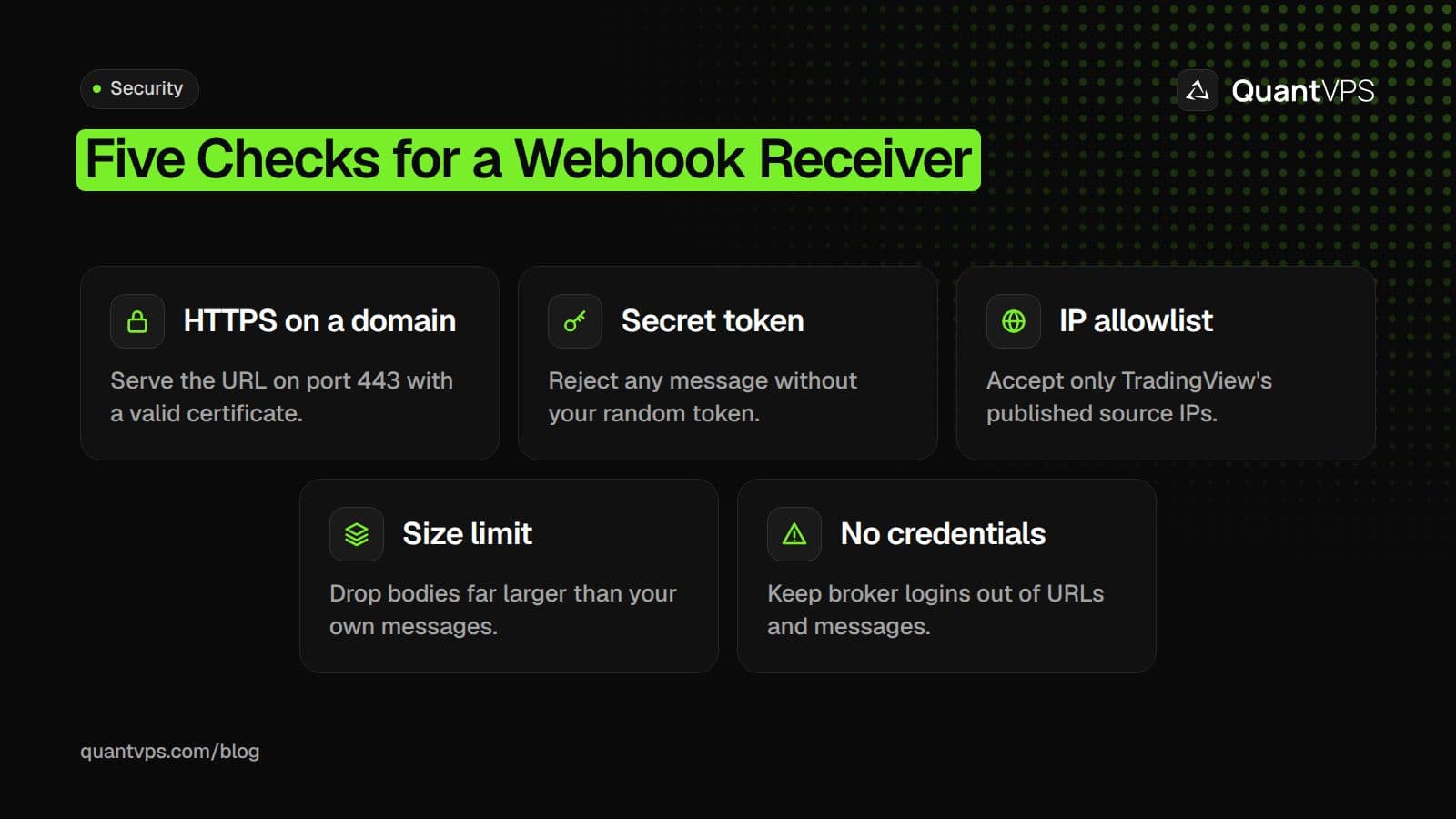
Five checks that keep a webhook receiver from acting on fake alerts.
Log every request with its time, source IP, result and alert ID, so you can trace any wrong order.
Where a VPS Fits
A VPS is only needed when something on your side must stay online: your own receiver, or a desktop platform that an add-on feeds. A cloud bridge needs no server from you. A VPS does not change when TradingView fires an alert, because alerts run on TradingView's servers; it keeps the receiving end online so the alert is not lost.
An always-on VPS for TradingView alerts gives the receiver a fixed public IPv4 address and a Chicago location 0.52ms from CME for futures orders. QuantVPS servers run with 99.999% uptime.
Test on a Demo Account First
Test the full path on a demo or paper account before any alert can reach real money. Work through these checks in order:
- Send a test request to your own URL with the cURL format from TradingView's webhook page (below), and confirm your receiver logs it and replies 200.
- Point your receiver or bridge at a demo account, then create a real alert on a short timeframe so it triggers soon.
- Check the Webhook status column in the alert log and compare it with your server log.
- Send the same message twice and confirm the second one is ignored.
- Send a request without the token and confirm it is rejected.
curl -H 'Content-Type: application/json; charset=utf-8' -d '{"token": "replace-with-a-long-random-string", "alert_id": "test-1", "symbol": "TEST", "action": "buy", "contracts": "1"}' -X POST https://alerts.example.com/tradingview
Go live only when every check passes, at the smallest size your broker allows.
FAQs
Can I use TradingView webhooks on the free plan?
No. On TradingView's pricing page (checked on 10 Oct 2026), webhook notifications are included in Essential, Plus, Premium and Ultimate, but not in the free Basic plan. Your account also needs two-factor authentication turned on.
Can a TradingView webhook use a custom port like 8080?
No. TradingView accepts only ports 80 and 443 and rejects URLs with any other port. Run your receiver on another port behind a web server or proxy that listens on 443.
Why did my TradingView alert fire twice?
The most common cause is a retry. If your server returns a 5xx code (except 504), TradingView resends the notification after 5 seconds, up to 3 times. Give each message an alert ID and ignore IDs you have already handled. Also check the alert's Frequency setting, which decides whether it triggers only once or every time the condition is met.
Do I need a VPS for TradingView webhooks?
Not always. A cloud bridge receives the webhook for you. You need an always-on machine when you run your own receiver or an add-on that feeds a desktop platform.
Which IP addresses does TradingView send webhooks from?
TradingView lists them on its How to configure webhook alerts page (four IPv4 addresses on 10 Oct 2026). Copy the current list from there for your allowlist.


