
On this page
When NinjaTrader disconnects, shows an execution error or loses its data feed, support reads its log and trace files to find the cause. With QuantVPS Detect+ on your VPS, you do not send these files by hand. You allow platform log access once, and Detect+ uploads the files. Support can then download them while you share Detect+ with them.
Detect+ uploads the log files of NinjaTrader 8, MetaTrader 4 and 5, Sierra Chart and ATAS.
Step 1: Open Detect+
- Sign in to your QuantVPS dashboard.
- If you have more than one VPS: in the top bar, click Selected server and choose the VPS that runs NinjaTrader.
- In the sidebar on the left, click Detect+.
No Detect+ on this VPS? Use the steps under Without Detect+ below, or see Set up Detect+ monitoring and alerts.
Step 2: Allow Platform Log Access
- In the Detect+ sidebar, open Settings › Support access.
- Under Platform log access, click Grant log access.
- Read the notice. Detect+ uploads the whole log and trace files. They can contain your orders, fills, positions and account names.
- Tick I agree and click Grant log access.
Detect+ uploads the first files within 30 minutes. After that, it uploads the new lines every 30 minutes.
Step 3: Share Detect+ With Support
Support can download the files only while you share Detect+ with them.
- When support asks for access on your ticket, click Allow for this ticket in the popup. You can also tick Also grant platform log access there, instead of Step 2.
- Or share from Settings › Support access in Detect+.
In your ticket, tell support the date and time of the problem, with your time zone. Support then opens the file for that day.
See or Delete the Files
- The files are under Platform log files in Settings › Support access, by day. Click Download to save one.
- We delete each file 14 days after its upload. To delete them sooner, click Delete all files.
- To stop the uploads, click Withdraw access under Platform log access. Detect+ stops within 5 minutes.
Without Detect+: Send the Files by Hand
Use these steps only on a VPS without Detect+, or when support asks for a file older than 2 days.
- On the VPS, open File Explorer.
- In the left sidebar, click Documents.
Open the NinjaTrader 8 folder.
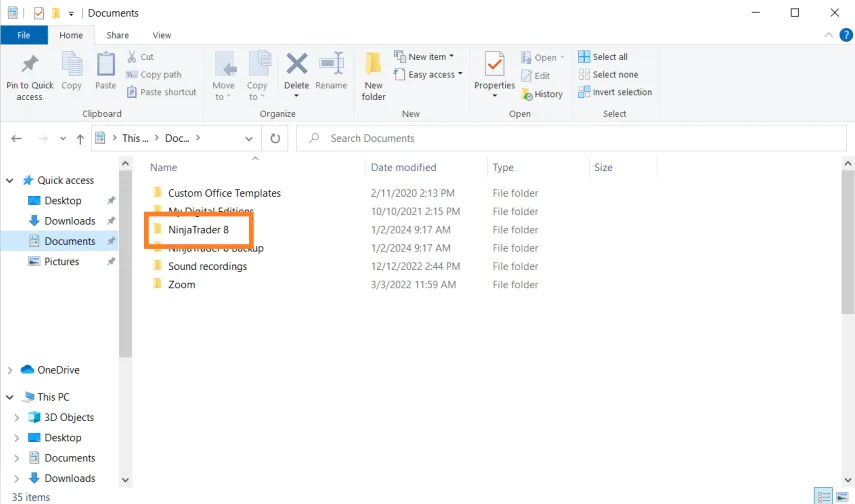
File Explorer: NinjaTrader 8 folder inside Documents Open the folder named:
logFind the .txt file for the date of the problem. The date is in its name, for example
log.20261101.00000.txt.Go back and open the folder named:
traceFind the .txt file for the same date.
- Attach each .txt file on its own, not in a ZIP, to your ticket reply or the live chat.
If NinjaTrader support asked for the files, send them to platformsupport@ninjatrader.com.
Related articles
- How to Diagnose VPS Issues: Network, Crashes, and Stability
- Set up Detect+ monitoring and alerts
- Common NinjaTrader Errors and How to Fix Them
- How to Rebuild a NinjaTrader Workspace to Fix Stability Issues
Need Assistance?
Our support team is available 24/7. If you have any questions or run into issues, open a support ticket from your QuantVPS dashboard and we'll get back to you as quickly as possible.