
On this page
If you're experiencing issues such as missing trade history, chart data discrepancies, or performance slowdowns, resetting the NinjaTrader database can help resolve these problems by clearing out old or corrupted data. This process removes historical executions, orders, and logs, but does not affect your custom workspaces, indicators, or strategies.
Step 1: Close All Active Positions and Disconnect
Before resetting, make sure you're not in any active trades. Flatten all positions and disconnect from any data providers.
Step 2: Disconnect All Active Connections
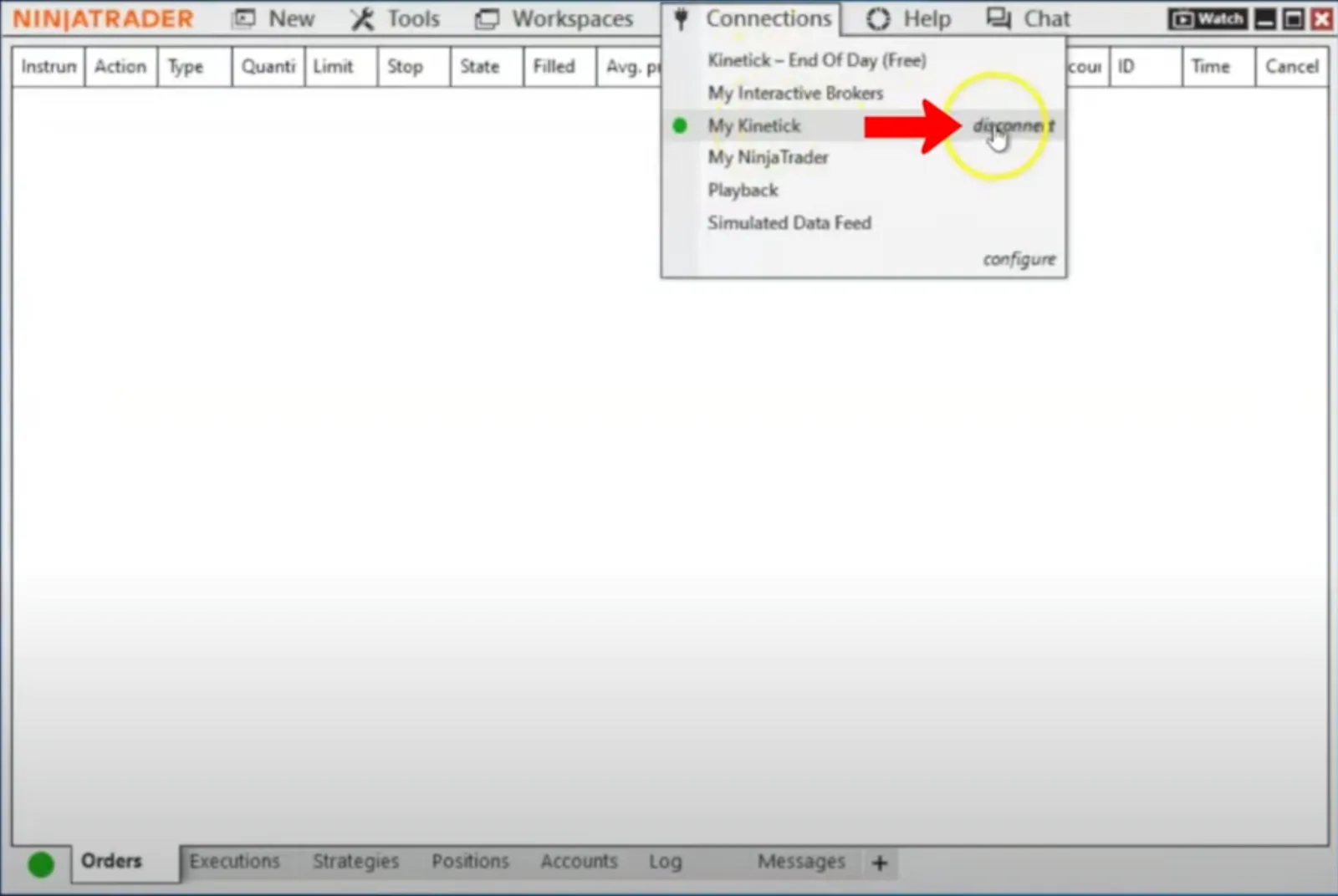
Before making changes, disconnect from all brokers and data feeds:
- In the Control Center, go to the Connections menu
- Click on each active connection to disconnect it
Step 3: Open Database Management
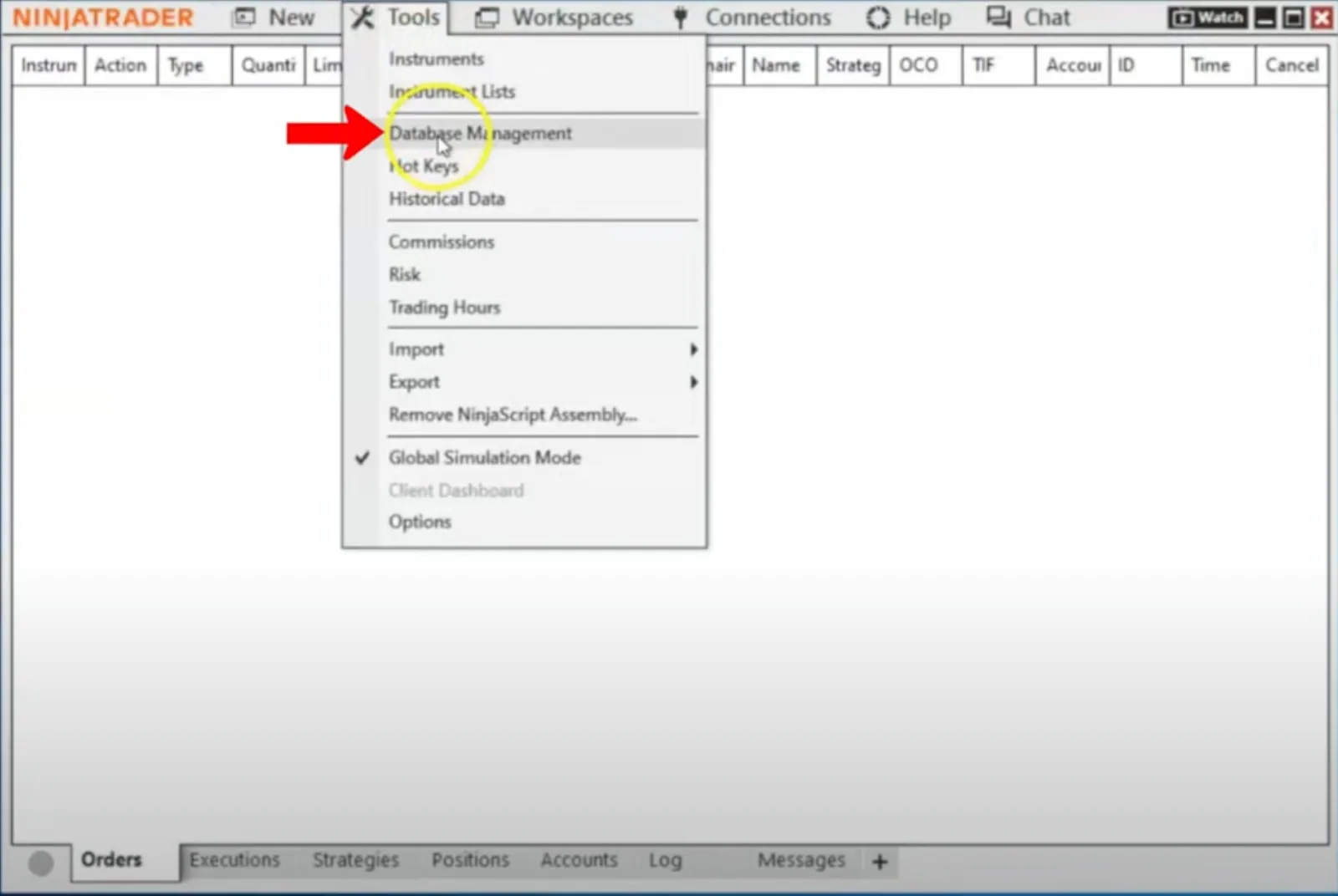
- In the Control Center, go to Tools
- Select Database Management from the dropdown menu
Step 4: Select What to Reset
In the Database Management window, ensure the following boxes are checked:
- General Properties
- Futures Expiries
- Symbol Mappings
- Predefined Trading Hour Templates
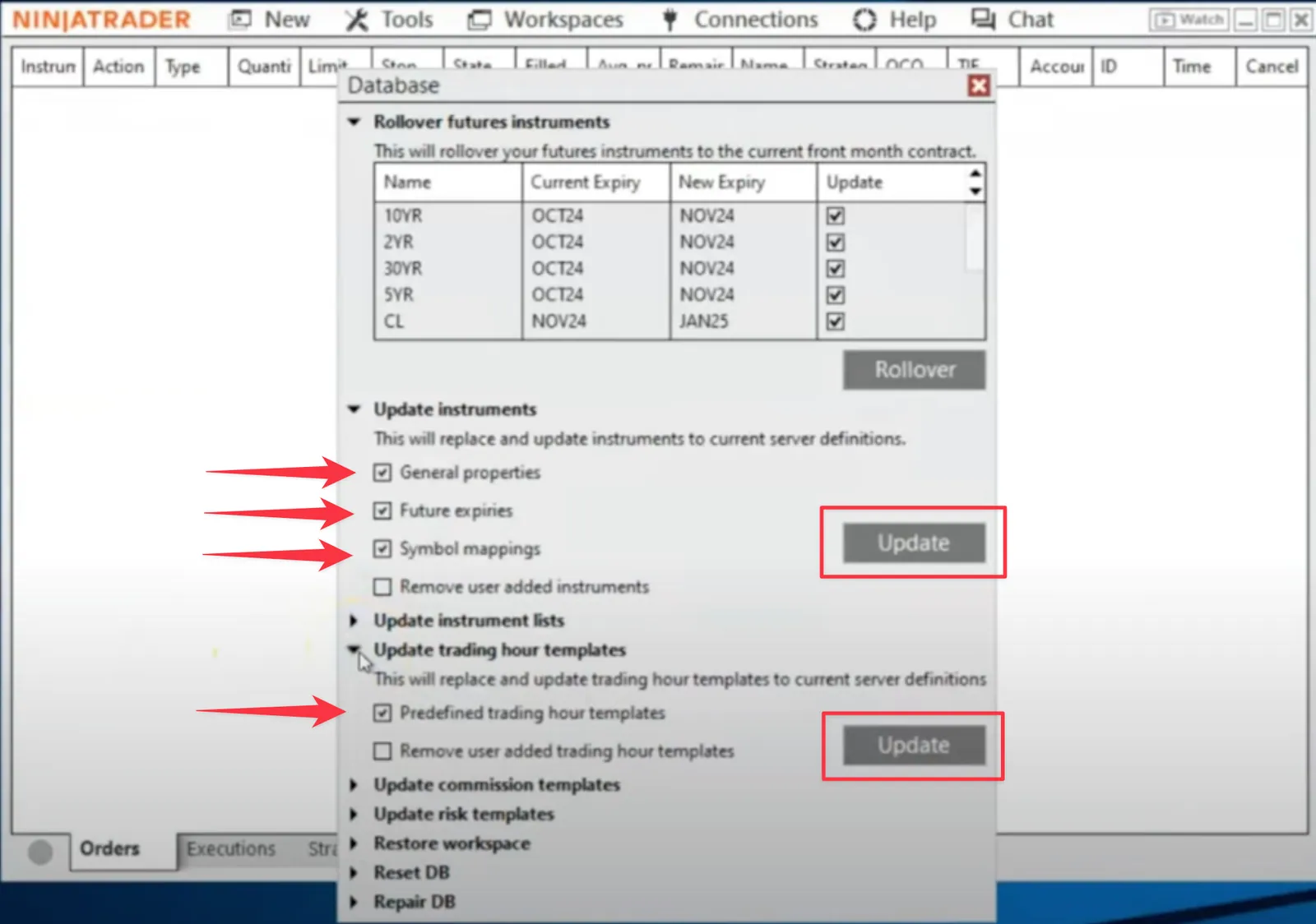
Then click Update to apply the reset.
Step 5: Restart
After the update completes:
- Close and reopen NinjaTrader
- Restart your VPS to ensure changes take full effect
After the Reset
- Reconnect to your broker or data feed
- Reload any charts or strategies you were using
- Monitor performance and test basic functions like order placement
Notes
- This reset does permanently clear your order and execution history; it does not delete your workspaces, chart templates, indicators, or strategies
- It helps resolve symbol mismatches, contract roll issues, and trading hour conflicts
- Restarting both NinjaTrader and your VPS ensures all settings reload cleanly
What Does a Database Reset Do?
- Deletes all historical orders and executions
- Clears out log and realtime performance data
- Resets the internal trade history tracker
- Leaves your workspaces, templates, and custom scripts untouched
When Should You Reset?
You may want to reset your database if:
- Your order history is incorrect or not showing
- You've experienced repeated order submission or connection issues
- Performance has degraded without other explanation
- You're switching to a new data feed and want to start fresh
Need Assistance?
Our support team is available 24/7. If you have any questions or run into issues, open a support ticket from your QuantVPS dashboard and we'll get back to you as quickly as possible.