
On this page
Managing Windows Updates on your VPS or dedicated server is essential for maintaining a secure and efficient environment. Here, we clarify who is responsible for managing updates and explain how to handle them effectively.
Who is responsible for managing Windows Updates on a VPS or dedicated server?
Keeping your server updated is critical for security and stability, but updates should never interfere with your trading activities. Instead of disabling updates entirely, we recommend Trader-safe settings: Windows tells you about updates, and you choose when to install them and restart, outside of trading hours.
Remember, on VPS or dedicated servers provided by QuantVPS, it is the user's responsibility to manage these updates, ensuring the server remains secure and performs optimally.
Set Windows Updates with QuantVPS Detect+ (Recommended)
QuantVPS Detect+ (beta) is the monitoring section of your dashboard. Its Windows Update page shows how updates are set on your VPS and changes the settings for you, so you do not need to open Group Policy or the registry.
VPSs deployed from 15 Oct 2026 start in Trader-safe mode: Windows only tells you about updates. It never downloads, installs or restarts on its own, and you choose when to install.
Step 1: Open Settings › Windows Update
- Sign in to your QuantVPS dashboard and choose your VPS in the Selected server menu at the top.
- Click Detect+ in the sidebar.
- Click Settings, then Windows Update.
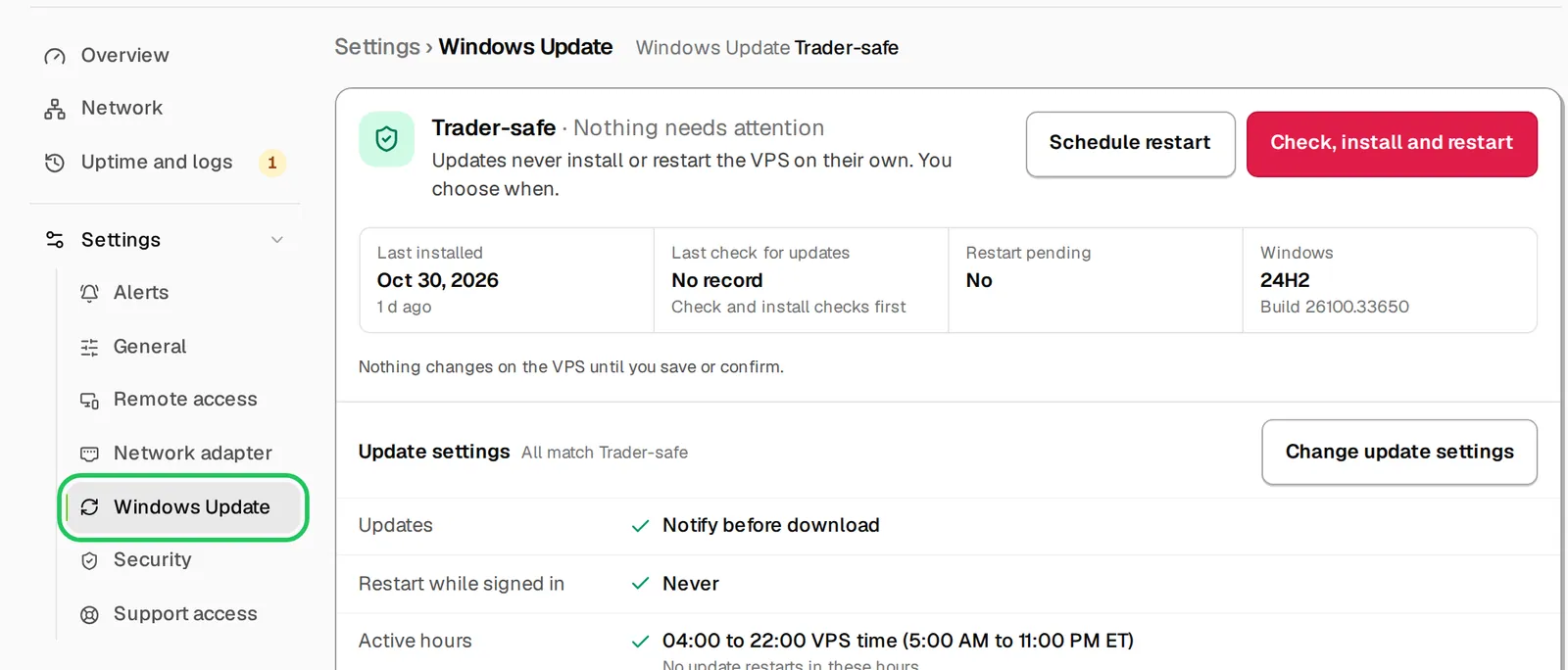
The badge reads Trader-safe, or Not Trader-safe when Windows can still install updates or restart on its own. The Update settings table compares each setting on your VPS with Trader-safe. If anything differs, click Apply Trader-safe to set it all in one click, with active hours from 4:00 to 22:00.
Step 2: Choose the Update Mode and Active Hours
Click Change update settings, then choose an Update mode:
- Trader-safe (recommended): Windows only tells you about updates. It never downloads, installs or restarts on its own.
- Download only: Windows downloads updates and asks before installing them. Downloads can use bandwidth during trading.
- Automatic: Windows installs updates on the day and hour you pick and may restart the VPS then, so choose a time the market is closed.
- Leave Active hours on and set the hours you trade, in VPS time (18 hours at most). Windows does not restart for updates in these hours.
- Click Save. The VPS applies the settings at its next report, usually within 5 minutes, and the page shows when they were applied.
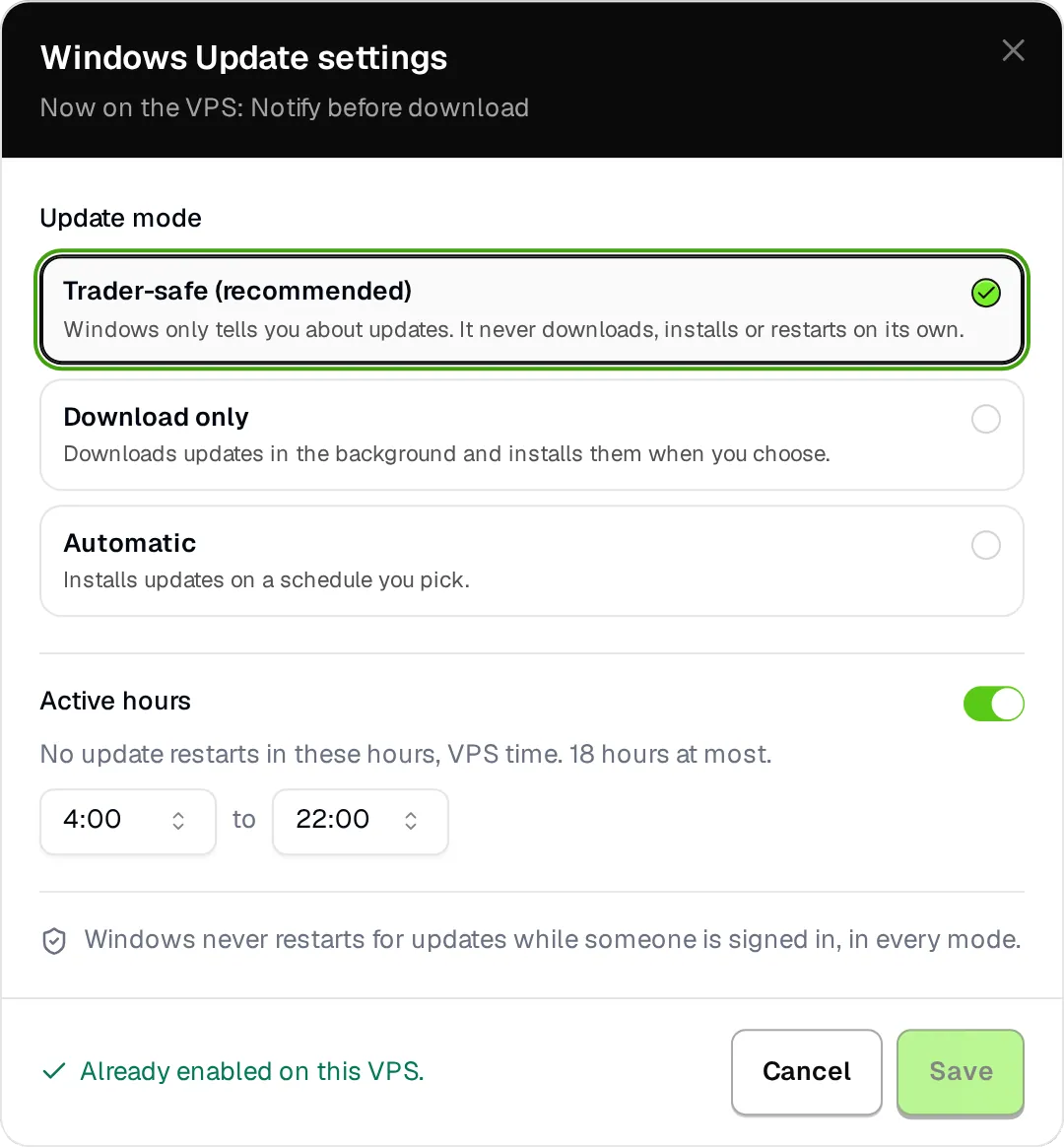
In every mode, Windows never restarts for updates while someone is signed in to the VPS.
Step 3: Install Updates When the Market Is Closed
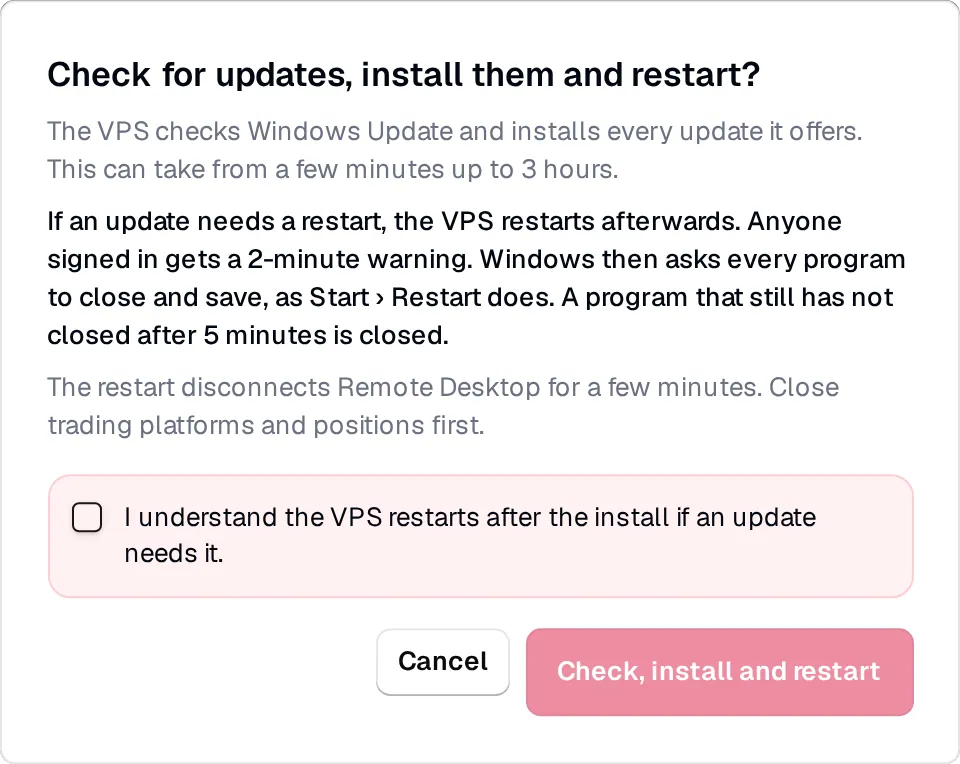
Pick a quiet time, such as the weekend or overnight, then click Check, install and restart.
- The VPS checks Windows Update and installs every update it offers. This takes from a few minutes up to 3 hours.
- If an update needs a restart, the VPS restarts afterwards. Anyone signed in gets a 2-minute warning, and Windows asks every program to close and save first, as Start › Restart does.
- Close your trading platforms and positions first, tick I understand the VPS restarts after the install if an update needs it, then click Check, install and restart.
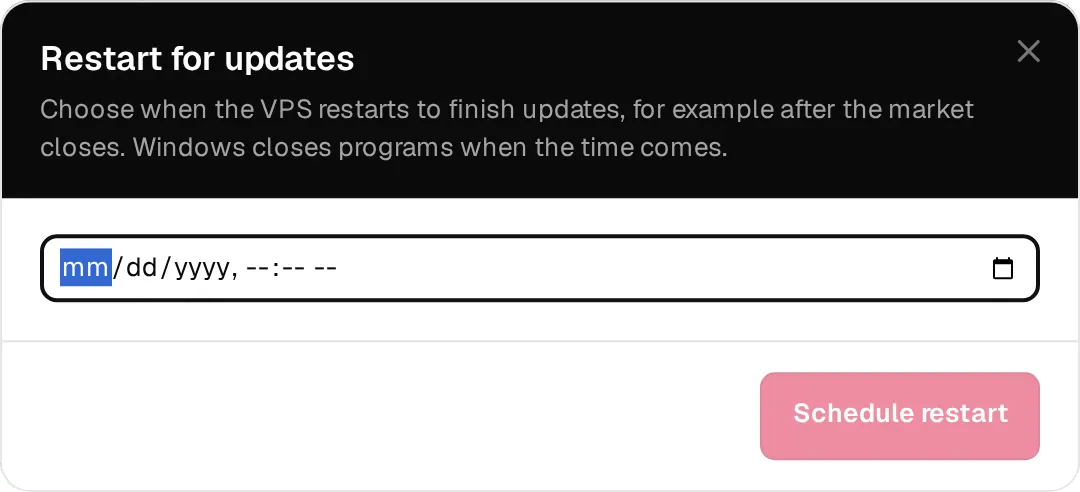
If updates are already installed and only a restart is pending, click Schedule restart and choose a date and time after the market closes.
If You Do Not See Detect+
Detect+ appears in your dashboard once it is turned on for your VPS. If you do not see it, open a support ticket and we'll turn it on for you, or use the manual steps below.
Manual Method: Set Windows Updates with Group Policy
Use these steps only on a VPS without Detect+. They set Windows to notify you before it downloads anything, which matches Trader-safe in Detect+.
Step 1: Open the Local Group Policy Editor
- Press Win + R to open the Run dialog.
- Type gpedit.msc and hit Enter.
Step 2: Navigate to Windows Update Settings
Go to:
Computer Configuration
└── Administrative Templates
    └── Windows Components
        └── Windows Update
Step 3: Configure Automatic Updates
- Double-click Configure Automatic Updates.
- Set it to Enabled.
Under Options, select:
- "Notify for download and auto install" (option 2)
- Click Apply, then OK.
Windows now tells you when updates are available. Nothing downloads or installs until you choose to.
Step 4: Set Active Hours
- Open Settings → Windows Update → Advanced options → Active hours.
- Set active hours to cover your trading hours.
Once updates are installed, Windows may need a restart to finish. A pending restart can happen outside your active hours, so restart yourself right after installing.
Step 5: Install Updates When It Suits You
- When Windows tells you updates are available, pick a quiet time (weekends or overnight, when markets are closed).
- Go to Settings → Windows Update, click Download and install, and when it finishes, restart from the Start menu (Start → Power → Restart).
Best Practices for Update Management
Install Updates During Non-Trading Hours
Avoid performance interruptions by installing updates and restarting during weekends or overnight windows when markets are closed.
Check for Updates Regularly
It's a good idea to check for updates every couple of weeks so they don't pile up. Detect+ shows the last check and the last install on its Windows Update page.
Verify Application Performance Post-Update
After updates install, confirm that your trading platforms (e.g., NinjaTrader, R|Trader) launch and run as expected.
Back Up Before Major Updates
VPS plans include automatic off-site backups. On a dedicated server, make your own backup before a major update.
Why Updates Matter
Updates fix security issues, improve performance and keep Windows supported.
Related
Need Assistance?
Our support team is available 24/7. If you have any questions or run into issues, open a support ticket from your QuantVPS dashboard and we'll get back to you as quickly as possible.