
On this page
You can change your VPS password in just a few steps. Please read the important note below before you begin.
Step-by-Step Guide to Change Your VPS Password
Step 1: Log into Your VPS
- Connect to your VPS using Remote Desktop Connection or your preferred method of remote access.
Step 2: Change Your Password (Recommended): Ctrl+Alt+End
The most reliable way to change your Windows password from inside an RDP session is the RDP equivalent of pressing Ctrl+Alt+Delete on a local machine:
- While connected to your VPS over RDP, press Ctrl+Alt+End on your keyboard. (Regular Ctrl+Alt+Delete gets captured by your local computer instead of being sent to the VPS, so this special combination is used instead.)
- On the screen that appears, click Change a password.
- Enter your current password, then enter and confirm your new password.
- Press Enter or click the arrow button to apply the change.
This method works consistently across supported Windows Server versions, including Server 2022, where the Settings-app search path described below can sometimes fail to surface the right result.
Alternative Method: Using Windows Settings
If you prefer using the Settings app instead, or if Ctrl+Alt+End isn't available in your RDP client:
Step 1: Open Settings
- Click the Start button.
- Type Settings in the search bar and press Enter.
Step 2: Navigate to the Password Settings
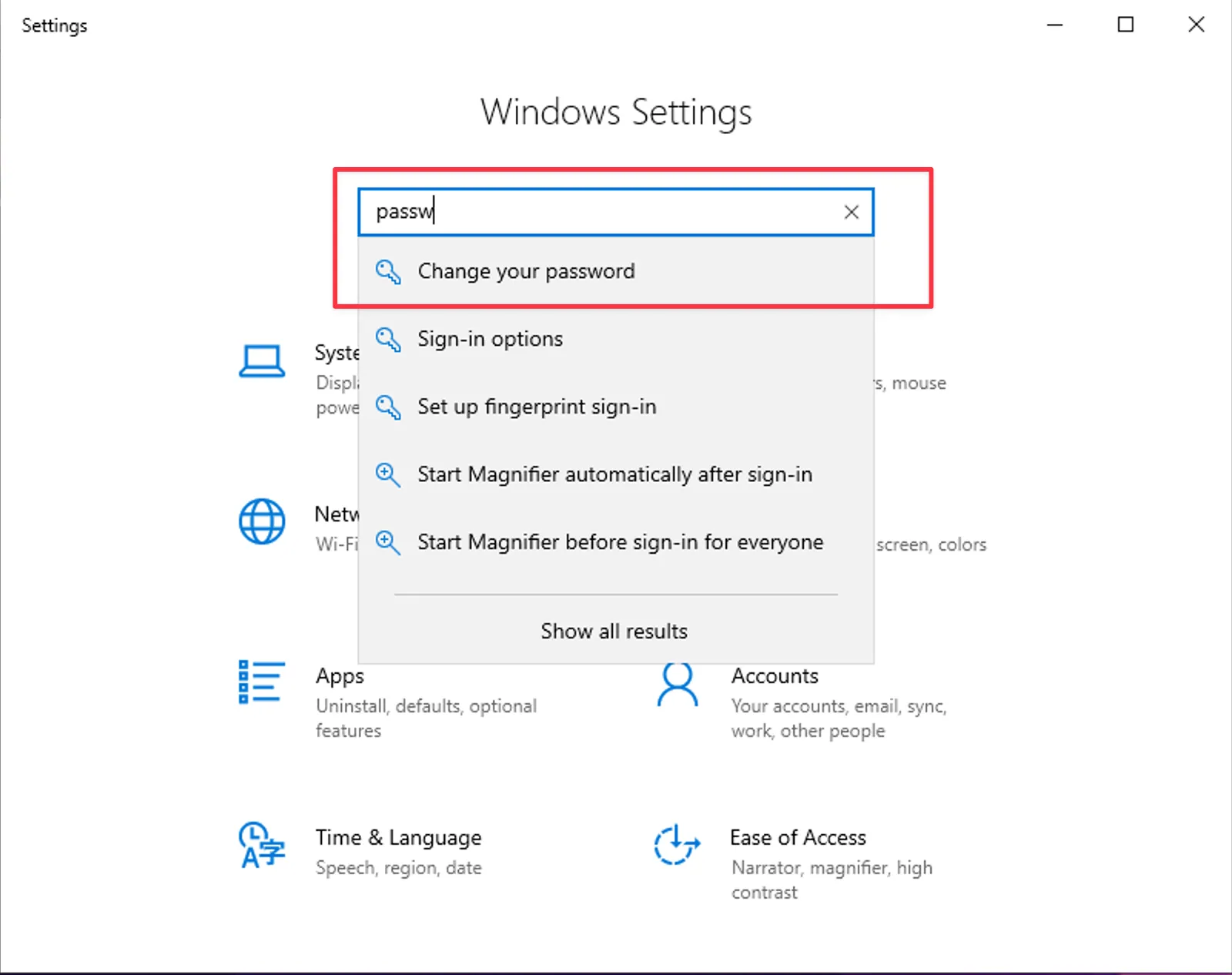
- In the Settings window, use the search bar to type "Password".
- Click on Change your password under the search results.
Step 3: Follow the Prompts
- Enter your current password.
- Enter your new password and confirm it.
- Click Next and then Finish to apply the change.
Related articles
- Locked out or seeing a password error? See How to Fix: Error 0x80070775 When Changing Your VPS Password.
- How to Disable Password Expiration Notices in Windows Server 2022
- How to Fix: Password Expiration Notices on Your VPS
Need Assistance?
Our support team is available 24/7. If you have any questions or run into issues, open a support ticket from your QuantVPS dashboard and we'll get back to you as quickly as possible.