
On this page
Monitoring CPU usage is essential for identifying performance issues, optimizing resource usage, and ensuring smooth operation on both VPS and local machines.
Step 1: Open Task Manager
There are several ways to launch Task Manager:
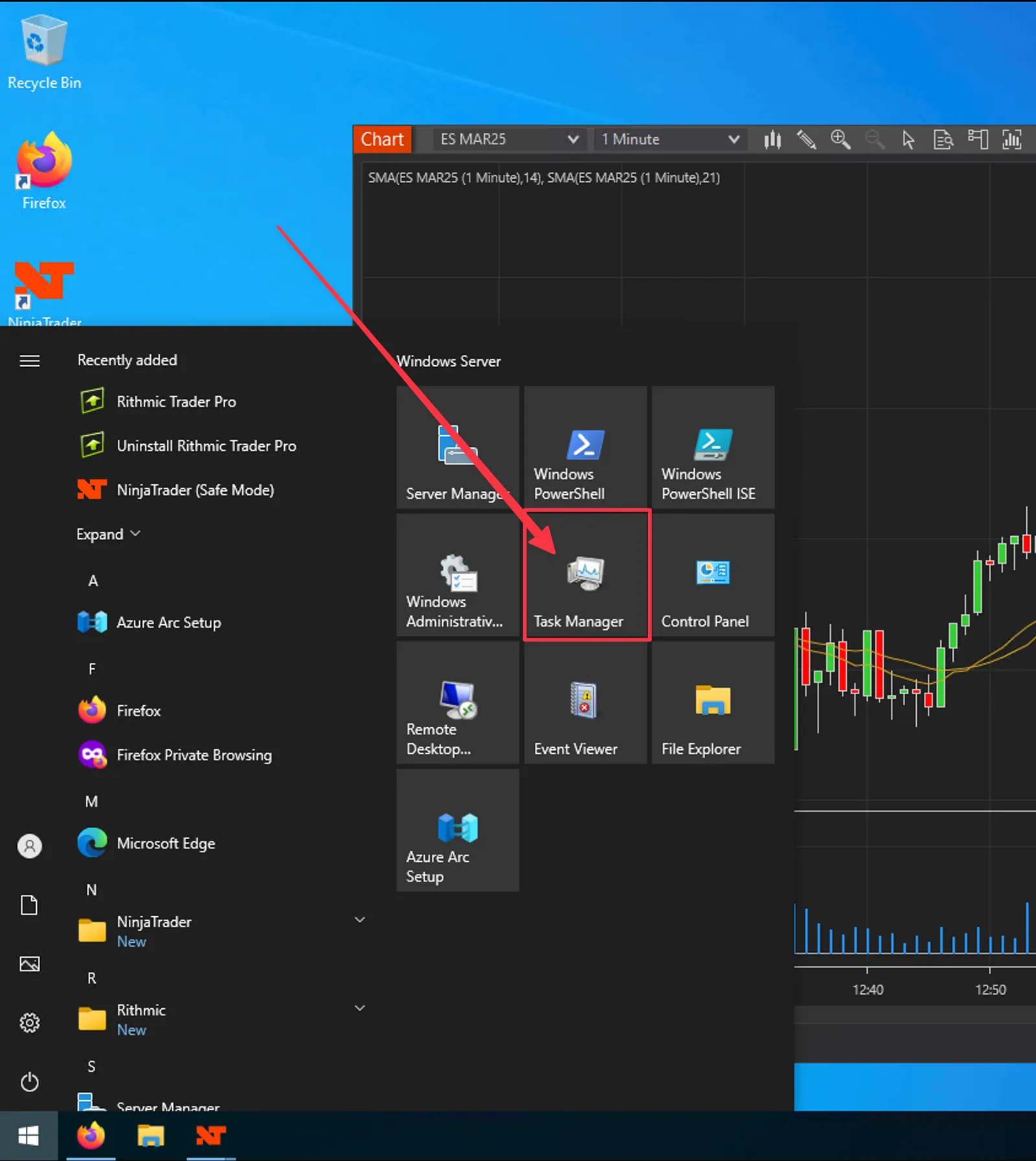
Method 1: Start Menu
- Click the Start Menu (Windows icon in the lower-left corner).
- Type "Task Manager" in the search bar.
- Press Enter or click on the Task Manager result.
Method 2: Keyboard Shortcut
- Press Ctrl + Shift + Esc to open Task Manager directly, without going through the Start Menu.
Method 3: Right-Click the Taskbar
- Right-click an empty area of the taskbar and select Task Manager from the menu that appears.
Step 2: Expand to Full View
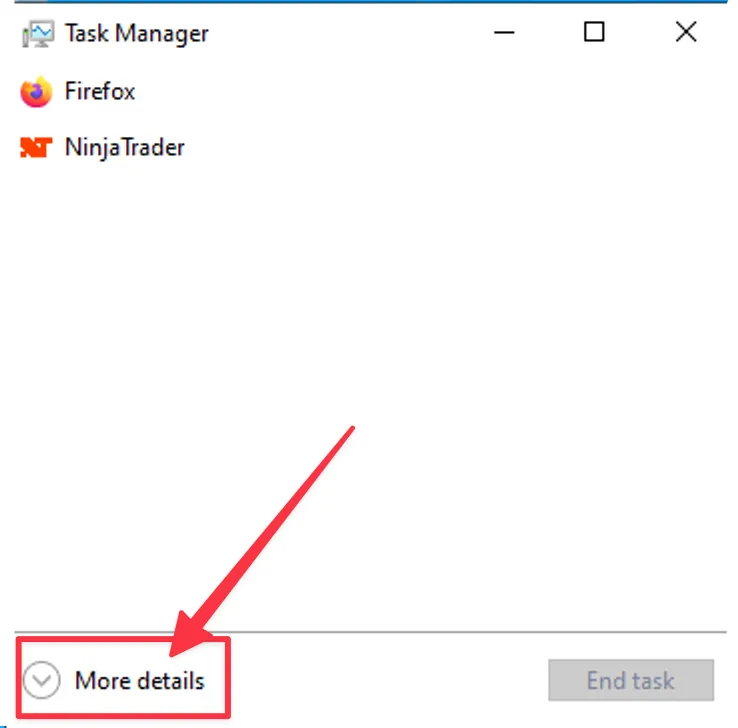
If Task Manager opens in compact mode:
- Click "More details" in the bottom-left corner to expand to the full view.
Step 3: View CPU Usage in the Processes Tab
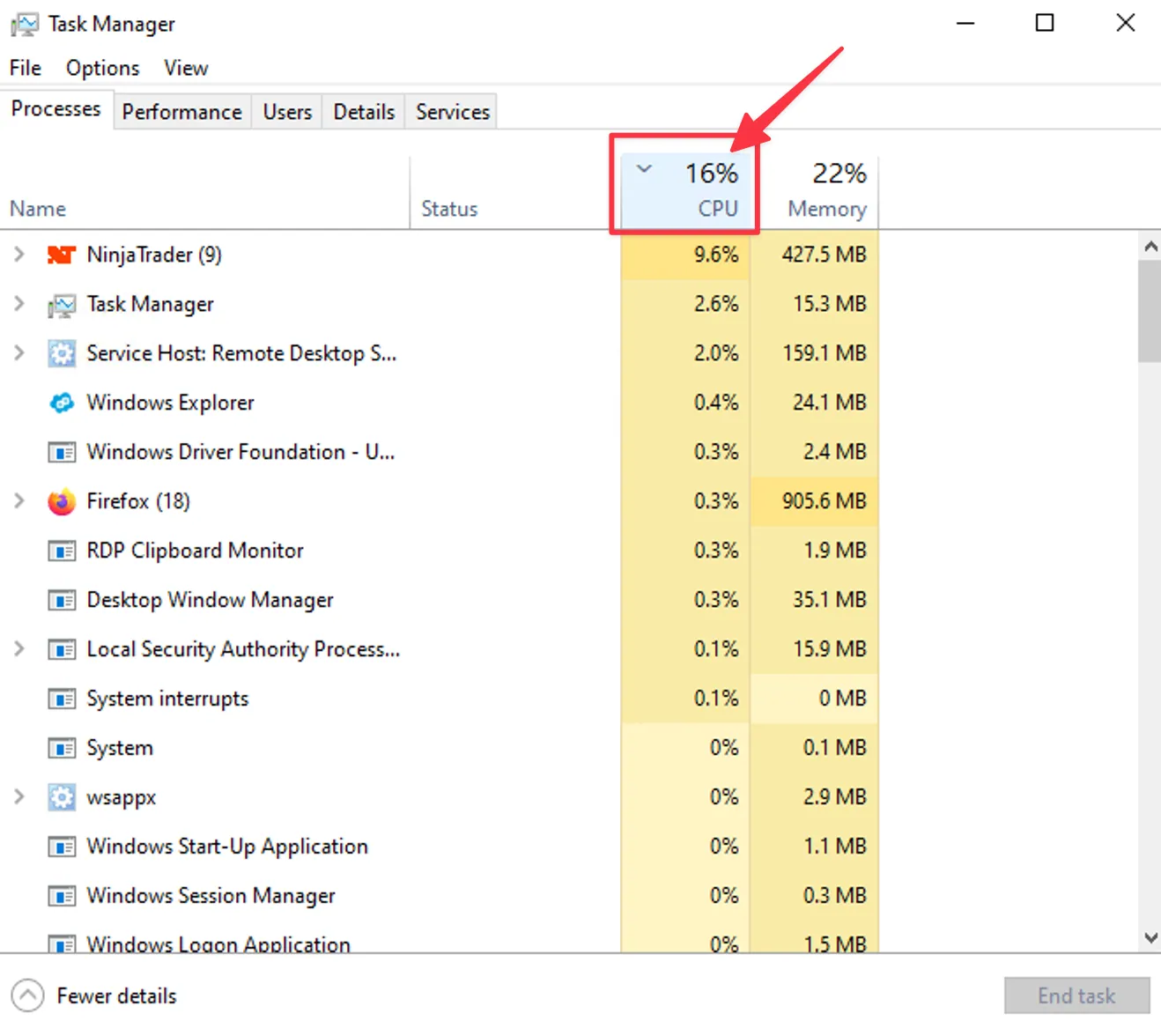
- Click the "Processes" tab.
- Under the "CPU" column, you'll see the current CPU usage of each process.
To sort by CPU usage:
- Click the "CPU" column header.
- Processes will be listed in descending order of CPU consumption.
Step 4: Access Detailed CPU Stats
- Switch to the "Performance" tab.
- Click "CPU" on the left panel.
Here, you'll see:
- A live graph of CPU usage
- Core-specific utilization (for multi-core CPUs)
Real-time stats including:
- Utilization (%)
- Base speed (GHz)
- Number of cores and logical processors
- Up time (duration since last restart)
Step 5: Monitor Individual Processes
- Return to the "Processes" tab.
- Identify apps with high CPU usage.
Right-click any process for additional actions:
- End Task: Force-stop the selected process (use with caution).
- Go to Details: View advanced information about the process.
Tips for Managing CPU Usage
- Sustained high CPU usage may indicate a misbehaving app or background process.
- Avoid ending essential system tasks, as it may cause instability.
- Routinely monitor CPU usage to maintain optimal system health, especially on VPS environments where resources are shared.
Need Assistance?
Our support team is available 24/7. If you have any questions or run into issues, open a support ticket from your QuantVPS dashboard and we'll get back to you as quickly as possible.