
PowerLanguage is the scripting language MultiCharts uses for indicators, signals (strategies) and functions. MultiCharts calls it "an evolution of EasyLanguage", so most classic TradeStation EasyLanguage code compiles in MultiCharts with no changes; object-oriented EasyLanguage is the main exception. You write and compile PowerLanguage in the PowerLanguage Editor, and the code is compiled rather than interpreted.
What this guide covers:
- Syntax: inputs, variables, arrays, If/Then/Else and Begin/End blocks.
- Orders: Buy, SellShort and their four entry types, plus SetStopLoss and SetProfitTarget.
- Examples: plots, alerts and a moving average crossover, taken from the MultiCharts wiki.
- Errors: the rules that most often break a compile or a backtest, and how to fix them.
For a tour of the platform itself, see our guide to MultiCharts features and pricing.
PowerLanguage vs EasyLanguage vs MultiCharts .NET
PowerLanguage is the language of standard MultiCharts; MultiCharts .NET is a separate edition for C# and VB.NET. The table compares the three options, using MultiCharts' own feature pages (read on 31 Oct 2026).
| PowerLanguage | EasyLanguage | MultiCharts .NET | |
|---|---|---|---|
| Platform | MultiCharts | TradeStation (runs in MultiCharts with limits) | MultiCharts .NET |
| Languages | PowerLanguage | EasyLanguage | C# and VB.NET |
| Editor | PowerLanguage Editor | TradeStation | Built-in editor, Visual Studio or Notepad++ |
| Compatibility | Most classic EasyLanguage studies compile unchanged | Object-oriented EasyLanguage is not supported in MultiCharts | Separate code base |
| Suits | Traders who know EasyLanguage | TradeStation users | Programmers who want classes and .NET components |
MultiCharts says it tested more than 2,000 EasyLanguage indicators and strategies, but it does not claim 100% compatibility. If you are moving code from TradeStation, our guide to EasyLanguage syntax and verification errors covers the TradeStation side.
The PowerLanguage Editor
The PowerLanguage Editor is where you create, edit, import, export, protect and compile studies. You open it from the Run PowerLanguage Editor icon on the MultiCharts main toolbar, the Quick Launch bar or the desktop.
MultiCharts lists syntax highlighting, auto-completion ("IntelliSense") and built-in syntax checking among the editor's features, plus a built-in keyword reference. You can also choose Fast Execution or Fast Compilation, depending on whether you are trading a study or still developing it.
PowerLanguage Syntax Basics
A PowerLanguage study is a list of statements, and each line of code ends with a semicolon. The building blocks below are quoted from the MultiCharts wiki keyword pages.
Inputs
Inputs are values a user can change in the study settings. The code itself cannot change them: "Once declared, the value of the input cannot be modified by the study's code." Input and Inputs are the same keyword.
Input: Length(20);
Input: Price(Close), Name("Last Close");
Input: Draw_Line(True);
An input's type comes from its default value: numerical, string or true/false. Names can use letters, numbers, underscores and periods, cannot start with a number or a period, and are not case sensitive.
Order flow
Built for scalpers. Heatmaps on dedicated resources.
Order-flow heatmaps and DOM ladders run on dedicated CPU, memory and NVMe, so your charts keep responding during volatility.
See the dedicated hardware





From $29.99/mo · Windows or Linux
Variables and arrays
Variables hold values your code changes from bar to bar. The wiki's If example declares one and assigns it like this:
Variables:
	EMA(0);

EMA = XAverage(Close, 20);
Arrays hold several values under one name. Indexing starts at 0, so this declares two 9-element arrays:
Array: Length[8](0),SFactor[8](0);
By default a variable or array updates at the close of each bar. Adding IntraBarPersist before the name makes it update on every tick.
Maximum bars back
Studies that use past data reference a set number of earlier bars. MultiCharts calls this the Maximum number of bars a study will reference, or Maximum Bars Back, and shows it in the settings of each indicator or signal. The MaxBarsBack keyword returns that setting, as in Value1 = MaxBarsBack;.
If, Then, Else and Begin, End
Conditions use If and Then, with an optional Else. To run more than one line, wrap the lines in Begin and End:
If UpTrend = True Then Begin
  Buy Next Bar Market;
End
Else Begin
   SellShort Next Bar Market;
End;
Three rules from the wiki cause most compile errors here: a Begin must always be followed by an End, Begin is not followed by a semicolon, and only the last End in the statement takes a semicolon. Begin and End also work with For and While loops.
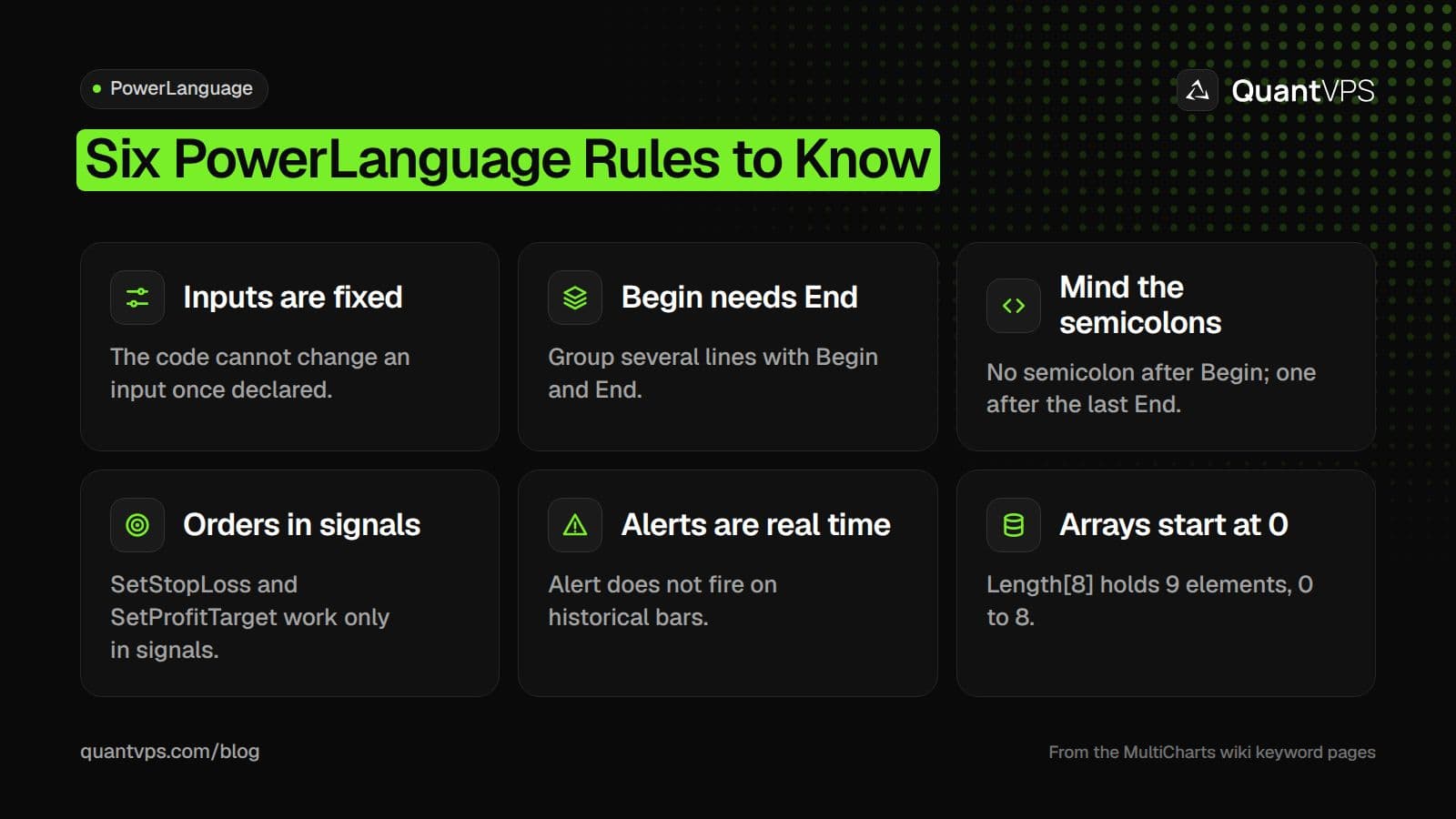
Most PowerLanguage compile errors and surprises come back to one of these six rules.
Order Keywords and Entry Types
Signals open positions with Buy (long) and SellShort (short), and exit with Sell and BuyToCover. The wiki's SellShort page notes that when a SellShort order fills, any open long position is closed too.
| Entry type | Syntax | When it fills |
|---|---|---|
| This bar on close | This Bar On Close |
At the current bar's close |
| Next bar at open | Next Bar At Open or Next Bar At Market |
At the next bar's open |
| Next bar at limit | Next Bar At Price Limit |
First tick at the limit price or better in the next bar, else cancelled |
| Next bar at stop | Next Bar At Price Stop |
First tick through the stop price in the next bar, else cancelled |
On and At are skip words you can leave out. An optional label in brackets names the entry, and the size is a number followed by Share, Shares, Contract or Contracts. These examples are from the SellShort page:
SellShort This Bar On Close;
SellShort("Entry")1 Contract Next Bar Market;
SellShort 2 Shares Next Bar At 100 Limit;
SellShort 10 Contracts Next Bar 50 Stop;
Without a size, the strategy uses the trade size set in the Properties tab of the Strategy Properties window.
PowerLanguage Examples
The examples below are copied from the MultiCharts wiki. Each one runs on its own as a study. We checked every keyword in this guide's code against the PowerLanguage Keyword Reference on 31 Oct 2026.
Plot a value
Plot1 to Plot999 draw values on the chart. The simplest plot draws the close:
Plot1(Close);
Plot1(Close,"Close",Default,Default,Default);
Uptime
99.999% uptime. Built for 24/7 trading reliability.
Your VPS runs in Tier IV datacenters with redundant power and network, monitored 24/7 on site.
See the uptime SLAFrom $29.99/mo · Windows or Linux
Moving average crossover
The Cross keyword is true on the bar where one value crosses another. Above and Over mean the same, as do Below and Under. This is the wiki's entry example:
if Close cross above Average(Close, 20) then
	Buy 2 contracts next bar at market;
Stop loss and profit target
SetStopLoss and SetProfitTarget take a currency amount and are checked within the bar, so they can exit on the same bar as the entry. By default they apply to the whole position; SetStopContract makes them apply per contract.
SetStopPosition;
SetStopLoss(100);
Alert on a condition
Alert opens an alert window with optional text. This example, based on the Alert page, fires when the close rises:
If Close > Close[1] Then
   Alert(Text("Price turning up"));
Want tick-by-tick orders? Add [IntrabarOrderGeneration = True]; at the top of a signal. MultiCharts notes that with it on, "next bar really means next tick".
Common PowerLanguage Errors and Fixes
Most PowerLanguage problems are a broken syntax rule or a keyword used outside its study type. The table lists the ones the MultiCharts wiki documents, with the fix.
| Problem | Cause | Fix |
|---|---|---|
| Compile fails around a Begin block | Missing End, a semicolon after Begin, or extra semicolons on inner Ends | Pair every Begin with an End; put a semicolon only after the last End |
| Compile fails on an If line | If without Then | Every condition needs If and Then; Else is optional |
| Code cannot change a setting | Assigning a new value to an input | Use a variable for any value the code must change |
| Input or array name rejected | Name starts with a number or a period | Start names with a letter |
| SetStopLoss rejected in an indicator | Stop and target keywords work only in signals | Move the code into a signal |
| Alert never fires in a backtest | Alert works in real time only | Test alerts on live or simulated data |
| Plot color ignored | PlotColor needs a PlotName before it | Pass the name, then the color |
| Entry orders resent on every tick | IntraBarOrderGeneration is on, so next bar means next tick | Check BarStatus for bar-close logic, or turn the attribute off |
| Array element out of range | Indexing starts at 0 | Length[8] has elements 0 to 8 |
One error is about the install, not the code. The wiki says "Compilation Error (errLine 0, errColumn 0, errLineEnd 0, errColumnEnd 0)" can appear after Windows updates, and its first fix is to restart, then repair MultiCharts from Windows Settings, Apps. If that fails, it suggests reinstalling to a short folder such as C:\MC64 and moving the Studies folder to a simple path such as C:\MyStudies.
For data feed, broker connection and crash problems, see our list of common MultiCharts errors.
Running PowerLanguage Strategies on a VPS
A PowerLanguage signal only places orders while MultiCharts is open and connected. A trading VPS keeps the platform running when your own PC sleeps or restarts for updates. Our MultiCharts VPS in Chicago lists 0.52ms to CME, and QuantVPS includes automatic off-site backups on every VPS plan.
FAQs
Is PowerLanguage the same as EasyLanguage?
No, but they are close. MultiCharts describes PowerLanguage as an evolution of EasyLanguage, and most classic EasyLanguage studies compile in MultiCharts unchanged. Object-oriented EasyLanguage is not supported.
Where do I write PowerLanguage code?
In the PowerLanguage Editor, which you open from the MultiCharts main toolbar, the Quick Launch bar or the desktop icon. It creates, compiles, imports and exports studies.
Can I use C# instead of PowerLanguage?
Yes, in MultiCharts .NET, a separate edition that uses C# and VB.NET and works with Visual Studio. Standard MultiCharts uses PowerLanguage.
How do I add a stop loss in PowerLanguage?
Use SetStopLoss(Amount) in a signal, where Amount is in currency. Add SetStopContract; to apply it per contract instead of to the whole position.
Why does my PowerLanguage alert not trigger?
The Alert keyword works in real time only, so it will not fire on historical bars. Alert settings are under Formatting Studies, Alerts in the MultiCharts help.


