A trade copier automates the process of replicating trades from one account (master) to others (followers). For Tradovate users, this simplifies managing multiple accounts and reduces errors. Since Tradovate lacks a built-in trade copier, you can use its Group Trade Add-On or third-party tools connected via API or OAuth. Here's what you need to know:
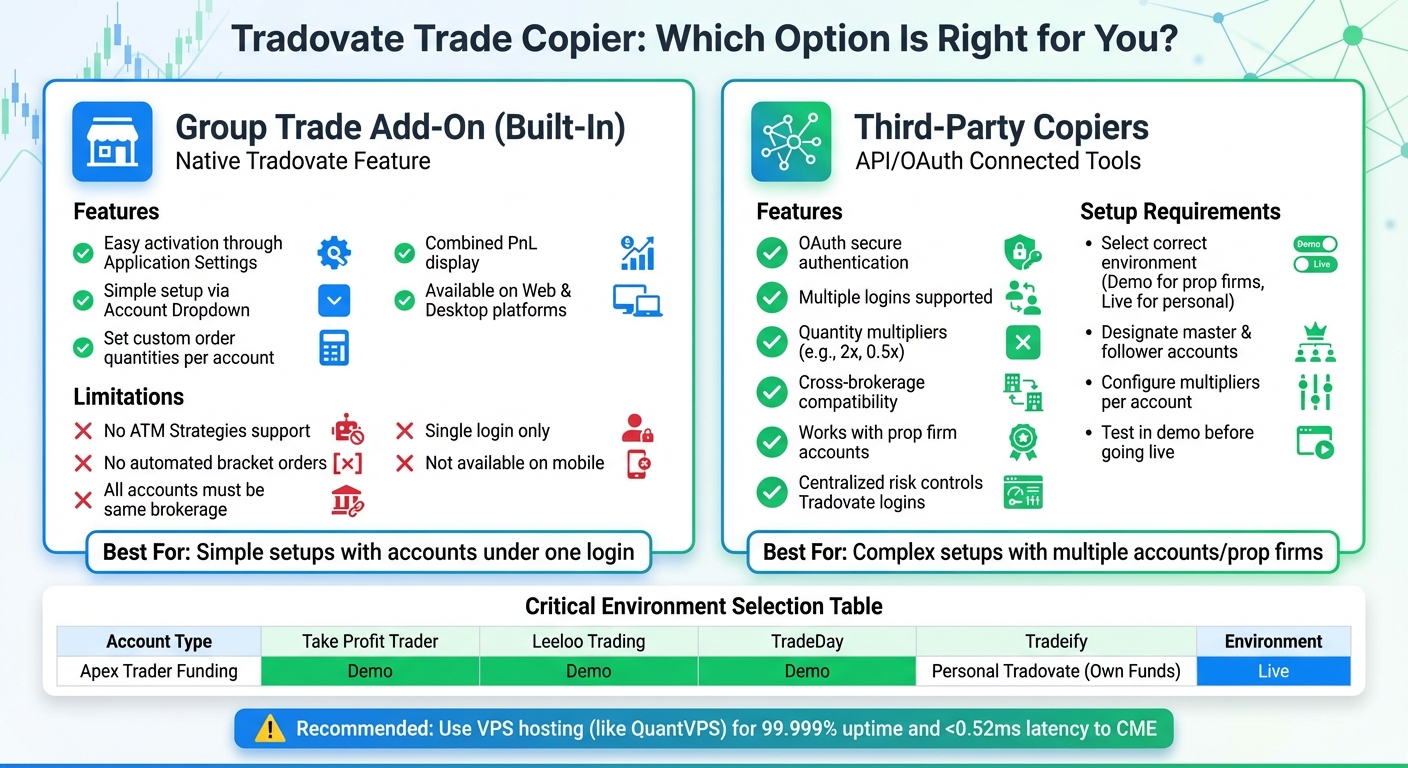
- Group Trade Add-On: Built-in option for copying trades across accounts under the same login. It’s easy to activate but has limitations, like no support for automated strategies or accounts outside the same brokerage.
- Third-Party Copiers: These tools provide more flexibility, allowing you to link multiple accounts (even across different prop firms) using secure OAuth authentication. Features include quantity multipliers and centralized risk controls. For those needing broker-approved compliance, tools like Tickblaze IgniteCopier offer native trade copying.
For reliable performance, consider using a VPS like QuantVPS to ensure uninterrupted trade copying with low latency futures trading. Test your setup in a demo environment before trading live to avoid errors.
Key Takeaways:
- Group Trade Add-On: Simple but limited to accounts under the same login.
- Third-Party Copiers: Flexible, works with multiple accounts/logins, supports more features.
- VPS Hosting: Reduces risks from internet or power issues, ensuring smooth operation.
Follow setup instructions carefully, choose the right environment (Demo/Live), and regularly monitor your copier's performance for consistent results.
Tradovate Trade Copier Options Comparison: Group Trade Add-On vs Third-Party Tools
How to Set Up a Trade Copier for Tradovate
Tradovate provides two main ways to copy trades: the built-in Group Trade Add-On and third-party tools that use API authentication. Each option serves different needs depending on your account setup and trading style.
Using Tradovate's Group Trade Add-On
The Group Trade Add-On is Tradovate's native feature for copying trades across multiple accounts under the same login. To activate it, go to Application Settings, select Add-Ons, and enable the Group Trade feature. Afterward, log out and log back in to apply the changes.
Once activated, click the Account Dropdown at the top of the Tradovate Web or Desktop app and select "Manage Groups." This option is available only if you have more than one account linked to your username. In the Group Editor, click the "+" button to create a group and assign it a name. Then, drag and drop accounts from the "Available" list into the "Added Accounts" section.
For each account in the group, you can set a specific Order Quantity, which determines how many contracts that account will trade. The platform combines these quantities and displays the total PnL for the group in the SuperDOM and Chart modules, while showing individual orders in the Orders module.
Key limitations to note:
- The Group Trade feature does not support ATM Strategies or automated bracket orders. Use OCO functionality to place Stop Loss and Profit Target orders manually.
- All accounts in the group must be with the same brokerage. For example, you cannot combine a personal Tradovate account with a prop firm account.
- This feature is only available on the Web and Desktop platforms, not on the mobile app.
If these limitations don't align with your needs, you might want to explore third-party trade copiers for more flexibility.
Connecting Third-Party Trade Copiers to Tradovate
Third-party trade copiers are another option if the Group Trade Add-On doesn’t suit your requirements. These tools connect to Tradovate using OAuth authentication, which allows you to log in securely through Tradovate’s site and authorize an access token. This method avoids the need to share your credentials directly.

Run 24/7 while you sleep. Keep bots, platforms, and trade copiers online on a dedicated VPS.
Low-latency VPS hosting for your trading platform.
 CHINYC
 LON
LONFrom $29.99/mo


 CHI/CME futuresNYC/US marketsLON/FX EAs
 DUB/Polymarket
 AMS/EU FX
 FRA/Central EU
 TYO/APAC crypto
When setting up a third-party copier, it’s crucial to select the right environment:
- Demo/Simulation for prop firm accounts like Apex Trader Funding, Take Profit Trader, Leeloo Trading, TradeDay, and Tradeify - even if they are funded accounts.
- Live for personal brokerage accounts funded with your own capital.
| Account Type | Environment to Select |
|---|---|
| Apex Trader Funding / Take Profit Trader | Demo |
| Leeloo Trading / TradeDay / Tradeify | Demo |
| Personal Tradovate Brokerage (Own Funds) | Live |
After authorization, designate one account as the master account and link follower accounts with their respective quantity multipliers. For instance, a multiplier of 2 doubles the trade size for the follower account, while a multiplier of 0.5 halves it.
Unlike the Group Trade Add-On, third-party copiers allow you to connect accounts with different Tradovate logins by using separate API tokens. This means you can copy trades between personal accounts and multiple prop firm accounts or even across different prop firms. To keep things organized, label each account clearly during setup.
Before trading live, test your connections and multipliers in a demo environment. Check that the copier’s dashboard shows a green "Connected" status and lists your account numbers. If OAuth authorization fails due to blocked popups, enable popups for the copier’s domain. Additionally, review your prop firm’s policies on automated futures trading systems and trade copying to ensure compliance and avoid account violations.
How to Execute Trades with a Trade Copier
Once your trade copier is set up, trades on the master account will automatically mirror on follower accounts based on the multipliers you’ve configured. This means the copier adjusts order sizes proportionally for each follower account. To ensure smooth execution, it’s essential to understand how different order types behave and regularly check execution logs for any issues.
Copying Market Orders
Market orders are executed instantly at the best available price, making them the quickest to replicate across connected accounts. When you place a market order on the master account, the copier sends the same instruction to follower accounts within milliseconds. Most API-based copiers execute these orders in under 100ms, keeping slippage to a minimum.
If you attach Stop Loss and Take Profit orders to your market entry, most copiers will replicate these bracket orders automatically. The copier adjusts the order size for each follower using the multiplier you’ve set. For example, if your master account buys 2 contracts of ES and a follower account has a multiplier of 2, the follower account will execute 4 contracts.
After placing orders, always review the "Trade History" or "Execution Log" in your copier’s dashboard. Check timestamps and success messages to ensure that every follower account has received and executed the order. If a follower account shows a failed execution, verify two things: that the account has enough margin and that its connection status is green.
Next, let’s look at how limit and bracket orders are handled.
Copying Limit and Bracket Orders
When you place a limit order, the copier mirrors the price instantly, and any modifications you make will update on follower accounts in real time. For example, if you set a limit order to buy ES at 5,000.00 on the master account, the copier will replicate it on all follower accounts at that same price. If you later update the price to 5,001.00, the follower accounts will adjust automatically.
However, some manual trade copiers only support bracket orders when the initial entry is a market order. If you attempt to attach Stop Loss or Take Profit orders to a limit or stop entry, the copier might fail to replicate these brackets correctly. To avoid surprises, test your copier’s handling of brackets in a demo environment, such as Tradovate’s, before trading live.
For users integrating with TradingView, make sure the copier’s "Order Mode" is enabled to ensure proper synchronization.
Now, let’s explore how to efficiently manage trades across multiple instruments and accounts.
Managing Multiple Instruments and Accounts
When trading across multiple instruments, clear organization is key. Use descriptive labels for each connection, like "Apex 50K Master" or "Personal Live Follower", to keep track of which accounts are linked to which strategies. This is especially important if you’re managing a mix of personal accounts, evaluation accounts, or accounts from different futures prop firms.
To minimize risk, set safety thresholds such as maximum position sizes or limits on concurrent trades. For fast-moving markets, the "flatten" option can be a lifesaver, allowing you to close all positions across accounts instantly.
| Order Type | Replication Support | Important Notes |
|---|---|---|
| Market Order | Full support | Automatically replicates Stop Loss and Take Profit orders; executes immediately |
| Limit Order | Full support | Price updates sync in real time across accounts |
| Bracket Order | Partial support | Often works only with Market entries, not Limit or Stop entries |
| Trailing Stop | Not supported | Advanced trailing logic typically doesn’t replicate |
Before trading, double-check that all accounts show a green "Connected" status. If you’ve recently updated your Tradovate password, remember to reauthorize your API tokens. Start with small position sizes to test the setup, and once you’re confident everything is replicating correctly, you can scale up to larger trades.
How QuantVPS Improves Trade Copier Performance
Running a trade copier on your personal computer can be risky. Unexpected internet outages, power failures, or system updates can interrupt trade replication when you need it most. A VPS solves these problems by keeping your copier running around the clock in a professional datacenter with dedicated resources. QuantVPS takes this reliability to the next level with its specialized infrastructure.
Why Use QuantVPS for Trade Copying
QuantVPS operates out of Chicago-based datacenters equipped with direct fiber-optic cross-connects to the CME Group exchange. This setup delivers ultra-low latency of less than 0.52ms to CME's matching engines, a critical advantage for futures traders aiming to minimize slippage. In trading, every millisecond matters.
The infrastructure is designed for 99.999% uptime, ensuring uninterrupted performance - even during high-volatility events. QuantVPS servers feature cutting-edge hardware, including AMD EPYC and Ryzen processors, NVMe M.2 SSD storage for fast data processing, and 1Gbps+ network connections with 10Gbps burst capability. These features eliminate bottlenecks, even when processing multiple orders simultaneously. Dedicated CPU and RAM resources further ensure smooth, time-sensitive order execution.
QuantVPS Plans Comparison for Trade Copiers
QuantVPS offers tailored plans to meet the needs of different traders, from basic setups to more complex operations. The right plan depends on the number of accounts you manage and the complexity of your trading strategy. For those managing 1–3 follower accounts, the VPS Lite plan provides 4 cores and 8GB RAM for $59.99/month (or $41.99/month when billed annually). If you handle 4–8 accounts or run multiple copier instances, the VPS Pro plan offers 6 cores and 16GB RAM for $99.99/month (or $69.99/month with annual billing).
| Plan | Cores | RAM | Storage | Monthly Price | Best For |
|---|---|---|---|---|---|
| VPS Lite | 4 | 8GB | 70GB NVMe | $59.99 | 1–3 follower accounts, single copier instance |
| VPS Pro | 6 | 16GB | 150GB NVMe | $99.99 | 4–8 follower accounts, multiple strategies |
| VPS Ultra | 24 | 64GB | 500GB NVMe | $189.99 | 9–15 accounts, advanced automation |
| Dedicated | 16+ | 128GB | 2TB+ NVMe | $299.99 | 15+ accounts, professional trading operations |
For traders juggling both personal and prop firm accounts, the VPS Ultra plan is ideal for high-demand setups. Meanwhile, Dedicated Servers are built for heavy algorithmic trading and large-scale operations.
How to Optimize Latency and Uptime Settings
To fully leverage QuantVPS, fine-tune your connection settings for optimal performance:
Stay online and closer to execution. Choose a VPS location for CME futures, New York markets, London FX, API trading, and more.
Host your platform near the market route that matters.
CHINYCLONFrom $29.99/mo
CHI/CME futuresNYC/US marketsLON/FX EAsDUB/PolymarketAMS/EU FXFRA/Central EUTYO/APAC crypto- Environment Settings: Use "Demo" mode for prop firm accounts (e.g., Apex or Topstep) and "Live" mode for personal brokerage accounts. Mixing these settings can cause authentication errors and disrupt trade replication.
- Connection Settings: Set the ping interval to 15 seconds for consistent monitoring and the connection timeout to 30–60 seconds to avoid disconnections during brief network hiccups. An update rate of 100ms ensures a balance between speed and stability.
- Memory and Buffer Allocation: Assign your copier's memory usage to "High" and set the buffer size to 100MB. This prevents data overflow during high market activity, ensuring smooth performance throughout.
For added security, Tradovate connections use OAuth authentication. This means your VPS stores only a secure access token, not your actual password. You can revoke this token anytime from your Tradovate account settings, giving you complete control over your account's security.
Troubleshooting Trade Copier Problems with Tradovate
Trade copiers can sometimes run into issues, often stemming from configuration mistakes. Knowing the common causes can help you fix problems quickly and avoid missing trades that could cost you money.
Fixing Connection and Synchronization Errors
One of the most frequent reasons for connection problems is selecting the wrong environment. If you're using a prop firm account, make sure to choose "Demo" mode - even for funded accounts. Tradovate internally treats these as simulation accounts. Only pick "Live" if you're trading with your own personal funds.
"More Tradovate connections fail because of environment selection errors than any other reason." - SyncFutures
Another common issue is OAuth authentication failures. If the Tradovate login window doesn’t pop up during setup, your browser might be blocking it. Enable popups for the copier’s domain in your browser settings. If you see a "Disconnected" status after setup, your OAuth token may have expired, especially if you recently updated your Tradovate password. Simply click the "Reconnect" button in your copier dashboard to refresh the token.
Account lockouts can also occur after too many failed login attempts. If this happens, wait 15–30 minutes before trying again, or contact Tradovate support to unlock your account. Keep in mind that copiers store only revocable access tokens, so you remain in full control of your account security.
Now let’s move on to problems like duplicate orders or missed trades.
Resolving Order Duplication or Missed Trades
Start by checking the execution logs for errors. Missed trades often result from three main issues: incorrect environment settings, unsupported order types, or inactive follower accounts. First, ensure your follower account is marked as "Active" in the copier’s admin panel. If it’s disabled, no trades will replicate, no matter what other settings you adjust.
Some copiers don’t handle advanced order types like Trailing Stops, Break-Even orders, or Auto-Trail behaviors. For reliable trade replication, stick to basic Market orders with standard Stop Loss and Take Profit brackets. If you’re using Limit or Stop entry orders with brackets, double-check your copier’s documentation - some tools only support brackets when the entry is a Market order.
Duplicate orders can happen if you manually trade on a follower account while the copier is running. To avoid this, pause the copier before making any manual adjustments.
| Issue | Common Cause | Recommended Fix |
|---|---|---|
| Missed Entry | Wrong Environment | Reconnect using "Demo" for prop firm accounts |
| Missed Exit | Unsupported Order Type | Avoid Trailing Stops; use basic SL/TP |
| Duplicate Orders | Manual trades + active copier | Pause copier before manual intervention |
Check for "Successfully Placed" or "Failure" messages next to each Slave Order ID in the logs to pinpoint where the issue occurred.
Tips for Consistent Performance
Once you’ve resolved immediate issues, follow these steps to keep your trade copier running smoothly.
- Test in demo mode first. Before risking real money, try a small trade - like a 1-contract trade on a micro instrument such as MNQ. This helps you confirm that multipliers, stop-losses, and take-profits replicate as expected.
- Set safety limits. Configure "Max Position Size" and "Max Concurrent Trades" in your copier settings. These limits can protect you from mistakes, like accidentally setting a multiplier too high. For instance, if you meant to use 0.5 but entered 5.0, these safeguards can prevent major losses.
- Keep an eye on OAuth tokens. If you notice a "Disconnected" status without any network issues, your token might have expired. Re-authorize through the copier dashboard to fix it. This is especially critical if you’ve recently updated your Tradovate password, which invalidates all tokens.
- Have a failover plan. If your master account goes offline unexpectedly, configure your copier to automatically flatten positions on follower accounts after a set time (e.g., 5–10 minutes).
- Monitor VPS performance. If you’re running multiple copiers or managing several accounts, check your CPU and RAM usage through your QuantVPS dashboard. Sustained usage above 80% can lead to order processing delays, causing slippage or missed trades during volatile market conditions.
Conclusion
Setting up a trade copier for Tradovate might feel a bit tricky at first, but once you get the hang of it, it’s a smooth process. One of the most common mistakes to watch out for is selecting the wrong environment. Demo accounts are required for prop firms like Apex Trader Funding, Topstep, and Leeloo, while Live accounts are used for personal trading. Since Tradovate doesn’t include a built-in trade copier, you’ll need to rely on third-party tools that use secure OAuth authentication. This ensures your password remains protected and never gets stored or exposed.
Another critical factor is reliable hosting for your copier. Running it on a local PC might seem convenient, but it comes with risks like power outages, internet issues, and latency problems that can lead to slippage. A better solution? QuantVPS. Their servers, located in Chicago-based financial data centers, provide 0.52ms latency to the CME Group exchange and a 99.999% uptime guarantee. This proximity to exchange gateways ensures faster and more dependable trade execution - essential for managing multiple accounts or executing high-frequency trading platforms and strategies.
Before going live, test your setup in demo mode. This helps confirm that position sizes, multipliers, and stop-loss levels are replicating correctly. It’s also a good time to set safety limits and keep an eye on VPS performance, especially if you’re using multiple copiers.
FAQs
What’s the difference between Tradovate’s Group Trade Add-On and third-party trade copiers?
Tradovate’s Group Trade Add-On is a built-in feature designed to make trade replication across multiple accounts a breeze. It’s simple to set up, comes at no additional cost, and lets you group accounts, execute trades, and manage risk by tweaking trade quantities - all within the Tradovate platform. If you’re looking for straightforward and hassle-free trade management, this feature fits the bill perfectly.
On the other hand, third-party trade copiers bring more advanced capabilities to the table. These include real-time trade replication, API automation, and extensive customization options. They’re tailored for traders managing multiple platforms or accounts, offering enhanced precision, speed, and flexibility. For those dealing with intricate strategies or high-frequency trading setups, these tools can be a game-changer.
Ultimately, Tradovate’s native tool works well for basic trade management, while third-party solutions are better suited for traders who need more advanced features and customization.
How can I set up a secure and reliable trade copier for my Tradovate account?
To keep your trade copier setup secure and running smoothly, here are some practical tips to follow:
- Pick a reliable tool: Opt for a trade copier from a trusted provider that offers robust security measures, such as encrypted data transmission and secure login protocols. This ensures your account and trading data stay protected.
- Strengthen account security: Use strong, unique passwords and enable two-factor authentication (2FA) whenever possible. Additional features like IP whitelisting or using dedicated environments can further limit unauthorized access.
- Regularly monitor and test: Keep tabs on your trade copier’s performance by checking that trades are syncing correctly across accounts. Periodically review connection statuses and update the software to prevent potential issues.
These steps can help you protect your trading activities while ensuring your trade copier remains dependable and secure.
What should I do if my trade copier isn’t connecting properly?
If your trade copier isn’t connecting properly, start by ensuring you're logged into your Tradovate account correctly and that the trade copier feature is turned on. If you’ve recently activated features like the "Group Trade" add-on, try logging out and back in to refresh the settings.
Next, double-check your internet connection to make sure it’s stable. Confirm that your account credentials and any necessary server details are entered correctly. For cloud-based platforms, ensure the service is running smoothly without interruptions.
Still having trouble? Restart the platform or reactivate the trade copier. Also, verify that your software is updated and fully compatible with Tradovate. If the issue continues, don’t hesitate to contact the trade copier provider’s support team for help.