
MetaTrader 5 (MT5) is a powerful trading platform that supports automated trading through Expert Advisors (EAs). When paired with AMP Futures, a regulated Futures Commission Merchant, traders gain access to global futures markets with low barriers to entry, competitive margins, and free demo accounts. This guide explains how to set up MT5 for AMP Futures, use EAs for automated trading, and improve performance with an AMP Futures VPS.
Key Takeaways:
- MT5 Features: Includes 80+ technical indicators, multi-threaded backtesting, and tools for creating custom strategies.
- AMP Futures Benefits: Low $100 minimum deposit, $40 day trading margins for Micro E-Mini S&P 500 futures, and free access to MT5. See how AMP compares with Tradovate.
- Automation Setup: Use EAs to automate trades, test strategies on demo accounts, and optimize performance with MT5's Strategy Tester.
This combination of MT5, AMP Futures, and QuantVPS creates a reliable environment for executing automated trading strategies. Keep reading to learn how to set up your account, configure MT5, and maximize your trading performance.
Setting Up MetaTrader 5 for AMP Futures
Creating and Funding Your AMP Futures Account
Before diving into automated trading, the first step is opening and funding an AMP Futures account. AMP Futures has a low minimum deposit requirement of $100 to get started. However, the actual amount you’ll need depends on the day trading margins for the contracts you plan to trade. For example:
- Micro E-Mini S&P 500 futures: $40 day trading margin
- Standard S&P 500 futures: $400 day trading margin
- Dow futures: $500 day trading margin
For funding your account, AMP Futures offers several options, including bank wire transfers, ACH transfers, personal checks, and broker-to-broker transfers. They even provide free ACH banking for deposits and withdrawals. Keep in mind that the funds must come from a bank account registered in the same name as your AMP Futures account. ACH deposits are typically available within three business days, while personal checks may take up to five business days to clear.
Requesting MetaTrader 5 Credentials
Once your account is funded, you’ll need to request live trading credentials for MetaTrader 5 via the AMP Client Portal. Make sure to specify the "MetaTrader 5-CQG" data feed to ensure market data connectivity. After securing your credentials, you’re ready to install and set up MetaTrader 5 for trading with AMP Futures.
Installing and Connecting MetaTrader 5
Getting MetaTrader 5 up and running with AMP Futures involves downloading the platform and connecting it using the credentials provided by AMP.
Platform Download and Installation
Uptime
99.999% uptime. Built for 24/7 trading reliability.
Your VPS runs in Tier IV datacenters with redundant power and network, monitored 24/7 on site.
See the uptime SLA







From $29.99/mo · Windows or Linux
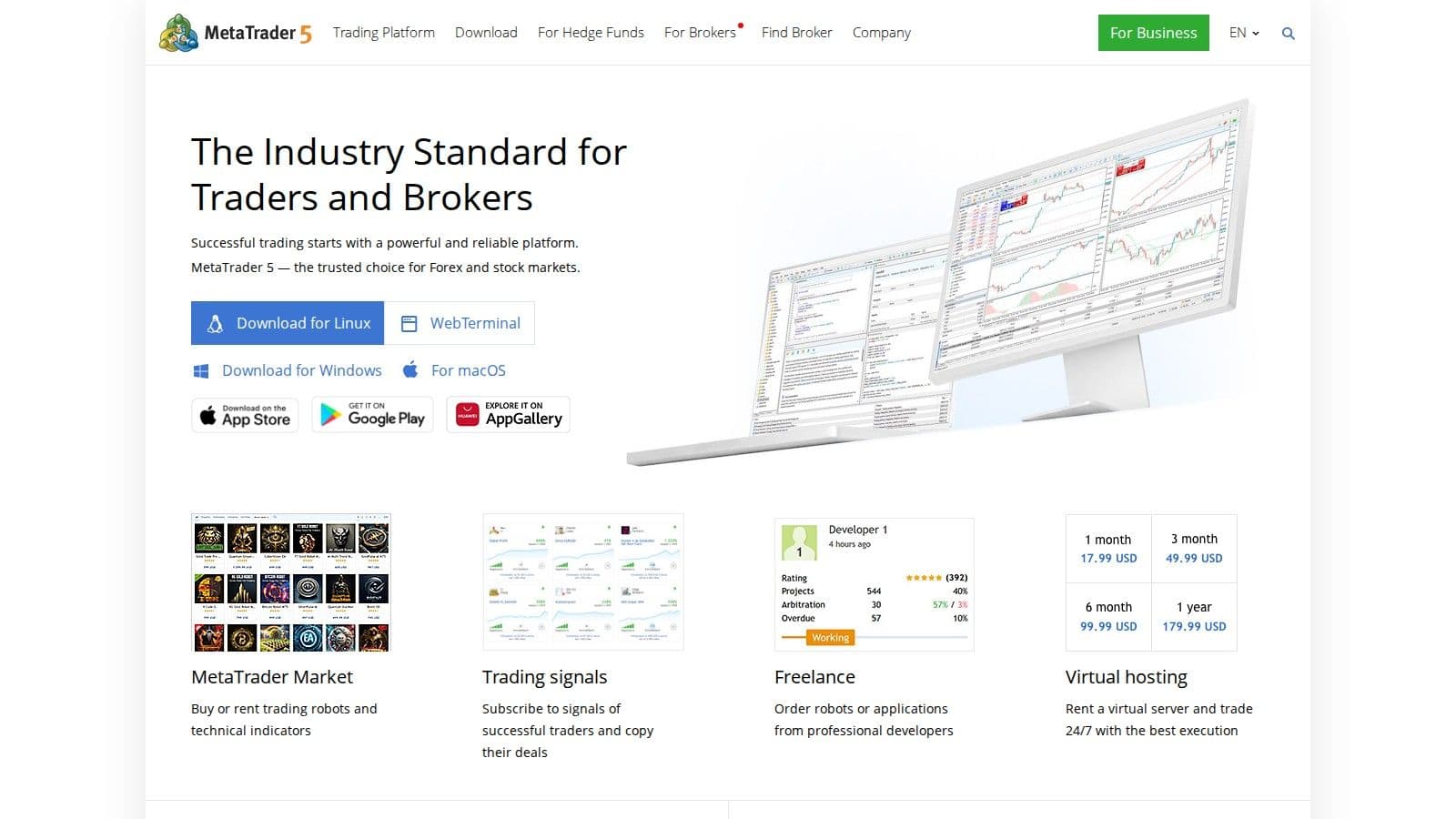
You can download MetaTrader 5 for free from either AMP Futures or MetaQuotes. The installation process is straightforward and follows the same steps as most Windows applications. Once installed, you’ll need your AMP Futures MT5 credentials to complete the setup.
Establishing the Connection
AMP Futures uses CQG data feeds to provide real-time market data and efficient trade execution on MetaTrader 5. To connect, log in using the AMPGlobalUSA-Live server and the credentials provided through the AMP Client Portal. The platform will automatically configure itself for futures trading once the connection is established.
Data Feed Configuration
AMP Futures supports multiple data feed options, including CQG and Rithmic. The CQG data feed is particularly valuable for delivering accurate, real-time pricing data, which is essential for automated trading systems and Expert Advisors. This integration ensures that your trading strategies have the precise market data they need to operate effectively.
"MetaTrader 5 is the choice for the modern trader!" - AMP Futures
By connecting MetaTrader 5 to AMP Futures’ infrastructure, you’ll gain access to a full range of futures contracts and ensure efficient trade execution. Before trading live, you can also test your setup and strategies in a demo environment.
Setting Up Demo Accounts for Testing
Demo accounts are a vital tool for testing automated trading strategies without risking real money. They allow you to fine-tune your approach and ensure your systems are ready for live trading.
Creating Your Demo Account
AMP Futures offers free demo accounts that replicate the live trading environment. These accounts include virtual funds and provide access to real-time market data, all available financial instruments, charting tools, technical indicators, and complete Expert Advisor functionality. Setting up a demo account is simple - just provide basic information during the signup process, and you’ll receive credentials that work with the same MetaTrader 5 platform used for live trading.
Strategy Testing and Optimization
When testing your strategies, use virtual capital amounts that mirror what you plan to trade with real money. Keep detailed records of all trades executed by your Expert Advisors to analyze performance and refine your strategies. MetaTrader 5’s built-in Strategy Tester is a powerful tool for this process, offering several testing modes:
- Every tick: Provides the highest accuracy.
- 1 minute OHLC: Offers a balance between speed and precision.
- Open prices only: Ideal for quick performance estimates.
The platform also includes an optimization feature to help you fine-tune your trading robots by testing various parameter combinations. For a more hands-on approach, the visual testing mode allows you to observe your Expert Advisor’s actions on historical price data in real-time.
Using a demo account, you can experiment with different market scenarios and trading strategies. This step helps ensure your automated systems are prepared to handle various conditions, from trending markets to periods of high volatility, before transitioning to live trading.
Setting Up Automated Trading Systems on MT5
Expert Advisors on MT5 Explained
Expert Advisors (EAs) are automated trading tools that execute trades based on pre-set rules. They monitor market conditions, analyze technical indicators, and track price movements to identify potential trading opportunities. Once an EA detects a signal that matches its programmed criteria, it automatically places a buy or sell order. This approach removes emotional decision-making and ensures consistent execution of trading strategies.
Where to Find Expert Advisors
The MetaTrader Market is the go-to platform for trading robots and indicators, offering over 1,500 options for purchase or rent. These range from basic systems, like moving average crossovers, to more advanced strategies involving multiple indicators. If you have programming skills, you can create custom EAs using the MQL5 programming language. The MQL5 IDE provides all the tools needed for development, debugging, testing, and optimizing trading robots. For beginners, the MQL5 Wizard simplifies the process, allowing users to generate basic trading robots without extensive coding knowledge.
Once you’ve chosen or created your EA, the next step is to install and fine-tune it for use on MT5. The multiple MT5 terminal guide explains the installation side when you want to keep several account environments separate.
Installing and Running Automated Strategies
To install an EA on MT5, copy the.ex5 file into the MQL5/Experts folder. Restart the platform, and then drag the EA from the Navigator panel onto your chart. During setup, you’ll need to configure parameters like lot size, risk settings, and trading hours. Make sure to enable both "Allow automated trading" and "Allow DLL imports" in the settings.
Locations
Trade beside your market. 8 datacenters, 3 continents.
Pick the location closest to what you trade, not to where you live.
Compare locationsFrom $29.99/mo · Windows or Linux
Testing Before Live Trading
Before using an EA in live markets, it’s crucial to test it on a demo account. The Strategy Tester in MT5 allows you to simulate performance under various conditions, helping you fine-tune the EA for accuracy and efficiency.
Performance Monitoring
Keep track of essential performance metrics such as net profit, win rate, drawdown, profit factor, and Sharpe ratio. Regularly reviewing these metrics helps you identify when adjustments are needed to align with changing market conditions.
Once your EA is installed and tested, the focus shifts to refining its performance and managing risk, especially in the dynamic US futures markets.
Automation Best Practices for US Futures Markets
After initial testing, apply these best practices to ensure your automated strategies remain effective in the volatile environment of US futures trading.
Avoiding Over-Optimization
Over-optimization can make a system perform well in backtests but fail in live markets. Instead, aim for strategies that can adapt to a variety of market conditions. Use forward testing by dividing historical data into separate sets - one for optimization and another for validation. This ensures your EA performs well on unseen data, avoiding reliance on overfitted parameters.
Risk Management and System Stability
Effective risk management is essential to minimize potential losses. Program your EAs to handle extreme market volatility, which is common during major economic events or unexpected news. Implement measures like daily loss limits, position-sizing rules, and safeguards for connection interruptions or platform restarts.
Adapting to Market Conditions
US futures markets experience fluctuations in liquidity and volatility throughout the day. With 70% to 80% of stock exchange trades executed via algorithms, your EAs should account for liquidity patterns, order execution precision, and a variety of order types. Additionally, consider the impact of economic announcements and fundamental factors. Diversifying strategies across different market conditions can further reduce risk.
Continuous Improvement
Algorithmic trading requires constant learning and adaptation. Stay updated on advancements in trading technology and technical analysis. Regularly review your EA’s performance, and be ready to adjust parameters, refine entry and exit rules, or rework strategies that no longer deliver results. You can also take advantage of the MQL5 Cloud Network to speed up testing and optimization by leveraging distributed computing resources from thousands of computers worldwide.
Best Practices for Automated Trading with AMP Futures and MT5
Meeting AMP Futures and US Regulatory Requirements
When using automated systems to trade futures, it's crucial to comply with AMP Futures' policies as well as U.S. federal regulations. The CFTC's Regulation Automated Trading is designed to enhance transparency and reduce risks in algorithmic trading on U.S. futures exchanges. To meet these requirements, you’ll need to securely store the source code for your Expert Advisors (EAs) and maintain detailed records of all versions and modifications. This ensures you're prepared to provide documentation if requested during a regulatory review.
Before diving into automated trading, make sure you fully understand all associated costs, including commissions, fees, and any other charges. It’s also essential to review the rules of the exchanges where you plan to trade, as AMP Futures offers access to over 50 trading platforms and multiple data feeds. Additionally, familiarize yourself with how your funds are protected and be aware of the potential for temporary disruptions or failures in computer-based systems. Once compliance is in place, your next priority should be ensuring system stability.
Keeping Your System Stable and Running Smoothly
A stable MetaTrader 5 (MT5) setup is critical for effective automated trading. To keep things running smoothly, regularly update your MT5 platform and VPS, but always test updates on a demo account first to ensure they work with your EAs. Monitoring your VPS for CPU and RAM usage can help you identify when it’s time to optimize your setup or upgrade your plan.
You can improve performance by taking simple steps like closing unnecessary charts and indicators, adjusting the process priority for MT5, and restarting the platform periodically. Limiting the number of symbols and timeframes displayed, optimizing chart history settings, and disabling features like newsfeeds can also help your platform operate more efficiently.
Reducing Latency to CME
Once your system is stable, the next step is minimizing latency between MT5 and the exchange. A Chicago VPS from QuantVPS measures 0.52ms network latency to CME. That figure is a network measurement to the Chicago Mercantile Exchange rather than an order-fill time, which is especially important for handling large trading volumes.
To achieve low latency, both hardware and network quality matter. Look for a VPS provider that uses enterprise-grade processors, fast NVMe storage, and sufficient RAM to eliminate bottlenecks. Additionally, efficient routing that reduces data hops can lower latency further.
AMP Futures notes that MetaTrader users may encounter "corrections" in execution data after closing orders, which indicate trades were not executed at the exact quoted price. While this is normal in volatile markets, reducing latency can help lower the frequency and impact of these corrections.
QuantVPS also offers 24/7 technical support to AMP Futures users, assisting with setup, platform troubleshooting, and addressing any latency or performance issues to keep your trading smooth and efficient.
Order flow
Built for scalpers. Heatmaps on dedicated resources.
Order-flow heatmaps and DOM ladders run on dedicated CPU, memory and NVMe, so your charts keep responding during volatility.
See the dedicated hardwareFrom $29.99/mo · Windows or Linux
Conclusion
Setting up MT5 for AMP Futures allows traders to execute their strategies around the clock. By combining MT5's powerful Expert Advisor tools with AMP Futures' advanced trading features, traders gain a platform for managing intricate strategies across various markets.
To get started, ensure you have a well-funded AMP Futures account, thoroughly test your strategies using demo accounts, and comply with all CFTC regulations. Automated trading requires a stable and high-performance environment, which is where professional VPS hosting becomes essential. A reliable setup ensures your strategies run smoothly and capitalize on market opportunities without interruptions.
Running MT5 on QuantVPS keeps your Expert Advisors close to the exchange, with 0.52ms network latency from Chicago to CME. Low latency matters most for high-frequency strategies and during volatile markets, when every millisecond counts.
Choose a plan by how many charts and Expert Advisors run at the same time. QuantVPS Standard plans, checked on 10 Oct 2026:
| Plan | Price | Charts or strategies at once |
|---|---|---|
| VPS Lite | $59.99/month | 1 to 3 |
| VPS Pro | $99.99/month | 3 to 5 |
| VPS Ultra | $189.99/month | 5 to 10 |
| Dedicated Server | $299.99/month | 10 or more |
Performance (+) versions of each plan run on AMD Ryzen 9 9950X CPUs, from $79.99/month for VPS Lite+. For large-scale trading operations, the Dedicated Server option provides the most power.
Running AMP MT5 Expert Advisors unattended
Test each Expert Advisor on an AMP demo account and check contract specs and margin for the futures you trade before going live. MT5 only runs EAs while the terminal is open with Algo Trading turned on. A MetaTrader 5 VPS from QuantVPS keeps the terminal running when your own computer is off, with 99.999% uptime.
FAQs
How can I select the best QuantVPS plan for automated trading with MetaTrader 5 and AMP Futures?
Match the plan to how many charts and Expert Advisors you run at once. VPS Lite ($59.99/month) suits 1 to 3, VPS Pro ($99.99/month) 3 to 5, and VPS Ultra ($189.99/month) 5 to 10, checked on 10 Oct 2026.
If you also want to backtest on the server, choose VPS Pro or higher. For AMP futures, pick the Chicago location for the lowest latency to CME.


