
On this page
You choose your emails in two places:
- Account settings › Emails: which kinds of emails we send you, for your whole account.
- Detect+ › Settings › Alerts: which problems on a VPS send you an alert email, and when. You set alerts for each VPS.
Choose Your Emails
- In the sidebar of your dashboard, click Account settings. Its pages open under it: Profile, Security, Emails and Appearance. On a smaller screen, click your name at the top right, then Account settings. On a phone, open the menu and tap Account settings.
- Click Emails. Sent to shows the address that gets our emails.
- Turn a switch off to stop that kind of email, or on to get it again. The change saves at once, and a message confirms it.

- Account emails: notices about your VPS and your account, such as outages, maintenance, a CPU limit, upgrades and moves, replies to your requests, setup tips, review requests and offers, market hours alerts and the affiliate program. The switch at the top stops all of them. With it on, you choose each kind below it.
- Detect+ emails: the emails that Detect+ sends. Alerts stops or starts every alert email. Connected again tells you when a VPS that went offline is back. Detect+ is now reporting comes once for each VPS. Detect+ still shows every alert in the dashboard when its emails are off.

Emails That Always Go
The Required card lists the emails that no switch stops, because you need them: sign-in codes; security changes (two-step sign-in removed, a support access code, a new Remote Desktop or SSH port, Remote Desktop locked, a port closed); the welcome of a new VPS or dedicated server; failed payments; a suspension or a VPS we ended; and legal notices.
Choose Your Detect+ Alerts
- In the sidebar, click Detect+. If you have more than one VPS, choose it in the top bar.
- Click Settings, then Alerts. You can also click Detect+ › Alerts on the Emails page.
- Read About alerts at the top: what an alert is, where it goes and how to mute one.

- Click Change alerts.
- Turn on the alerts you want and turn off the ones you do not want. An alert that is on shows its settings, such as a limit.
- Under Email, choose when that alert can email you: Any time, Weekdays only (New York time) or Outside platform maintenance (not during the futures market's weekend close, its daily break from 5 to 6 PM ET or exchange holidays). Some alerts, such as VPS offline, have no Email choice: they always email.
- Click Save. Nothing changes until you save.
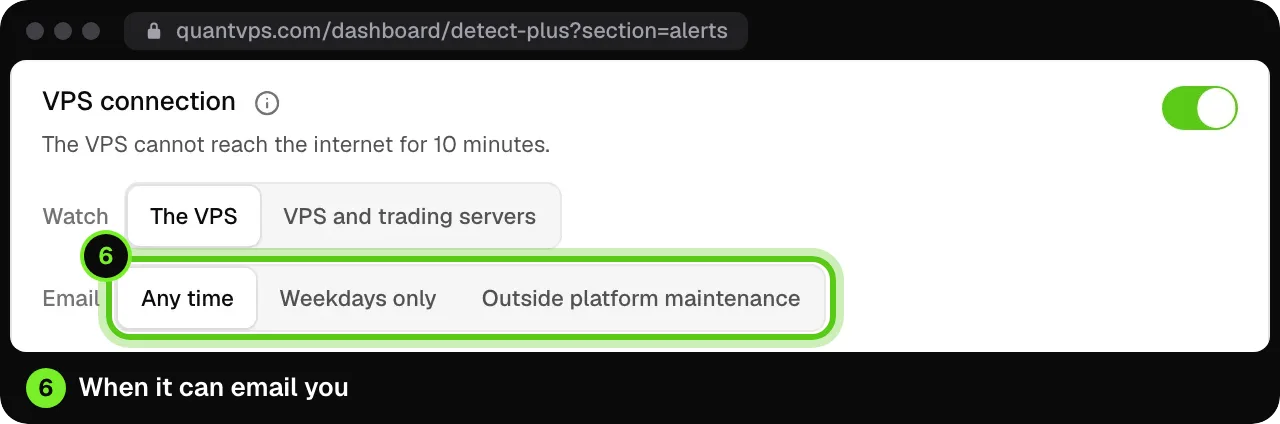
You get one email when a problem starts, not one for each check, and at most 30 emails a day for each VPS. Past alerts, under the alerts, keeps each alert for 90 days. What each alert watches: see Set up Detect+ monitoring and alerts.
Mute One Alert
- To stop one alert, click Change alerts, turn its switch off and click Save.
- To keep it but get fewer emails, choose Weekdays only or Outside platform maintenance under its Email.
- To stop every alert email for all your VPSs, turn off Alerts under Detect+ emails on the Emails page.
Keep Our Emails Out of Spam
Add noreply@updates.quantvps.com to your contacts. To get our emails at another address, see How to Change Your Email Address.
Related
Search the Help Center
Need help?
Real people answer 24/7. Tell us what you see, and we help you fix it.
Customer? Log in for live support.