
On this page
Allowing MetaTrader 5 through Windows Firewall ensures your platform can stay connected to your broker. Follow the steps below to whitelist MT5 on your VPS.
Step 1: Open Windows Defender Firewall
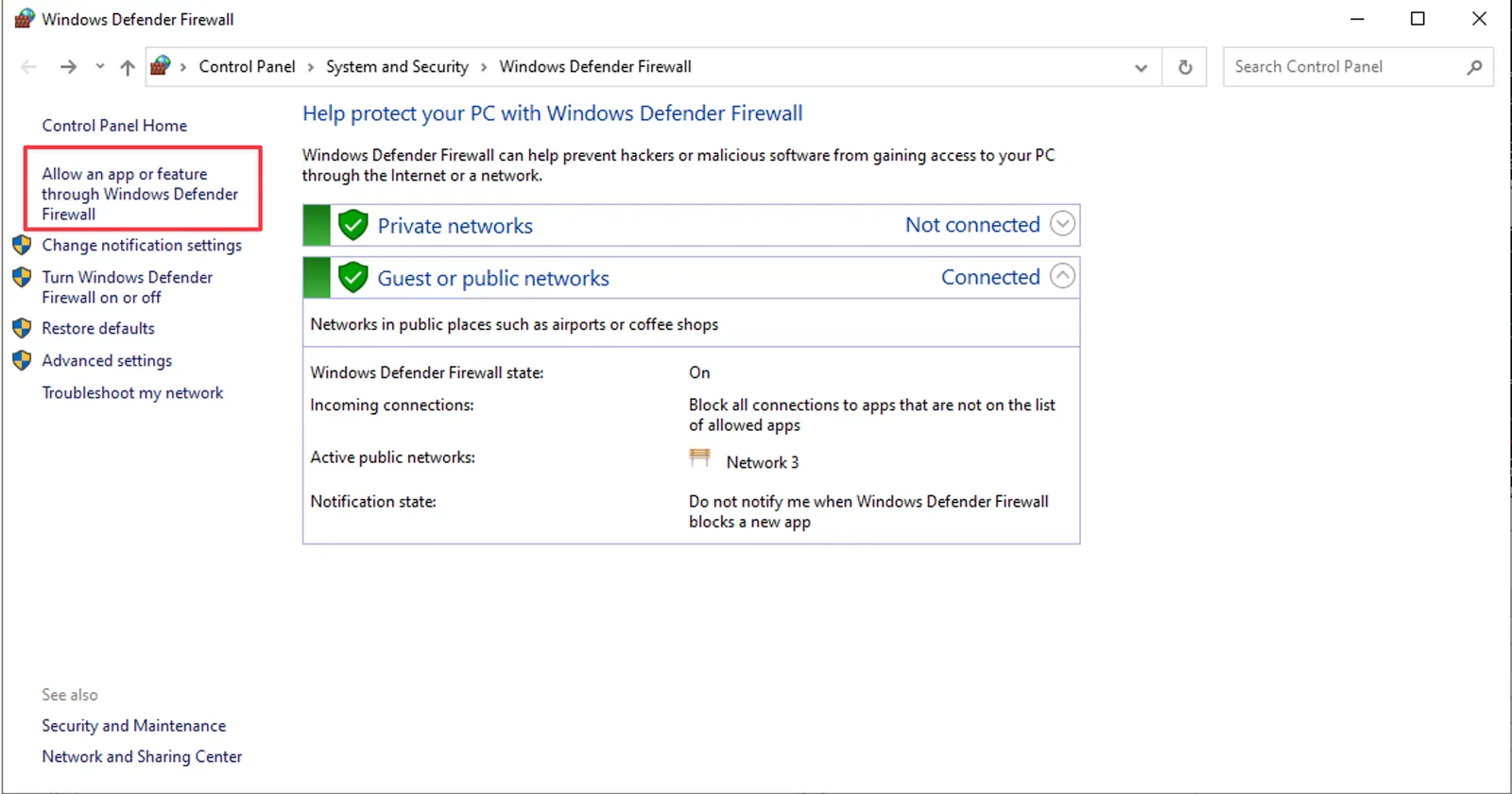
- Click Start Menu → Search → "Windows Defender Firewall."
- In the left sidebar, click "Allow an app through Windows Defender Firewall."
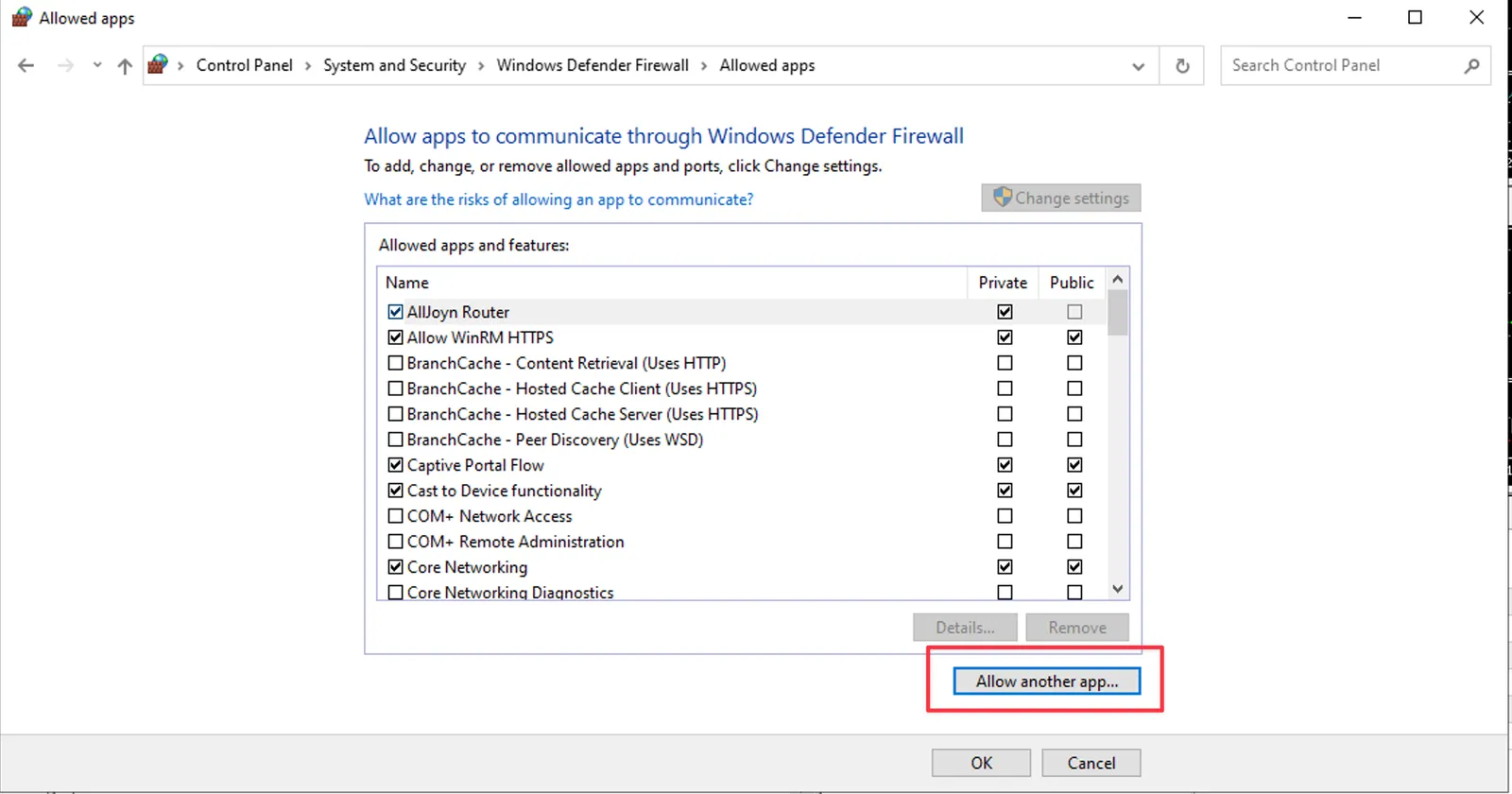
Step 2: Add a New App
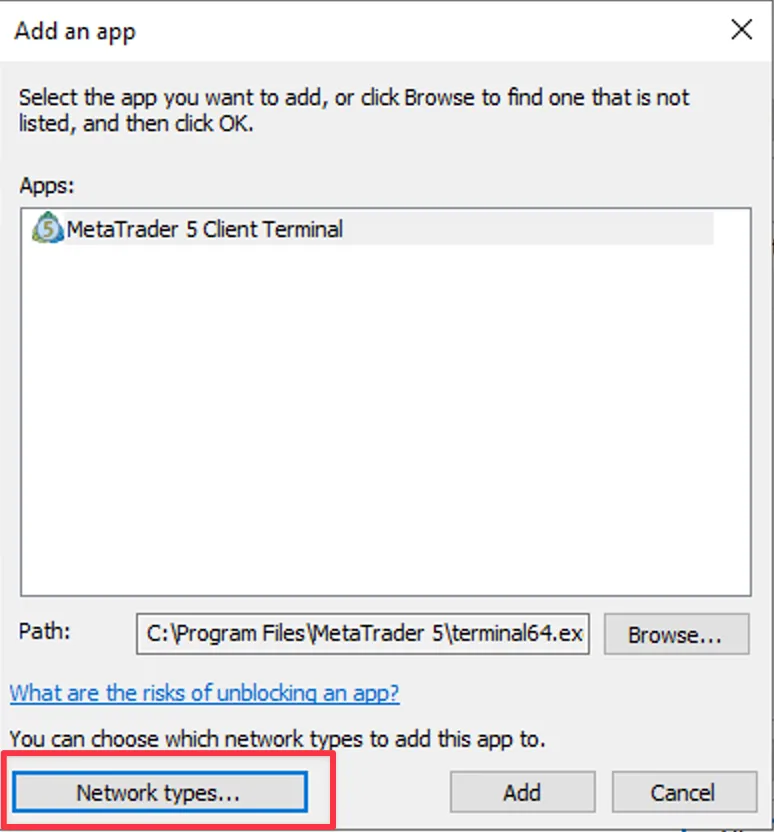
At the bottom-right corner, click "Allow another app...." This opens the Add an App dialog.
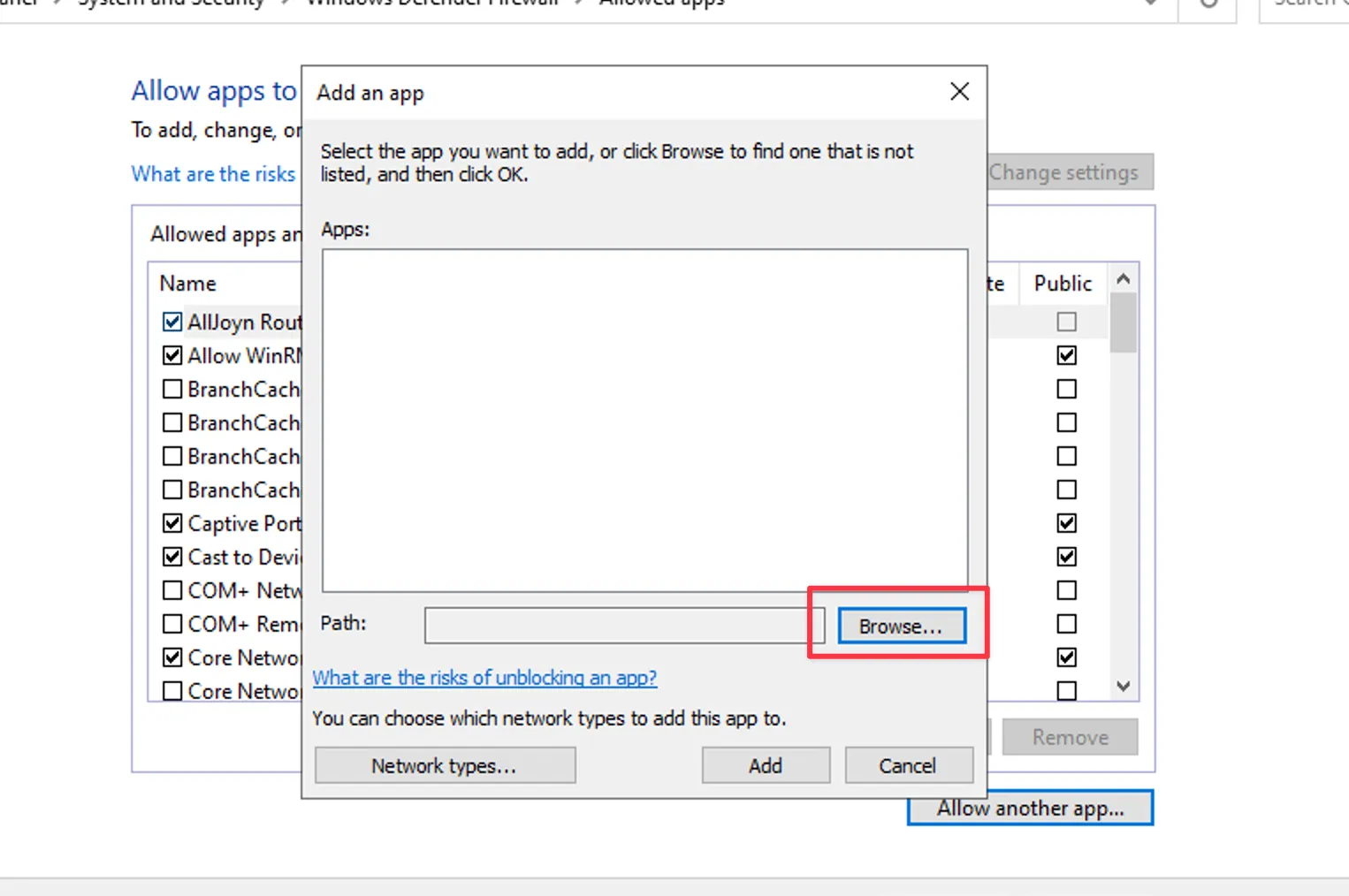
- Click Browse…
Step 3: Allow MT5 Installation
- Navigate to your MT5 installation directory, usually: C:\Program Files\MetaTrader 5\
- Select the file terminal64.exe
- Click Open → Add
C:\Program Files\MetaTrader 5\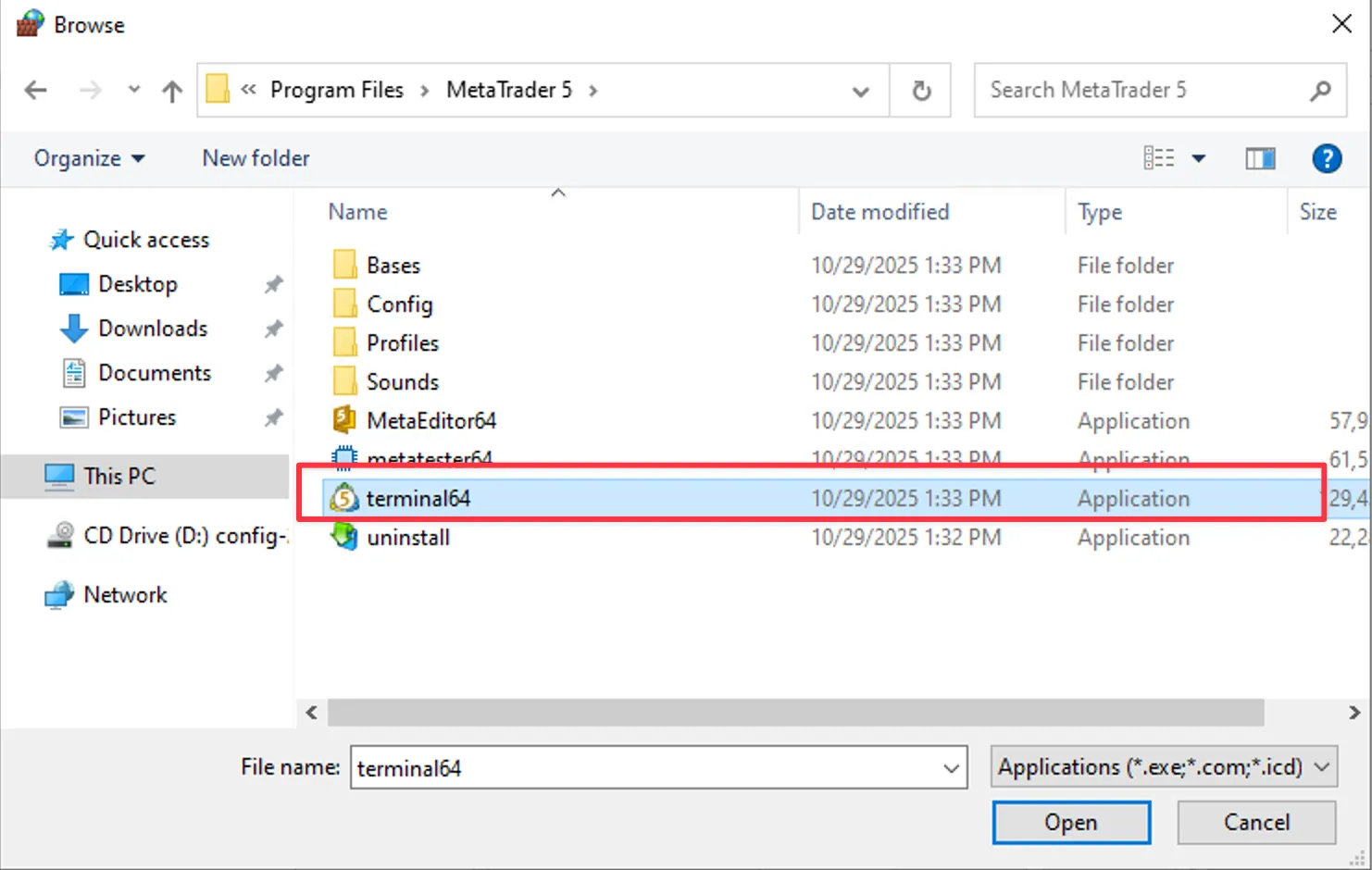
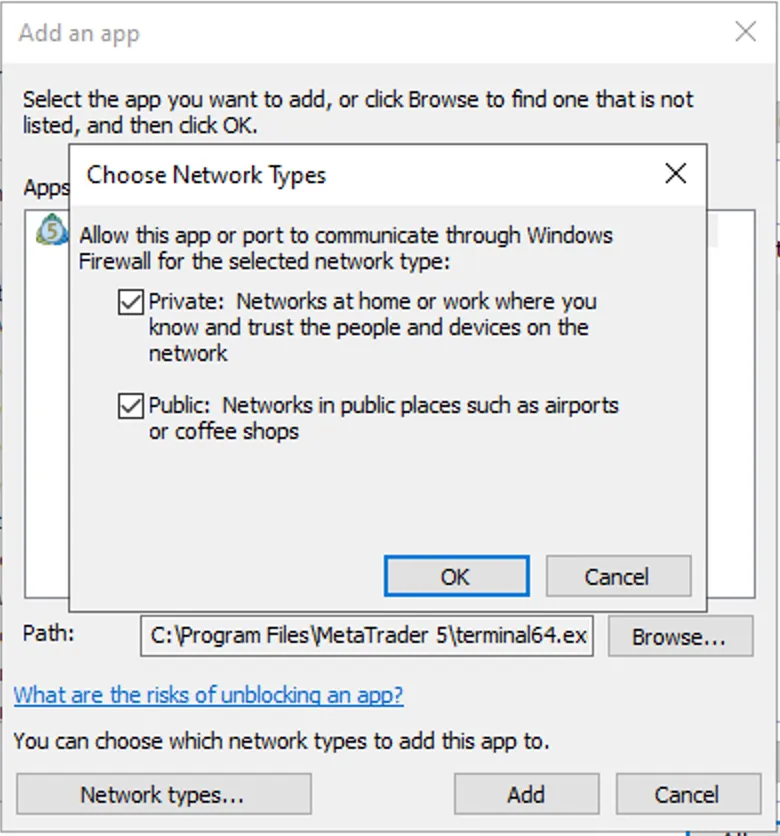
Step 4: Enable Both Network Types
- Back on the main Firewall screen, find MetaTrader 5 (terminal64.exe) in the list.
Check both boxes:
- Private
- Public
- Click OK to save changes.
Step 5: Restart MT5 and Verify Connection
Open MetaTrader 5 again and check the status in the bottom-right corner:
- Connected: MT5 is allowed through the firewall
- No Connection: verify the firewall rule and try again
If you still experience issues, temporarily disable any third-party antivirus (Norton, McAfee, AVG, etc.) to ensure it's not blocking MT5.
Tips
- If you use a broker-branded MT5 build (e.g., "BrokerName MT5"), repeat these steps for that specific executable.
- Avoid adding multiple copies of MT5 to the allowed list; keep only the active installation.
- Keep Windows Firewall enabled for security; just ensure MT5 is whitelisted.
Need Assistance?
Our support team is available 24/7. If you have any questions or run into issues, open a support ticket from your QuantVPS dashboard and we'll get back to you as quickly as possible.
Still need help? Our team answers 24/7.
Related articles
NinjaTrader13 min read
Common NinjaTrader Errors and How to Fix Them
UpdatedNinjaTrader9 min read
Fix NinjaTrader Slowness with the NinjaScript Utilization Monitor
UpdatedNinjaTrader2 min read
How to Clear the Cache in NinjaTrader 8 (NT8)
UpdatedTradingView2 min read
How to Install TradingView on Your QuantVPS (Windows Server 2022)
Updated