
On this page
If TradeStation keeps disconnecting on your VPS, the steps below, allowing TradeStation through Windows Firewall, flushing your DNS cache, and checking for server-side outages, resolve most cases.
Step 1: Add TradeStation to Windows Defender Firewall
- Open Windows Defender Firewall.
- Click "Allow an app or feature through Windows Defender Firewall" (on the left panel).
- Click "Change settings", then "Allow another app…".
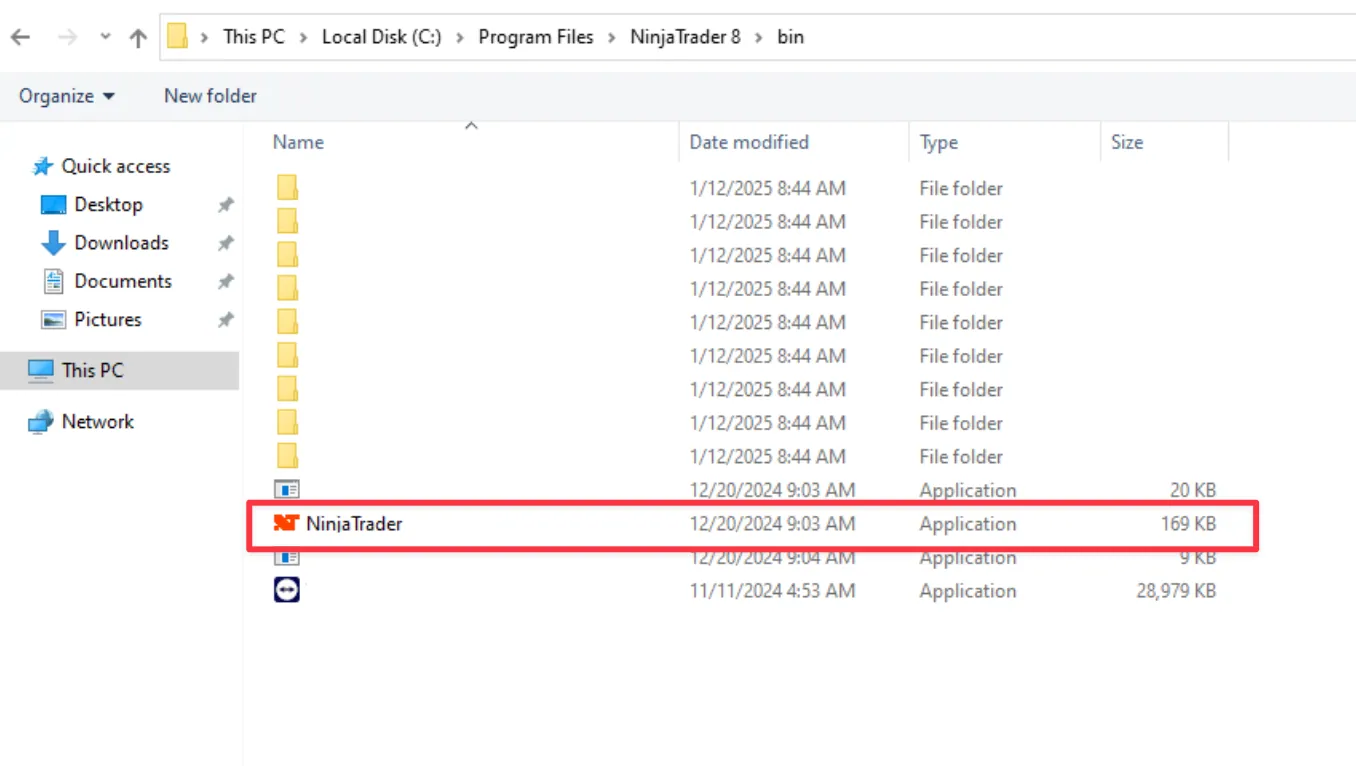
Click "Browse" and navigate to:
C:\Program Files\TradeStation\bin
- Select the TradeStation executable file (TradeStation.exe or the relevant application file).
- Check both Private and Public networks.
- Click OK to save changes.
Step 2: Flush DNS Cache
- Open Command Prompt as Administrator.
Type the following command and press Enter:
ipconfig /flushdns
Step 3: Rule Out a Server-Side Outage
Not every disconnection is caused by your VPS. Before troubleshooting further, check whether the issue is on TradeStation's end:
- Check TradeStation's Service Status page for any reported outages.
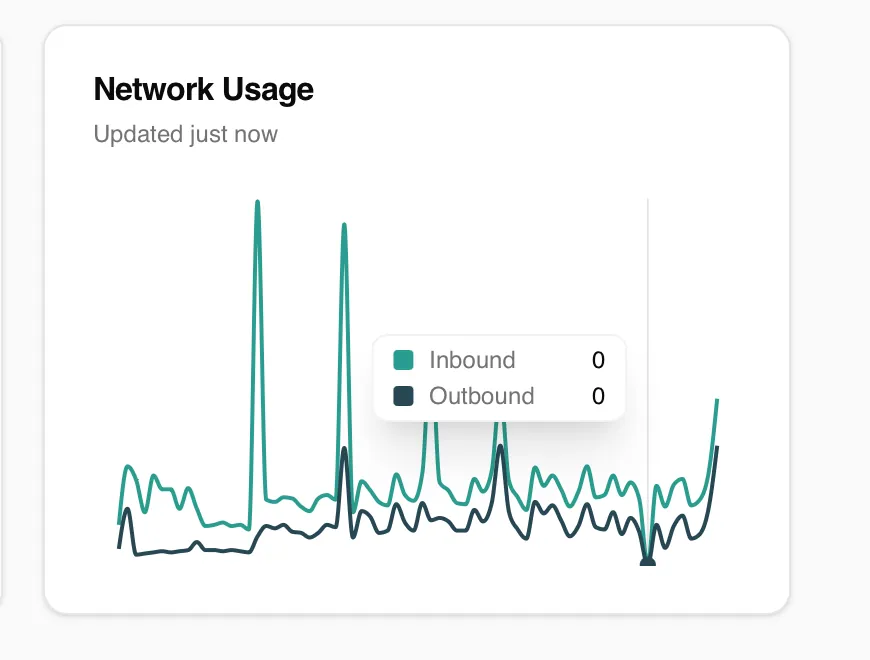
- Open your VPS's Monitoring tab and review the network graph for the time of the disconnection.
Step 4: Still Disconnecting?
If disconnections continue after completing the steps above:
- Confirm your antivirus or third-party security software isn't also blocking TradeStation (Windows Defender Firewall is only one layer).
- Restart your VPS to clear any stuck network sessions.
- Open a support ticket with the approximate time of the disconnection so we can check your VPS's connection logs.
Need Assistance?
Our support team is available 24/7. If you have any questions or run into issues, open a support ticket from your QuantVPS dashboard and we'll get back to you as quickly as possible.
Still need help? Our team answers 24/7.
Related articles
NinjaTrader13 min read
Common NinjaTrader Errors and How to Fix Them
UpdatedNinjaTrader9 min read
Fix NinjaTrader Slowness with the NinjaScript Utilization Monitor
UpdatedNinjaTrader2 min read
How to Clear the Cache in NinjaTrader 8 (NT8)
UpdatedTradingView2 min read
How to Install TradingView on Your QuantVPS (Windows Server 2022)
Updated