
On this page
To configure Printer Redirection in a Remote Desktop (RDP) environment, you must enable printer redirection in your RDP client, allow it in Group Policy on the server, and ensure the correct printer driver is installed on both the local machine and the RDP server.
Step 1: Enable Printer Redirection in Your RDP Client
This is the most common reason a redirected printer doesn't show up: printer redirection has to be turned on in the RDP client before you connect. It's off by default in some setups.
- Open the Remote Desktop Connection client (
mstsc.exe). - Click Show Options to expand the connection settings.
- Go to the Local Resources tab.
- Under Local devices and resources, make sure Printers is checked.
- Connect to your VPS as usual. Your local default printer should now be redirected into the session automatically.
If you're using a different RDP client (Windows App, a Mac client, etc.), look for the equivalent "printers" or "printer redirection" option in its local resources / devices settings before connecting.
Step 2: Configure Group Policy on the RDP Server
On the server, open the Local Group Policy Editor by searching for:
gpedit.msc
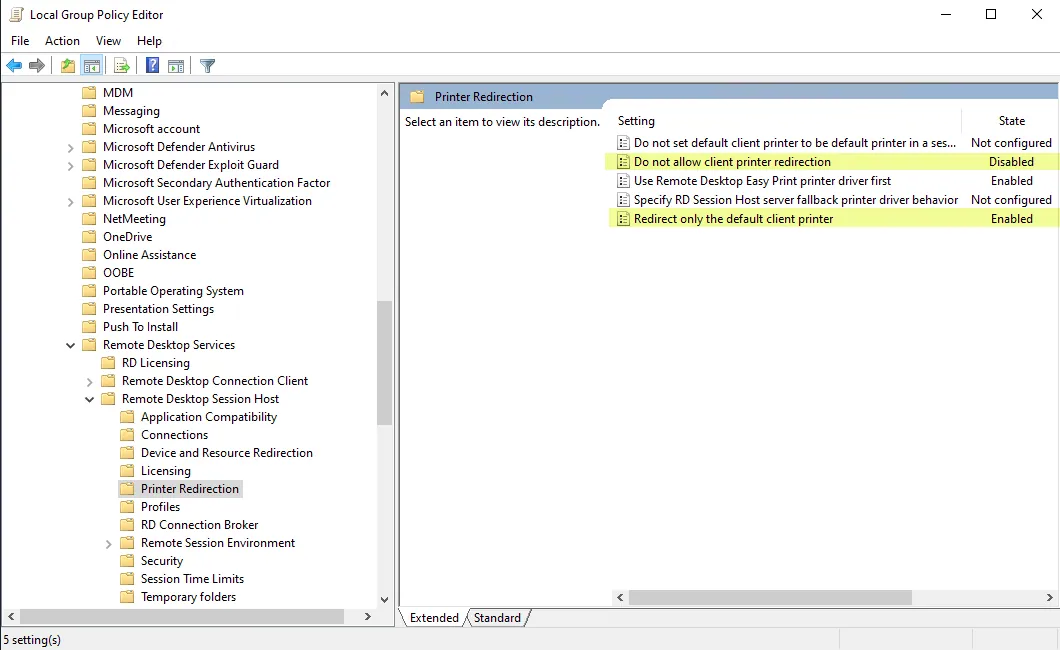
- Navigate to: Computer Configuration → Administrative Templates → Windows Components → Remote Desktop Services → Remote Desktop Session Host → Printer Redirection
Locate the policy "Do not allow client printer redirection" and set it to:
- Not Configured, or
- Disabled
This ensures printer redirection is permitted during RDP sessions.
Step 3: Install the Printer Driver on Both Systems
The same printer driver used on the local machine must also be installed on the RDP server.
- Download the correct driver directly from the printer manufacturer's official website.
- Install the driver on both the local machine and the RDP server.
If the driver installer requires the printer to be physically connected, you can manually install the driver by:
- Adding a printer in Windows
- Selecting "Have Disk"
- Pointing to the extracted .INF driver file
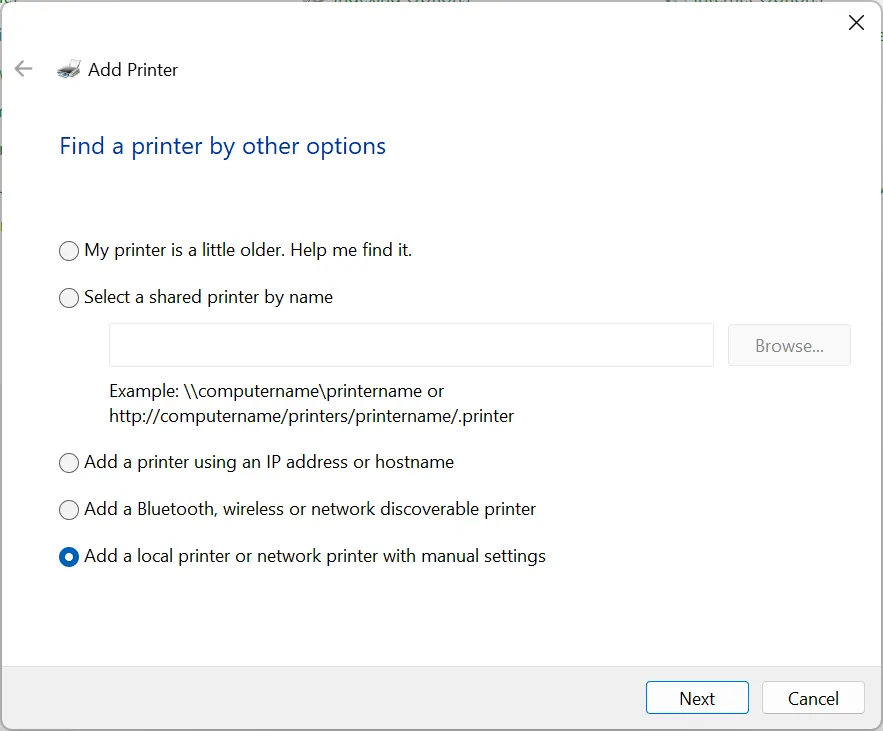
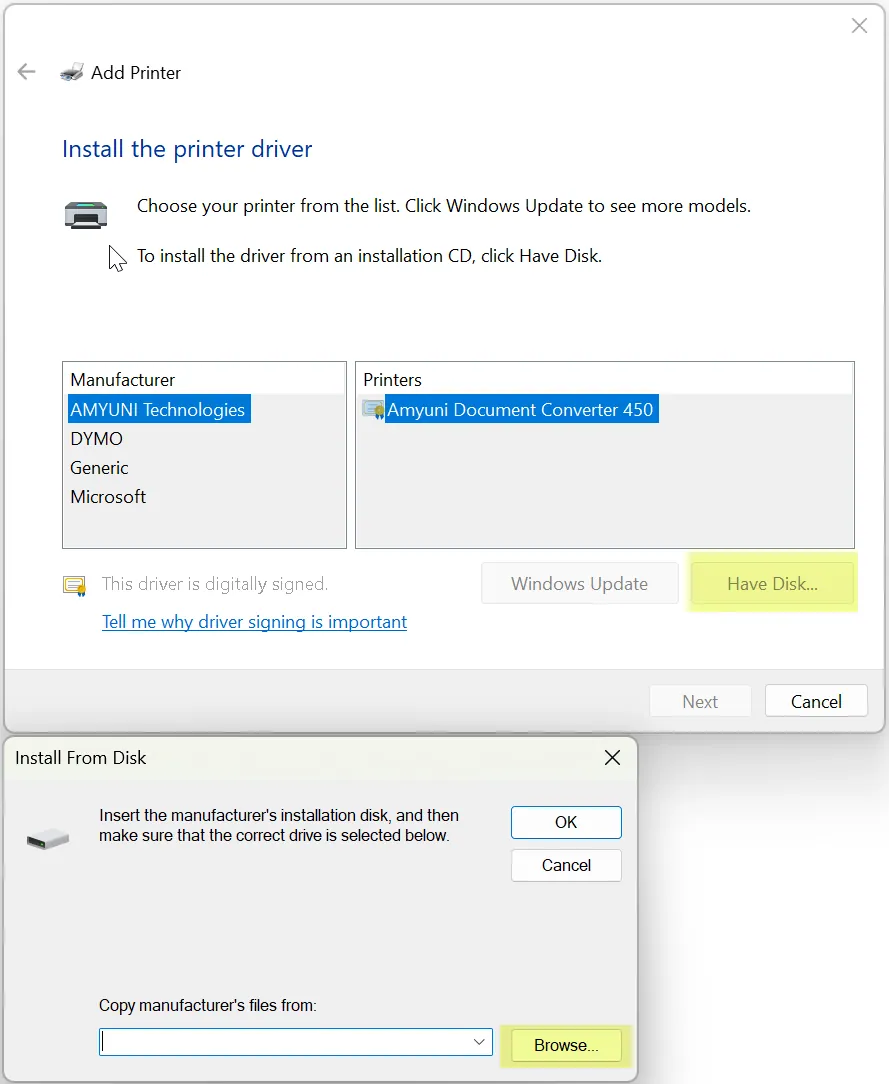
This allows the driver package to install without physically connecting the printer to the server.
Once printer redirection is enabled in your RDP client, the Group Policy setting is in place, and matching drivers are installed on both machines, printer redirection should function properly during Remote Desktop sessions.
Need Assistance?
Our support team is available 24/7. If you have any questions or run into issues, open a support ticket from your QuantVPS dashboard and we'll get back to you as quickly as possible.