Futures paper trading allows you to practice trading futures contracts with virtual funds - risk-free. It’s perfect for testing strategies, learning market behavior, and building confidence before trading live. This guide reviews the top free simulators, focusing on features like live data, automation tools, and U.S. market compatibility. Here's the quick takeaway:
- NinjaTrader: Free with live data and automation tools like backtesting.
- ProRealTime: Automated trading on dedicated servers but limited free access.
- Forex Tester Online: Browser-based, historical data-focused, freemium model.
- Webull: Mobile-friendly, free, but lacks advanced order types.
- CME Group: Free, U.S. futures focus, 10-minute delayed data.
- Tradovate: Cloud-based, real-time data, supports automation.
- TradingView: Advanced charting, social trading, and backtesting.
- TradeStation: Automation with EasyLanguage, excellent backtesting tools.
- Interactive Brokers: Full API support, multi-platform access.
- E*TRADE: Delayed data, basic tools, live account required.
Key Features to Compare:
- Market data accuracy (real-time vs. delayed).
- Automation support (backtesting, scripting, API).
- Accessibility (desktop, mobile, web).
- Free access limitations (trial periods, required accounts).
- VPS compatibility for automated strategies.
Below is a quick comparison to help you decide.
Quick Comparison
| Platform | Market Data | Automation Support | Free Access | Platform Type | VPS Compatible |
|---|---|---|---|---|---|
| NinjaTrader | Real-time | Full EA support | Unlimited | Desktop/Web | Yes |
| ProRealTime | Real-time | Limited scripting | 30-day trial | Desktop/Web | Partial |
| Forex Tester Online | Historical | Custom indicators | Freemium | Browser | No |
| Webull | Real-time* | None | Unlimited | Mobile/Web | No |
| CME Group | 10-min delayed | None | Unlimited | Web | No |
| Tradovate | Real-time | Limited | Unlimited | Web/Mobile | Yes |
| TradingView | Real-time | Pine Script | Unlimited | Web/Mobile | Partial |
| TradeStation | Real-time | Full EasyLanguage | Unlimited | Desktop/Web | Yes |
| Interactive Brokers | Real-time | Full API support | Unlimited | Desktop/Web/Mobile | Yes |
| E*TRADE | Delayed | None | Unlimited | Desktop/Web/Mobile | No |
*Real-time data on Webull requires an OPRA subscription; otherwise, quotes are delayed.
Choosing the right simulator depends on your goals. If automation is key, TradeStation and NinjaTrader excel. For mobile-friendly options, Webull and TradingView stand out. If you’re focused on U.S. futures, CME Group is a great free option. Each platform offers unique tools to help you refine your trading skills.
How To Paper Trade Futures | Completely Free!
1. NinjaTrader Free Simulator

NinjaTrader's free simulator creates a safe space for traders to practice without financial risk. It provides live streaming and professional market data, replicating real-world futures trading conditions.
2. ProRealTime Paper Trading
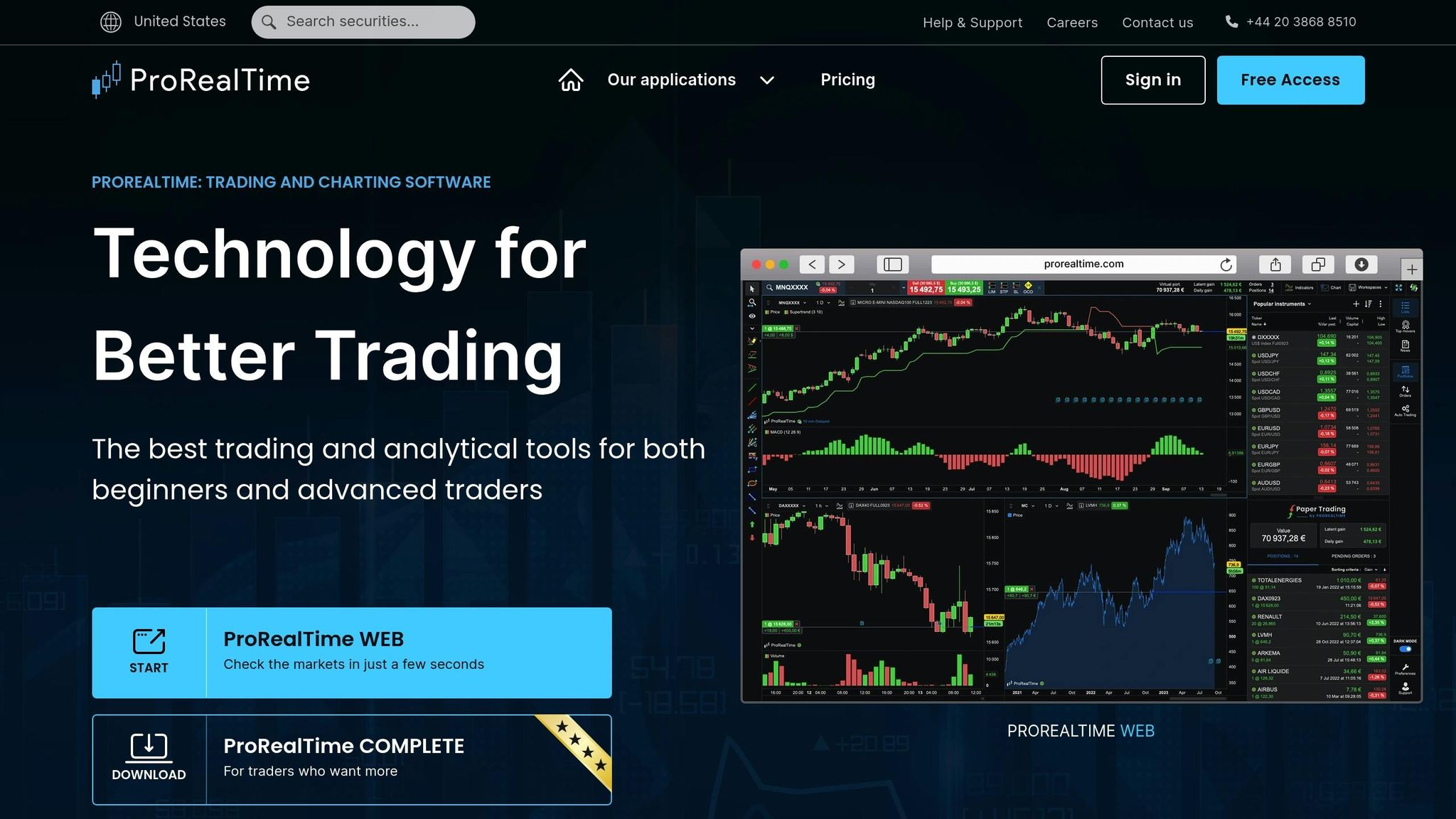
ProRealTime Paper Trading enables automated trading through its ProOrder AutoTrading feature. This module allows you to execute simulated trades on dedicated servers, ensuring smooth and uninterrupted operation, no matter the status of your device. Now, let’s dive into another trading simulator that takes a different approach to paper trading.
3. Forex Tester Online
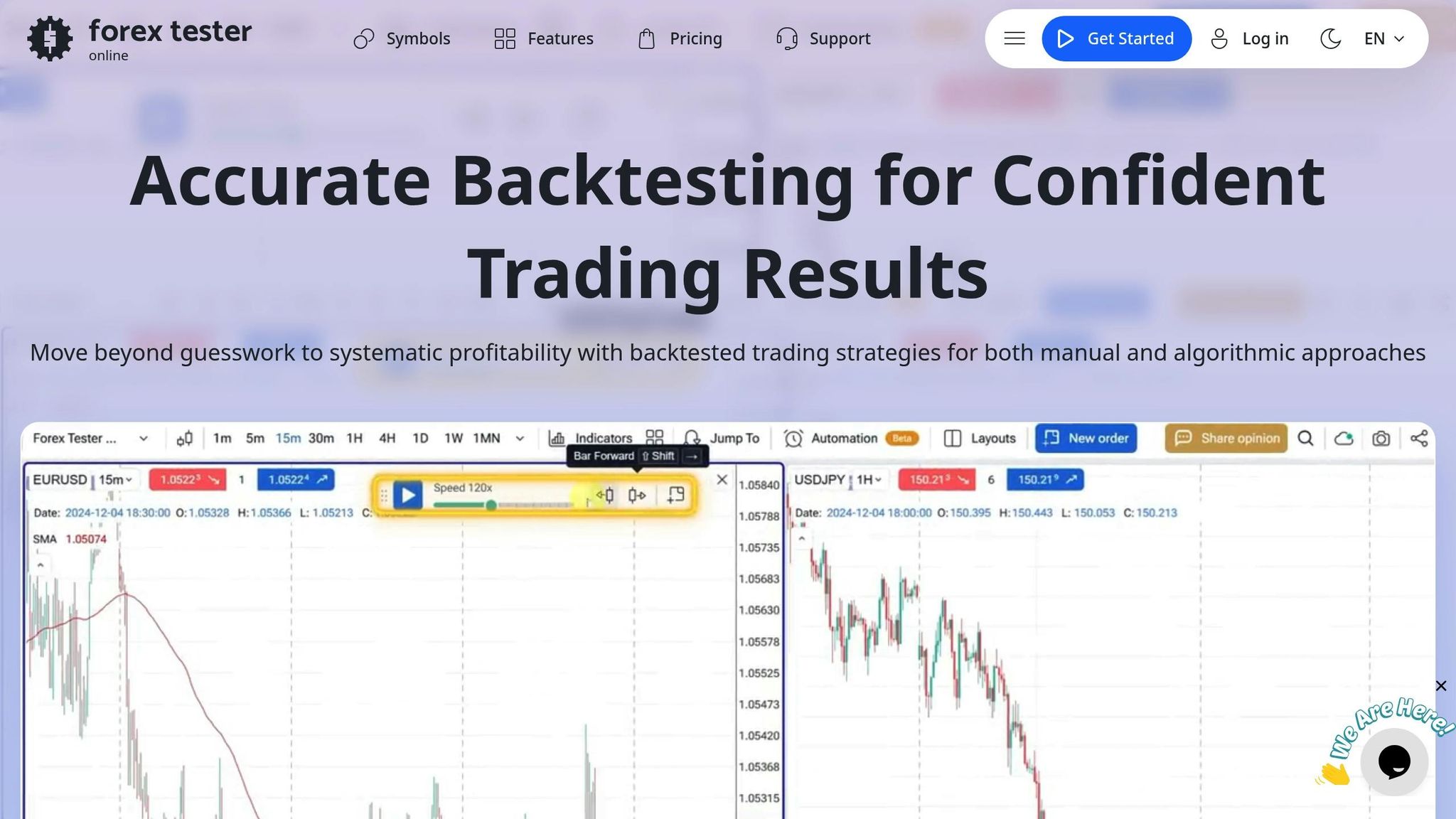
Forex Tester Online is a browser-based simulator designed for futures paper trading. It allows traders to test their strategies using historical data in a safe, risk-free setting. Below, we explore its key features like market realism, automation capabilities, access options, and compatibility.
Market Data Realism
Forex Tester Online recreates a trading environment using historical price data, offering an experience that closely resembles real market conditions. By simulating factors like market spreads and execution delays, it provides traders with a practical way to see how their strategies might perform in live scenarios.
Automation Support
The platform supports automated trading strategies through its built-in scripting interface. This functionality enables traders to develop, test, and refine automated systems, making strategy evaluation more efficient and hands-off.
Free Access Limitations
Forex Tester Online operates on a freemium model. While the free version offers basic simulation tools, advanced features like extensive historical data and greater customization options are only available with a paid subscription. Free users may find these limitations restrictive compared to the premium experience.
Platform Compatibility
Since it runs directly in a web browser, Forex Tester Online is accessible across a range of devices, including desktops, tablets, and smartphones. There's no need to download or install additional software, making it convenient for traders on the go.
VPS Hosting Compatibility
For traders relying on virtual private servers (VPS) or other remote setups, Forex Tester Online is an excellent fit. Its web-based design ensures seamless access from any device with an internet connection, allowing uninterrupted testing and strategy evaluation no matter the location.
4. Webull Paper Trading

Run 24/7 while you sleep. Keep bots, platforms, and trade copiers online on a dedicated VPS.
Low-latency VPS hosting for your trading platform.
 CHINYC
 LON
LONFrom $29.99/mo


 CHI/CME futuresNYC/US marketsLON/FX EAs
 DUB/Polymarket
 AMS/EU FX
 FRA/Central EU
 TYO/APAC crypto
Webull's paper trading simulator is designed to offer a risk-free environment for honing trading strategies. It supports futures trading alongside stocks, ETFs, and options, making it a versatile tool for both beginners and intermediate traders. Let’s dive into the key aspects of this simulator, starting with its market data accuracy.
Market Data Realism
Webull promotes its simulator as providing real-time market data, complete with live quotes, dynamic charts, and alerts. However, access to real-time data depends on an OPRA subscription. Without it, quotes are delayed by 15 minutes - a policy that likely extends to futures trading as well.
As stated on Webull Learn:
"The quotes in paper trading are the same as the real market quotes. You will be offered the same real-time quote if you have subscribed to the OPRA quotes on your real account, or you will see the quotes with 15 mins delay."
Additionally, while Webull advertises "Free CME Market Data" for live futures trading, in certain regions, this data may be delayed by up to 10 minutes. This means that even free data access isn't always instantaneous, which could affect the realism of simulated trading.
Free Access Limitations
While the simulator provides robust data feeds, it does come with notable restrictions. The platform supports only limit and market orders, leaving out other order types that many traders rely on for comprehensive strategy testing. More importantly, it lacks features like stop-loss and take-profit orders, which are essential for managing risk effectively.
Webull clarifies this in its policy:
"The Option Paper Trading Simulator is an educational tool meant to familiarize investors with Options Trading without having to risk their own capital. The tool is limited in its features and does not replicate every real-life scenario."
These limitations make the simulator better suited for basic educational purposes rather than advanced strategy development.
Platform Compatibility
Webull’s paper trading simulator is accessible on both desktop and mobile platforms, offering flexibility for traders who want to practice on different devices. The user-friendly interface includes advanced charting and screening tools, making it a practical option for beginners and intermediate users alike.
VPS Hosting Compatibility
For traders interested in testing automated strategies, the platform presents a challenge. The absence of stop-loss and take-profit functionality makes it less compatible with VPS hosting and automated trading systems. As a result, those looking to test sophisticated, algorithm-driven strategies might find the simulator lacking in this regard.
5. CME Group Trading Simulator

The CME Group Trading Simulator, provided by the Chicago Mercantile Exchange, offers a platform for practicing futures and options trading across a range of asset classes. It’s designed to deliver a realistic trading experience without any financial risk.
Market Data Realism
This simulator provides access to real market data across six asset classes, including standard, E-mini, and Micro-sized products. For routine practice, it uses a 10-minute delayed data feed. While the delay might not suit strategies requiring split-second decisions, it still effectively simulates market movements and price fluctuations for a variety of trading approaches.
For a real-time experience, the Trading Challenges feature allows users to test time-sensitive strategies in a risk-free environment. Advanced tools like the Options Grid, which offers insights into market depth and liquidity, and the Price Ladder, showing real-time bid/ask prices across 10 levels, help replicate the dynamics of live trading.
Before diving in, it’s worth noting the simulator’s limitations to better understand its scope.
Free Access Limitations
The CME Group Trading Simulator is entirely free to use - no subscriptions or hidden fees required. However, there are some constraints. Users must manually close all open positions before contract expiration, as the simulator doesn’t automatically record profits or losses when contracts expire. Additionally, the options interface is limited to a select number of strike prices, which adjust dynamically around the at-the-money point. While practice accounts can be reset at any time, Challenge accounts are not resettable.
Beyond its market data features, the simulator also offers a user-friendly and flexible trading interface.
Platform Compatibility
The simulator’s workspace is customizable, allowing users to arrange widgets, charts, market insights, watchlists, and trade plans to suit their preferences. Its charting tools include popular technical indicators like moving averages, Bollinger Bands, and the Relative Strength Index (RSI). Traders can choose from various order types - market, limit, stop, and stop-limit - and take advantage of one-click trading for faster execution. Detailed trade logs are also available to track performance.
VPS Hosting Compatibility
Thanks to its web-based design, the CME Group Trading Simulator works seamlessly with VPS hosting solutions. This ensures stable internet connections and reduced latency, which can be especially useful during practice sessions. The simulator also includes trade planning features, enabling traders to set objectives and risk parameters - ideal for those who prefer a systematic approach to trading within a VPS environment.
6. Tradovate Simulated Trading
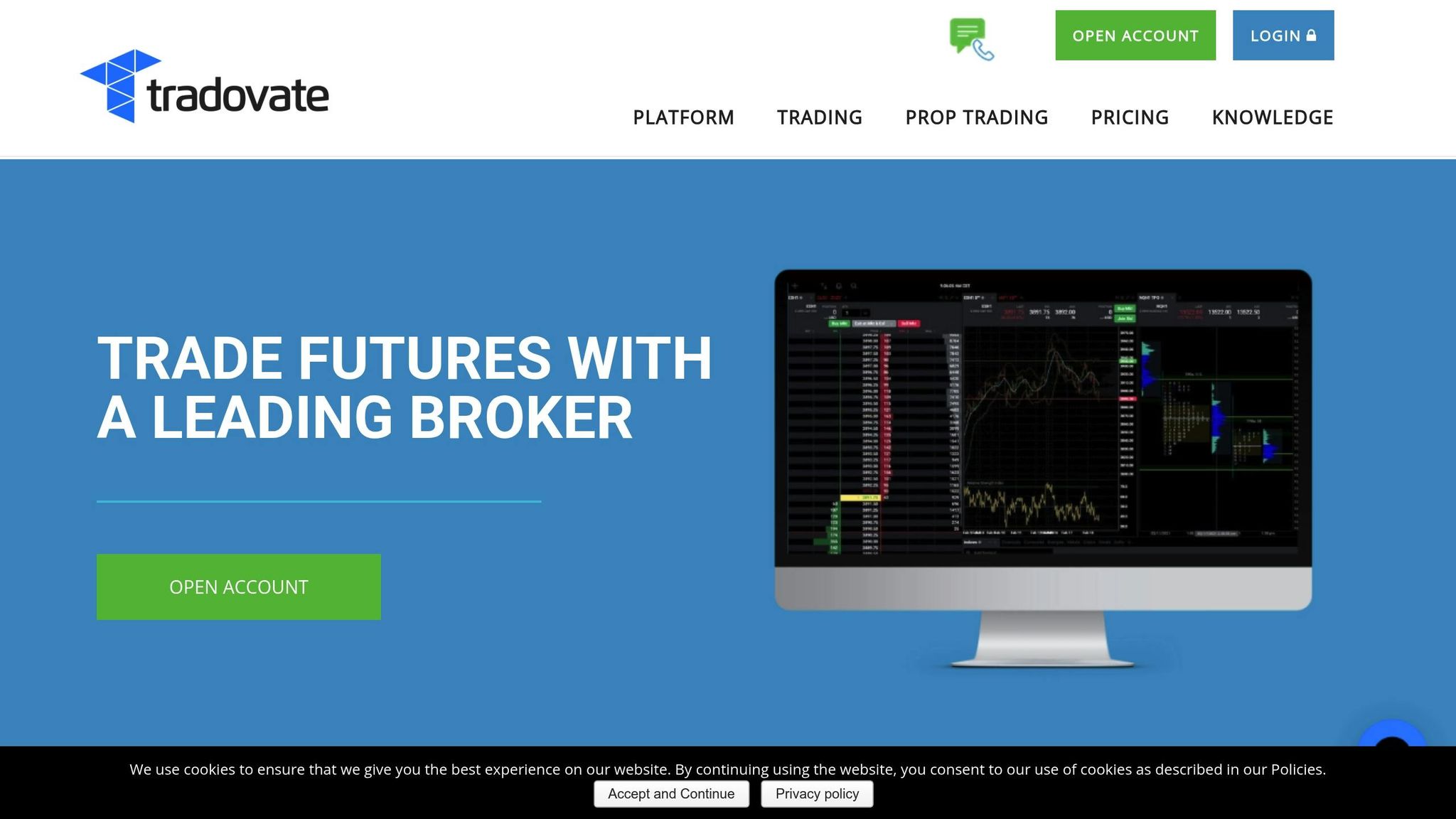
Tradovate offers a cloud-based simulated trading platform that mirrors live trading conditions without requiring any downloads.
Realistic Market Data
The simulator leverages live market data from major futures exchanges, giving traders access to a wide range of markets. This real-time data allows users to test fast-paced strategies like scalping under authentic market conditions. Additionally, the detailed multi-level order book provides valuable insights into market liquidity.
Automation and Strategy Testing
Tradovate's platform supports automated strategies through API integration and select third-party tools. It also includes advanced order management features like bracket orders, stop-loss, take-profit, and trailing stops. These tools allow traders to fine-tune their strategies without financial risk.
Free Access with Some Limits
Creating an account grants free access to the simulator - no deposit or subscription is required. However, certain premium features, such as advanced analytics or specialized market data, may only be available to subscribers. The virtual account resets periodically, and users can manually clear their accounts to start fresh. One limitation is the restricted historical chart data, which impacts long-term backtesting capabilities.
Cross-Platform Compatibility
The simulator is web-based and works seamlessly across all major operating systems. It also supports mobile apps for iOS and Android, ensuring a consistent trading experience on the go. The platform's interface is highly customizable, offering various chart types, technical indicators, and the ability to save custom workspaces and watchlists.
VPS Hosting Integration
Tradovate’s cloud-based design makes it a natural fit for VPS hosting solutions. This setup ensures smooth API connectivity and stable, low-latency performance. For traders who depend on VPS hosting for uninterrupted connectivity, the simulator provides a seamless transition between simulated and live trading environments.
7. TradingView Paper Trading

TradingView's paper trading platform stands out by blending powerful charting tools with a full suite of order management options. Traders can experiment with various order types, such as market, limit, stop, and bracket orders, making it a versatile choice for honing trading skills. The platform also features a built-in backtesting engine, enabling users to test their strategies against historical data and refine them based on performance.
What sets TradingView apart is its social trading aspect. Users can share their strategies, gather feedback, and learn from a vibrant trading community. Its web-based interface ensures smooth access via VPS, offering reliable and low-latency performance - ideal for practicing futures trading strategies and ensuring stability during simulations.
This combination of advanced tools and community engagement makes TradingView a valuable resource for traders looking to sharpen their skills and optimize their approaches.
8. TradeStation Simulated Trading
TradeStation offers a robust platform for testing futures strategies using virtual funds. Like other platforms, it focuses on providing both automation tools and a realistic market simulation experience. The simulator mirrors live trading conditions, allowing users to test order execution and automated strategies effectively.
Realistic Market Data
The platform delivers a highly realistic market environment, incorporating typical price fluctuations, bid-ask spreads, and trading volumes. This detailed simulation ensures traders encounter authentic scenarios, such as realistic order fills and occasional slippage during volatile market conditions.
Automation Features
TradeStation leverages its proprietary EasyLanguage programming tool to support automation. Traders can create custom indicators and perform backtesting using both historical data and simulated market conditions, making it a versatile choice for strategy development.
Stay online and closer to execution. Choose a VPS location for CME futures, New York markets, London FX, API trading, and more.
Host your platform near the market route that matters.
CHINYCLONFrom $29.99/mo
CHI/CME futuresNYC/US marketsLON/FX EAsDUB/PolymarketAMS/EU FXFRA/Central EUTYO/APAC cryptoCompatibility Across Platforms
The platform is accessible via desktop and web, offering seamless integration with external analysis tools. This makes it a great option for traders who rely on advanced charting and monitoring tools, especially in remote trading setups.
VPS Hosting Support
TradeStation is also compatible with Virtual Private Server (VPS) setups, ensuring stable and reliable remote access. This feature is particularly useful for traders running automated strategies that demand consistent uptime and performance.
Free Access and Limitations
While basic simulation features are available for free through a demo account, access to advanced functionalities requires an active TradeStation account.
9. Interactive Brokers Paper Trading
Interactive Brokers offers a paper trading simulation through its Trader Workstation (TWS) platform, giving traders a chance to test strategies in conditions that closely resemble live futures trading. Let’s explore how its features replicate real-world trading dynamics.
Market Data and Order Execution
The paper trading account is designed to mimic key aspects of live trading. It includes simulated bid-ask spreads, market depth, and supports a variety of order types, such as stop-loss and bracket orders. While this environment strives to replicate live market behavior, it’s important to note that some differences from actual trading conditions may occur.
Automation and API Integration
For traders interested in automation, the platform supports API integration. This allows users to develop and test algorithmic strategies using programming languages like Python, Java, and C++. Whether you're working on simple models or complex trading algorithms, the system provides the tools to bring your ideas to life.
Access Across Platforms
Interactive Brokers ensures flexibility by offering access to the paper trading platform through Trader Workstation, the web-based Client Portal, and mobile apps available for both iOS and Android devices.
VPS Hosting Compatibility
For traders who require uninterrupted connectivity, the platform is compatible with Virtual Private Server (VPS) setups. This ensures stable performance and reliable data feeds, even during high-demand periods, making it ideal for those running automated systems.
Account Registration and Access
To use the paper trading simulation, registration is required. While the simulated environment is free, continued access does require having an active live account with Interactive Brokers.
10. E*TRADE Paper Trading
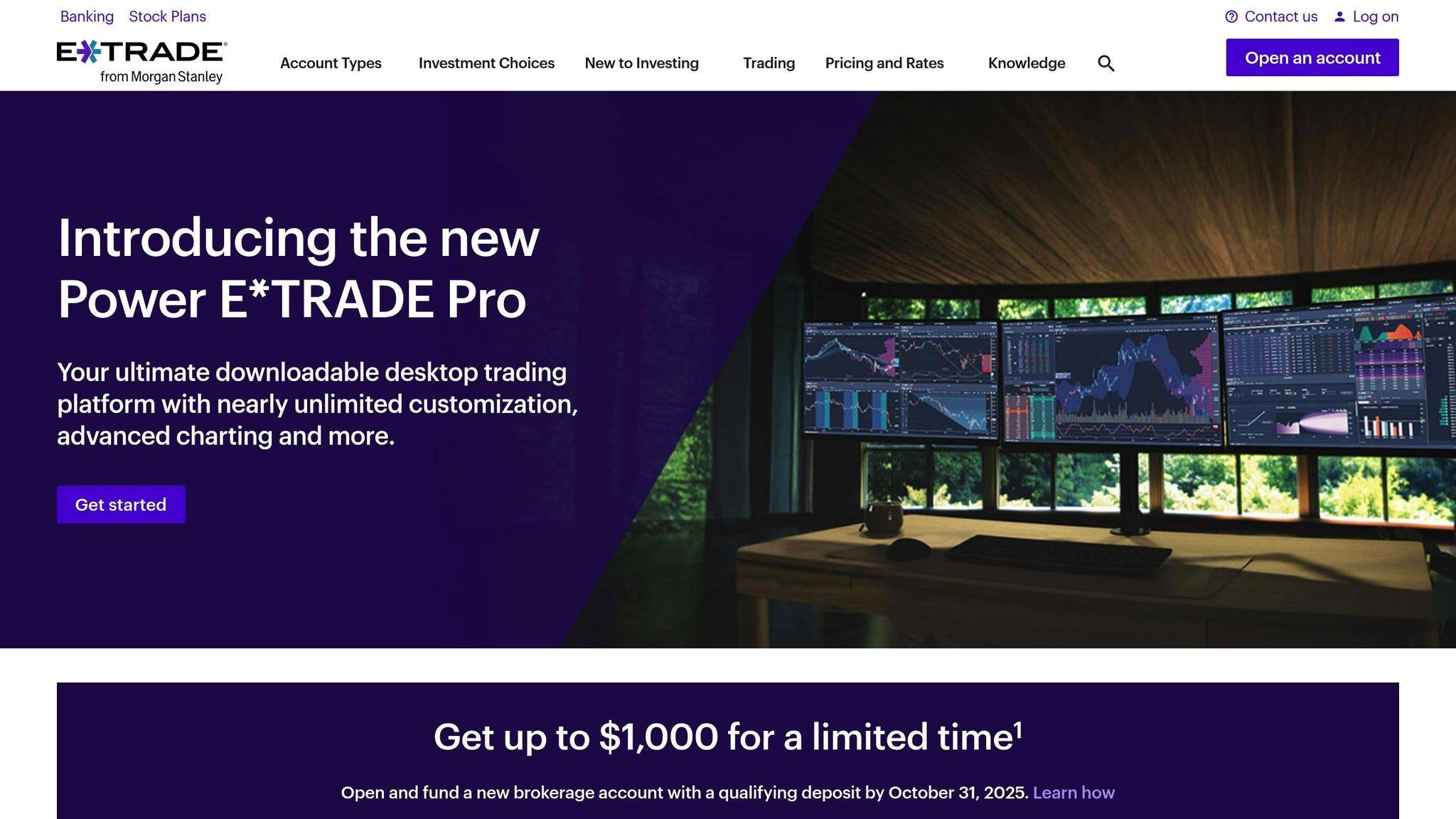
E*TRADE offers a paper trading feature through its Power E*TRADE platform, giving futures traders a risk-free way to practice and test strategies. Let’s take a closer look at its market data accuracy and platform functionality.
Market Data Accuracy
E*TRADE’s paper trading platform uses delayed market data. While this setup works for general strategy testing, it’s less ideal for approaches that depend on real-time market reactions. The delayed data can make it harder to gauge how strategies would perform in fast-moving markets.
Additionally, while orders are filled near market prices, the platform doesn’t account for real-world factors like slippage, partial fills, or low liquidity - key elements that can significantly impact live trading results.
Platform Features and Accessibility
The paper trading feature is available on the Power E*TRADE desktop platform, as well as its web and mobile apps. Each option offers unique tools tailored to different trading styles:
- The desktop platform provides advanced charting tools, technical indicators, and detailed order management, closely replicating the live trading experience.
- The web and mobile apps focus on essential trading features, allowing users to place orders and monitor portfolios. However, these options have fewer analytical tools compared to the desktop version.
Access Requirements and Virtual Funds
While E*TRADE’s paper trading is free, it does require users to open a live brokerage account. This involves completing the full registration process, including identity verification and funding the account.
Once set up, the paper trading account is loaded with virtual funds for practice. The account balance resets periodically, so users can continue testing strategies without worrying about running out of simulated money.
Advantages and Disadvantages
Every trading simulator comes with its own set of pros and cons, which can significantly influence your practice experience. Knowing these trade-offs is essential for choosing a platform that aligns with your trading objectives and technical preferences.
Real-time market data is one of the biggest differentiators among simulators. Some platforms provide live data feeds, while others rely on delayed information. This distinction is critical if you're testing strategies that hinge on precise timing or quick market moves.
Automation support also varies widely. Advanced simulators enable the use of automated trading systems and custom indicators, making them perfect for algorithmic traders. In contrast, more basic platforms are geared toward manual trading, which can limit their utility for testing intricate strategies.
Access requirements and duration can range from platforms offering instant, no-registration access to those requiring full account setups with time-limited trials. If you’re looking for long-term practice, platforms with permanent free access are ideal. Trial-based systems, however, might cut off access just as you’re getting comfortable.
Platform compatibility plays a big role in how and where you can trade. Desktop-only simulators often deliver powerful features but lack mobility. Web-based platforms, while more flexible, might compromise on advanced functionality. Mobile compatibility offers convenience but often comes at the expense of robust analytical tools.
VPS hosting compatibility is crucial for traders who rely on automated strategies or need uninterrupted market connections. Platforms optimized for VPS hosting deliver lower latency and smoother execution, mimicking live trading conditions.
Here’s a quick comparison of key features across popular simulators:
| Platform | Market Data | Automation Support | Free Access | Platform Type | VPS Compatible |
|---|---|---|---|---|---|
| NinjaTrader | Real-time | Full EA support | Unlimited | Desktop/Web | Yes |
| ProRealTime | Real-time | Limited scripting | 30-day trial | Desktop/Web | Partial |
| Forex Tester | Historical | Custom indicators | 30-day trial | Desktop | No |
| Webull | Real-time | None | Unlimited | Mobile/Web | No |
| CME Group | Real-time | None | Unlimited | Web | No |
| Tradovate | Real-time | Limited | Unlimited | Web/Mobile | Yes |
| TradingView | Real-time | Pine Script | Unlimited | Web/Mobile | Partial |
| TradeStation | Real-time | Full EasyLanguage | Unlimited | Desktop/Web | Yes |
| Interactive Brokers | Real-time | Full API support | Unlimited | Desktop/Web/Mobile | Yes |
| E*TRADE | Delayed | None | Unlimited | Desktop/Web/Mobile | No |
Modern paper trading simulators offer several benefits, such as risk-free strategy testing, realistic order execution, and detailed analytical tools. These platforms allow traders to experiment with different approaches without financial risk while gaining confidence in their decisions.
However, there are some drawbacks. Simulated trading often lacks the emotional intensity of live trading, which can lead to overconfidence when transitioning to real accounts. Additionally, technical limitations and varying levels of market realism can affect the accuracy of your practice.
The infrastructure behind a simulator also plays a role. Platforms that run on high-performance VPS environments tend to offer quicker execution speeds and lower latency, creating conditions that closely resemble live trading. These factors are worth considering as you evaluate which simulator best supports your trading journey.
Final Recommendations
After reviewing various simulators, here are the platforms that stand out for providing practical and realistic futures trading experiences. Choosing the right simulator depends largely on your specific trading goals and preferences.
If automation is a key priority, look for platforms that offer both backtesting and programmatic trading capabilities. TradeStation is an excellent choice, thanks to its proprietary EasyLanguage and a vast library of historical data, making it a strong contender for thorough backtesting. Another solid option is NinjaTrader, which provides free access and robust automation tools, particularly for expert advisor strategies.
FAQs
What’s the difference between real-time and delayed market data in futures paper trading simulators?
The key distinction comes down to how frequently the market data is refreshed. Real-time data delivers live updates, reflecting market activity as it happens. This makes it perfect for testing strategies where precise timing is critical. On the flip side, delayed data usually comes with a lag - often about 15 to 20 minutes. While it’s not ideal for strategies that depend on immediate reactions, it’s still a solid option for general practice.
The choice between real-time and delayed data hinges on what you’re aiming to achieve. If you’re testing automated systems or need highly accurate simulations, real-time data is a must. But if your focus is on understanding market trends or honing basic trading skills without requiring instant updates, delayed data can still serve you well.
How do automation tools like backtesting and scripting improve the performance of a futures trading simulator?
Automation tools like backtesting and scripting are game-changers when it comes to getting the most out of a futures trading simulator. With backtesting, traders can run their strategies through historical market data. This lets them see how their ideas would have played out in the past, providing a safe way to fine-tune their approach without putting real money on the line.
On the other hand, scripting allows users to create and test custom trading algorithms within the simulator. This opens the door to experimenting with advanced strategies, automating repetitive tasks, and understanding how these methods might perform in actual trading conditions. Together, these tools elevate simulators into powerful platforms for sharpening skills and refining strategies.
What should I look for when choosing a futures paper trading simulator for mobile or desktop use?
When choosing a futures paper trading simulator, it's important to think about how well the platform matches your trading approach and device preferences. If you’re someone who values flexibility and likes to practice while on the move, mobile-friendly simulators can be a great option. On the other hand, desktop platforms typically offer more advanced tools and detailed interfaces, making them ideal for traders who prefer in-depth analysis.
Some key aspects to consider are the user interface, how easy it is to navigate, and whether the simulator provides features like realistic market conditions or support for automated trading systems. The right platform should align with your trading goals and give you the tools you need to sharpen your strategies effectively.