Automating futures trading with NinjaTrader 8 simplifies decision-making and enhances efficiency. This guide covers everything from setting up the platform on a VPS to building, testing, and running trading algorithms. Key highlights include:
- Setup: Install NinjaTrader 8 on a VPS like QuantVPS for stable, low-latency performance.
- Strategy Building: Use Strategy Builder to create and customize algo strategies without coding.
- Backtesting: Validate strategies with historical data using the Strategy Analyzer.
- Live Deployment: Transition from simulation to live trading with risk management tools like OCO brackets and trailing stops.
- Infrastructure: QuantVPS plans provide reliable connectivity and performance for various trading workloads, starting at $59.99/month.
Whether you're new to algo trading or refining existing strategies, this guide provides the steps to streamline your trading process with NinjaTrader 8.
Setting Up NinjaTrader 8 on QuantVPS
Installing NinjaTrader 8 on Your VPS
Getting NinjaTrader 8 set up on your VPS is a straightforward process that should take around 15 minutes. Start by connecting to your QuantVPS server using Remote Desktop Protocol (RDP). You'll find the server's IP address and login credentials in your QuantVPS dashboard. Use the RDP client provided by your operating system to establish the connection.
Once connected, open the default browser (Edge or Chrome) within the VPS environment and download the NinjaTrader 8 installer directly from ninjatrader.com. Always download the installer directly on the VPS rather than transferring it from your local machine. This ensures the file remains intact and avoids potential installation issues. Run the installer and stick with the default installation location to ensure everything works smoothly.
After installation, open NinjaTrader and go to Tools > Database Management. Update the following sections: "General Properties", "Futures Expiries", "Symbol Mappings", and "Predefined Trading Hour Templates." Click Update to ensure your platform has the latest contract expiration dates and symbol data, which are essential for automated futures trading. Once updated, restart both NinjaTrader and your VPS server to apply the changes.
With NinjaTrader installed and updated, the next step is fine-tuning your network and platform settings for optimal performance.
Configuring Network and Platform Settings
QuantVPS operates on AMD EPYC and Ryzen processors, paired with NVMe M.2 SSDs and Windows Server 2022, providing an ideal setup for high-frequency trading. Its Chicago datacenter location offers less than 0.52ms latency to the CME Group's matching engines, giving you a critical edge when timing is everything. The infrastructure also boasts a 99.999% uptime guarantee and 1Gbps network connections, with the ability to burst up to 10Gbps during periods of peak trading activity.
To optimize NinjaTrader's performance, tweak how indicators and strategies handle data. For each indicator, change the "Calculate" setting to "On bar close" or "On price change" instead of "On each tick." This adjustment reduces CPU usage without sacrificing functionality. Additionally, limit the "Days to Load" setting in your Data Series configuration. This minimizes the amount of historical data processed, speeding up chart loading times.
To prevent background processes from slowing down NinjaTrader, exclude its folders from Windows Search indexing. Add both C:\Users\User\Documents\NinjaTrader 8 and C:\Program Files (x86)\NinjaTrader 8 to the exclusion list in Windows Settings. You should also configure NinjaTrader to "connect on startup", ensuring your workspace loads only once. This avoids redundant data downloads, which can waste bandwidth and processing power. Finally, restart NinjaTrader daily to clear memory and maintain its responsiveness.
These network and platform adjustments set the stage for efficient strategy execution and dependable live trading.
Building Futures Strategies with Strategy Builder

Run 24/7 while you sleep. Keep bots, platforms, and trade copiers online on a dedicated VPS.
Low-latency VPS hosting for your trading platform.
 CHINYC
 LON
LONFrom $29.99/mo


 CHI/CME futuresNYC/US marketsLON/FX EAs
 DUB/Polymarket
 AMS/EU FX
 FRA/Central EU
 TYO/APAC crypto
Setting Strategy Parameters for Futures Contracts
To get started, open Strategy Builder by going to Control Center > Tools > Strategy Builder. On the first screen, you'll name your strategy and set its core properties. For the Calculate field, choose "On bar close" to avoid reacting to every tick. You'll also decide how many contracts to trade per signal, though this can be adjusted later during optimization.
Next, configure your Data Series settings. Select your futures instrument - options include ES for S&P 500 E-mini, NQ for Nasdaq-100 E-mini, or GC for Gold futures. Then, set your timeframe by choosing a bar type (Minute, Tick, or Volume) and entering a value. For instance, a 5-minute chart is great for intraday strategies, while tick charts suit high-frequency trading.
Create User Inputs for parameters you might want to tweak later, such as moving average periods or stop-loss sizes. This flexibility allows you to optimize your strategy without rebuilding it. For example, instead of hardcoding a 50-period SMA, you can create an input variable like "SMAPeriod" with a default value of 50.
Once these basics are set, it’s time to incorporate technical indicators to define your entry conditions.
Adding Indicators and Entry Conditions
Navigate to the Conditions and Actions tab to outline your trading logic. Start by clicking Add Condition and selecting an indicator from the dropdown menu. Common choices include SMA (Simple Moving Average) and RSI (Relative Strength Index). For a trend-following strategy, you could use the condition: "Close crosses above SMA(50)" to signal a long entry.
Each condition must have a corresponding action. After setting your entry condition, click Add Action and choose "Enter Long" or "Enter Short". Decide between Market orders, which execute immediately at the best available price, or Limit orders, which execute only at a specified price. While market orders ensure execution, they might result in slippage during volatile markets. Limit orders, on the other hand, give you price control but come with the risk of missing the trade.
You can also combine multiple conditions using AND/OR logic to create more advanced rules. For example, you might require both "RSI > 50" and "Close crosses above SMA(50)" to trigger an entry. Start with a single condition to keep things straightforward, then layer in complexity as you gain experience with how the components interact.
Once your entry logic is in place, focus on managing risk with well-defined stops and profit targets.
Setting Up Stop-Loss and Profit Targets
In the Stops and Targets section, you can define precise stop-loss and profit target levels in ticks. For example, with ES futures, you might set a 28-tick stop-loss and profit targets at 10 and 16 ticks. For NQ futures, traders often use a 35-tick stop-loss with profit targets of 20 and 30 ticks.
Enable OCO (One-Cancels-Other) logic to ensure that when your profit target is hit, the stop-loss order is automatically canceled, and vice versa. This prevents duplicate fills and keeps your position management clean. You can also configure trailing stops that move upward as the market shifts in your favor or set auto breakeven stops, which adjust to your entry price once a certain profit level is achieved.
"The Strategy Builder lets you: Set fixed stop-loss and profit target levels (in ticks or price points)... [and] define the number of contracts per trade." - NinjaTrader
Make these values adjustable inputs so you can refine them during optimization.
Backtesting and Optimizing Your Futures Algorithms
Running Strategy Analyzer with Historical Data
Once you've built your futures trading strategy, the next step is to validate its performance using historical data. To do this, open the Strategy Analyzer from the Control Center by going to New > Strategy Analyzer. Before starting, make sure you have access to historical market data. You can either download it via Tools > Historical Data or import your own CSV files. NinjaTrader provides up to 25 years of 1-minute historical data, but Market Replay data with Level 2 depth is limited to the past 90 days.
In the Strategy Analyzer, choose "Backtest" as your test type and select your strategy from the dropdown menu. Define your Data Series by specifying the futures instrument, bar interval, and historical timeframe you want to test. Adjust any strategy-specific inputs, such as moving average periods or stop-loss levels, to align with your trading plan.
To make your backtest more realistic, enable "Include commission" and set "Slippage" in ticks to account for real-world trading conditions. Don’t forget to factor in costs like CME Level 1 data, which runs about $12 per month. Once your settings are in place, run the backtest and review the results. Pay close attention to key metrics and confirm that your strategy is executing trades as expected. Use the Chart tab to visually verify that entries and exits match your intended rules.
After completing the backtest, refine your strategy based on its performance metrics and consider running walk-forward tests for further validation.
Analyzing Performance Metrics and Walk-Forward Tests
The performance report generated by the Strategy Analyzer provides essential metrics to evaluate your strategy. For example, Net Profit shows your total gains after losses, but it’s important to weigh this against the associated risk. Max Drawdown highlights the largest equity decline from a peak, helping you understand the potential impact of losing streaks. Metrics like Percent Profitable and Average Trade Net Profit give insight into your win rate and how efficiently each trade captures market gains relative to margin requirements. Ideally, your Equity Curve should display steady growth without dramatic drops or sharp volatility.
"Net profit does not tell the whole story, is not always the best measure of a strategy's value or robustness, and must be balanced against risk and tradability." - NinjaTrader Team
For a deeper level of validation, try Walk-Forward Optimization, available in the test type dropdown. This method splits your data into two sets: an "in-sample" set for optimizing parameters and an "out-of-sample" set to test how well the optimized parameters perform on unseen data. Define ranges (minimum, maximum, and increment values) for the variables you want to optimize, and the platform will automatically test different combinations. Focus on testing parameters in small groups and use the most recent data to reduce the risk of overfitting.
"If the performance trading forward closely matches the historical optimized values, it may indicate that you have a solid, robust strategy." - NinjaTrader Team
To speed up testing, right-click on the Strategy Analyzer, go to Properties, and enable "Use Local Data Only".
Stay online and closer to execution. Choose a VPS location for CME futures, New York markets, London FX, API trading, and more.
Host your platform near the market route that matters.
CHINYCLONFrom $29.99/mo
CHI/CME futuresNYC/US marketsLON/FX EAsDUB/PolymarketAMS/EU FXFRA/Central EUTYO/APAC cryptoDeploying and Running Live Automated Strategies
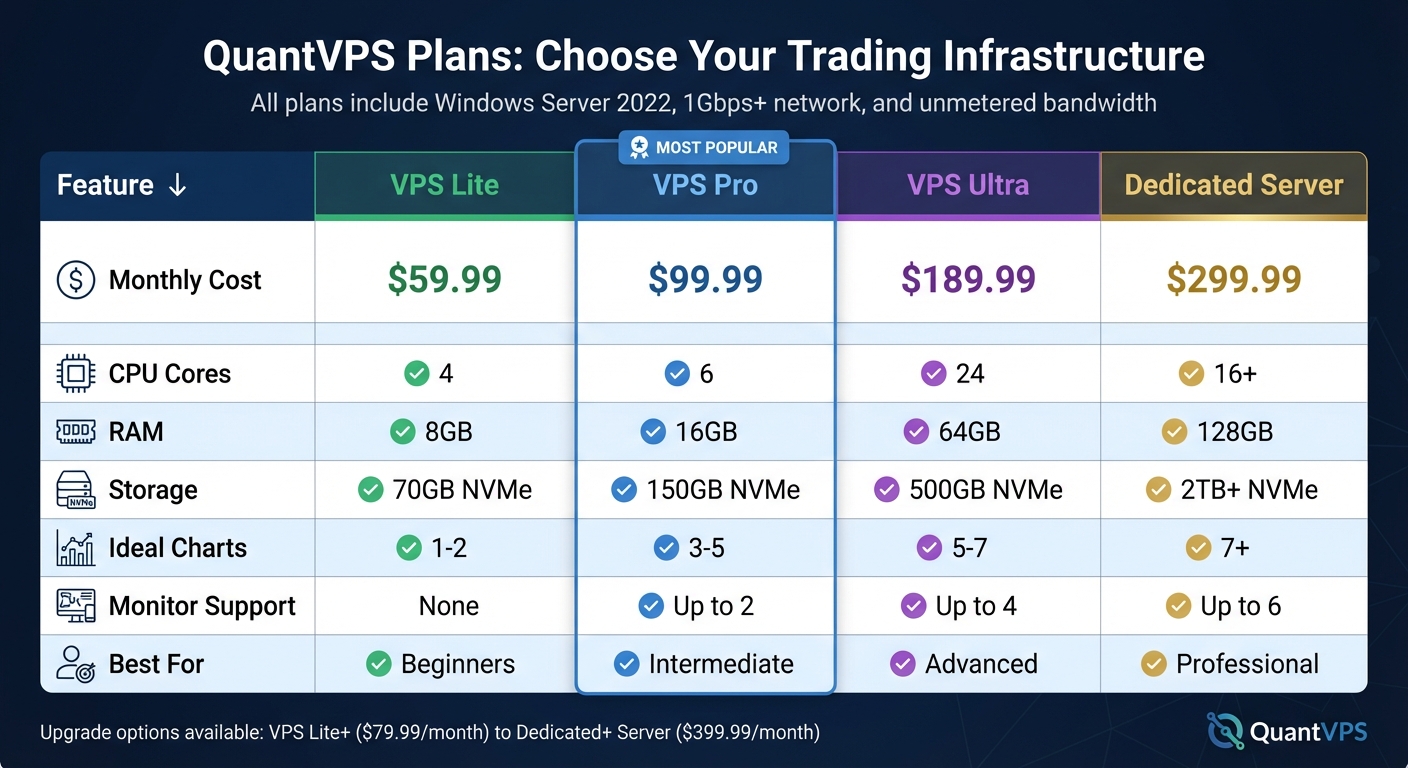
QuantVPS Plans Comparison for NinjaTrader 8 Automated Trading
Enabling Strategies on Futures Charts
Once your futures algorithm has passed backtesting, the next step is to test it in Sim101 simulation mode before committing real funds. Start by opening a chart for your chosen futures contract. Right-click on the chart, select "Strategies", attach your algorithm, and configure the necessary parameters. Enable the strategy from the Control Center's Strategies tab. Typically, your strategy position and live account position will sync when the first real-time trade is executed.
To monitor performance, check the Positions tab where you can compare your strategy's calculated profit and loss with your actual account results. Use the Executions tab to review all filled orders. Keeping a price chart open can help verify that the algorithm is generating orders as expected. Once you're confident in the simulation results, move to live trading. Begin with small positions and use NinjaTrader's ATM tools to automate your exit strategies.
Using ATM Strategies for Trade Management
Efficiently managing exits is critical when running live strategies. NinjaTrader's Advanced Trade Management (ATM) tools are designed to handle complex exit scenarios, freeing your algorithm to focus on entries. Features like trailing stops, multiple profit targets, and auto-breakeven levels can help reduce emotional decision-making during trades. If you're still building confidence in your system, consider a hybrid approach: manually enter trades based on your algorithm's signals while allowing the automated Trade Manager to handle exits.
Monitoring Strategies and Choosing the Right VPS Plan
"Automation doesn't mean 'set it and forget it.' ... strategy automation requires active monitoring, because of unforeseen things that can (and will) go wrong." – NinjaTrader Team
Active monitoring is essential for automated strategies. Use the Control Center's Orders tab to track active orders and the Executions tab to review completed ones. Avoid manual adjustments to positions during automated execution, as this can cause synchronization issues between the system and your account. When stopping a strategy, disable it in the Strategies tab, ensuring all open positions are closed and outstanding orders are canceled.
For optimal performance, consider running your automated futures strategies on QuantVPS. This ensures stable connectivity and minimizes interruptions. Selecting the right VPS plan depends on your trading workload:
- VPS Lite ($59.99/month): Ideal for 1–2 charts, offering 4 cores, 8GB RAM, and 70GB NVMe storage.
- VPS Pro ($99.99/month): Suited for 3–5 charts, with 6 cores, 16GB RAM, 150GB NVMe storage, and support for up to 2 monitors.
- VPS Ultra ($189.99/month): Best for 5–7 charts, featuring 24 cores, 64GB RAM, 500GB NVMe storage, and support for up to 4 monitors.
| Plan | Monthly Cost | Cores | RAM | Storage | Ideal Chart Count | Monitor Support |
|---|---|---|---|---|---|---|
| VPS Lite | $59.99 | 4 | 8GB | 70GB NVMe | 1–2 | None |
| VPS Pro | $99.99 | 6 | 16GB | 150GB NVMe | 3–5 | Up to 2 |
| VPS Ultra | $189.99 | 24 | 64GB | 500GB NVMe | 5–7 | Up to 4 |
| Dedicated Server | $299.99 | 16+ | 128GB | 2TB+ NVMe | 7+ | Up to 6 |
For those requiring enhanced performance, upgrade options start at $79.99/month for VPS Lite+ and go up to $399.99/month for a Dedicated+ Server. All QuantVPS plans include Windows Server 2022, 1Gbps+ network connectivity, and unmetered bandwidth, ensuring smooth and consistent order execution.
Conclusion
Automating futures algorithms on NinjaTrader 8 requires reliable infrastructure and disciplined execution. This guide covered the essentials: setting up NinjaTrader 8 on a VPS, building strategies with the Strategy Builder, backtesting with historical data, and deploying live algorithms with proper monitoring. Each step contributes to creating a system designed for consistent and efficient trading.
The NinjaTrader Team highlights the balance between automation and oversight: "Automation helps remove these emotional tendencies, enforcing the backtested rules of your strategy trade after trade", while also cautioning that "strategy automation requires active monitoring, because of unforeseen things that can (and will) go wrong". This underscores the importance of pairing automated precision with vigilant supervision, all supported by a dependable VPS.
A solid infrastructure is what separates successful automated traders from the rest. Using QuantVPS minimizes risks like power outages, internet disruptions, and hardware failures. With servers near major exchanges in Chicago and New York, traders benefit from lower latency and better order fill rates - essential in fast-paced futures markets. As Investorideas.com aptly notes, "the efficiency, reliability, and speed of your technology stack are as important as the trading strategy itself". This infrastructure forms the backbone of a robust automated trading system.
Whether you’re running a few charts on VPS Lite ($59.99/month) or managing a larger workload with a Dedicated Server ($299.99/month), aligning your infrastructure with your trading needs helps avoid performance issues and ensures smooth operations. All QuantVPS plans include Windows Server 2022, 1Gbps+ network connectivity, and unmetered bandwidth, creating a reliable foundation for 24/7 automated trading.
FAQs
What’s the safest way to move from Sim101 to live futures?
When moving into live trading, it’s best to take things slow. Start with small position sizes to minimize risk while testing the waters. Keep a close eye on performance during each step to confirm that your strategy holds up in real market conditions. From there, make adjustments as necessary and scale up gradually, ensuring every change is well-informed and deliberate.
How do I prevent slippage and fill issues in live automation?
To avoid slippage and order fill problems during live automation, take a few key steps:
- Manually validate strategies: Test your trading strategies under different market conditions to ensure they perform as expected.
- Backtest with high-resolution data: Use detailed historical data for backtesting to get a clearer picture of how your strategy might behave in live markets.
- Leverage a VPS: A Virtual Private Server (VPS) can reduce latency, ensuring quicker and more reliable order execution.
These practices can enhance the accuracy and consistency of your automated trading systems.
Which QuantVPS plan should I choose for my NinjaTrader 8 algo?
When choosing a QuantVPS plan for NinjaTrader 8 algo trading, it all comes down to the complexity of your strategy and how much power you need. The VPS Lite plan ($59.99/month) works well if you're running 1-2 charts or strategies. It delivers solid performance with low latency, perfect for simpler setups.
If your trading setup is more intensive, the VPS Pro or Ultra plans are better options. These plans come with upgraded CPU, RAM, and storage, making them capable of handling higher performance demands and supporting extra monitors for more complex strategies.