Apex Trade Copier Guide: Setup, Features & Best Practices
The Apex Trade Copier simplifies managing multiple trading accounts by replicating trades from a master account to follower accounts in real time. It supports platforms like NinjaTrader 8, Tradovate, and TradingView, offering features like contract ratio management, symbol crossover, and automated trade execution. With execution speeds under 100 milliseconds, it minimizes slippage and ensures consistent performance across accounts.
Key highlights:
- Core Features: Real-time trade copying, custom trade ratios, and automation of stop-loss, take-profit, and ATM strategies.
- Supported Platforms: Works seamlessly with NinjaTrader 8, Tradovate, and TradingView.
- System Requirements: Windows 10/11, VPS recommended for low latency (<100ms).
- Setup: Easy installation via the Apex Desktop Assistant, with tools for configuring leader and follower accounts.
- Best Practices: Use VPS hosting, test configurations with simulation trades, and maintain updated software for optimal performance.
This guide covers installation, trade scaling, troubleshooting common issues, and tips for improving performance to help traders manage accounts efficiently.
Main Features of Apex Trade Copier
Managing Multiple Accounts
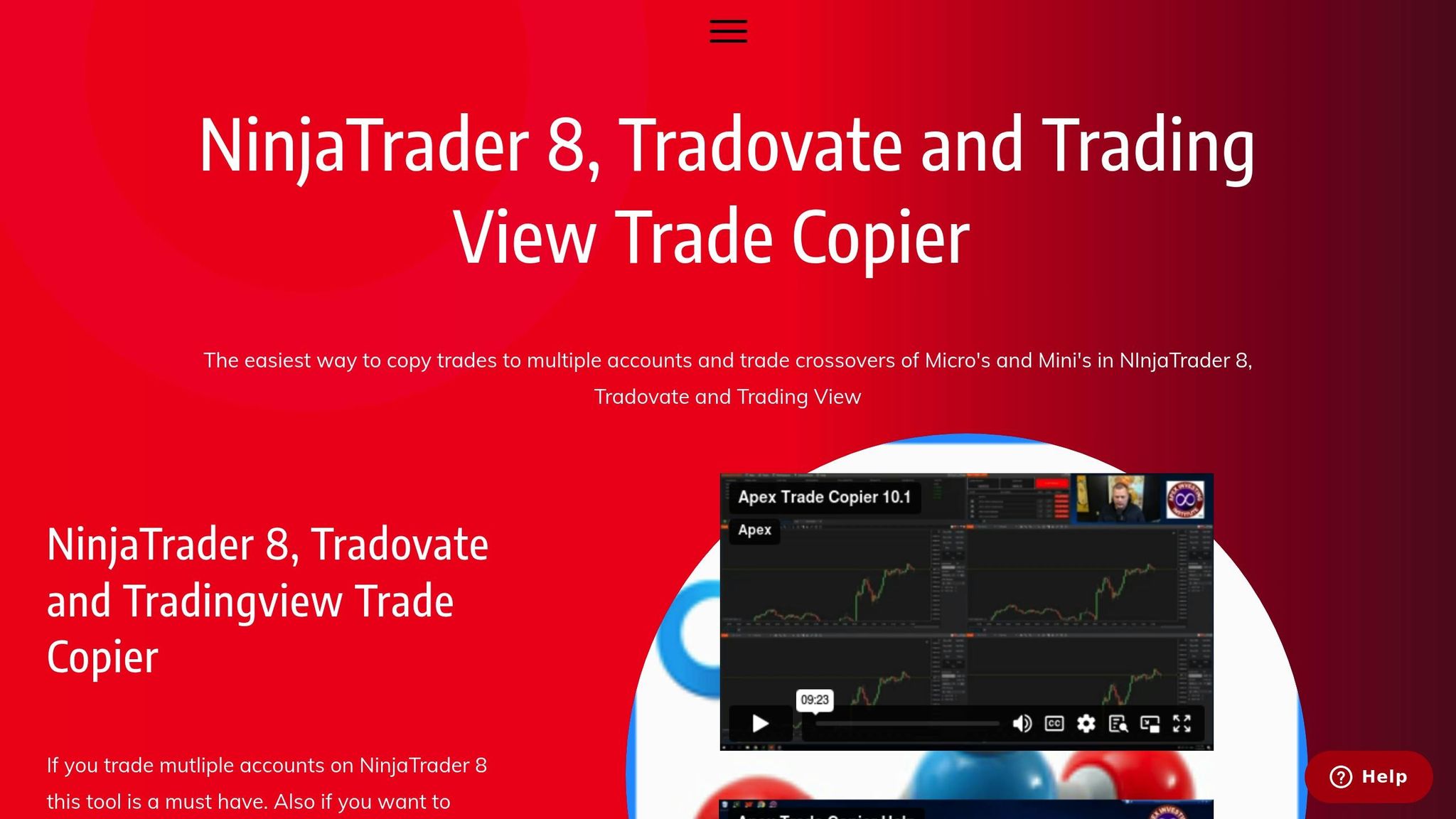
With Apex Trade Copier, you can assign a single leader account to instantly replicate trades across multiple follower accounts. This setup includes custom trade ratios, letting you adjust position sizes to fit each account. For instance, a single mini contract on the leader account could translate into a micro contract on a smaller account. This approach simplifies scaling across accounts without the hassle of manually recalculating positions.
Trader Shalan Winter shared their experience:
"What better way to multiply income of trading with the same efforts and not increasing risk of adding more contracts. For myself, this is a complete game changer and the best way in my opinion to collapse timeframes of growing an account."
"What better way to multiply income of trading with the same efforts and not increasing risk of adding more contracts. For myself, this is a complete game changer and the best way in my opinion to collapse timeframes of growing an account."
The software can manage dozens of accounts simultaneously with just one click. You can also use it to mirror simulated trades in live accounts, a feature that helps reduce stress and maintain emotional discipline when managing real capital.
Next, let’s dive into how Apex Trade Copier works with popular trading platforms to deliver smooth trade execution.
Supported Trading Platforms
Apex Trade Copier integrates seamlessly with NinjaTrader 8, Tradovate, and TradingView, enabling you to synchronize trades across various platforms without the need to switch tools. For NinjaTrader 8, it not only replicates trades but also manages Advanced Trade Management (ATM) strategies, including stops and targets, across all linked accounts. If you’re managing accounts with different broker logins, such as Rithmic and CQG, you’ll need a NinjaTrader Multi-Broker license. However, if all accounts share the same login, the standard license will suffice.
The software also supports symbol crossovers, allowing trades to flow between different contract sizes. As trader Marion Kuenne explained:
"You can now cross trade meaning you can copy your trades from micros to mini contracts or vice versa."
"You can now cross trade meaning you can copy your trades from micros to mini contracts or vice versa."
This means you can execute a trade on a Mini contract chart, and it will automatically mirror as Micro contracts in your follower accounts.
Beyond platform compatibility, Apex Trade Copier offers a range of settings to fine-tune trade execution.
Copy Settings and Controls
Apex Trade Copier gives you full control over which trades are copied and how they are executed. It automatically synchronizes entries, exits, stop losses, take profits, and ATM strategies. With features like symbol filters and quantity multipliers, you can customize trade sizes for each account and set risk limits to ensure no follower account exceeds preset thresholds.
The system supports both Sim-to-Live and Live-to-Live copying, as well as cross-broker setups when the proper license is in place. Another advantage is that follower accounts don’t need open charts to receive trades, which helps conserve system resources. These controls make it easier to ensure consistent performance across all your accounts.
User Interface Options
The user interface is designed for clarity and real-time monitoring. It includes always-on-top windows and right-click menus that let you quickly enable crossovers or adjust trade ratios. Setup is simplified with automatic account detection using prefixes and suffixes. Additionally, a single lifetime license covers use on two computers, giving you the flexibility to trade from different locations. These features make it easy to monitor and tweak your trading strategy as needed.
System Requirements and Prerequisites
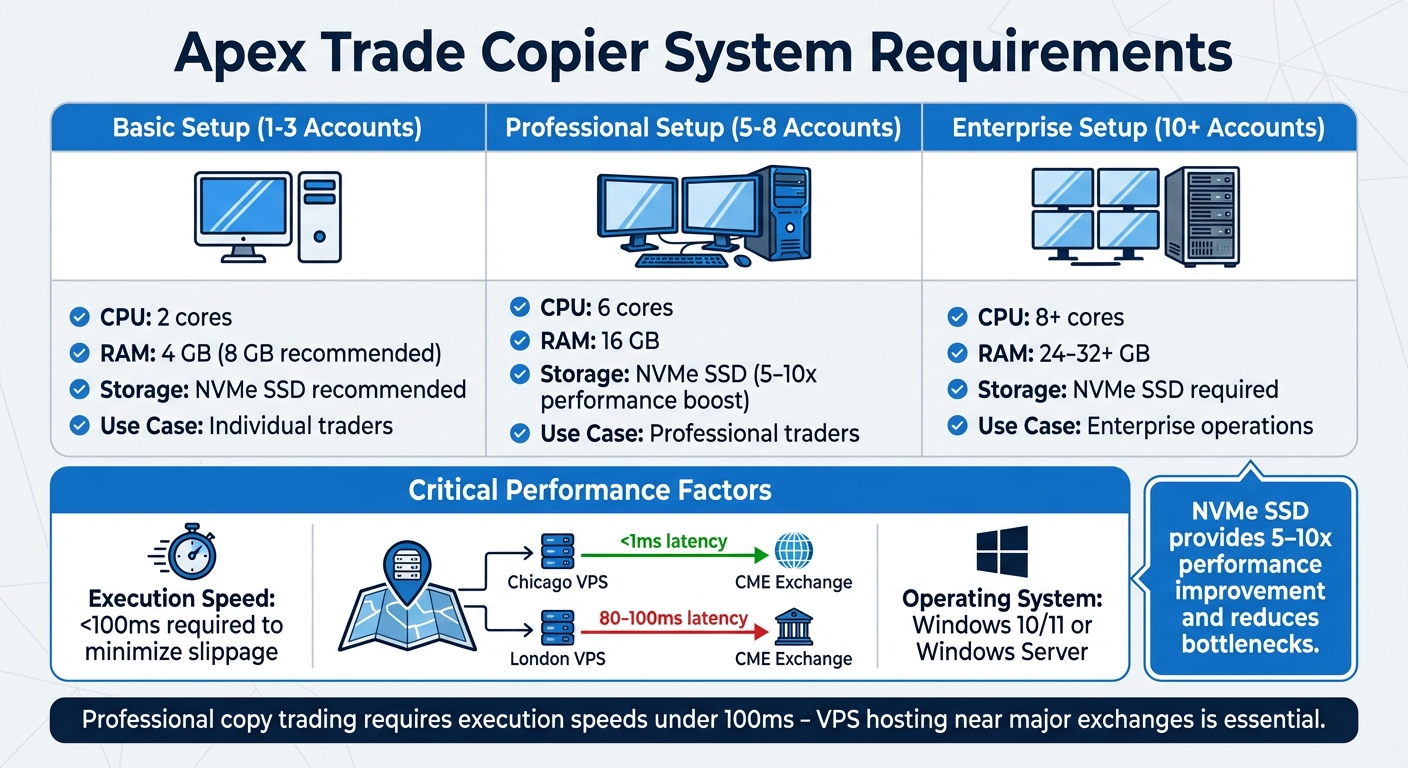
Apex Trade Copier System Requirements by Account Count
Apex Trade Copier System Requirements by Account Count
Platform and Hosting Requirements
Apex Trade Copier operates on Windows 10/11 or Windows Server systems. To use it, you'll need one of these platforms installed: NinjaTrader 8, Tradovate, or TradingView.
The hardware you need depends on how many accounts you plan to manage. For 1-3 accounts, a setup with 2 CPU cores and 4 GB of RAM will work, though 8 GB is recommended. For 5-8 accounts, aim for 6 CPU cores and 16 GB of RAM for smoother performance. To handle market volatility effectively, NVMe SSD storage is highly recommended - it can boost performance by 5 to 10 times and reduce potential bottlenecks.
Network speed is just as important as hardware. Execution speeds under 100ms are crucial to reduce slippage. Opting for a VPS located near major exchanges can significantly cut latency. For instance, a Chicago-based VPS can bring latency to the CME down to less than 1ms, compared to 80-100ms from a London-based server. As Ace Zhuo explains:
"Professional copy trading requires execution speeds under 100ms to minimize slippage, and this is where VPS hosting becomes non-negotiable."
"Professional copy trading requires execution speeds under 100ms to minimize slippage, and this is where VPS hosting becomes non-negotiable."
Once your system meets these requirements, you can move on to preparing for installation.
Pre-Installation Requirements
NEVER MISS A TRADE
Your algos run 24/7
even while you sleep.
99.999% uptime • Chicago, New York, London & Amsterdam data centers • From $59.99/mo
Before installing the software, make sure to close all trading platforms, including NinjaTrader and Tradovate, to prevent any conflicts. Keep your account login credentials handy, particularly for Rithmic or Tradovate. If you’re managing multiple Rithmic accounts, reach out to your broker to merge them under a single login. This way, you can avoid needing a MultiBroker license key since the standard license will work as long as all accounts share the same login.
The Apex toolkit simplifies setup with an automated installer, so you won’t need to manually submit a Machine ID. Additionally, your license allows you to use the copier on two computers simultaneously, giving you the flexibility to operate it from both a home PC and a VPS.
Installation and Setup Guide
This guide walks you through the steps needed to install and configure Apex Trade Copier across your platforms.
Installing Through Apex Desktop Assistant
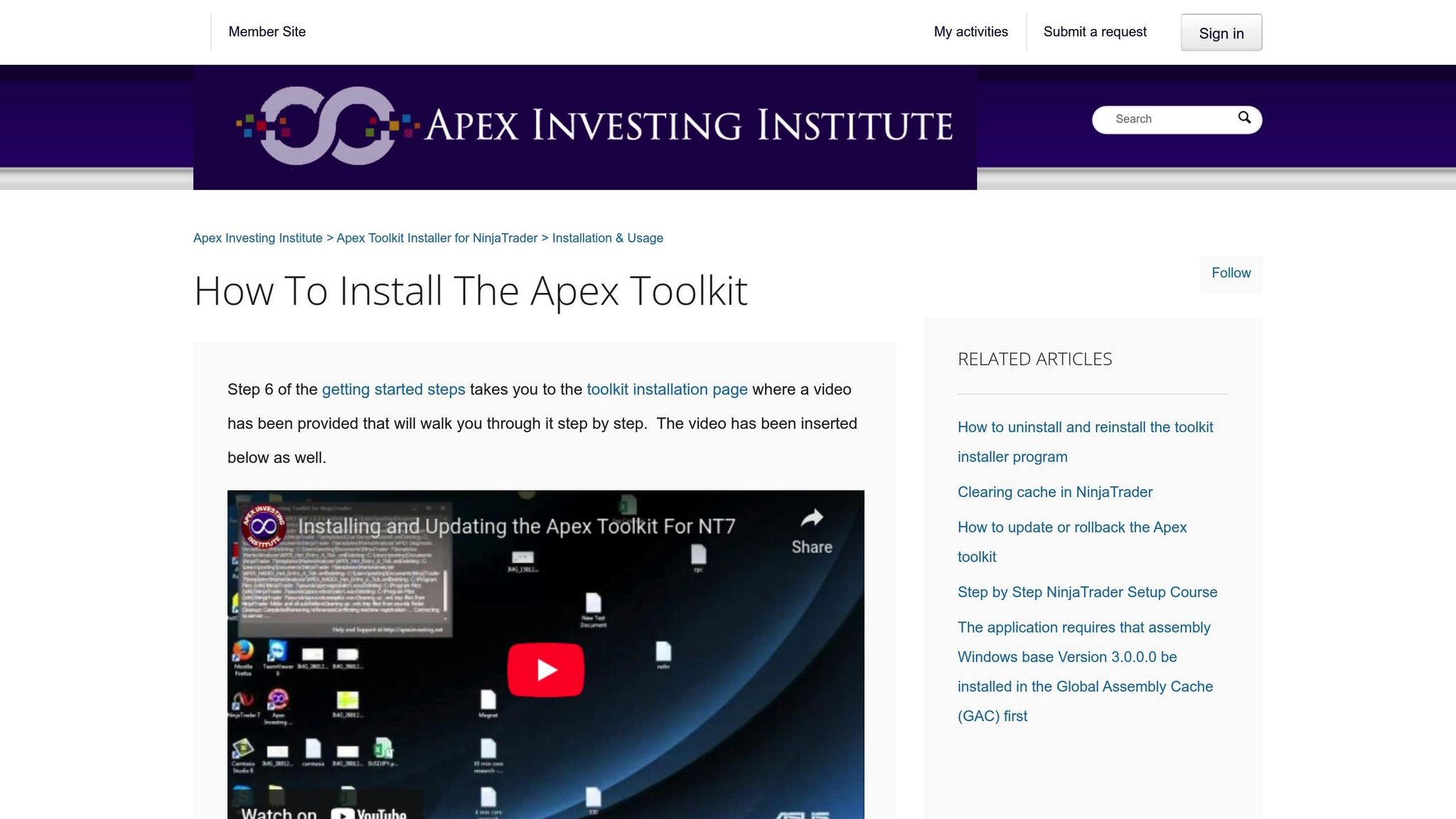
Start by downloading the toolkit installer from the Apex Investing website. Running this installer will create a shortcut for the "Apex Desktop Assistant." Before launching the Assistant, ensure that NinjaTrader is completely closed.
Once you open the Apex Desktop Assistant, log in using your apexinvesting.net credentials. Navigate to: "NINJATRADER TOOLKIT > NINJATRADER 8 > INSTALL/UPDATE NT8 TOOLKIT". Always choose the latest release (the one with the most recent date) to access updated features and fixes. If you're updating an existing installation, make sure to select "CLEAR ALL NT8 HISTORICAL DATA" before proceeding. After installation, close the Assistant, launch NinjaTrader, and you’ll find the copier under the "New" menu in the Control Center. From here, you can move on to configuring your trading platforms.
Setting Up NinjaTrader 8
Now, configure NinjaTrader 8 to integrate the copier into your trading setup.
In NinjaTrader 8, go to "Tools → Options → General" and enable "Multi-Provider Mode". This setting allows you to connect to multiple brokers or data feeds at the same time. Next, access the copier by selecting "New" from the Control Center menu and choosing "Apex Trade Copier". Assign one account as the Leader and the others as Followers. This setup ensures trades are mirrored seamlessly across all platforms. If you need to manage crossovers between micro and mini contracts, right-click within the copier and use the conversion options.
Configuring Tradovate Accounts
For Tradovate, the setup process begins in a desktop browser. Log in to the Tradovate web platform and complete the data agreements by selecting "Non-Professional" status. This step activates your data feed, which may take anywhere from 10 to 90 minutes.
In NinjaTrader, set the Tradovate account type to "Simulation", even if you’re using a funded account. Additionally, make sure your Windows system clock is synchronized (go to Settings → Time & Language → Sync now) to avoid potential login issues. When entering your credentials, copy them carefully to avoid extra spaces at the beginning or end.
Connecting TradingView

After setting up your desktop applications, it’s time to connect your online trading platform.
You’ll need a TradingView Pro or Premium subscription. In TradingView, configure your Alert Settings to send trade notifications. Then, link your broker accounts through the Trading Panel. The copier uses webhooks to receive alerts and automatically execute trades across follower accounts.
Setting Up Copy Ratios and Trade Rules
The next step is configuring trade scaling across accounts. This involves using multipliers to adjust position sizes, ensuring trades remain proportional between the master and follower accounts.
How Trade Ratios Work
Multipliers define how the follower's position size relates to the master's. For example:
- A 1.0 multiplier means a direct one-to-one copy. If the master trades 1 contract, the follower also trades 1 contract.
- A 3.0 multiplier increases the follower's position size threefold, so 1 master contract becomes 3 follower contracts.
- A 0.5 multiplier reduces the position size by half, so 1 master contract translates to 0.5 follower contracts.
This system makes it easy to align trades with account sizes without needing manual adjustments. For instance, trades in ES can be converted to MES for smaller accounts. Check out the table below for some common configurations:
| Master Account Size | Follower Account Size | Recommended Ratio | Master Position | Follower Position |
|---|---|---|---|---|
| $50,000 | $50,000 | 1:1 (Multiplier 1.0) | 1 Contract | 1 Contract |
| $50,000 | $150,000 | 1:3 (Multiplier 3.0) | 1 Contract | 3 Contracts |
| $100,000 | $50,000 | 2:1 (Multiplier 0.5) | 2 Contracts | 1 Contract |
| $50,000 | $25,000 | 2:1 (Multiplier 0.5) | 1 Contract | 0.5 (Rounds based on settings) |
These ratios help ensure consistent risk management across accounts, regardless of their size.
Testing Your Configuration
Once you've set up your multipliers, it's time to test them. Use simulation trades to verify everything is working as expected before moving to live trading. Here's how:
- Place a small test trade on the master account.
- Check the follower account to confirm the positions match, including stop-loss and take-profit levels.
- Monitor execution speed and slippage. Since Apex Trade Copier is optimized for single-machine setups, trades should replicate almost instantly. If there's a delay of more than a few seconds, investigate your internet connection or platform settings.
Pay close attention to your initial live trades. This helps you catch any issues with rounding or contract conversions before they affect your strategy. Running these tests ensures your configuration is ready for real-world trading.
Common Problems and Solutions
Even with the right setup, using Apex Trade Copier may present some challenges. Most issues generally fall into two main categories: connection problems and trade copying errors. Here's a breakdown of common problems and their fixes to help keep everything running smoothly.
Connection and Timing Issues
Credential errors:
If you encounter messages like "bad input" or "Logon failed", it’s likely due to incorrect credentials. Double-check your username and password for errors like blank fields or extra spaces - especially if you copied them from your prop firm portal. To resolve this, remove the NinjaTrader connection, restart the platform, and re-enter your credentials carefully.
Session conflicts:
Running multiple connections at the same time can trigger errors such as "session count to exceed its maximum." To fix this, disable market data in RTrader Pro and ensure the "plug-in mode" option in NinjaTrader is unchecked.
Clock synchronization issues:
A mismatch in time settings can cause "Error fetching external content" messages. Set your computer clock to the Eastern Time Zone, then go to Windows Date & Time settings and click "Sync now." For Tradovate-based Apex accounts (those with usernames like Apex_123456), make sure the account type is set to "Simulation" instead of "Live" to avoid connection issues.
Network instability:
Unstable networks can lead to disconnections. Running ipconfig /flushdns in Command Prompt can help clear routing problems. For better reliability, switch from WiFi to a wired Ethernet connection, and if Windows Firewall is blocking NinjaTrader, manually allow it through both Private and Public networks.
STOP LOSING TO LATENCY
Execute faster than
your competition.
Sub-millisecond execution • Direct exchange connectivity • From $59.99/mo
| Common Error Message | Primary Cause | Recommended Solution |
|---|---|---|
| bad input (Logon failed) | Incorrect credentials | Re-enter credentials; check for spaces or blanks |
| session count exceeded | Too many active connections | Disable RTrader Pro market data; uncheck plug-in mode in NinjaTrader |
| No such route exists | Outdated software | Uninstall and reinstall the latest NinjaTrader 8 version |
| Error fetching external content | Time zone mismatch | Set your computer clock to Eastern Time Zone |
| Rejected at RMS | "Liquidating Only" mode active | Turn OFF "Enable Liquidating Only" in RTrader |
| Already has a running connection | Duplicate connection profiles | Remove redundant Rithmic connections in NinjaTrader |
Trade Copying Errors
In addition to connection issues, trade replication errors can sometimes occur. Here are some common problems and how to address them:
Trades not copying:
If trades aren’t being replicated, ensure the following:
- The copier button is switched ON (green).
- The Master account is highlighted in brown.
- Both accounts show a green "connected" status.
Missing any of these elements can disrupt trade copying.
Incorrect position sizes:
If position sizes are off, your copy ratio settings may need adjustment. Make sure the multipliers are correctly configured to reflect the account sizes. If closing a trade results in an unexpected reversal, disable the "Fade" feature and confirm that your ATM Strategy doesn’t have "Reverse at Target" enabled.
Partial fills:
Partial fills can lead to mismatched positions between accounts. Check the NinjaTrader log to ensure the leader and follower accounts have matching positions, as discrepancies can worsen over time.
Tradovate-specific issues:
For Tradovate users, account activation and data agreements can take anywhere from 10 to 90 minutes to process. If trades are being rejected immediately, the issue may resolve once the backend setup is complete.
Multi-Provider Mode:
Ensure Multi-Provider Mode is enabled to support connections to multiple accounts simultaneously.
Order submission errors:
If you see messages like "Atomic order operation in progress" or "Unable to submit order", wait for the current operation to finish. Then, disconnect from the Rithmic brokerage connection, wait a few seconds, and reconnect to refresh the session.
Using a reliable VPS can help avoid many of these issues. Hosting services like QuantVPS provide the stability and low latency needed for consistent trade copying, especially when managing multiple accounts across different time zones. By applying these fixes, you can ensure your Apex Trade Copier runs efficiently and reliably.
Tips for Better Performance
Once your platforms are set up, it’s time to fine-tune their performance. To ensure smooth trade execution with Apex Trade Copier, focus on three key areas: hosting infrastructure, scaling strategy, and ongoing maintenance. Even small tweaks in these areas can greatly improve reliability and efficiency.
Using VPS Hosting
Running your trade copier on a home computer exposes you to risks like power outages, internet slowdowns, and hardware failures. A Virtual Private Server (VPS) eliminates these issues by offering constant uptime, stable execution speeds, and ultra-low latency - often under 1 millisecond compared to the 50–200 milliseconds typical with home internet. This reduction in latency is crucial for minimizing slippage, which can save active traders anywhere from $1,000 to $3,000 per month - a potential return of 10× to 30× on your VPS investment.
For example, QuantVPS Pro+ (or higher) plans are tailored for trade copying. They come with features like DDoS protection, multi-monitor support, and robust infrastructure for seamless order execution. If you’re managing 3–5 accounts, the Pro+ plan (priced at $90.99/month with annual billing) offers 6 cores, 16GB of RAM, and support for up to two monitors. This setup provides the resources needed to run NinjaTrader and the copier without performance hiccups.
This level of stability ensures the low-latency performance necessary to reduce slippage and execution errors, which are critical for maintaining profitability.
Scaling and Monitoring Your Setup
As you grow your trading operation, scaling your hardware becomes essential. Insufficient resources can lead to missed trades, especially during volatile market conditions. Here’s a quick guide for scaling your setup:
| Account Count | CPU Cores | RAM | Use Case |
|---|---|---|---|
| 1–2 accounts | 2 cores | 4–6 GB | Basic trading |
| 5–6 accounts | 4–6 cores | 12–16 GB | Professional trading |
| 10+ accounts | 8+ cores | 24–32+ GB | Enterprise-level operations |
When scaling, monitor your performance in dollar terms rather than percentages, as account sizes vary. For instance, a $50,000 account shouldn’t use the same position sizes as a $10,000 account. Additionally, running 20 or more follower accounts can strain NinjaTrader, particularly when dealing with large orders. If you encounter over 200 pending orders simultaneously, switching to "Executions Mode" can streamline processing.
Maintenance and Updates
Regular maintenance is vital to keep your system running smoothly. Conduct weekly simulation tests to catch potential issues early. Back up your configuration files daily and take full platform snapshots monthly. This ensures you can quickly restore your setup if something goes wrong.
Keeping both the Trade Copier and NinjaTrader updated is equally important. Updates address bugs and compatibility issues, so check for them regularly. Use the Log tab in NinjaTrader’s Control Center to identify errors early, and clean out log files weekly to prevent them from consuming too much disk space, which could cause system crashes. Finally, keep a close eye on your CPU and RAM usage, especially during high market volatility, to ensure your system can handle increased demands effectively.
Conclusion
Getting Apex Trade Copier up and running revolves around three main factors: installation, a solid infrastructure, and consistent maintenance. The Apex Desktop Assistant simplifies the setup process by handling both the initial installation and ongoing updates for NinjaTrader 8, taking much of the technical burden off your plate. While this tool streamlines the process, your specific configuration choices - like copy ratios and platform connections - play a big role in how the system performs in live trading scenarios. These steps lay the groundwork for a copier that doesn’t just work but thrives in real trading environments.
A strong infrastructure is crucial. Using a high-performance VPS minimizes risks like power outages and internet issues that are common with home setups. Plus, reducing latency can save you a significant amount each month. For instance, QuantVPS Pro+ plans, starting at $90.99 per month (billed annually), offer 6 cores and 16GB of RAM, which is perfect for managing 3–5 charts. Larger setups might require the VPS Ultra plan, with 24 cores and 64GB of RAM, designed to handle 5–7 charts smoothly. Pairing a robust infrastructure with consistent maintenance ensures the copier runs efficiently over the long haul.
Regular upkeep is essential to avoid interruptions that could cost you. For example, using the Apex Desktop Assistant to clear historical data before installing updates keeps the system optimized and ready for action.
FAQs
Do I need a VPS to use Apex Trade Copier reliably?
Using a VPS can make a big difference when running Apex Trade Copier, especially if you want consistent and low-latency trade execution. A VPS offers high uptime, stable performance, and ultra-low latency, which helps reduce risks like slippage or missed trades due to internet disruptions. While you can run the copier on a standard connection, doing so leaves you more vulnerable to problems like power outages or hardware failures.
How do I set copy ratios without over-risking smaller accounts?
To keep smaller accounts from taking on too much risk, it's essential to adjust position sizes according to the account's capacity and risk tolerance. The copy ratio function can help with this by scaling trades individually. For instance, setting a ratio of 2 doubles the trade size, while a ratio of 0.5 reduces it by half. Pay close attention to lot sizes and configure the trade copier to match the risk limits of each account. This way, smaller accounts stay within manageable leverage levels.
Why aren’t my trades copying (even when accounts are connected)?
Trades might not copy successfully even when accounts are connected. This can happen for a few reasons, such as using outdated software, incorrect setup, or synchronization problems. To fix this, double-check your Trade Copier settings, confirm the configuration is correct, and make sure you’re running the latest version of the software.
Using a VPS can make a big difference when running Apex Trade Copier, especially if you want consistent and low-latency trade execution. A VPS offers high uptime, stable performance, and ultra-low latency, which helps reduce risks like slippage or missed trades due to internet disruptions. While you can run the copier on a standard connection, doing so leaves you more vulnerable to problems like power outages or hardware failures.
To keep smaller accounts from taking on too much risk, it's essential to adjust position sizes according to the account's capacity and risk tolerance. The copy ratio function can help with this by scaling trades individually. For instance, setting a ratio of 2 doubles the trade size, while a ratio of 0.5 reduces it by half. Pay close attention to lot sizes and configure the trade copier to match the risk limits of each account. This way, smaller accounts stay within manageable leverage levels.
Trades might not copy successfully even when accounts are connected. This can happen for a few reasons, such as using outdated software, incorrect setup, or synchronization problems. To fix this, double-check your Trade Copier settings, confirm the configuration is correct, and make sure you’re running the latest version of the software.
"}}]}