How to Set Up Topstep Trade Copier for Multi-Account Futures Trading
The Topstep Trade Copier simplifies multi-account futures trading by automatically replicating trades from a primary "Lead" account to multiple "Follower" accounts. This eliminates manual trade inputs and ensures consistent execution across accounts. To ensure smooth operation, a VPS (Virtual Private Server) is recommended for stable connectivity and low latency.
Key Steps to Set Up:
- Topstep Account Setup: Use the smallest account as the "Lead" to proportionally mirror trades across larger "Follower" accounts.
- VPS Hosting: Choose a VPS like QuantVPS for uninterrupted performance and low latency (e.g., 0.30ms to 1ms to CME).
- Platform Installation: Install TopstepX or NinjaTrader on your VPS for trade copying.
- Trade Copier Configuration: Enable Copy Trading in TopstepX, select the Lead account, and link Follower accounts.
- Risk Settings: Adjust Personal Daily Loss Limits (PDLL) and Profit Targets (PDPT) for Follower accounts.
Testing and Activation:
- Run simulation tests to verify trade copying accuracy.
- Confirm settings on both desktop and mobile platforms.
- Monitor live trading to ensure proper execution and account synchronization.
Troubleshooting:
- Ensure the Lead account has the smallest position size.
- Check VPS performance and system resources.
- Reconnect Follower accounts if they hit risk limits or are disconnected during payout requests.
By following these steps and maintaining your VPS, you can efficiently manage up to five funded accounts with the Topstep Trade Copier.
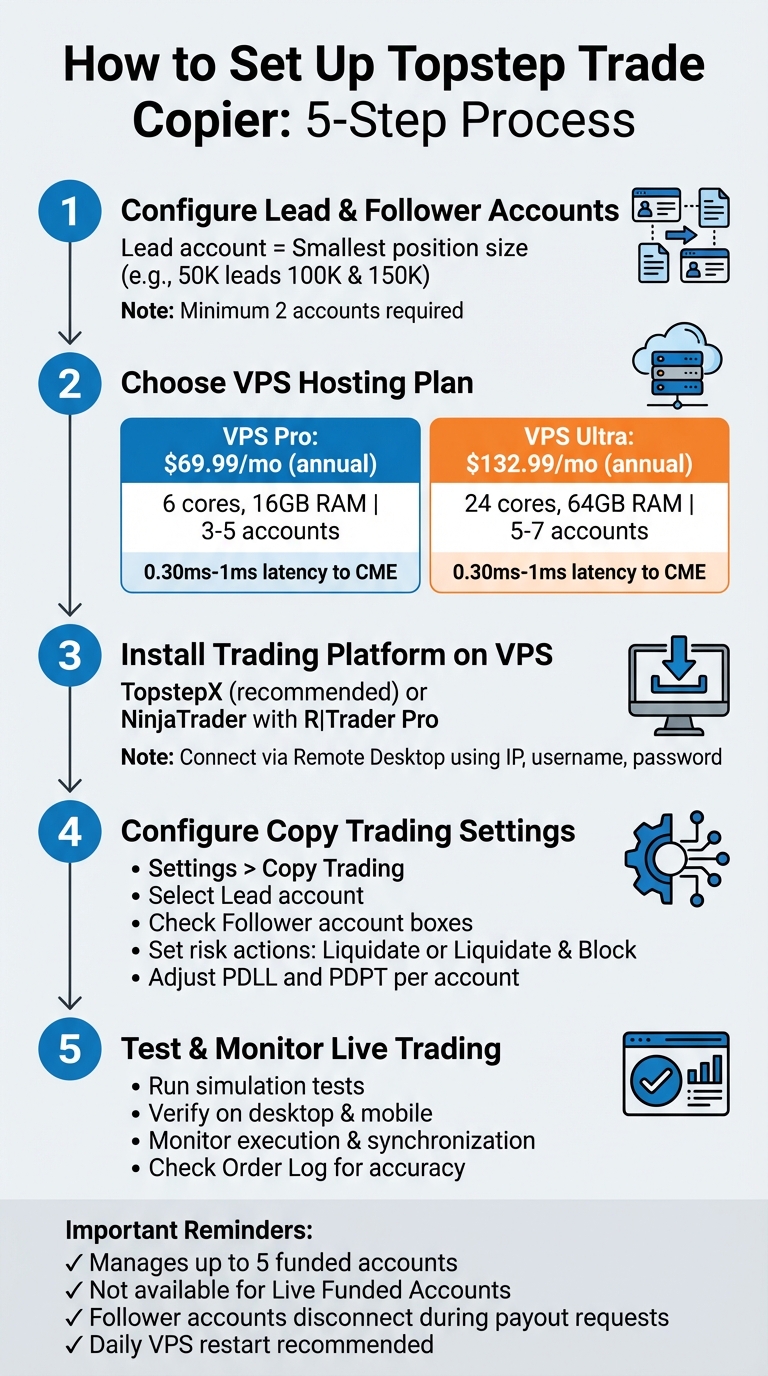
Topstep Trade Copier Setup Process for Multi-Account Futures Trading
Topstep Trade Copier Setup Process for Multi-Account Futures Trading
Requirements Before Setup
Before you dive into installation, make sure your accounts are set up, you've chosen a VPS plan that fits your needs, and your platform is compatible for seamless trade replication.
Topstep Account Setup
To get started, you'll need at least two accounts: a Lead account to place trades and one or more Follower accounts to mirror those trades. While Topstep allows only one trader profile, you can manage multiple active Trading Combine accounts under it.
The Lead account should always have the lowest Maximum Position Size. For instance, if you're managing 50K, 100K, and 150K accounts, the 50K account should be the Lead. This ensures trades are replicated proportionally across larger Follower accounts without exceeding their limits.
Important dates to note: Starting July 7, 2025, all new Trading Combines will only be available on the TopstepX platform. Additionally, resets will only be offered on TopstepX as of August 1, 2025.
Once your account setup is complete, it's time to explore VPS hosting options to ensure smooth performance.
VPS Plans for Futures Trading
Managing multiple trading accounts at once demands sufficient CPU power and RAM. Here’s a breakdown of two VPS plans tailored for trading:
- VPS Pro: Perfect for managing 3–5 accounts with moderate chart usage. At $99.99/month (or $69.99/month if billed annually), it includes 6 cores, 16GB RAM, 150GB NVMe storage, and supports up to 2 monitors.
- VPS Ultra: Designed for heavier setups with 5–7 accounts or intensive charting. It costs $189.99/month (or $132.99/month if billed annually) and offers 24 cores, 64GB RAM, 500GB NVMe storage, and support for up to 4 monitors.
Both plans come with 1Gbps+ network connectivity, unmetered bandwidth, Windows Server 2022, and NVMe storage for faster performance - ideal for running multiple trading instances simultaneously.
With your VPS sorted, the next step is to verify your trading platform's compatibility.
Trading Platform Requirements
The TopstepX platform is the go-to choice for trade copying and is included at no extra cost. It works across Windows, Mac, mobile devices, and web browsers. Keep in mind, as of July 7, 2025, all new Trading Combines will exclusively use TopstepX.
Make sure TopstepX is installed, and confirm you can log in to the correct trading environment before proceeding with copier configuration.
How to Install Topstep Trade Copier on QuantVPS
Once your accounts and VPS are set up, the next step is to install and connect the trade copier.
Setting Up Your QuantVPS Instance
After purchasing your VPS plan, you’ll receive an email containing your login credentials: an IP address, a username (usually "Administrator"), and a password. You can also find these details in the QuantVPS Control Panel.
To connect, open Remote Desktop Connection (or the Microsoft Remote Desktop app if you’re on a Mac or mobile device). Enter your VPS IP, username, and password. For convenience, check the "Save credentials" option to streamline future logins.
Once connected to your VPS, you’re ready to install your trading platform.
Installing Trading Platforms
NEVER MISS A TRADE
Your algos run 24/7
even while you sleep.
99.999% uptime • Chicago, New York, London & Amsterdam data centers • From $59.99/mo
On your VPS, use the pre-installed browser to download TopstepX from its official website. TopstepX serves as the primary platform and comes with a built-in trade copier at no additional cost.
If you prefer NinjaTrader, you’ll need to download R|Trader Pro to connect to Rithmic. R|Trader Pro includes the free Rithmic Trade Copier, which is directly integrated into the platform.
After installation, configure your Topstep accounts to activate trade copying.
Connecting Your Topstep Accounts
Log in to TopstepX on your VPS, navigate to Settings > Copy Trading, and select your Lead account (this should be the account with the smallest Maximum Position Size). Then, check the boxes for your Follower accounts and click Save Changes.
To confirm everything is working, check the Order Log. Orders on the follower accounts will appear only after the lead account’s order is executed. If you’re using NinjaTrader, go to Connections > Configure, input your API credentials provided by Topstep, and enable both "Market Data" and "Trading" options.
Configuring Multi-Account Trade Copying
Setting Up Copy Trading in TopstepX
Once you've set up your VPS and account configurations, the next step is syncing trade copying settings across multiple accounts. Start by logging into TopstepX and navigating to Settings > Copy Trading. Here, select your Lead account - the one with the smallest Maximum Position Size. This ensures that trades are mirrored accurately without exceeding risk limits.
Keep in mind that trade copying works only within a single trading environment. This means you can copy trades between Trading Combines or between Express Funded Accounts, but Live Funded Accounts are not eligible for the Trade Copier.
Adding Follower Accounts
To set up Follower accounts, check the boxes next to the accounts you want to follow the Lead. Once configured, these accounts will automatically replicate every trade placed on the Lead account as soon as the order is filled. While an account is set as a Follower, you won’t be able to place trades manually on it unless you uncheck it in the Copy Trading settings.
For each Follower account, you’ll need to configure a risk action. You have two options:
- "Liquidate": This closes all positions and permanently removes the account from the copier.
- "Liquidate and Block": This closes all positions and blocks trading until the next session. Afterward, the account will automatically resume copying trades. This option is useful if you want the account to continue following trades after hitting a daily limit.
Starting in August 2025, Follower accounts can also have their own Personal Daily Loss Limit (PDLL) and Personal Daily Profit Target (PDPT) settings, giving you more control over individual account risk.
Adjusting Position Sizes and Risk Limits
When you place a trade on the Lead account, the same position size is mirrored on all Follower accounts. For example, if you open a two-contract position on the Lead, each Follower will also execute two contracts. However, minor differences in execution prices may occur due to factors like slippage, liquidity, and latency.
"While the trade copier aims to copy trades across all accounts as closely as possible, executions may vary due to several variables (liquidity, volatility, slippage...)." – Topstep Support
"While the trade copier aims to copy trades across all accounts as closely as possible, executions may vary due to several variables (liquidity, volatility, slippage...)." – Topstep Support
Some settings on the Lead account, such as Trade Limits, Symbol Blocks, and Contract Limits, are mirrored on the Followers and cannot be customized individually. However, PDLL and PDPT settings can still be adjusted independently for each Follower, allowing you to fine-tune risk management.
| Feature | Lead Account | Follower Account |
|---|---|---|
| Position Sizing | Manual entry; must be the smallest size | Mirrored from Lead; no independent trading |
| PDLL / PDPT | Customizable | Customizable (as of August 2025) |
| Trade Limits | Fully adjustable | Mirrors Lead account |
| Symbol Blocks | Fully adjustable | Mirrors Lead account |
| Contract Limits | Fully adjustable | Mirrors Lead account |
| Order Log | Shows both working and filled orders | Shows only filled orders |
To avoid issues, verify your Copy Trading settings at the beginning of each session. Note that Follower accounts will automatically disconnect if you submit a payout request or if the Lead account reaches its Maximum Loss Limit. Performing these checks ensures that trades are copied across all intended accounts and helps maintain synchronization before you begin trading.
Testing and Activating the Trade Copier
Running Simulation Tests
Before putting real money on the line, it's essential to run a full simulation test. Start by logging into TopstepX and navigating to Settings > Copy Trading. Choose your Follower accounts and save the changes.
Once that's done, head back to the Trading workspace and execute a test trade on your Lead account - for example, a single contract on ES or NQ. Switch to the Follower view; you’ll notice the order buttons are greyed out, confirming the account is locked to the Lead. Keep in mind that trades won’t show up in the Follower’s order window until the Lead order is filled. After the trade is executed, check the Order Log to ensure everything matches up.
"Working orders on the Lead account won't appear in the Follower account's order window until they're actually filled. This makes the order history more accurate and easier to follow." – Topstep Help Center
"Working orders on the Lead account won't appear in the Follower account's order window until they're actually filled. This makes the order history more accurate and easier to follow." – Topstep Help Center
You might notice slight differences in execution prices between accounts. Factors like liquidity, market volatility, and slippage can cause small variations in fill prices and account balances. These differences are normal and don’t indicate any issues with your setup.
Finally, make sure to verify these settings on both mobile and browser platforms for consistency.
Verifying Mobile and Browser Access
Once you’ve confirmed that simulations are running smoothly, it’s time to check your setup across all devices. To test your copier settings on mobile, open TopstepX in your phone’s web browser. Tap the three dots in the bottom-right corner, then go to Trading and select Copy Trading to review your Lead and Follower configurations. Keep in mind that TopstepX only allows one active session at a time - logging in on mobile will disconnect your desktop session.
If you’re testing risk limits, pay attention to how Follower accounts behave when they hit their Personal Daily Loss Limit (PDLL). Accounts set to "Liquidate" will be removed from the copier immediately, while those set to "Liquidate and Block" will resume copying the next day. It’s a good habit to double-check your copy trading settings at the start of each session, especially after requesting payouts. During the payout review process, Follower accounts are automatically unlinked.
STOP LOSING TO LATENCY
Execute faster than
your competition.
Sub-millisecond execution • Direct exchange connectivity • From $59.99/mo
Switching to Live Trading
Once you’ve validated your simulations and confirmed mobile access, you can transition to live trading. The TopstepX Trade Copier is free for Trading Combine and Express Funded Accounts, but it’s not available for Live Funded Accounts. Before placing your first live trade, ensure all Follower accounts display greyed-out order buttons and that each account’s PDLL settings are correctly configured.
When you start live trading, monitor the initial trades to confirm that Follower accounts are receiving fills as expected. If you need to stop copying during an active trade, turning off the copier will immediately close all positions in the Follower accounts. Additionally, if your Lead account hits its Maximum Loss Limit, the copier will automatically shut off and will need to be manually reactivated.
Troubleshooting and Performance Tips
Fixing Common Problems
Once you've verified your simulation tests, you might still encounter some common hurdles. Here’s how to address them effectively.
If trades aren’t being copied to Follower accounts, double-check that the Lead account has the lowest Maximum Position Size and is configured correctly. Misconfigurations here can disrupt the copying process.
Follower accounts can also be removed automatically if they hit risk limits like PDLL or PDPT. Since August 2025, any Follower account that hits a risk limit set to "Liquidate" is disconnected from the Trade Copier. To resume copying, you’ll need to manually reconnect the account. Additionally, requesting payouts will automatically unlink Follower accounts.
"The Trade Copier may introduce latency, so it's important to monitor the copied trades closely to ensure they are executed correctly." – Topstep Help Center
"The Trade Copier may introduce latency, so it's important to monitor the copied trades closely to ensure they are executed correctly." – Topstep Help Center
If you notice order execution delays exceeding 15–30 seconds, check your system resources. Open Task Manager and ensure CPU and RAM aren’t maxed out, as high usage can lead to lag, frozen charts, or missed fills. Always trade the front month contract - using expired contracts can cause inaccurate data or frozen charts.
Another critical point: if the Lead account hits its Maximum Loss Limit or is auto-liquidated, the copier stops functioning and requires manual reactivation. Additionally, turning off the copier while trades are active will immediately flatten all positions on Follower accounts.
Improving QuantVPS Performance
To keep your trade copying smooth and reliable, maintaining your VPS is essential. Start by restarting your device and trading platform daily. This clears the cache and ensures you’re running the latest version of your software. Limit yourself to one open browser tab or platform session, and reduce the number of active charts and indicators - especially during high-volatility periods when CPU demand spikes.
Use Task Manager to disable unnecessary background processes, freeing up CPU and RAM for trading. If you’re running multiple trading platforms on a VPS equipped with multiple CPUs, assign all platforms to the same CPU core using the "Set Affinity" option in Task Manager. This prevents slowdowns caused by virtualization.
Network reliability is just as critical as hardware. Choose a VPS data center close to your broker’s servers - like Chicago for CME futures - to minimize latency. Use a hardwired internet connection instead of WiFi to avoid connection drops, and ensure your local internet upload speed is at least 50–75 Mbps for a stable remote viewing experience.
Set up automated alerts for CPU, memory, and network usage to stay informed if your VPS exceeds safe thresholds. Back up your platform settings - such as workspaces, layouts, and copier configurations - to cloud storage weekly. This allows for quick recovery in case of a system failure. Finally, avoid running Windows updates or large downloads during active trading hours to prevent interruptions.
| Trading Setup | CPU Cores | RAM | Storage | Best For |
|---|---|---|---|---|
| Basic | 2-4 cores | 4-8 GB | 50+ GB SSD | 3-5 accounts, simple strategies |
| Advanced | 4-6 cores | 8-16 GB | 100+ GB SSD | 5+ accounts, heavy charting |
| Algorithmic | 6+ cores | 16+ GB | 200+ GB SSD | Complex automation, multiple platforms |
Conclusion
Setting up the Topstep Trade Copier on QuantVPS demands careful attention to detail, thorough testing, and regular upkeep. The TopstepX copier enables you to mirror trades across as many as five funded accounts. It's crucial to ensure that your Lead account has the lowest Maximum Position Size - for instance, a $50K account leading $100K and $150K accounts.
After completing the setup, take the time to ensure everything runs smoothly before moving to live trading. Use simulation tests to confirm that trades are replicated accurately across accounts and keep an eye out for slippage, which can occur due to normal market fluctuations.
The quality of your VPS is a key factor in trade execution. Opt for a data center located near your broker's servers to reduce latency, especially during periods of high market volatility. Consistent VPS performance is essential for maintaining effective trade copying and managing risk.
Be aware that follower accounts will disconnect if a payout request is made or if risk limits are breached. You'll need to reconnect these accounts to resume copying. Additionally, if the Lead account hits its Maximum Loss Limit or is auto-liquidated, the copier will stop functioning and must be manually reactivated.
FAQs
How do I copy trades with different account sizes without breaking limits?
To mirror trades across accounts with varying balances while staying within limits, adjust the position sizes so they align proportionally with each account's balance. Leverage the trade copier's risk management tools to keep every trade within the permitted thresholds. This approach helps maintain consistent results while respecting the unique restrictions of each account.
Why aren’t my follower accounts copying trades immediately?
Trades might not copy immediately due to factors like synchronization delays, network lag, or specific configurations within the trade copier system. To address this, double-check your settings to ensure everything is aligned for smooth synchronization. If the problem continues, take a closer look at the copier's setup or refer to troubleshooting guides for additional help.
What happens to copy trading after a payout request or a risk-limit hit?
After requesting a payout or reaching a risk limit, trade copying typically proceeds without any disruptions. Any trades executed in the lead account that align with the platform's criteria will continue to be automatically mirrored in follower accounts. However, since each platform may have its own rules, it’s a good idea to check the specific guidelines for your setup to ensure everything runs smoothly.
To mirror trades across accounts with varying balances while staying within limits, adjust the position sizes so they align proportionally with each account's balance. Leverage the trade copier's risk management tools to keep every trade within the permitted thresholds. This approach helps maintain consistent results while respecting the unique restrictions of each account.
Trades might not copy immediately due to factors like synchronization delays, network lag, or specific configurations within the trade copier system. To address this, double-check your settings to ensure everything is aligned for smooth synchronization. If the problem continues, take a closer look at the copier's setup or refer to troubleshooting guides for additional help.
After requesting a payout or reaching a risk limit, trade copying typically proceeds without any disruptions. Any trades executed in the lead account that align with the platform's criteria will continue to be automatically mirrored in follower accounts. However, since each platform may have its own rules, it’s a good idea to check the specific guidelines for your setup to ensure everything runs smoothly.
"}}]}