




Trading Technology·14 min read

Tradovate Login & Platform Setup for Prop Firm Traders

DM
Douglas Mercer
Tradovate Login & Platform Setup for Prop Firm Traders

Tradovate Login & Platform Setup for Prop Firm Traders

Tradovate simplifies futures trading for prop firm traders by offering a cloud-based platform that supports multiple funded accounts. With features like server-side order management, built-in risk controls, and cross-device workspace syncing, it eliminates many technical challenges traders face. Here's what you need to know to get started:

  • Login Setup: Use the Tradovate-specific credentials provided by your prop firm. Double-check for errors like extra spaces to avoid login issues.
  • Platform Access: Tradovate works on web, desktop (Windows/macOS), and mobile (iOS/Android). Always select "Simulation" mode for evaluations.
  • Optimal Trading Setup: Reduce latency with a high-performance VPS, configure firewalls for Tradovate's IPs, and sync your system clock to prevent connection errors.
  • Workspace Customization: Save and export layouts for future use, enable TradingView integration, and set up risk management tools like daily loss caps and bracket orders.
  • Market Data: Verify your subscription (typically Level I CME data is included) and avoid purchasing redundant services.

What You Need Before Getting Started

Before diving into Tradovate, make sure you have everything lined up: your prop firm credentials, a solid trading setup, and access to the platform itself. Missing even one of these could lead to frustrating delays or login errors that eat into your trading time.

Confirm Your Prop Firm Login Details

Your prop firm will provide you with a Tradovate-specific username and password, which are separate from any personal brokerage or NinjaTrader credentials you might have. For instance, if you're using Apex Trader Funding, pay close attention to the format of your username. Usernames with an underscore, like Apex_123456, are Tradovate-based, while those with a hyphen are linked to Rithmic.

When copying your credentials from the prop firm's dashboard, double-check for any extra spaces before or after the username or password. These tiny errors are one of the most common causes of "Logon Failed" messages. On your first login, make sure to select Simulation mode, sign the required digital exchange agreements, and confirm your Non-Professional market data status.

Set Up Your Trading Infrastructure

Futures trading relies on fast, low-latency connections to CME Group's matching engines in Chicago. Using a high-performance VPS, like QuantVPS, can reduce latency to as low as 0.52ms to CME, while a typical local desktop connection might range from 50–200ms. This difference can be critical, especially when managing multiple funded accounts, as higher latency can lead to delayed order execution.

To avoid connection issues, configure your firewall to allow Tradovate's IP addresses (208.48.16.200, 161.47.139.117, 72.3.203.239, 34.120.3.201, and 35.186.238.68) and ensure TCP ports 80 and 443 are open. Additionally, a VPS with NVMe storage and at least 1Gbps network speeds will help prevent slowdowns during high market volatility. Don’t forget to sync your Windows clock (Settings > Time & Language > Sync Now), as Tradovate’s security protocols require accurate system time to establish a connection.

Once your setup is fine-tuned, you’re ready to log in and start using the Tradovate platform on your chosen device.

Download or Access Tradovate

Tradovate

Tradovate offers flexibility by being accessible on multiple platforms. The Web Trader is available at https://trader.tradovate.com/ and works with any modern browser. For desktop users, there’s an app for both Windows and macOS, which you can find on the Devices page. Mobile users can download the app via the Apple App Store or Google Play Store, or simply use the mobile browser to visit the trader login URL.

If you’re using NinjaTrader, make sure to activate Multi-Provider Mode under Tools > Options > General. This ensures that orders placed through the desktop platform are securely stored in the cloud, giving you peace of mind as you trade.

How to Log Into Tradovate

Tradovate Login Setup Process for Prop Firm Traders

Tradovate Login Setup Process for Prop Firm Traders

Tradovate Login Setup Process for Prop Firm Traders

Open the Login Page

Start by visiting https://trader.tradovate.com/ using any modern browser. If you prefer a desktop application, you can download it from the "Tradovate Devices" section on their website. This platform is available for both Windows and Mac OSX.

For mobile users, download the app through the Google Play Store (Android) or Apple App Store (iOS). Alternatively, you can add a shortcut to your home screen. On an iPhone, open Safari, go to trader.tradovate.com, tap the Share button, and select "Add to Home Screen". For Android, open Chrome, access the browser menu, and choose "Add to Home screen".

Tip: If you're logging in with a prop firm evaluation or funded account, always use the "LOGIN" button on the main site. Avoid the "REGISTER" option to prevent creating a duplicate retail account by mistake.

Enter Your Login Information

Input your prop firm's username and password exactly as provided, ensuring there are no extra spaces. If you encounter login issues, check your system time, as Tradovate's security protocols require it to match their server's time.

For added security, enable two-factor authentication (2FA). You can use authenticator apps, security keys, or SMS for this purpose. Authenticator apps like Google Authenticator are compatible with all users, while SMS verification is only available for US-based phone numbers. If you enable 2FA, you’ll need to enter a verification code each time you log in. Additionally, you can activate the "Sign in on a trusted device" option, which allows you to confirm new logins from previously authenticated browsers.

Once you’ve verified your credentials, proceed to select your trading account.

Choose Your Trading Account

When prompted, select Simulation as your trading environment. Do not choose "Live" or "NinjaTrader Brokerage", as this step is specific to evaluation and most funded prop firm accounts. Be sure to select Non-Professional as your subscriber status to access standard market data rates. You’ll also need to sign digital exchange agreements and accept the platform’s terms and conditions before activating your account.

After completing these steps, verify that your market data is displaying as "live" rather than "delayed." This ensures that your agreements were processed correctly. If you're connecting your Tradovate prop account through NinjaTrader, make sure "Multi-Provider Mode" is enabled in the options menu before attempting to log in.

How to Configure Tradovate Settings

To access the configuration menu, click the Settings icon located in the top-right corner of the dashboard. If you want to create a custom workspace, click the + (New) button. Alternatively, you can use pre-built layouts like "Dark Default" or "Replay Workspace" for convenience.

Once you've set up your workspace, save it by using the Export function (the up arrow icon) in the Workspace menu. This will generate a .json file, which you can use to restore your layout on other devices if needed. However, remember that workspaces created in the Tradovate Web app are not compatible with the NinjaTrader Desktop app.

Now that your workspace is ready, it's time to activate key trading features for a more tailored experience.

Turn On Trading Features

After setting up your dashboard, enable critical trading features to suit your needs. If you're working with a prop firm, ensure your settings align with their requirements, especially regarding risk controls.

NEVER MISS A TRADE
Your algos run 24/7
even while you sleep.

99.999% uptime • Chicago, New York & London data centers • From $59.99/mo

To activate TradingView integration, go to Application Settings > Add-Ons > TradingView and click "Activate". Afterward, log out and log back in. Keep in mind that the free TradingView add-on may only update data every 5 seconds on the TradingView chart.

For efficient trading, set up bracket orders that include Stop-Loss (SL) and Take-Profit (TP) levels, which are applied immediately upon entry. You can also configure risk management settings like daily loss caps, profit targets, and volume controls to adhere to prop firm guidelines. Additionally, use the desktop app to set up hotkeys and custom templates for faster order execution.

Set Up Market Data and Practice Tools

Tradovate prop firm accounts typically include Level I CME Group market data. Avoid purchasing "Top of Book" data separately, as this is often included in your provider fees and could lead to double billing. However, if your trading strategy requires visibility into the full order book, you can subscribe to Level II Market Depth through the Application Settings.

To verify your data subscriptions, check your Tradovate profile for active CME agreements. Be aware that any changes to your subscriptions may take anywhere from 10 minutes to 4 hours to process. Once everything is set up, you can use the Market Replay tool, accessible from the Workspace menu, to practice your strategies with tick-by-tick precision.

How to Customize Your Trading Workspace

Once you've optimized your platform settings, the next step is tailoring your workspace. This helps streamline trading operations and ensures you meet the requirements of prop firms.

Set Up Your Charts

Tradovate offers several charting styles, including TPO (Time Price Opportunity) Profile charts, Bid-Ask Volume (footprint) charts, Heiken Ashi, Renko, and Point and Figure charts. These are essential for analyzing order flow and understanding market structure.

To get started, open the chart settings and choose your preferred style. You can enhance your analysis by adding tools like the "Pulse" indicator for real-time sentiment insights or the Volume Profile tools to pinpoint key support and resistance zones. Once you've configured your indicators, save your layout by clicking "Templates" for quick application to other charts.

For a personalized touch, adjust candle colors, themes, and profit/loss line colors in the "Configure Chart Elements" menu. Activating "Snap to OHLC" ensures precise alignment of trendlines and zones. To maintain clarity, set drawing tool defaults to 1px thickness and reduce zone opacity to 20–35%.

"Sloppy drawings lead to sloppy trades. Tradovate gives you the tools - customize them, clean them up, and keep your charts readable".

"Sloppy drawings lead to sloppy trades. Tradovate gives you the tools - customize them, clean them up, and keep your charts readable".

Configure Multiple Accounts

For traders managing multiple prop firm accounts, Tradovate's "Group Trade" feature is a game-changer. It allows you to send orders to all accounts simultaneously, but note that this feature is only available on the native Tradovate Web or Desktop platforms - not through the TradingView integration.

To set it up, create unlimited account groups, assign specific order quantities to each account, and execute a single order that distributes across all accounts.

You can track the performance of each account separately using the Performance Center. This tool lets you filter by symbol and monitor drawdown limits and profit targets in real time - critical for adhering to prop firm rules, especially when managing multiple evaluations or funded accounts under one login.

Configure Multiple Monitors

If you're using Tradovate on QuantVPS, enable multi-monitor support in your Remote Desktop settings before launching the platform. For Windows users, this option is under "Display" settings, while macOS users can find it in the "Display" tab of Microsoft Remote Desktop.

Once connected, you can drag charts, DOM windows, and quote lists across multiple screens to create your ideal layout. Save this setup by clicking the "+" (New) button at the top-left of the app, then export it as a .json file using the up arrow icon in the workspace menu. This backup ensures you can restore your layout on any device or VPS instance without having to start from scratch.

How to Run Tradovate on a VPS

Once you've set up your platform and network, running Tradovate on a VPS can keep your trading uninterrupted. This setup is especially useful for prop firm traders managing multiple accounts or automated strategies, as it ensures your platform remains online 24/7 - even when your local computer is off.

Install Tradovate on QuantVPS

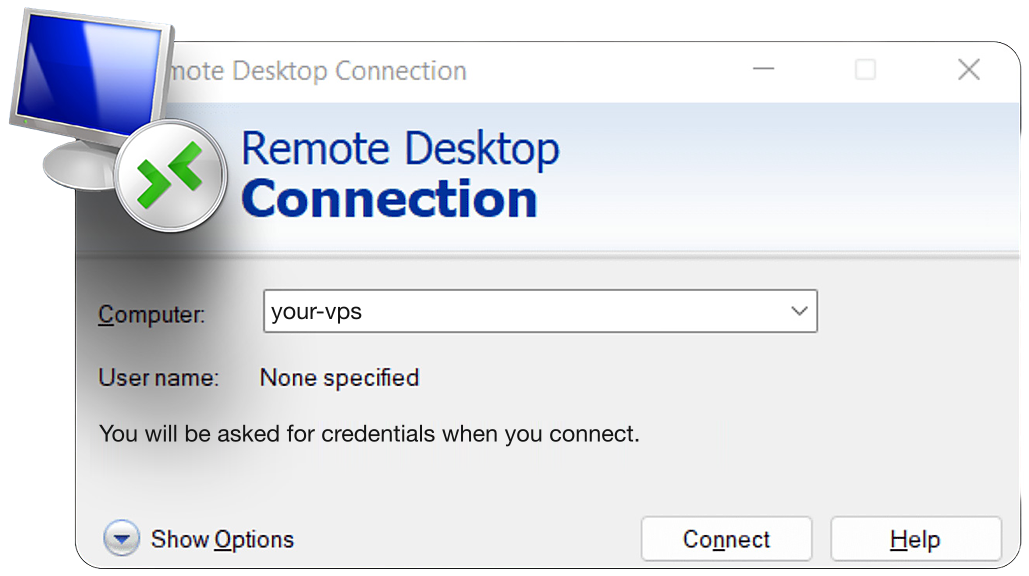
Start by connecting to your VPS through Remote Desktop Connection. On Windows, search for "Remote Desktop Connection", then enter the IP address, username (usually "Administrator"), and password provided in your QuantVPS dashboard. To streamline future logins, check the "Allow me to save credentials" box.

Once connected, open the pre-installed browser (Edge or Chrome) and visit the Tradovate website. Download the installer and follow the default installation steps. To ensure Tradovate launches automatically after system updates, configure it to start on Windows Server 2022 startup.

QuantVPS operates from Chicago-based datacenters with direct fiber-optic connections to the CME Group exchange. This setup delivers incredibly low latency - less than 0.52 milliseconds. The servers are powered by AMD EPYC and Ryzen processors, DDR4/5 RAM, and NVMe M.2 SSDs, ensuring they can handle high-frequency trading demands without slowing down.

"Our Chicago datacenter provides ultra-low latency (<0.52ms) directly to the CME exchange, enabling faster futures trade execution and significantly minimizing slippage." - QuantVPS

"Our Chicago datacenter provides ultra-low latency (<0.52ms) directly to the CME exchange, enabling faster futures trade execution and significantly minimizing slippage." - QuantVPS

If you use multiple monitors, enable multi-monitor support in your Remote Desktop settings before launching Tradovate. Windows users can find this option under "Display" settings, while macOS users can adjust it in the "Display" tab of Microsoft Remote Desktop.

After setting up Tradovate, securing your VPS environment is the next step to ensure stable and uninterrupted trading.

Enable Security and Monitoring Features

To maintain stable data feeds, configure your firewall. Open Windows Defender Firewall, create inbound and outbound rules for TCP ports 80 and 443, and whitelist Tradovate's IP addresses.

"Whitelisting Tradovate's ports and IPs in your Windows VPS firewall can help improve connection stability and reduce interruptions - especially during high-volume trading hours." - QuantVPS

"Whitelisting Tradovate's ports and IPs in your Windows VPS firewall can help improve connection stability and reduce interruptions - especially during high-volume trading hours." - QuantVPS

For account security, enable two-factor authentication (2FA) on your Tradovate account. Use an authenticator app (TOTP) or a security key (WebAuthn/Windows Hello) instead of SMS codes for stronger protection. Regularly check the "Trusted Devices" list in Tradovate's security settings to ensure only authorized devices have access to your account.

Time synchronization is critical to avoid authentication errors like "logon failed." Go to Settings > Time & Language > Date & Time, and click "Sync now" to align your system clock. If you’re using NinjaTrader alongside Tradovate, enable "Multi-Provider Mode" under Tools > Options > General to ensure smooth data connections.

With your security settings in place, you’re ready to verify your connection for optimal performance.

Test Your Connection

STOP LOSING TO LATENCY
Execute faster than
your competition.

Sub-millisecond execution • Direct exchange connectivity • From $59.99/mo

Open Command Prompt and run ping live.tradovateapi.com to check latency. For a Chicago-based VPS, the round-trip time should be between 0–1 ms. If it’s higher, review your firewall and datacenter configurations.

Log into Tradovate and ensure your credentials are entered correctly, without any extra spaces. If you're trading with a prop firm like Apex, Bulenox, or TakeProfit, select "Simulation" as the account type, as these firms typically use Tradovate’s demo environment.

To confirm everything is running smoothly, place a test trade with a single micro contract (e.g., MNQ) and check the response time in Tradovate’s control center. If you’re using a web-based trade copier or OAuth login, make sure your browser allows popups for the trading domain to avoid connection issues.

How to Fix Common Setup Problems

Even after setting up Tradovate and configuring your VPS, occasional issues may still pop up. Performance hiccups or login errors can occur due to resource limitations or network routing. Below are some quick solutions to tackle the most frequent setup problems.

Fix Slow Connections

If you notice delays in mouse clicks or typing, despite low CPU usage, the problem might be with your network routing. Start by testing your local upload speed on Speedtest.net. A stable remote desktop connection typically needs at least 50–75 Mbps upload speed. If your upload speed is below this range, try using a mobile hotspot to bypass potential ISP routing issues.

For frozen charts or sluggish order execution, check your system's Task Manager for CPU or RAM spikes. When usage hits 90–100%, it can directly lead to lag and delayed inputs. To address this:

  • Close unnecessary background applications.
  • Simplify your workspace by reducing the number of charts or indicators you’re using.

"Efficient CPU management is crucial for traders, especially during high-volume market activity. When CPU usage spikes, even for a few seconds, it can delay order execution or cause charts to freeze." - QuantVPS

"Efficient CPU management is crucial for traders, especially during high-volume market activity. When CPU usage spikes, even for a few seconds, it can delay order execution or cause charts to freeze." - QuantVPS

If your system consistently struggles with resource limits, upgrading to a higher-tier VPS plan with better processing power and faster NVMe storage might be the best solution.

Resolve Login Problems

If you're having trouble logging in - like an unresponsive login button or being stuck on "Loading" - start by checking your system clock. An incorrect clock can lead to issues like Captcha errors or "logon failed" messages.

Make sure your login credentials are entered accurately. Even small mistakes like extra spaces or incorrect capitalization can cause issues. Instead of copying and pasting, try typing them manually to avoid hidden characters. For users trading with a prop firm, double-check that you’ve selected the "Simulation" environment. Using evaluation credentials in the live environment can trigger an "account not specified" error.

If you’re using NinjaTrader to connect to Tradovate, ensure that Multi-Provider Mode is enabled. This feature allows connections to multiple account types simultaneously. For two-factor authentication problems, check your Spam or Junk folder for the verification email.

Fix Platform Errors

Issues like blank screens, extended loading times, or missing market data often point to an out-of-sync clock. Syncing your Windows clock can quickly resolve these problems. If you're using the web app and still encountering errors, clear your browser’s cache and cookies or switch to a different browser to rule out software conflicts.

"Unlike static websites or buffered videos, trading platforms require a constant, uninterrupted connection to both data and account servers - making any network drop immediately noticeable." - Tradovate Support

"Unlike static websites or buffered videos, trading platforms require a constant, uninterrupted connection to both data and account servers - making any network drop immediately noticeable." - Tradovate Support

After syncing your clock and clearing your browser data, restart Tradovate. If the issue persists, reach out to QuantVPS support via live chat or email at support@quantvps.com. To maintain optimal performance, regularly clear your system cache and avoid running large Windows updates during trading hours.

Conclusion

Getting Tradovate set up correctly from the beginning can make or break your chances of passing prop firm evaluations. Between January 2024 and July 2025, only 20.35% of evaluation accounts successfully hit their targets. A stable platform setup helps you avoid unnecessary distractions, like relearning shortcuts, which can disrupt your trading flow.

"Finding a firm with a straightforward Tradovate login process matters because switching platforms mid-evaluation can throw off your rhythm, and relearning keyboard shortcuts or DOM layouts while trying to pass a challenge is a needless handicap." – MyFundedFutures

"Finding a firm with a straightforward Tradovate login process matters because switching platforms mid-evaluation can throw off your rhythm, and relearning keyboard shortcuts or DOM layouts while trying to pass a challenge is a needless handicap." – MyFundedFutures

These details highlight how crucial it is to fine-tune your configuration. Simple steps, such as syncing your Windows clock, enabling Multi-Provider Mode, and selecting "Simulation", can prevent common technical hiccups. Small disruptions during volatile markets can have an outsized impact, so it’s worth addressing these issues upfront.

Using Tradovate on a VPS like QuantVPS adds another layer of reliability, offering sub-millisecond latency and 99.999% uptime. This kind of stability is especially important when you consider that 28.56% of traders who reach the simulated funded stage manage to secure at least one payout.

Take the time to test your setup and save your workspace settings to ensure steady performance. Your trading strategy deserves a platform that supports your efforts without unnecessary interruptions.

FAQs

Why does Tradovate say “Logon Failed” even with the right password?

If you're seeing a “Logon Failed” message on Tradovate, even when you're sure your password is correct, a few common issues might be at play. First, remember that Tradovate passwords are case-sensitive, so double-check for any typos or incorrect capitalization. Next, consider device compatibility - some devices might have specific limitations that could interfere with logging in. Finally, ensure there are no access restrictions on your account that might be blocking the login process. Taking a moment to review these factors can often resolve the issue.

How do I know I’m in Simulation mode for my prop firm account?

To ensure you're in Simulation mode, look for a "Simulation" label in the account section. Double-check that you're logged into the correct environment as outlined in the platform's setup instructions. This step is crucial for confirming you're working in the right mode for your prop firm account.

Do I need Level II market depth, or is Level I data enough?

Level I market data usually meets the needs of most prop traders using Tradovate. It offers real-time information, including the best bid, best ask, and last traded price. However, if your market data subscription is inactive, you might experience delays with chart updates. Level II data, which provides deeper insights into market depth, is typically unnecessary unless your trading strategy specifically relies on that level of detail.

If you're seeing a “Logon Failed” message on Tradovate, even when you're sure your password is correct, a few common issues might be at play. First, remember that Tradovate passwords are case-sensitive, so double-check for any typos or incorrect capitalization. Next, consider device compatibility - some devices might have specific limitations that could interfere with logging in. Finally, ensure there are no access restrictions on your account that might be blocking the login process. Taking a moment to review these factors can often resolve the issue.

To ensure you're in Simulation mode, look for a "Simulation" label in the account section. Double-check that you're logged into the correct environment as outlined in the platform's setup instructions. This step is crucial for confirming you're working in the right mode for your prop firm account.

Level I market data usually meets the needs of most prop traders using Tradovate. It offers real-time information, including the best bid, best ask, and last traded price. However, if your market data subscription is inactive, you might experience delays with chart updates. Level II data, which provides deeper insights into market depth, is typically unnecessary unless your trading strategy specifically relies on that level of detail.

"}}]}
DM

Douglas Mercer

February 15, 2026

Share this article:

About the Author

DM

Douglas Mercer

DevOps Engineer & Quant Developer

Doug bridges the gap between trading and technology. He writes about server deployment, automation scripts, and building reliable trading infrastructure.

Areas of Expertise
DevOpsAutomationCloud InfrastructurePython Development
Published:

Disclaimer: QuantVPS does not represent, guarantee, support, or endorse any third-party brands, products, or services mentioned in this article. All brand references are for informational purposes only. Read our full Brand Non-Endorsement Disclaimer.

More articles

All posts
Best VPS optimized for futures trading - QuantVPS Logo

ONLINE WHILE YOU SLEEP
Run your trading setup
24/7 - always online.

Manage trades seamlessly with low latency VPS optimized for futures trading
CME GroupCME Group
Latency circle
Ultra-fast low latency servers for your trading platform
Best VPS optimized for futures trading in Chicago - QuantVPS LogoQuantVPS
Best VPS optimized for futures trading - QuantVPS Logo

Billions in futures
VOLUME TRADED DAILY
ON OUR LOW LATENCY
SERVERS

Chart in box

24-Hour Volume (updated Feb 23, 2026)

$11.35 Billion
2.84%
Best VPS optimized for futures trading - QuantVPS Logo

99.999% Uptime
– Built for 24/7
Trading Reliability.

Core Network Infrastructure (Chicago, USA)
100%
180 days ago
Today
DDoS Protection | Backups & Cyber Security
Operational
Best VPS optimized for futures trading - QuantVPS Logo

ELIMINATE SLIPPAGE
Speed up order execution
Trade smarter, faster
Save more on every trade

ES 03-26
CME
BidPriceAsk
5766.00
67
5765.75
45
5765.50
128
5765.25
89
5765.00
234
312
5764.75
156
5764.50
78
5764.25
203
5764.00
Spread0.25

Market Buy Order

50 Contracts

Target: 5765.00