Want to install TradingView Desktop on a Windows Server but hitting roadblocks? Here’s the issue: Windows Server often lacks the tools needed to open .msix files, leading to the error: "Windows can’t open this type of file (.msix)." This guide walks you through a quick manual installation using PowerShell, solving these issues step-by-step.
Key Steps:
- Download Required Files:
- Open PowerShell as Administrator.
- Install Dependencies:
- Run:
Add-AppxPackage -Path C:\Users\Administrator\Downloads\Microsoft.VCLibs.x64.14.00.Desktop.appx
- Run:
- Install TradingView:
- Run:
Add-AppxPackage -Path C:\Users\Administrator\Downloads\TradingView.msix
- Run:
- Launch and Confirm Installation.
- Run:
Add-AppxPackage -Path C:\Users\Administrator\Downloads\Microsoft.VCLibs.x64.14.00.Desktop.appx
- Run:
Add-AppxPackage -Path C:\Users\Administrator\Downloads\TradingView.msix
Why Install TradingView Desktop on a Windows Server
- 24/7 Operation: Ideal for automated trading and alerts.
- Low Latency: Servers near exchanges improve speed.
- Remote Access: Manage from any device, anywhere.
Running TradingView Desktop on a Windows Server offers a professional-grade setup designed for continuous operation – something most home computers simply can’t match. With this setup, your charts, alerts, and automated strategies can run 24/7, even if your personal computer is off or disconnected.
Main Benefits
One of the biggest perks is ultra-low latency. Servers are often located near major exchanges, which cuts down on data transit time. This means faster order execution and less risk of slippage, potentially saving you money on trades.
Another major advantage is remote access. No matter where you are – traveling, at work, or at home – you can access your full TradingView desktop environment from any device with an internet connection. Additionally, these servers come with features like DDoS protection, regular backups, and dedicated resources, ensuring smooth performance even during high-volatility trading periods. This level of reliability is especially important for algorithmic traders and professionals.
| Feature | Personal Computer | Windows Server (QuantVPS) |
|---|---|---|
| Uptime | Limited by hardware and power | 99.999% guaranteed uptime |
| Latency | Depends on home internet | 0-1ms to major exchanges |
| Accessibility | Only when PC is running | 24/7 from any device |
| Resources | Shared with other apps | Dedicated CPU, RAM, and storage |
| Security | Basic home network protection | DDoS protection & enterprise backups |
While these benefits are compelling, setting up TradingView Desktop on a Windows Server can come with a few technical hurdles.
Common Installation Problems
One common issue is that many Windows Server editions lack the App Installer component, which leads to the error message: "Windows can’t open this type of file (.msix)" when trying to install TradingView. Another challenge is the absence of standard runtime packages like Microsoft.VCLibs, which are often pre-installed on regular PCs. To resolve these issues, you’ll need to manually install these dependencies using PowerShell.
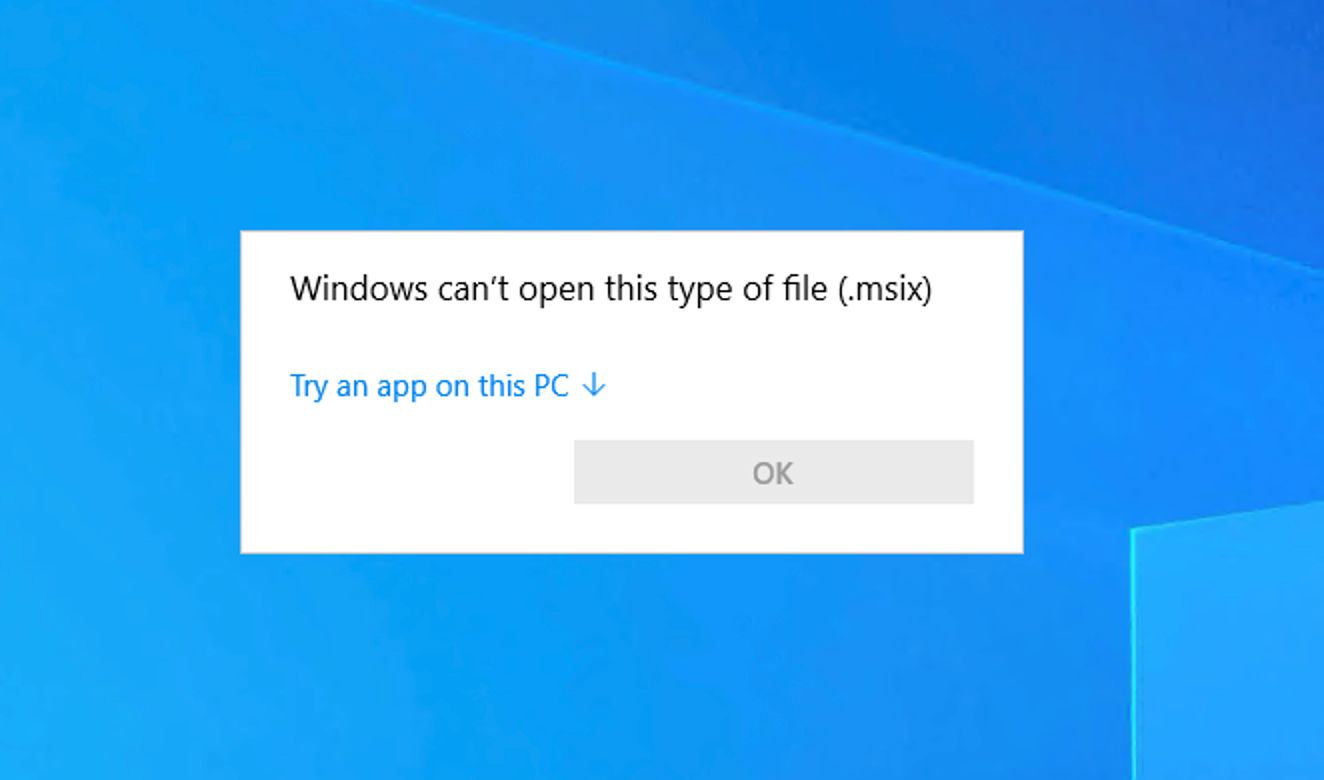
Windows can’t open this type of file (.msix) error on Windows Server 2022
Windows can’t open this type of file (.msix) error on Windows Server 2022
What You Need Before Starting
Before diving into the installation process, make sure you have full administrator access on your QuantVPS Windows Server instance. Without these elevated permissions, you won’t be able to run the PowerShell commands necessary to install TradingView Desktop.
To check your access, right-click the Start button on your Windows Server taskbar. If you see options like Windows Terminal (Admin) or Windows PowerShell (Admin) in the menu, you’re all set. If these options aren’t visible, you’ll need to reach out to QuantVPS support to upgrade your permissions.
Required Files
To manually install TradingView Desktop, you’ll need to download two specific files. The first is TradingView.msix, which serves as the primary application installer. The second is Microsoft.VCLibs.x64.14.00.Desktop.appx, a Visual C++ runtime dependency required for TradingView to operate correctly.
| File Name | Purpose | Download URL |
|---|---|---|
| TradingView.msix | Main Application Installer | tradingview.com/desktop/ |
| Microsoft.VCLibs.x64.14.00.Desktop.appx | Visual C++ Runtime Dependency | aka.ms/Microsoft.VCLibs.x64.14.00.Desktop.appx |
NEVER MISS A TRADE
Your algos run 24/7
even while you sleep.
99.9% uptime • Chicago & NY data centers • From $59.99/mo
FUTURES — 60% off first month
It’s important to install the VCLibs package first, as skipping this step will result in installation errors for TradingView.
Once you’ve downloaded these files, double-check that they’re stored in the default location to avoid extra steps during installation.
Default File Location
By default, both files will be saved to C:\Users\Administrator\Downloads unless you choose a different location. Keeping the files in this folder ensures the PowerShell commands work without needing to tweak file paths. If you save the files elsewhere, you’ll need to adjust the commands accordingly.
Once you’ve confirmed these prerequisites, you’ll be ready to move on to the installation process.
Installation Steps
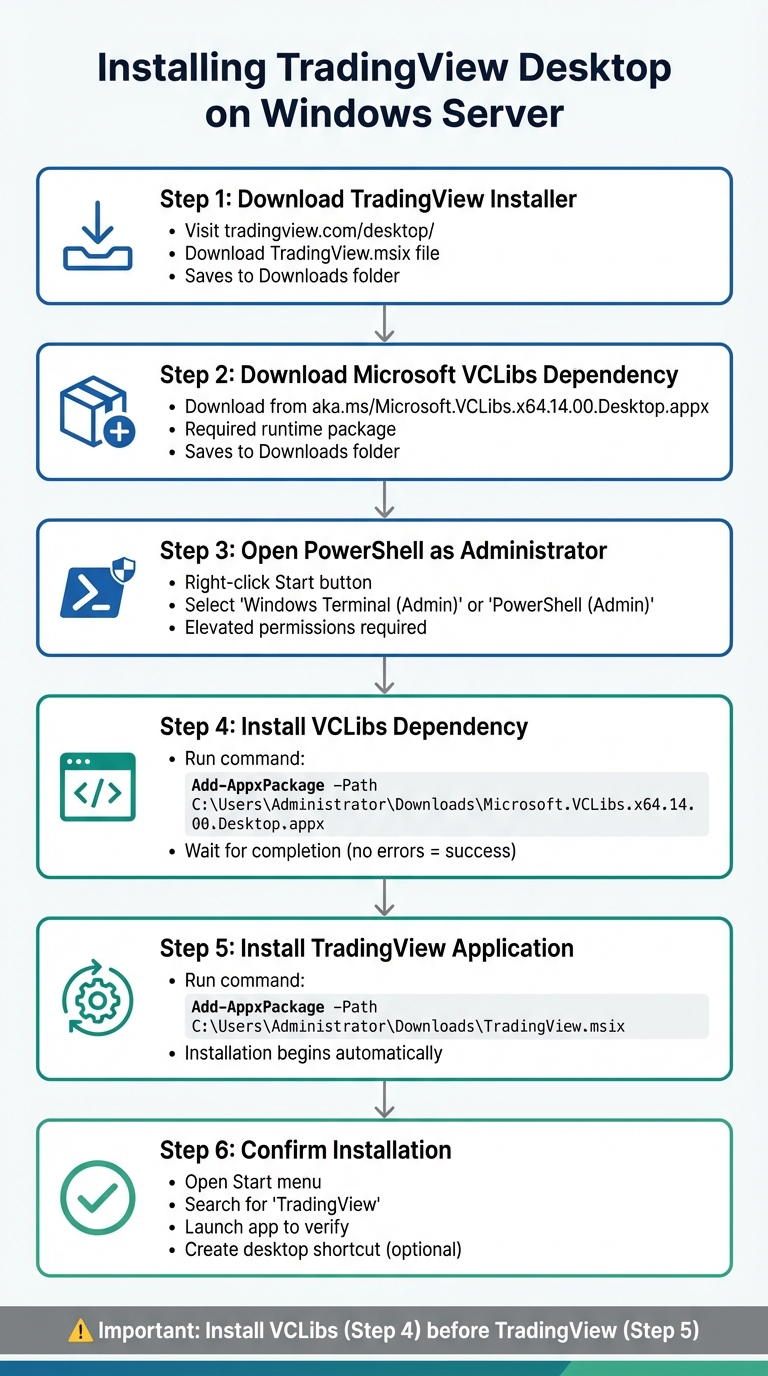
TradingView Desktop Installation Process on Windows Server – 6 Step Guide
TradingView Desktop Installation Process on Windows Server – 6 Step Guide
If you have administrator access and the necessary files ready, you can install the application using PowerShell. Here’s how to handle the process, especially if you encounter the "Windows can’t open this type of file (.msix)" error. This error means the file needs to be installed via PowerShell. Follow these instructions carefully to complete the setup.
Step 1: Download the TradingView Installer
Head over to the official TradingView desktop download page at https://www.tradingview.com/desktop/ and click the download button. This will save the TradingView.msix file to your default Downloads folder. Make sure you get the .msix version, as it’s specifically designed for manual installation on Windows Server environments.
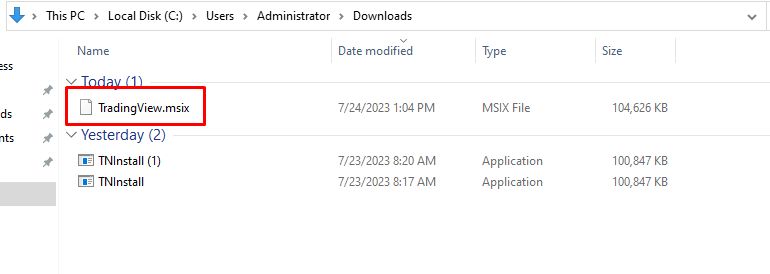
TradingView.msix installer
TradingView.msix installer
Step 2: Download the Microsoft VCLibs Dependency
Next, download the Visual C++ runtime package from https://aka.ms/Microsoft.VCLibs.x64.14.00.Desktop.appx. This file will also be saved in your Downloads folder. The TradingView Desktop app relies on this dependency to function properly.
Step 3: Open PowerShell with Administrator Privileges
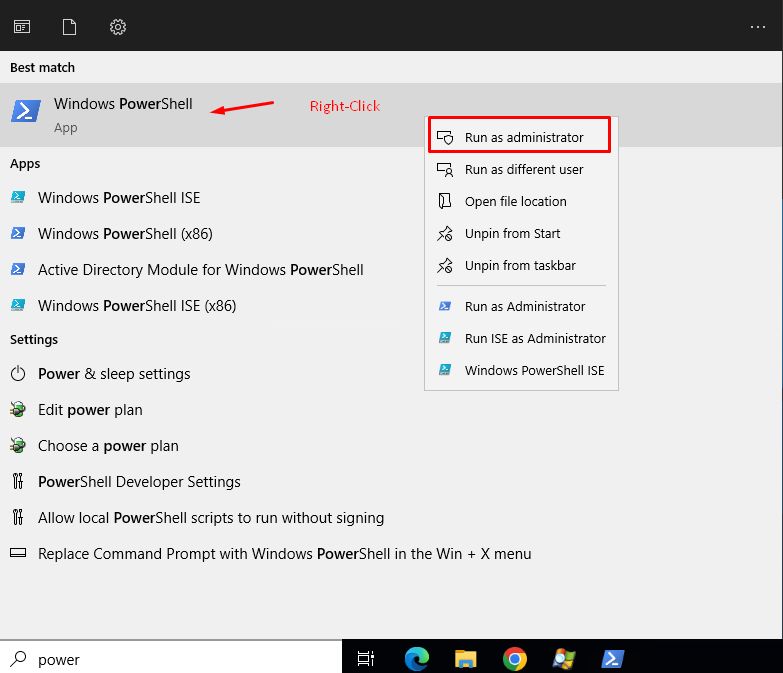
Open Windows Powershell
Open Windows Powershell
Right-click the Start button, and select either "Windows Terminal (Admin)" or "PowerShell (Admin)" to open a command window with elevated permissions.
Step 4: Install the Microsoft VCLibs Dependency
In the PowerShell window, type the following command and hit Enter:
Add-AppxPackage -Path C:\Users\Administrator\Downloads\Microsoft.VCLibs.x64.14.00.Desktop.appx Wait for the process to finish. If no errors are displayed, the installation was successful.
Step 5: Install the TradingView Application
Now, install the TradingView app by entering this command in the same PowerShell window:
Add-AppxPackage -Path C:\Users\Administrator\Downloads\TradingView.msix STOP LOSING TO LATENCY
Execute faster than
your competition.
Sub-millisecond execution • Direct exchange connectivity • From $59.99/mo
FUTURES — 60% off first month
The installation will begin automatically.
Step 6: Confirm the Installation
Once the process is complete, open the Start menu and look for TradingView in your list of applications. If you don’t see it right away, use the Windows search bar to locate it. Launch the app to ensure it runs correctly and the charting interface loads as expected. This setup is ideal for traders exploring free stock charting tools to enhance their market analysis. For quick access, you can drag the TradingView icon from the Start menu to your desktop to create a shortcut.
Fixing Common Errors
How to Fix the ‘.msix’ File Error
When you encounter the error message "Windows can’t open this type of file (.msix)" while trying to open the TradingView installer, it’s likely because your Windows Server version doesn’t natively support .msix files. Unlike consumer versions of Windows, Windows Server 2022 and similar editions don’t include the App Installer GUI tool by default. To resolve this, you’ll need to install the Microsoft VCLibs dependency and then use PowerShell to complete the installation manually.
"Usually, Windows can work with such files right out of the box but sometimes your Windows may not recognize appinstaller files (more often when your system is not up to date)." – TradingView Support
"Usually, Windows can work with such files right out of the box but sometimes your Windows may not recognize appinstaller files (more often when your system is not up to date)." – TradingView Support
After setting up VCLibs as outlined earlier, proceed with the TradingView installation command. Be sure to double-check your file paths and confirm you have administrator permissions to avoid additional errors.
Verify File Paths and Administrator Access
Once you’ve followed the initial troubleshooting steps, it’s crucial to confirm that your file paths and admin privileges are correct. If PowerShell commands fail with errors like 0x80070002 or 0x80070490, the issue is often due to an incorrect file path. The Add-AppxPackage command requires the precise location of the files. Ensure that both TradingView.msix and Microsoft.VCLibs.x64.14.00.Desktop.appx are saved in C:\Users\Administrator\Downloads. If they’re stored elsewhere, update the -Path parameter in your command to reflect the correct location.
Another common problem arises from running PowerShell without administrator privileges. Check the title bar of the PowerShell window – it should start with "Administrator:". If it doesn’t, close the window and reopen it by right-clicking the Start button and selecting Windows Terminal (Admin) or PowerShell (Admin). Without elevated permissions, you’ll encounter installation errors like 0x80073D0A or other access-related issues.
Conclusion
Setting up TradingView Desktop on Windows Server 2022 involves a manual installation process using PowerShell. The first step is installing the Microsoft.VCLibs.x64.14.00.Desktop.appx dependency. After that, you can deploy the TradingView.msix file with the Add-AppxPackage command. This approach resolves the typical "Windows can’t open this type of file (.msix)" error.
Make sure to run PowerShell as an Administrator and verify the file paths (by default: C:\Users\Administrator\Downloads). You can confirm you’re in admin mode by checking the title bar of the PowerShell window. Once installed, TradingView will be accessible from your Start menu. Keep in mind that manual installations won’t update automatically, so you’ll need to install new versions manually whenever TradingView releases updates. This setup ensures reliable, around-the-clock trading functionality on the best VPS for algorithmic trading.
FAQs
Why do I need admin privileges to install TradingView on a Windows Server?
To install the TradingView .msix package along with its required Microsoft.VCLibs dependency, admin privileges are essential. This is because the installation relies on the Add-AppxPackage command, which makes system-level changes. Such changes are restricted to administrators on a Windows Server. Without elevated permissions, the installation simply won’t work.
What should I do if I encounter an error during the TradingView installation on Windows Server?
If you encounter the error "Windows can’t open this type of file (.msix)", it typically means some required runtime dependencies are missing. To resolve this issue, you need to install the Microsoft.VCLibs.x64.14.00.Desktop.appx package before attempting to install the TradingView application.
Here’s how you can fix it:
- Open PowerShell with administrator privileges.
- Run the following command to install the VCLibs dependency:
Add-AppxPackage -Path C:\Users\Administrator\Downloads\Microsoft.VCLibs.x64.14.00.Desktop.appx - Once the dependency is installed, proceed with the TradingView installation using this command:
Add-AppxPackage -Path C:\Users\Administrator\Downloads\TradingView.msix
If the problem continues, ensure the file paths are correct and that both files have been downloaded to the specified location. In some cases, restarting your system and attempting the installation again can also help resolve the issue.
How do I keep TradingView Desktop updated on my Windows Server?
To keep your TradingView Desktop app running smoothly, make sure your Windows Server is up to date. If the app doesn’t update automatically, you can manually download the latest TradingView.msix file directly from the TradingView website and reinstall it. Another option is to run the installer and choose Update to install the latest version.