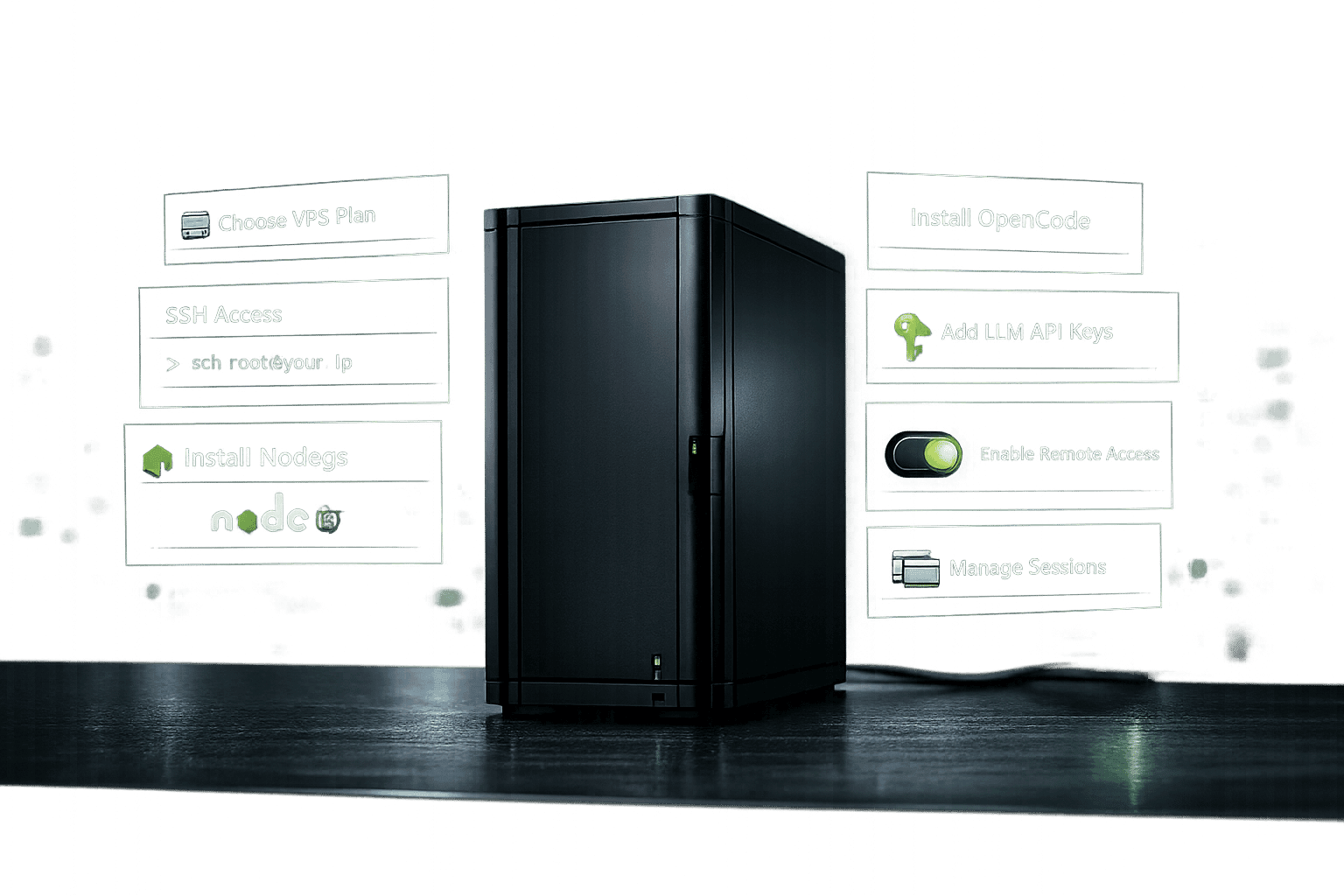
Want to set up OpenCode on a VPS for uninterrupted AI development? This guide walks you through the entire process, from selecting the right VPS plan to configuring OpenCode for production-ready workflows. OpenCode is an open-source AI coding assistant compatible with over 75 LLM providers, making it a powerful tool for developers. Running it on a VPS ensures 24/7 uptime, faster performance, and remote accessibility.
Key Steps:
- Choose a VPS Plan: Start with at least 2 vCPUs and 4GB RAM. For production, opt for 4+ vCPUs and 8GB+ RAM.
- Connect to VPS via SSH: Use provided credentials to access your server securely.
- Install Required Software: Set up Node.js, Git, and other dependencies.
- Install OpenCode: Use the official script or alternative methods like npm or Go.
- Configure OpenCode: Add API keys, create a project environment, and enable remote access.
- Manage Sessions: Use OpenCode commands to run, monitor, and troubleshoot your AI tasks.
Quick VPS Plan Comparison:
| Plan | Monthly Price | CPU Cores | RAM | Storage | Best For |
|---|---|---|---|---|---|
| VPS Starter | $29.99 | 2 cores | 4GB | 50GB NVMe | Small projects |
| VPS Lite | $59.99 | 4 cores | 8GB | 75GB NVMe | Small projects |
| VPS Pro | $99.99 | 6 cores | 16GB | 150GB NVMe | Daily AI development |
| VPS Ultra | $189.99 | 12 cores | 32GB | 300GB NVMe | Heavy multi-agent workflows |
Follow these steps to get OpenCode running smoothly on your VPS, ensuring reliable, high-performance AI development at any time.
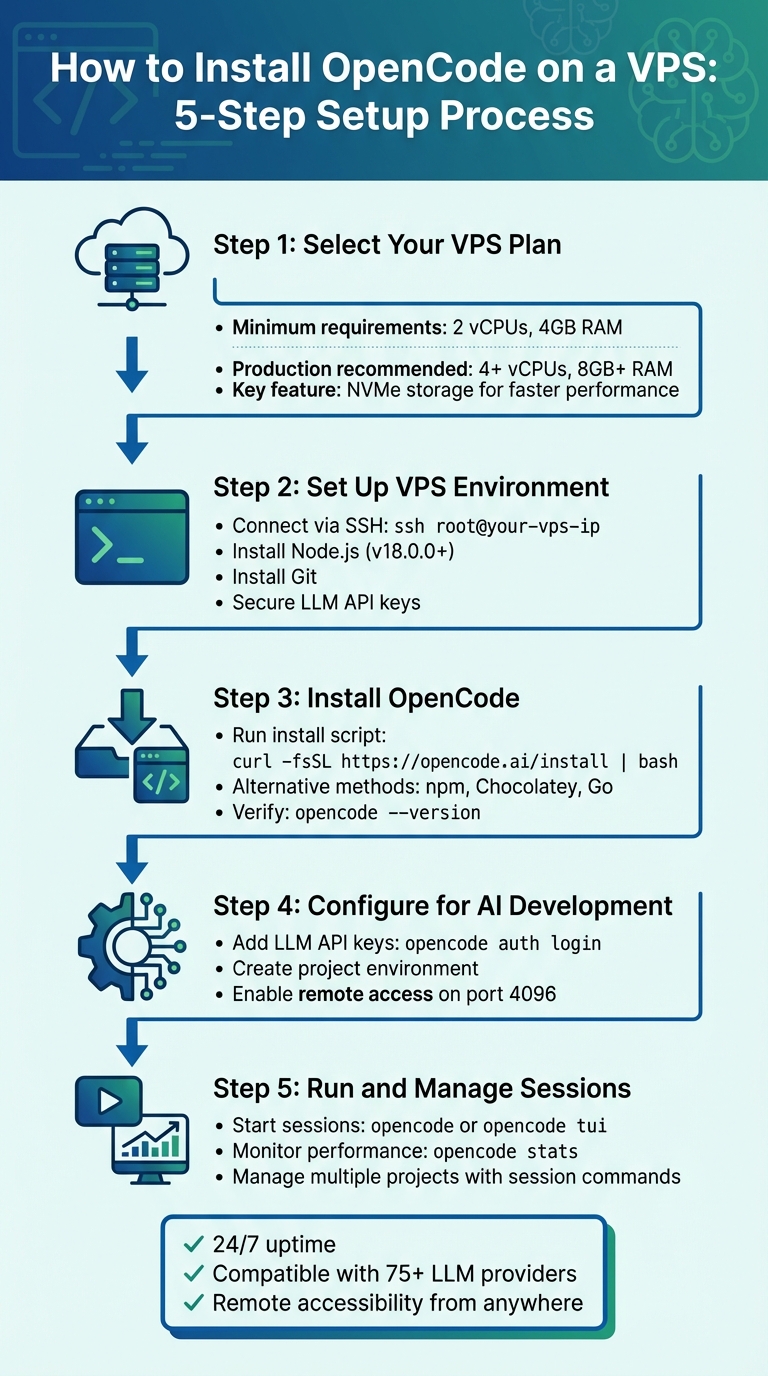
5-Step Process to Install OpenCode on VPS for AI Development
Step 1: Select Your QuantVPS Plan for OpenCode
QuantVPS Plan Options
To get started with OpenCode, you'll need a VPS that matches your workload. At a minimum, OpenCode requires 2 vCPUs and 4GB of RAM for basic tasks. However, if you're running daily production workflows, it's better to go for 4+ vCPUs and 8GB+ of RAM. Storage performance is another key factor - NVMe storage is far superior to standard SSDs when loading models or scanning large codebases.
| Plan | Monthly Price | Annual Price | CPU Cores | RAM | Storage | Best For |
|---|---|---|---|---|---|---|
| VPS Starter | $29.99 | $23.99/mo | 2 cores | 4GB | 50GB NVMe | Testing and small projects |
| VPS Lite | $59.99 | $47.99/mo | 4 cores | 8GB | 75GB NVMe | Testing and small projects |
| VPS Pro | $99.99 | $79.99/mo | 6 cores | 16GB | 150GB NVMe | Stable daily AI development |
| VPS Ultra | $189.99 | $151.99/mo | 12 cores | 32GB | 300GB NVMe | Heavy multi-agent workflows |
If you're just experimenting or working with smaller codebases, VPS Lite is a solid choice. For most production-level AI development, VPS Pro offers the right balance of resources, supporting multiple LLM providers and concurrent sessions effortlessly. Need to tackle intensive tasks like analyzing massive repositories or managing multiple AI agents? VPS Ultra is built for those demanding workflows, ensuring you're never held back by hardware limitations.
Why Use QuantVPS for OpenCode
QuantVPS stands out as the ideal choice for OpenCode users for several reasons. First, it guarantees ultra-low latency and 99.999% uptime SLA, ensuring your projects run smoothly without interruptions. Unlike local setups, a VPS keeps your environment operational no matter what happens to your personal devices.
Every plan comes with NVMe storage for faster data handling and unmetered bandwidth on a network of 1Gbps or higher. This means API calls to services like Claude, GPT, or Google are handled without any bottlenecks. Plus, with dedicated resources, you can count on consistent performance - even during high-demand periods. Whether you're a hobbyist or managing complex AI workflows, QuantVPS ensures your development environment is always reliable and ready to go.
Step 2: Set Up Your VPS Environment
Connect to Your QuantVPS
After activating your QuantVPS plan, you'll get an email containing your IP address, username, and password. If you're using a Linux-based system, you can connect via SSH directly from your terminal. For Windows users, you can either use WSL2 for SSH access or rely on the Windows Remote Desktop app if you prefer a graphical interface.
To connect via SSH, open your terminal and enter:
ssh root@your-vps-ip-address
Make sure to replace "your-vps-ip-address" with the actual IP address provided in your email. When connecting for the first time, you'll be asked to verify the host's fingerprint. Simply type "yes" to proceed.
Once connected, you're ready to install the necessary software to configure your environment for OpenCode.
Install Required Software
Before setting up OpenCode, you'll need to install some essential tools. The most important one is Node.js (version 18.0.0 or newer), as OpenCode depends on modern fetch APIs that aren't supported in older versions. Using nvm (Node Version Manager) is recommended to avoid permission issues, but on Ubuntu/Debian systems, you can install Node.js directly with this command:
curl -fsSL https://deb.nodesource.com/setup_20.x | sudo -E bash - && sudo apt-get install -y nodejs
You'll also need Git for managing repositories. Install it with:
sudo apt-get install git
Additionally, ensure you have a modern terminal emulator (like Windows Terminal) to properly render OpenCode's text-based user interface (TUI). Lastly, secure your LLM API keys from providers such as Anthropic (Claude), OpenAI (GPT), or Google (Gemini). Store these keys as environment variables in your shell profile for easy access [1].
Your trading computer. In the cloud.
Connect and control your trading strategies from any device, anywhere in the world, through secure remote desktop, while execution remains on QuantVPS.
Explore the hardwareFrom $29.99/mo · Windows or Linux · 8 datacenters
0.52ms to CME from our Chicago nodes.
Step 3: Install OpenCode on QuantVPS
Run the Install Script
Now that you have Node.js and Git ready, it’s time to install OpenCode. The quickest way to get started is by using the official installation script. This script automatically detects your system's architecture and installs the appropriate binary. Simply run the following command in your terminal:
curl -fsSL https://opencode.ai/install | bash
This command takes care of downloading the correct version, adding the binary to your system's PATH, and setting the necessary permissions. The process is straightforward and usually completes in no time. Once finished, you’ll see a confirmation message letting you know that OpenCode has been successfully installed.
If this method doesn’t work for you, there are other ways to install OpenCode.
Other Installation Options
If the installation script isn’t your preferred method or doesn’t work, you can try these alternatives:
-
Using npm (Node Package Manager):
Install OpenCode globally by running:npm install -g opencode-ai -
For Windows users with Chocolatey:
Run this command:
Tip: If you’re using a Windows-based VPS, install OpenCode through WSL2 to ensure proper Unicode support.choco install opencode -
Using Go:
Developers who prefer Go can install OpenCode with:
Keep in mind that this requires Go version 1.21 or higher.go install github.com/opencode-ai/opencode@latest
Confirm the Installation
After installation, it’s important to verify that OpenCode is set up correctly. Start by checking the version:
opencode --version
If the command returns a version number like v0.12.0, you’re good to go. However, if you see an error like "command not found", it might mean the binary isn’t in your system’s PATH. On Linux, you can fix this by running:
chmod +x /usr/local/bin/opencode
To further confirm everything is working, test the CLI by running:
opencode --help
This will display a list of available commands, ensuring that OpenCode is installed and ready to use.
Step 4: Configure OpenCode for AI Development
Add Your LLM API Keys
To get started, you'll need to authenticate with your LLM provider. Use the following command to log in:
opencode auth login
This will guide you through connecting to providers like OpenAI or Anthropic. Once authenticated, your credentials are stored locally in ~/.local/share/opencode/auth.json. For quicker setup, you can also export your API keys directly as environment variables:
export ANTHROPIC_API_KEY="your-key-here"
export OPENAI_API_KEY="your-key-here"
To confirm that your authentication was successful, run:
opencode auth list
Once your API keys are set up, you're ready to move on to configuring your project environment.
Create Your Project Environment
After authentication, the next step is setting up your workspace. Navigate to your project directory on your QuantVPS instance:
cd /path/to/project
Launch OpenCode and initialize the environment using the /init command in the TUI:
opencode
This scans your codebase and generates an AGENTS.md file in your project root. This file provides essential context for the AI about your project. It's a good idea to add this file to version control to ensure consistency across your team.
For customization, create an opencode.json file in your project root. This file allows you to override global settings and define specific models, tools, and rules tailored to your workflow.
Enable Remote Access
To manage your project from multiple locations, enable remote access. Ensure your SSH terminal supports mouse reporting for smoother navigation in the TUI. To run OpenCode in headless mode and connect remotely, use this command:
opencode serve --port 4096 --hostname 0.0.0.0
Then, connect from your local machine with:
opencode attach http://<vps-ip>:4096
For added security, set the OPENCODE_SERVER_PASSWORD environment variable before starting the server. Keep in mind that the default request timeout for LLM providers is 300,000 milliseconds (5 minutes), which should be sufficient for most AI-related tasks.
Step 5: Run and Manage OpenCode Sessions
Start OpenCode Sessions
QuantVPS ensures constant availability, making it simple to manage and resume OpenCode sessions. To get started, you can launch OpenCode in a few different ways. From your project directory, run opencode or opencode tui to open the interactive Terminal User Interface (TUI). If you need to pick up where you left off, use opencode --continue or opencode -c.
For quick, one-off tasks, execute commands like opencode run "your prompt". If you need specialized agents, you can toggle between build for development tasks and plan for reviewing AI-generated logic by using the Tab key.
Managing multiple projects? List all active sessions with opencode session list. To resume a specific session, use opencode --session <session-id>. Need to branch off? Add the --fork flag to create a new session based on an existing one.
Once your sessions are up and running, keeping an eye on system performance is the next critical step.
Monitor System Performance
Keeping tabs on performance is vital for controlling costs and maintaining efficiency. Use opencode stats to monitor real-time token usage and cost data. To narrow the focus to a specific project, run opencode stats --project <project-name>. Want a broader view? Add the --days 7 flag to analyze usage over the past week.
QuantVPS’s guaranteed uptime and built-in monitoring tools help keep everything running smoothly, even during long AI development sessions. If you notice any performance issues, start by checking API connectivity with tools like ping or curl -I. For more advanced diagnostics, use commands like opencode mcp list to view your Model Context Protocol (MCP) servers or opencode mcp debug <name> to troubleshoot specific connections.
For deeper insights, enable detailed logging with --log-level DEBUG and --print-logs. This will help pinpoint any issues and ensure your sessions remain efficient and uninterrupted.
Stay online and closer to execution.
Host your platform beside its market: Chicago for CME futures, New York for US markets, London for FX EAs.
Explore the hardwareFrom $29.99/mo · Windows or Linux · 8 datacenters
0.52ms to CME from our Chicago nodes.
Troubleshooting Common Issues
If OpenCode isn’t functioning as expected after installation, here are specific fixes for common problems.
Fix Node.js Errors
OpenCode depends on Node.js version 18.0.0 or higher due to its reliance on modern Node fetch APIs. To check your current version, run:
node --version
If your version is below 18, you’ll likely encounter issues. Use Node Version Manager (nvm) to update Node.js. Install nvm with:
curl -o- https://raw.githubusercontent.com/nvm-sh/nvm/v0.39.0/install.sh | bash
Then, install the latest long-term support (LTS) version of Node.js:
nvm install --lts
Set it as the default version to avoid conflicts:
nvm alias default node
If you encounter EACCES permission errors during npm installations, avoid using sudo. Instead, create a local npm directory:
mkdir -p ~/.npm-global
npm config set prefix '~/.npm-global'
Add this line to your shell configuration file (e.g., .bashrc or .zshrc):
export PATH=~/.npm-global/bin:$PATH
Reload your shell configuration to apply changes. This setup ensures npm installations stay within your user space, preventing permission-related issues.
Resolve API Authentication Problems
Authentication issues often arise from incorrect API key formats or expired credentials. OpenCode stores provider details in ~/.local/share/opencode/auth.json. If LLM connections fail, refresh your credentials with:
opencode auth login
Double-check that your API keys have the correct prefixes (e.g., OpenAI: sk-, Anthropic: sk-ant-). You can verify this by running:
echo $ANTHROPIC_API_KEY
echo $OPENAI_API_KEY
If the keys are missing, add them to your shell profile and reload it (e.g., source ~/.bashrc). For additional debugging, use:
opencode run hello --print-logs
To see which providers OpenCode recognizes as authenticated, run:
opencode auth list
These steps should help resolve most authentication-related problems.
Fix Terminal Compatibility Issues
If OpenCode’s Terminal User Interface (TUI) appears blank or doesn’t respond to mouse clicks during SSH sessions, the issue is likely with missing pseudo-terminal (PTY) allocation. When connecting via SSH, include the -t flag:
ssh -t user@vps opencode
As noted by a contributor on the OpenCode GitHub:
"If you're using ssh... please try running ssh with the -t flag, e.g. ssh -t <server> opencode" - veracioux, Contributor, OpenCode GitHub
For local terminal emulators like WezTerm or Kitty, enable mouse support in their configuration files to improve TUI navigation. If the opencode command isn’t recognized, ensure your PATH includes ~/.npm-global/bin. If the binary exists but fails to execute, fix it with:
chmod +x /usr/local/bin/opencode
These adjustments should resolve terminal-related issues effectively.
Conclusion
By following the outlined steps, you now have a reliable, remotely accessible OpenCode setup running on QuantVPS. The process is straightforward: select a QuantVPS plan that suits your workload, connect through SSH, execute the installation script, and configure your preferred LLM provider. In just a few minutes, you’ll have an AI development environment ready to go, without the limitations of local hardware.
QuantVPS's NVMe storage speeds up model load times, which is especially useful when running multiple AI sessions at once [3]. Plus, its consistent uptime ensures your OpenCode server remains active for long-running tasks, unaffected by local PC sleep modes or network disruptions [3].
With OpenCode's compatibility with 75+ LLM providers, coupled with QuantVPS's scalable resources, you can experiment with a range of models - whether it's Claude Sonnet or self-hosted setups like Ollama - without worrying about hardware limitations. Whether you're exploring new workflows or handling production-level AI projects, QuantVPS offers the performance and reliability you need to keep everything running smoothly.
FAQs
Do I need a GPU to run OpenCode on a VPS?
A GPU isn't necessary to run OpenCode on a VPS. Most configurations primarily depend on CPU resources, as the setup revolves around software installation, managing dependencies, and integrating API keys. That said, if you're planning to tackle GPU-intensive tasks or handle large-scale AI workloads, having a GPU can enhance performance. Still, for basic usage, it's entirely optional.
How do I keep OpenCode running after I disconnect from SSH?
To ensure OpenCode continues running even after disconnecting from SSH, you can configure it as a persistent systemd service. Here's how:
-
Create a service file: Set up a systemd service file at
/etc/systemd/system/opencode.servicewith the appropriate configuration for OpenCode. -
Enable the service: Run
sudo systemctl enable opencodeto make sure it starts automatically on boot. -
Start the service: Use
sudo systemctl start opencodeto launch it immediately.
With this setup, OpenCode will keep running in the background, even if you log out.
How can I secure OpenCode remote access on my VPS?
To protect OpenCode remote access on your VPS, start by setting the OPENCODE_SERVER_PASSWORD environment variable to enable HTTP basic authentication. For secure communication, rely on SSH port forwarding or SSH-based connections. Beyond that, implement key security measures such as limiting network access, choosing strong passwords, and incorporating VPN solutions or tools like Tailscale to enhance protection.